Using WalletConnect with Gem Wallet on TON
WalletConnect lets you securely connect Gem Wallet to The Open Network (TON) decentralized applications (dApps). This guide explains how to connect, review requests, and interact with compatible TON dApps while keeping your private keys in Gem Wallet.
For an overview of WalletConnect and every network supported by Gem Wallet, see What is WalletConnect?.
Key Features of WalletConnect with Gem Wallet
- Secure TON Transactions: Your private keys remain in Gem Wallet while you interact with compatible TON dApps.
- Simple Connection Flow: Connect by selecting Gem Wallet, opening a connection link, scanning a QR code, or pasting the WalletConnect link.
- Transaction Review: Gem Wallet asks you to review and approve transaction requests before they are submitted.
- Multi-Chain Support: Manage TON alongside other supported networks in the same self-custodial wallet.
How to Connect Gem Wallet to TON DApps
Select a TON DApp
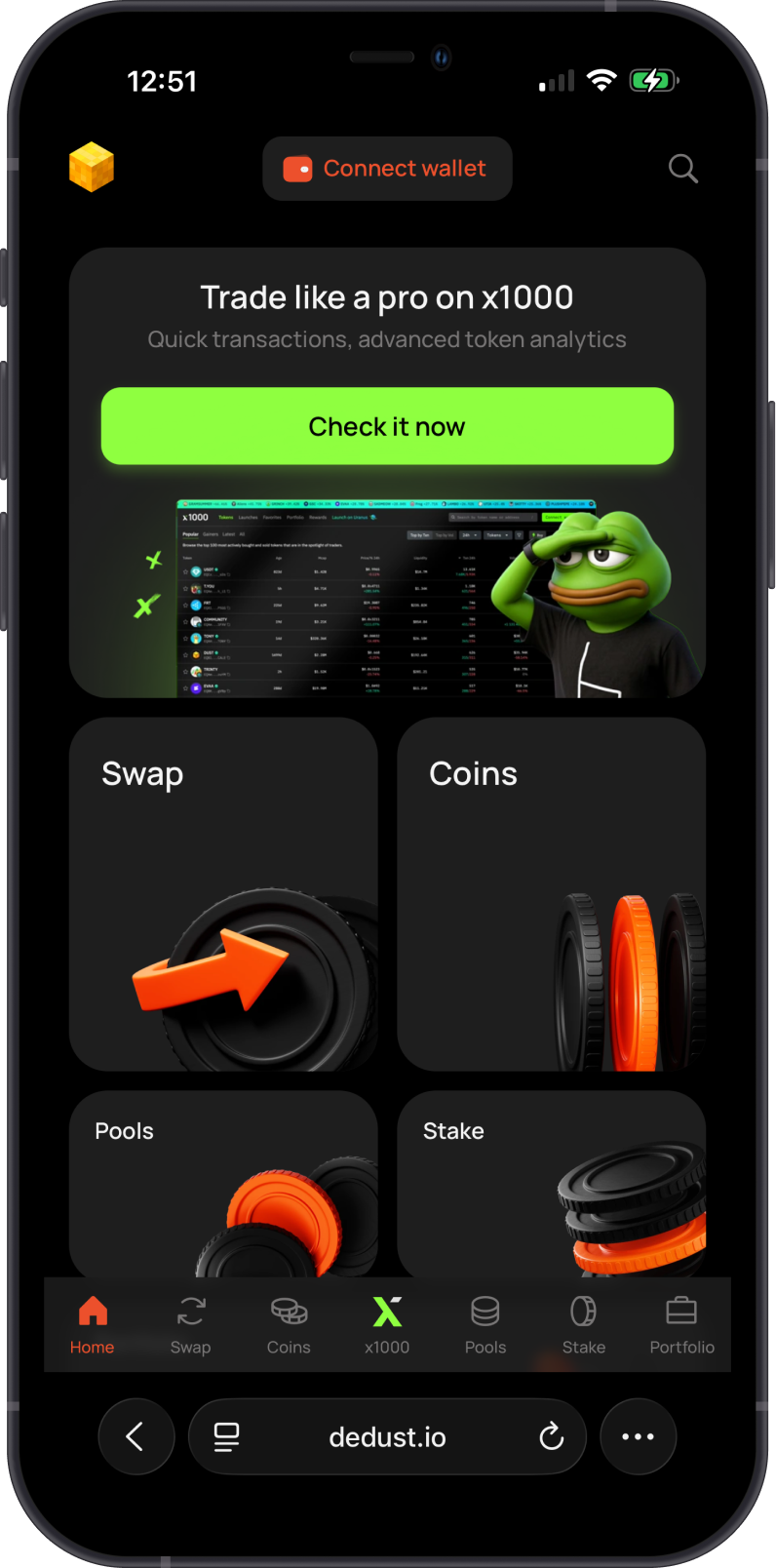
Visit a TON dApp that explicitly supports WalletConnect. This guide uses the DeDust decentralized exchange as an example. Open the official DeDust website, then tap Connect wallet.
Wallet connection options vary by dApp and may change over time. Before continuing, verify that you are on the dApp's official website and that WalletConnect is one of its supported connection methods.
Initiate WalletConnect on the TON DApp
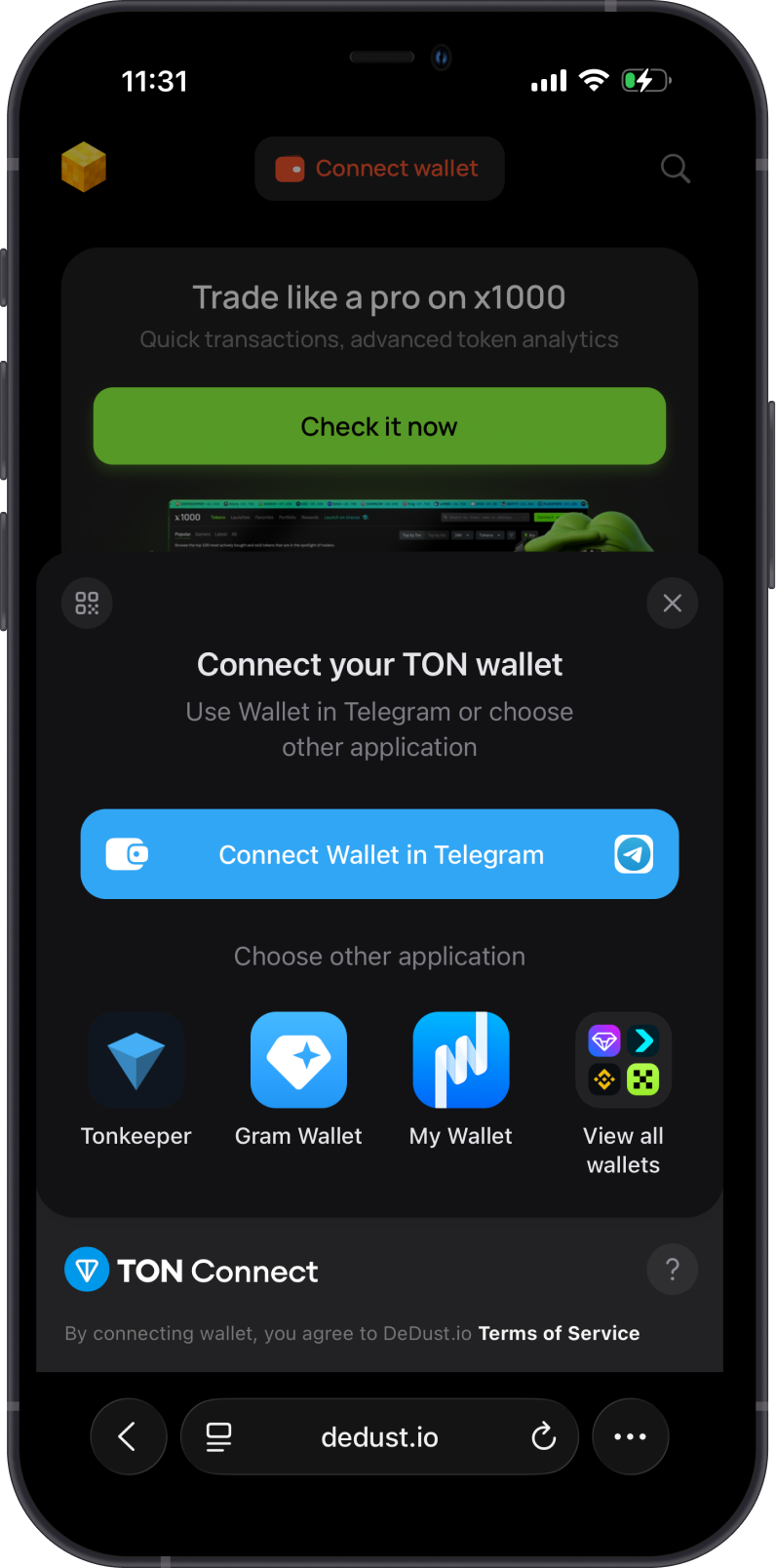
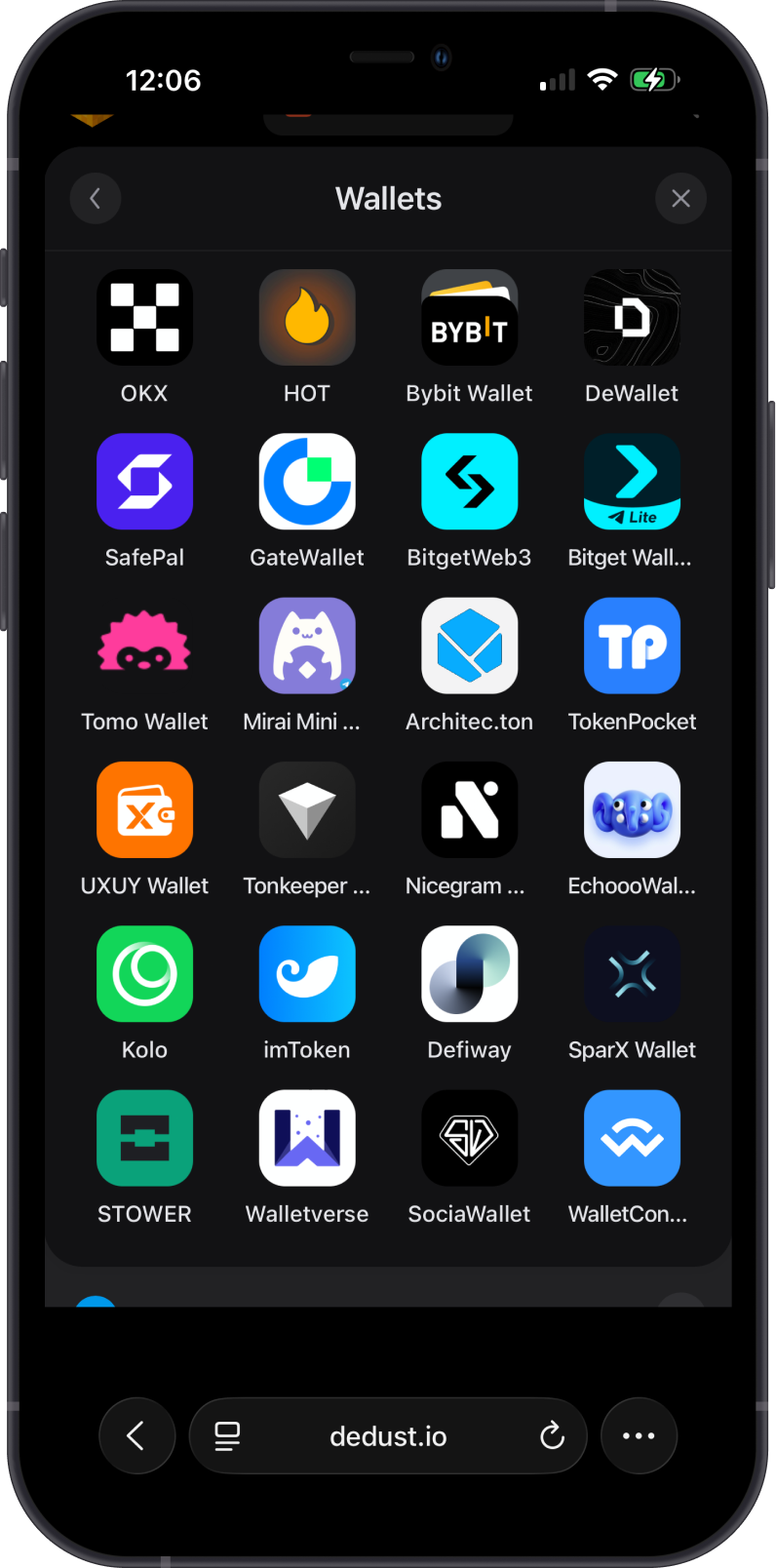
On the connection screen, choose View all wallets. Find and select WalletConnect from the wallet list.
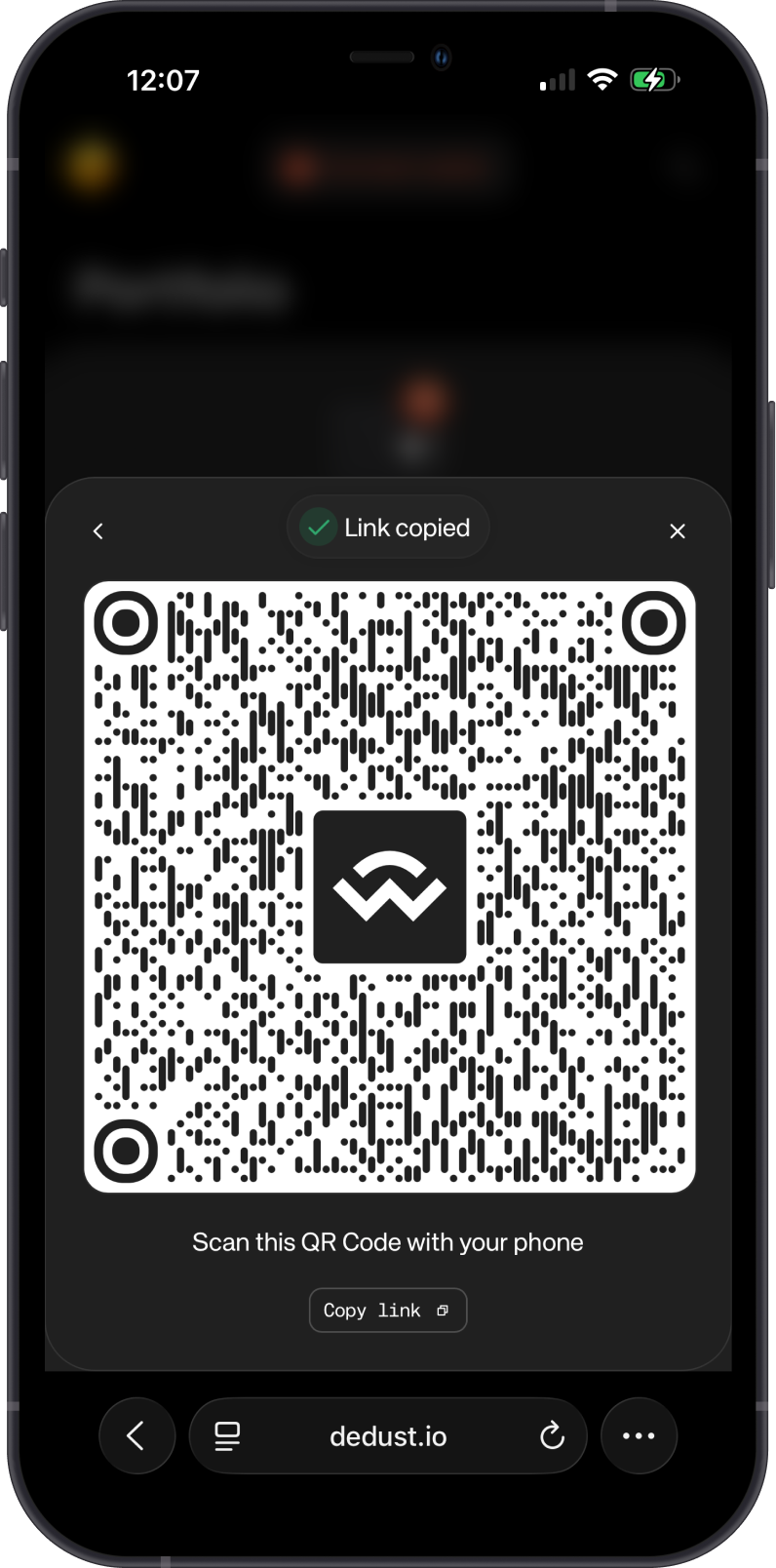
DeDust will display a QR code. If DeDust and Gem Wallet are on the same mobile device, tap Copy link to copy the WalletConnect URI. If the dApp is open on another device, you can scan the QR code from Gem Wallet instead.
Confirm the Connection in Gem Wallet
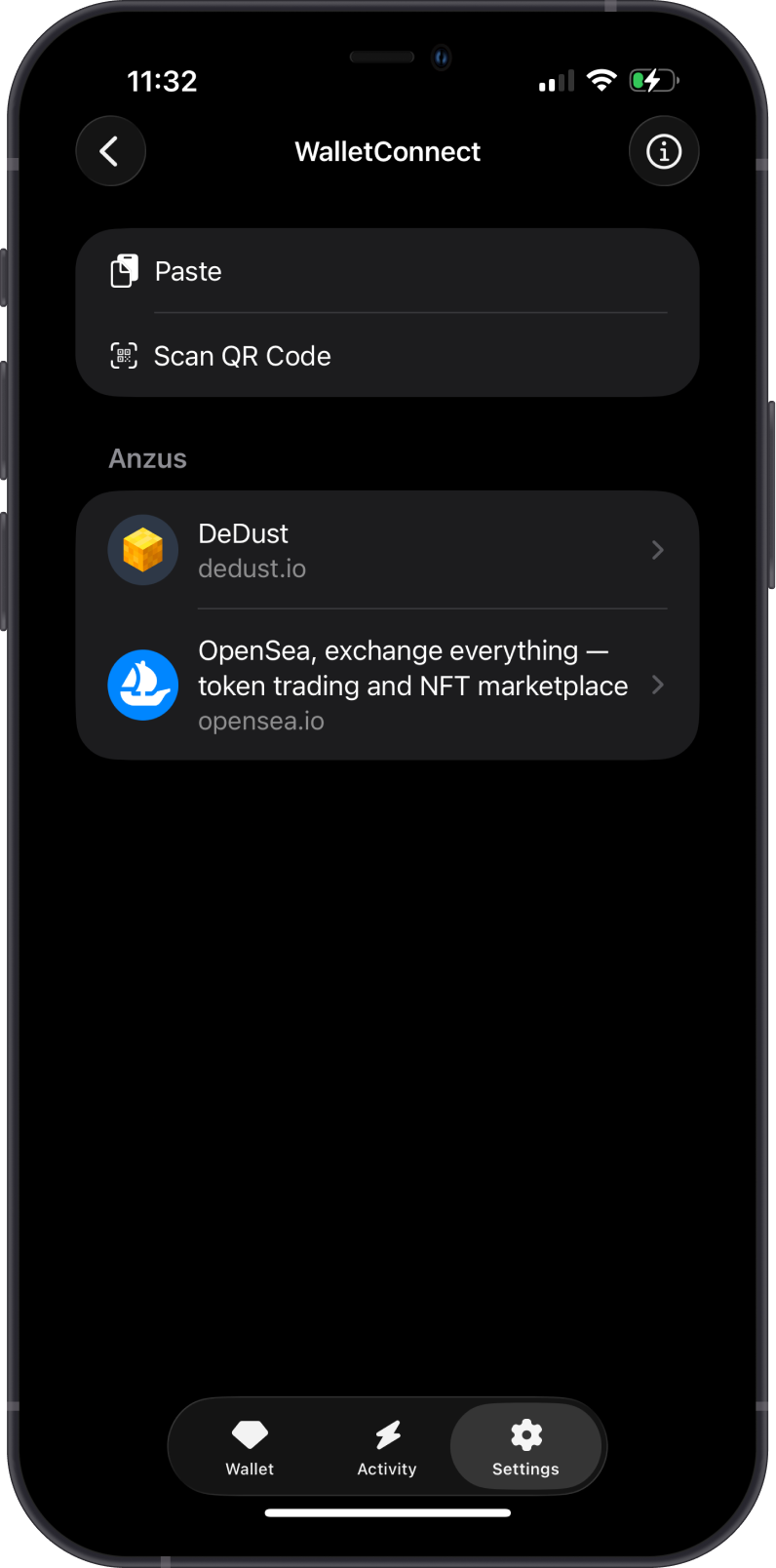
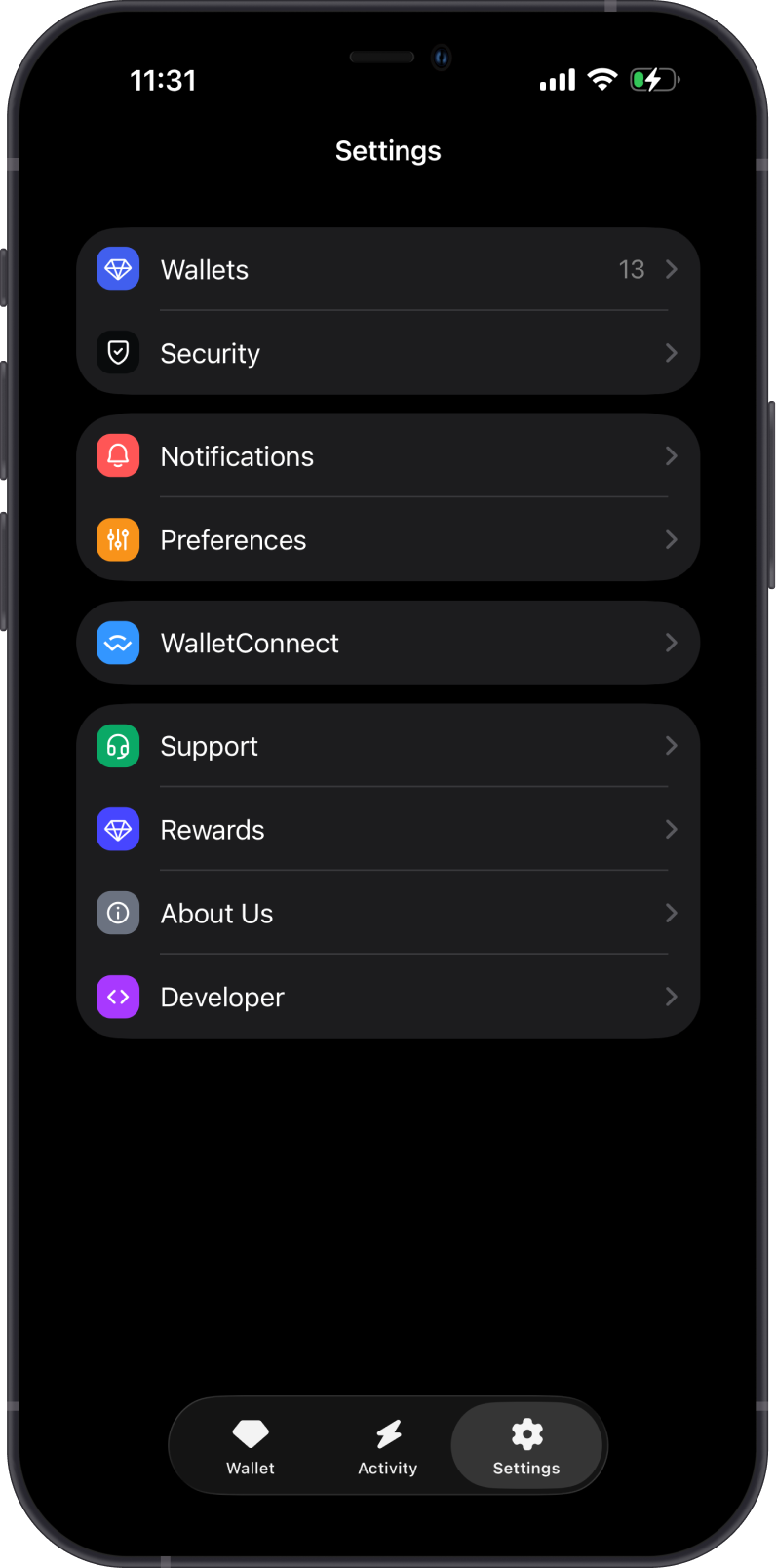
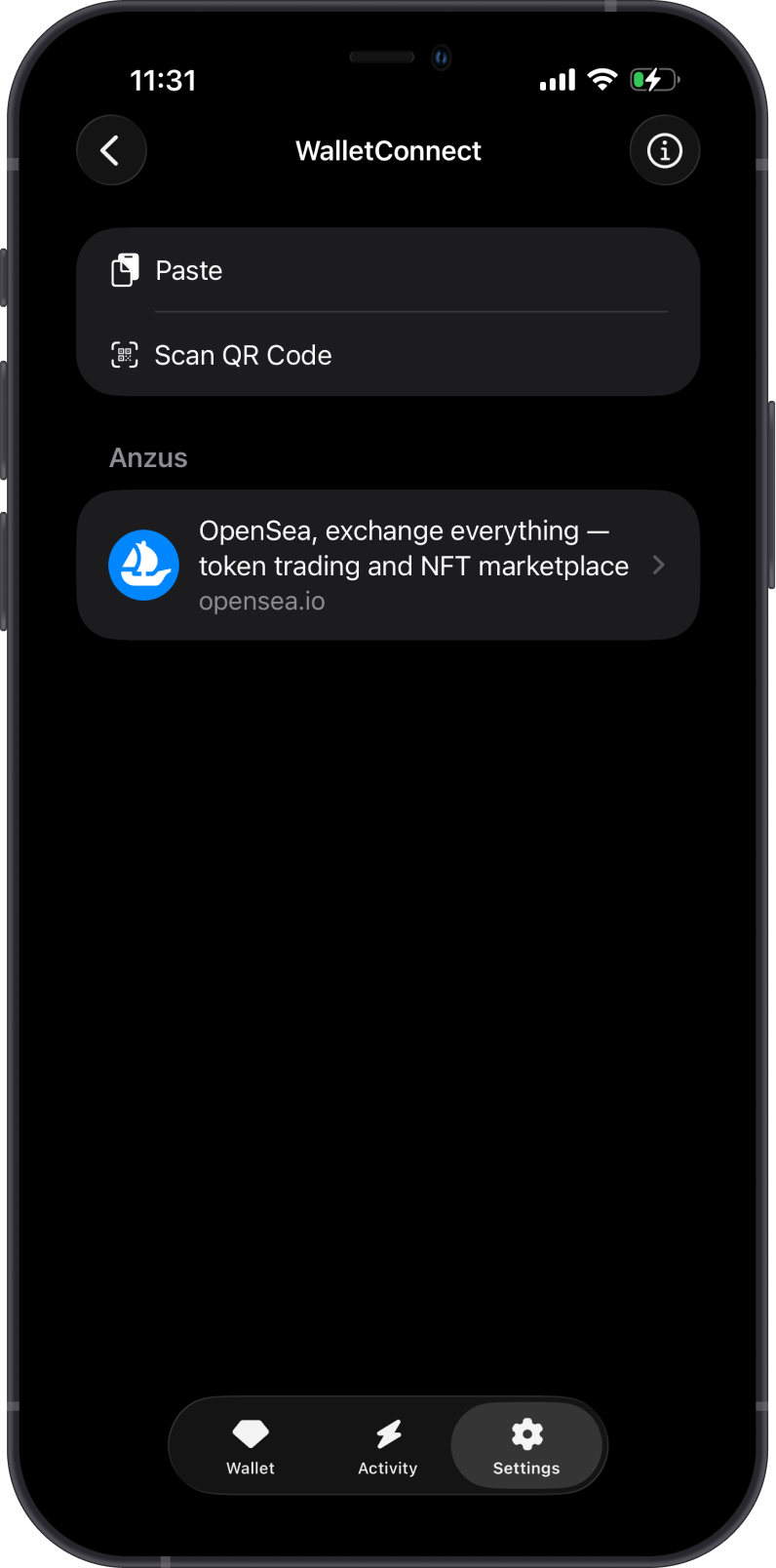
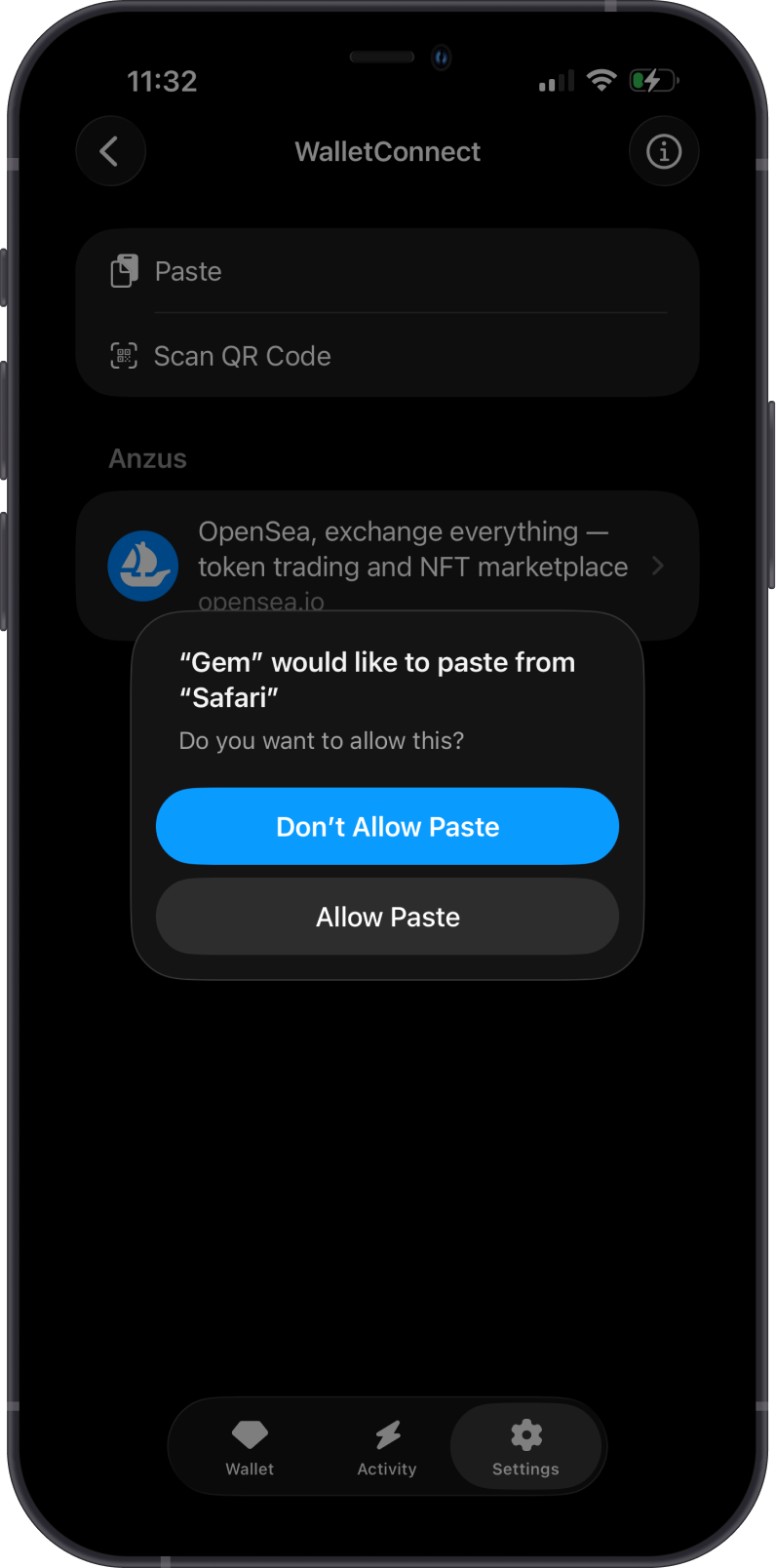
Open Gem Wallet, go to Settings, and tap WalletConnect. On the WalletConnect screen, tap Paste and allow Gem Wallet to paste the URI when your device asks for permission.
Gem Wallet will then show a connection request. Review the dApp name, website, selected wallet, connection type, and requested permissions. Make sure the status is Verified, then tap Confirm only if all details are correct.
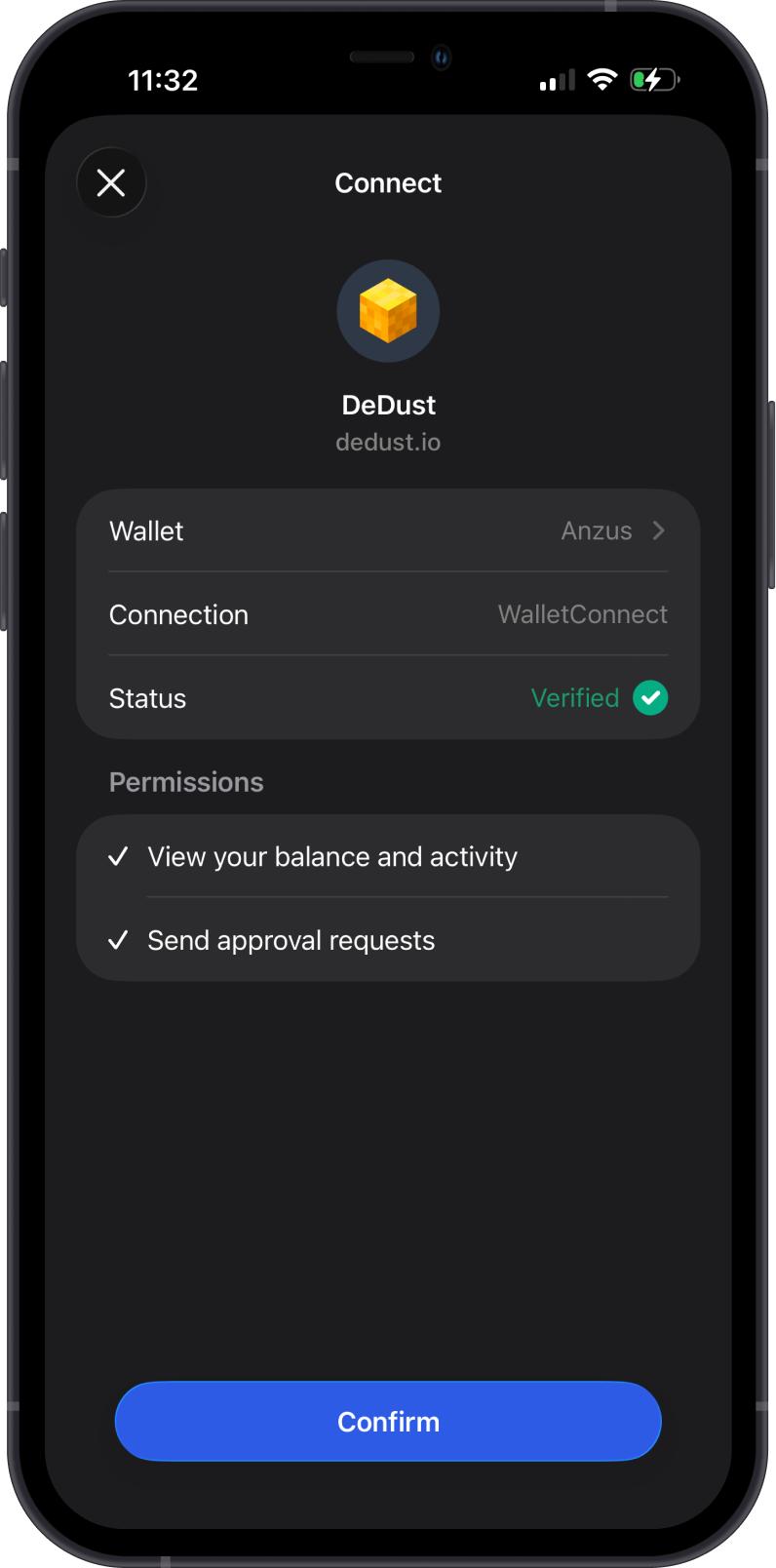
Always verify the dApp's website address before confirming. Connecting to a fake or phishing website may put your assets at risk. A connection alone does not authorize every transaction, so continue reviewing each request before approving it.
Successfully Connected to a TON DApp
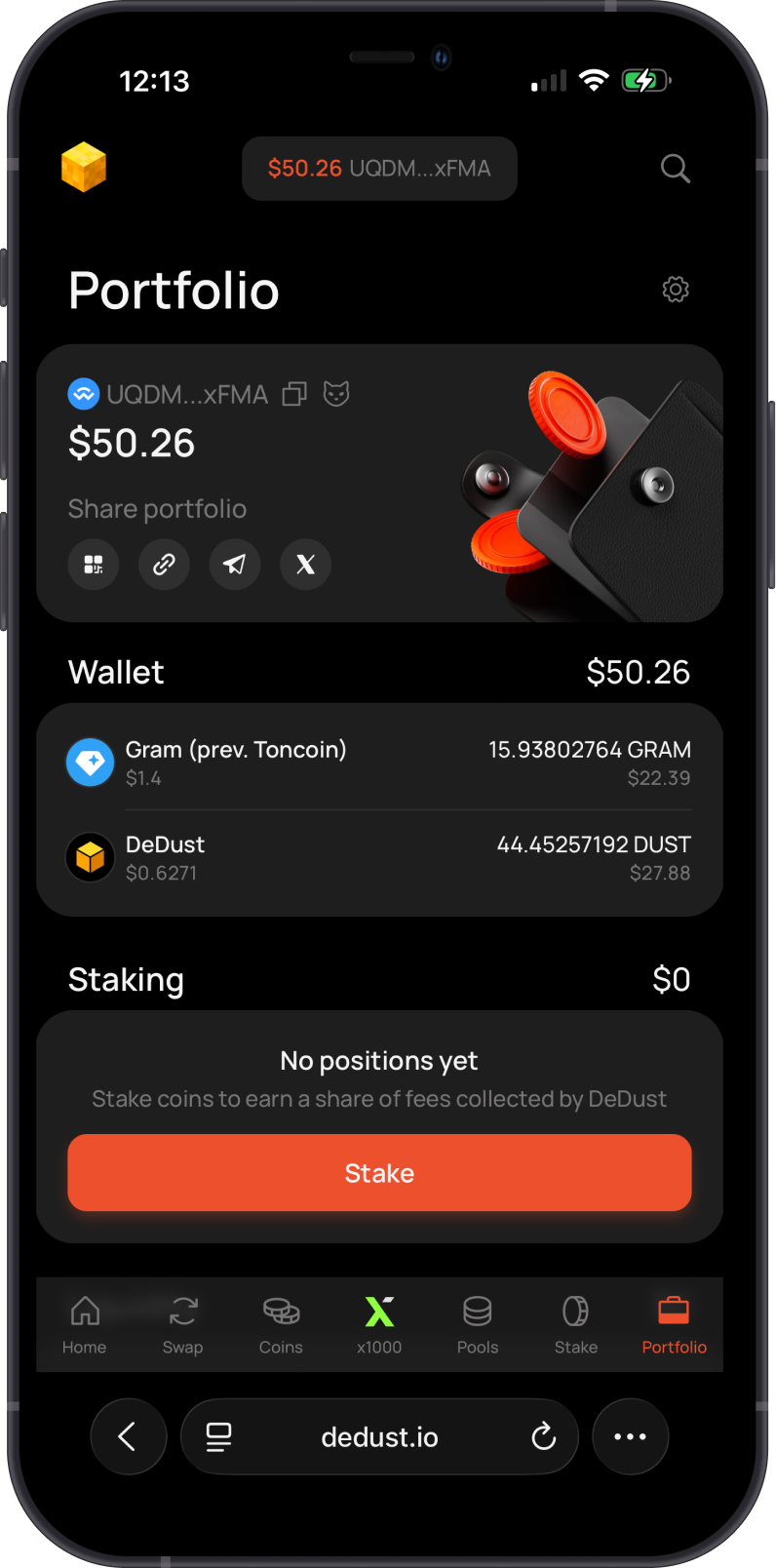
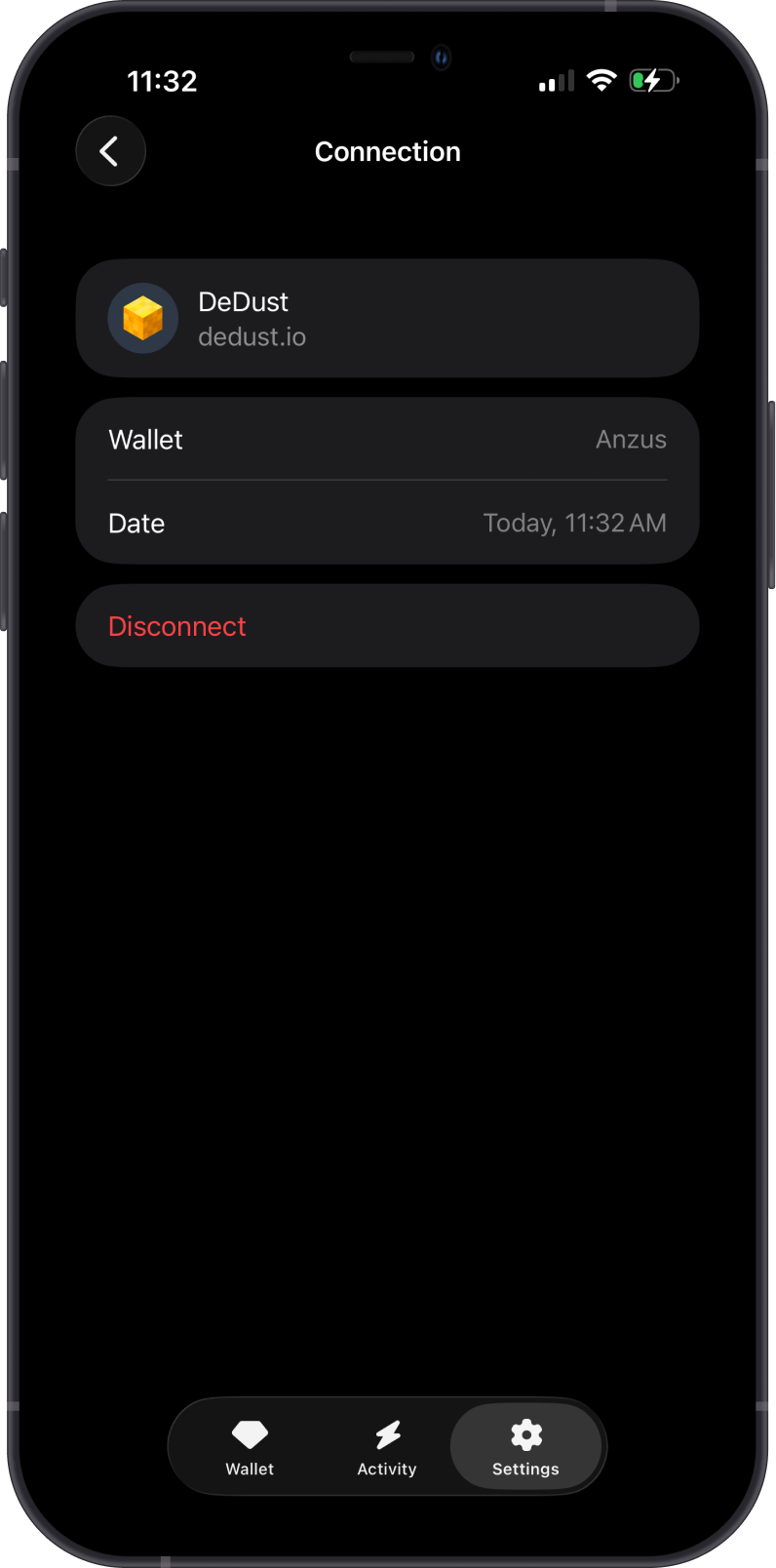
After confirming, return to DeDust. Your connected TON address and portfolio will appear in the dApp. You can also open Settings > WalletConnect in Gem Wallet to view the active DeDust session.
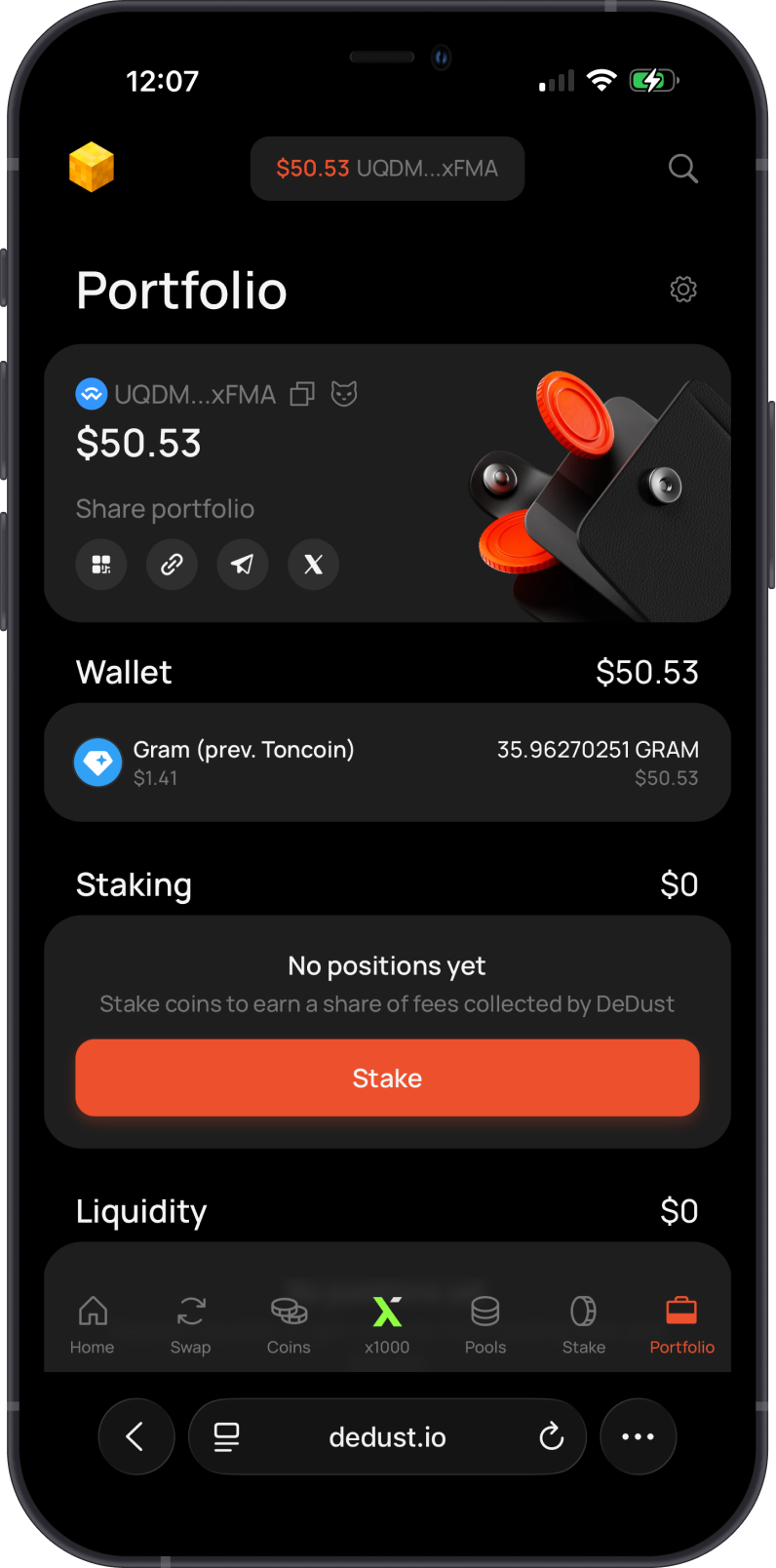
Congratulations, you have successfully connected Gem Wallet to a TON dApp.
How to Swap on DeDust with Gem Wallet
DeDust is used in this guide for demonstration purposes only. Its inclusion does not constitute an endorsement or recommendation by Gem Wallet. Always research a dApp independently and understand its risks before connecting your wallet or swapping assets.
Enter the Swap Details
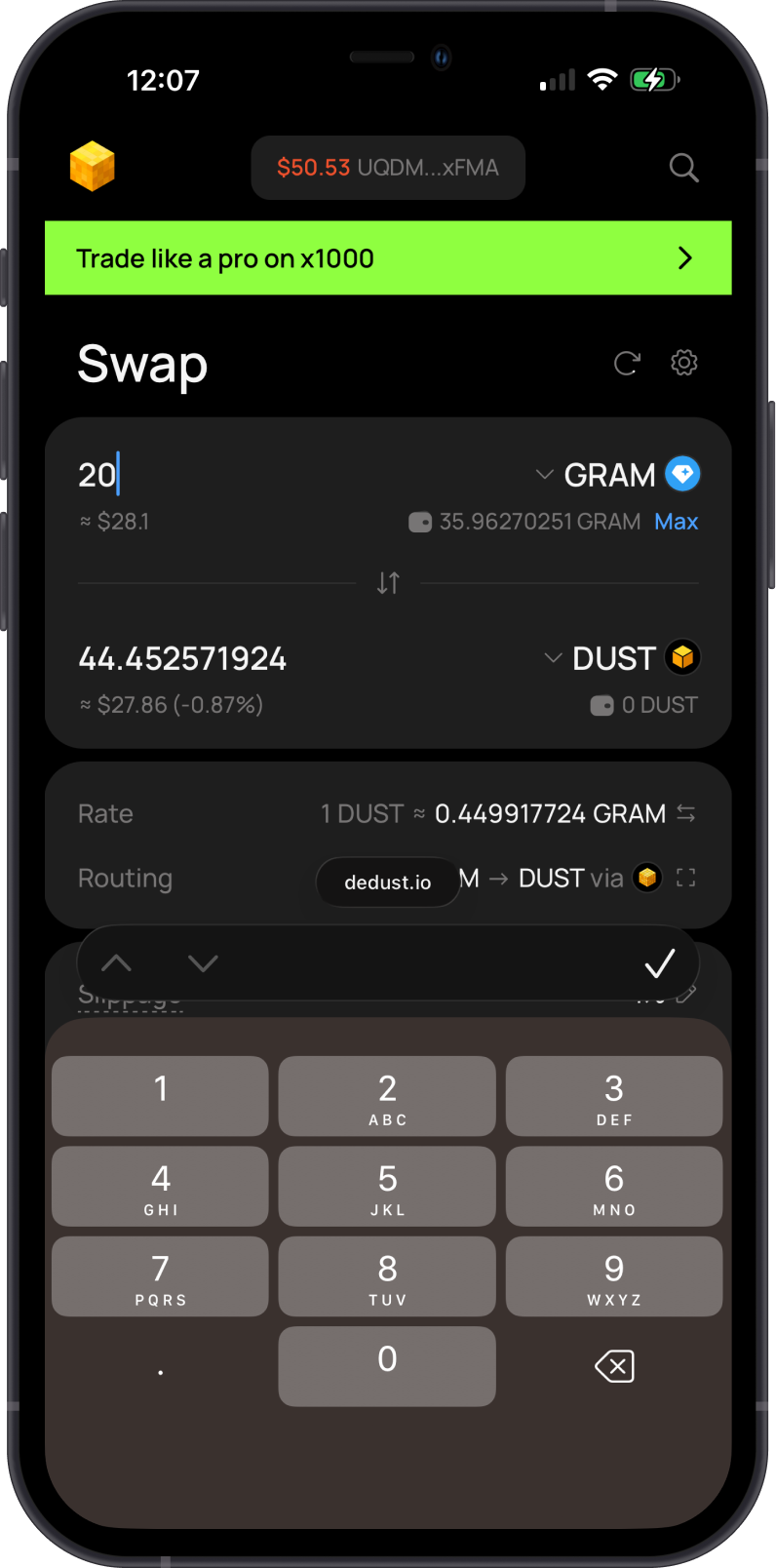
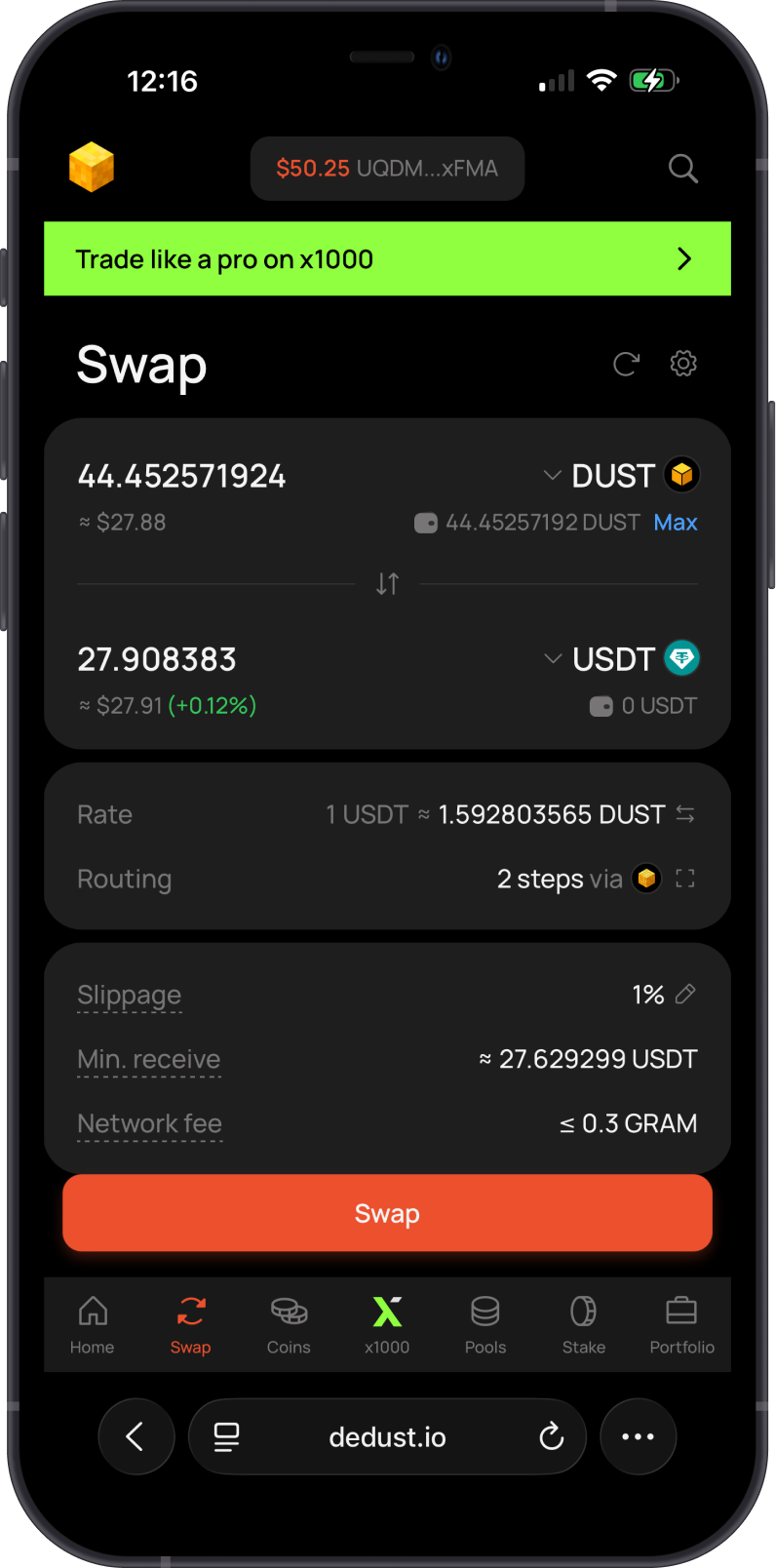
Open Swap in DeDust. Select the asset you want to swap, enter the amount, and select the asset you want to receive. See the examples below.
Review the estimated amount, exchange rate, route, slippage, minimum received amount, and network fee. Tap Swap when you are ready.
Confirm the Swap on DeDust
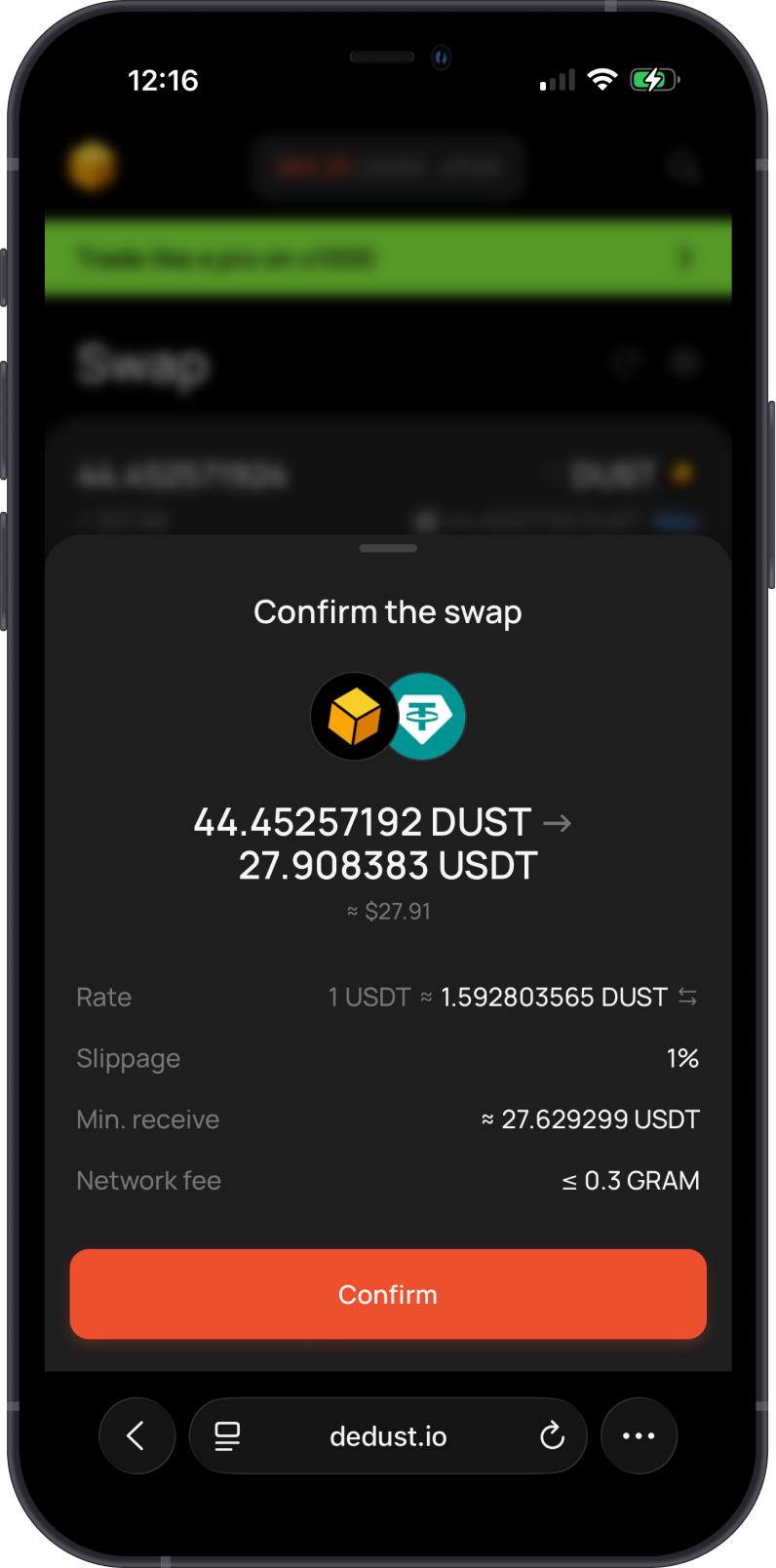
DeDust will show a final swap summary. Verify the assets, amounts, rate, slippage, minimum received amount, and network fee, then tap Confirm.
Approve the Swap in Gem Wallet
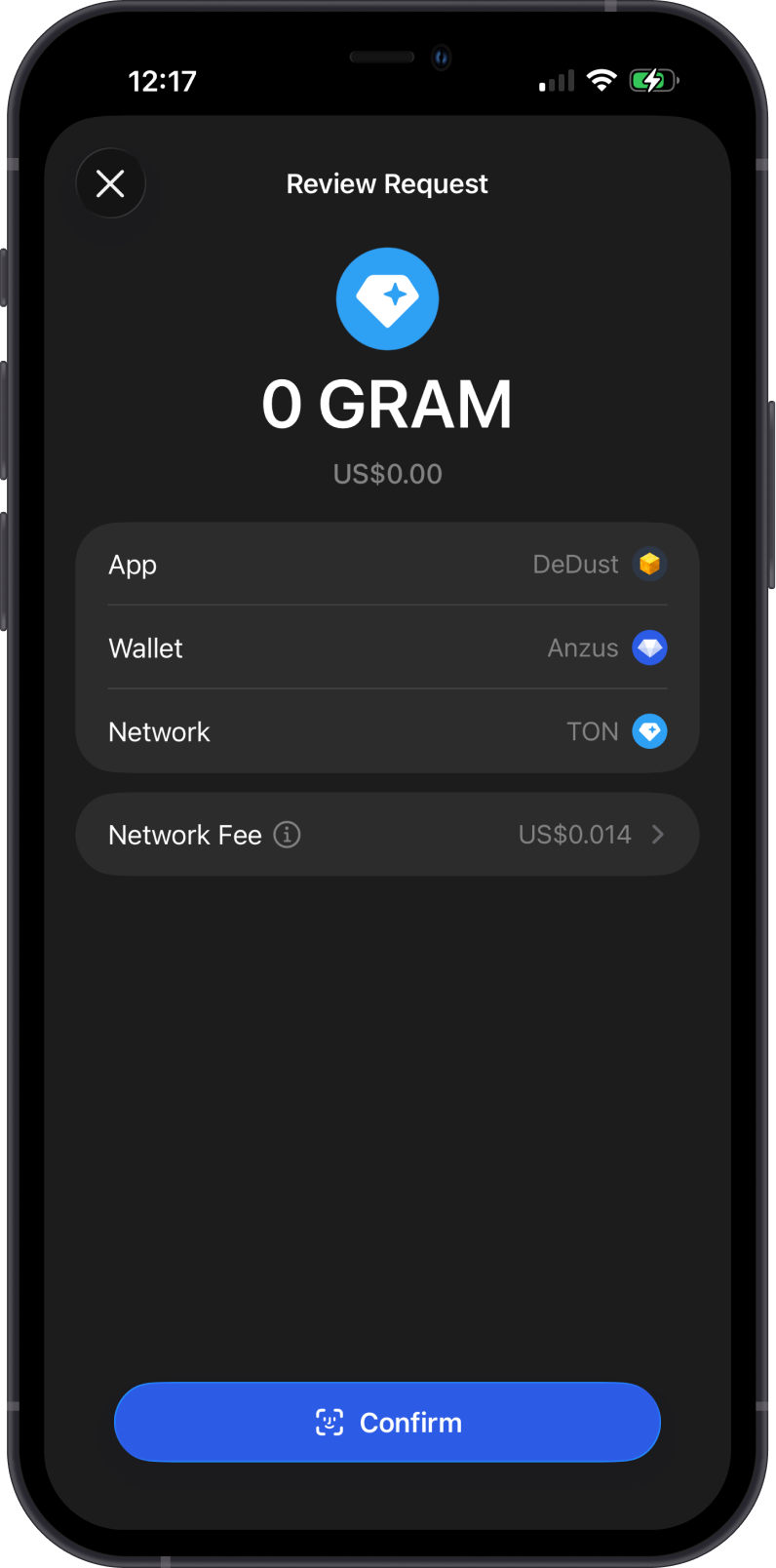
Gem Wallet will display a Review Request screen. Verify the app, wallet, TON network, and network fee before tapping Confirm.
Only approve the request if it matches the swap you submitted on DeDust. Cancel unexpected requests or requests with details you do not recognize.
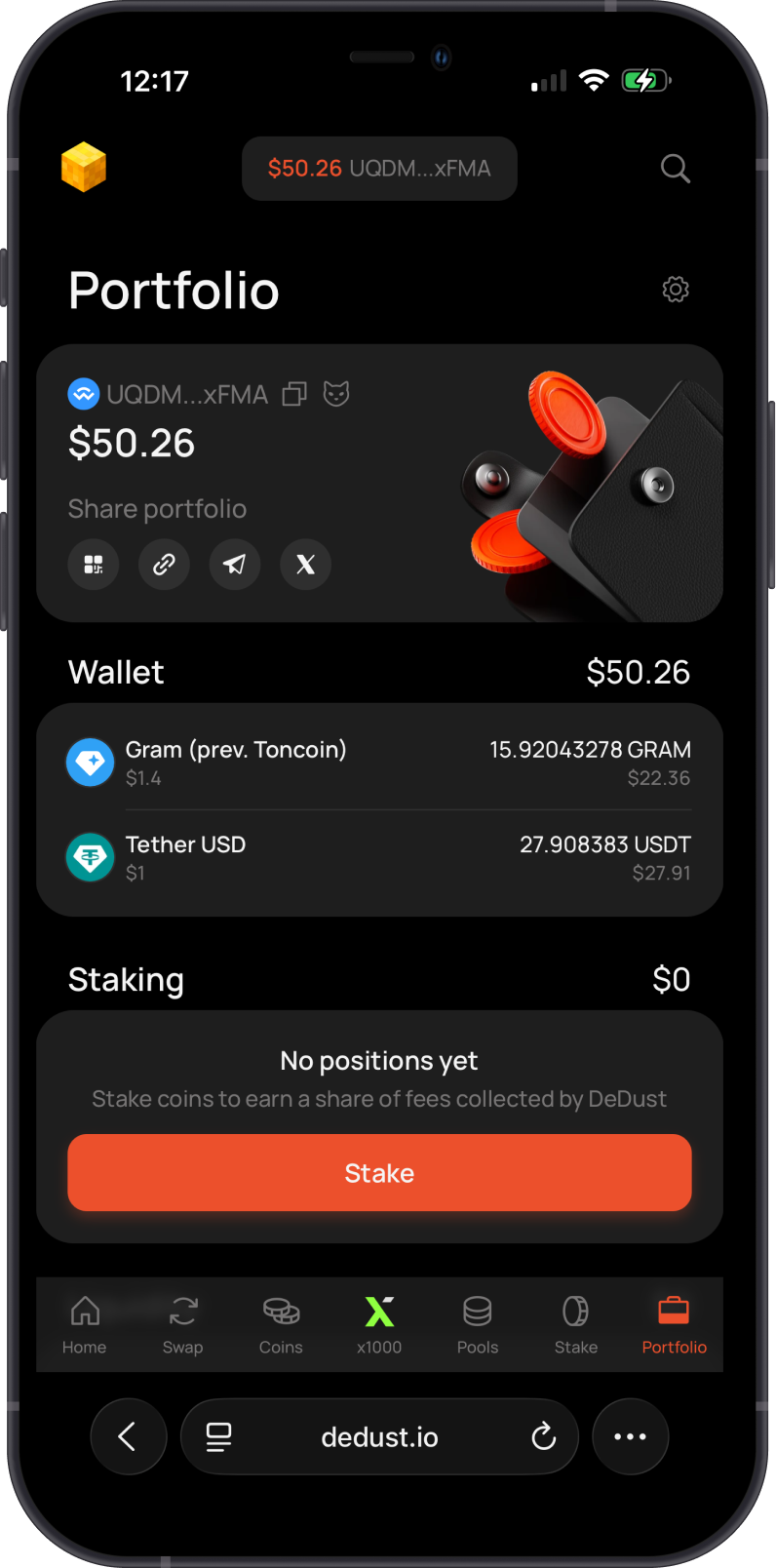
After approval, return to DeDust to see the updated portfolio.
Verify the Tokens in Gem Wallet
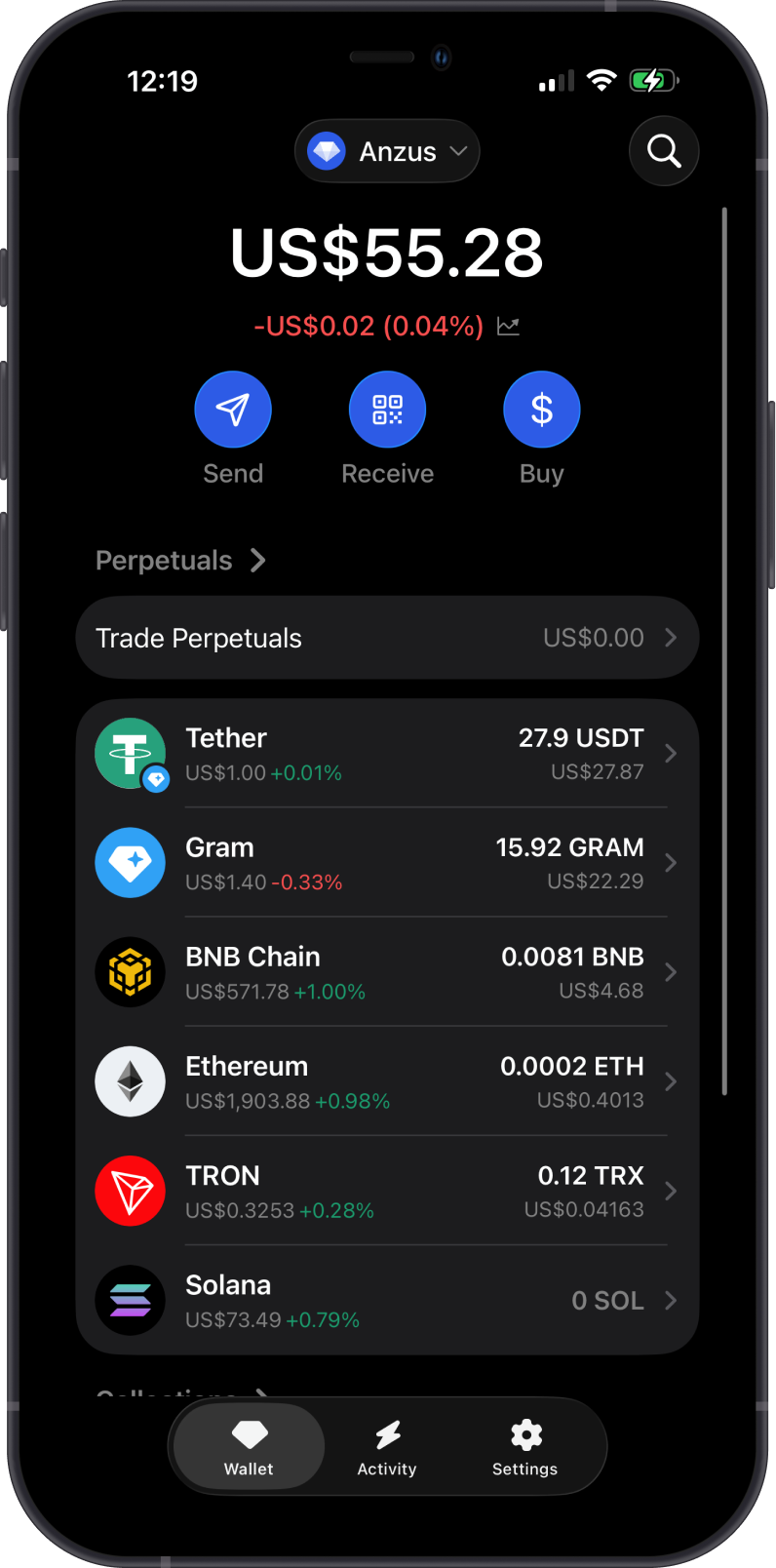
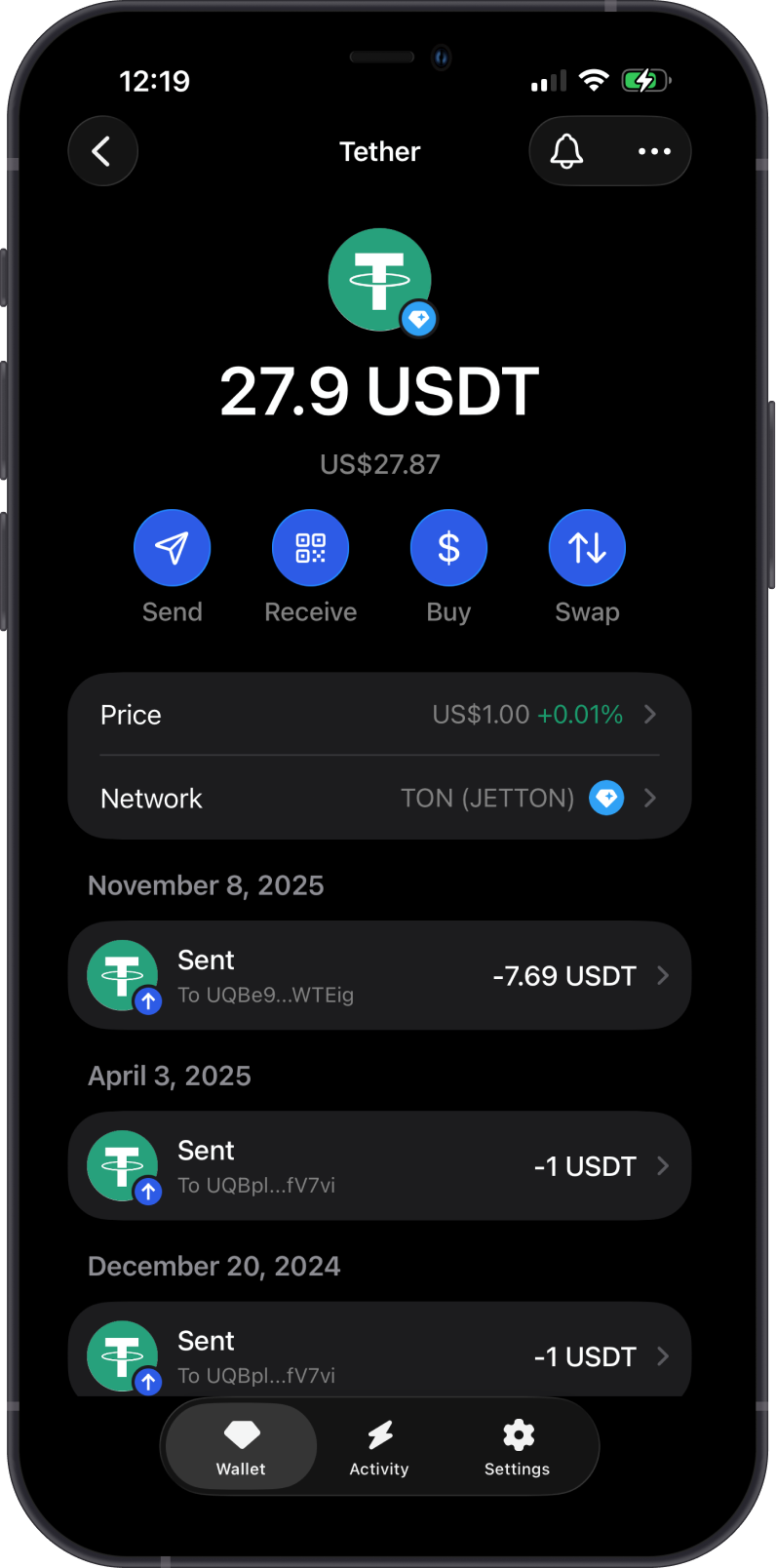
Open the wallet used for the connection. The updated GRAM and USDT balances shown in Gem Wallet should match the assets displayed in the DeDust portfolio. You can tap Tether USD to view the USDT Jetton balance and transaction history.
How to Disconnect the TON DApp
Open Gem Wallet > Settings > WalletConnect, select the session, and tap Disconnect. Disconnect sessions you no longer use to remove the dApp's active connection to your wallet.
Benefits of Using Gem Wallet with WalletConnect on TON
- Self-Custody: Your private keys and recovery phrase stay under your control.
- Clear Approval Flow: Connection and transaction requests are reviewed in Gem Wallet.
- Mobile and Desktop Flexibility: Use a deep link on mobile or scan a QR code from a desktop browser.
- Unified Asset Management: Keep GRAM and supported TON Jettons alongside assets from other supported networks.
Common Use Cases with Gem Wallet on TON
- Decentralized Trading: Swap GRAM and supported Jettons through compatible TON dApps.
- DeFi: Use supported lending, liquidity, and other decentralized finance applications.
- NFTs and Digital Collectibles: Interact with compatible TON marketplaces and collections.
- Games and Web3 Apps: Connect to supported TON games, communities, and services.
Troubleshooting Tips
- WalletConnect Is Not Available: The dApp may support a different connection protocol instead. Use only a connection method that both the dApp and Gem Wallet support.
- Gem Wallet Is Not Listed: Open the WalletConnect QR code, copy its link, then paste it in Settings > WalletConnect in Gem Wallet.
- QR Code Does Not Scan: Refresh the QR code, increase screen brightness, and make sure the entire code is visible.
- Connection Request Does Not Appear: Check your internet connection, reopen Gem Wallet, and create a new WalletConnect session from the dApp.
- Wrong Network or Account: Cancel the request and reconnect using the TON account you intend to use.
- Transaction Fails: Make sure you have enough GRAM to cover the transaction amount and TON network fees.
- Session Issues: Disconnect the inactive session from Settings > WalletConnect, then reconnect.
- Outdated App: Update Gem Wallet to the latest available version and try again.
Why Choose Gem Wallet for TON?
Gem Wallet is an open-source, self-custodial wallet that lets you manage GRAM and supported Jettons without giving up control of your private keys. With WalletConnect, you can use compatible TON dApps while reviewing connection and transaction requests directly in the app.
Use Gem Wallet with trusted TON dApps, verify every website and request, and keep enough GRAM available for network fees.