Cosmos (ATOM)
What is the Cosmos Hub?
Here are 5 key points about the Cosmos Hub (ATOM):
- The Cosmos Hub is a Proof-of-Stake blockchain that uses a validator set to secure the network and produce blocks.
- The Inter-Blockchain Communication (IBC) protocol enables interoperable communication and asset transfers between compatible blockchains in the Cosmos ecosystem.
- ATOM is the native token of the Cosmos Hub. It is used for staking, governance, and transaction fees.
- ATOM holders can delegate tokens to validators to help secure the Cosmos Hub and earn staking rewards, subject to validator commission and slashing risk.
- Cosmos Hub governance allows ATOM stakers to vote on proposals that affect the network.
Learn more about Cosmos by reading the Gem Wallet Learn article: What Is The Cosmos Blockchain?
Cosmos Support in Gem Wallet
When you set up a new Multi-coin wallet, Gem Wallet creates a native Cosmos address for you.
Gem Wallet can be used to:
- Buy Cosmos (ATOM) with fiat through available third-party providers.
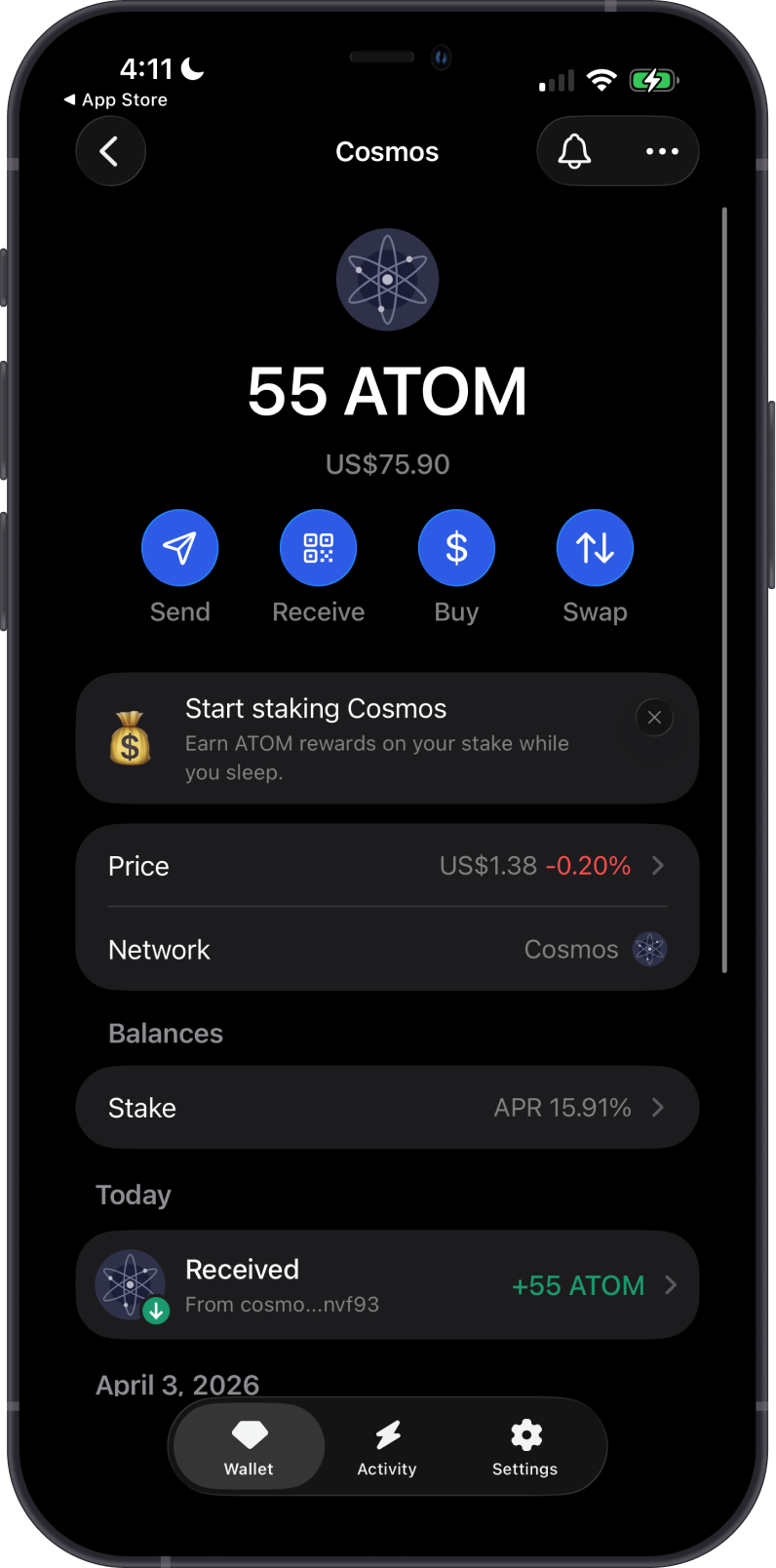
- Hold, send, and receive native ATOM.
- Swap ATOM to or from other cryptocurrencies supported by Cross-Chain Swap.
- Stake ATOM with a validator to earn staking rewards.
How to Add a Cosmos Wallet?
To activate your Cosmos wallet in Gem Wallet:
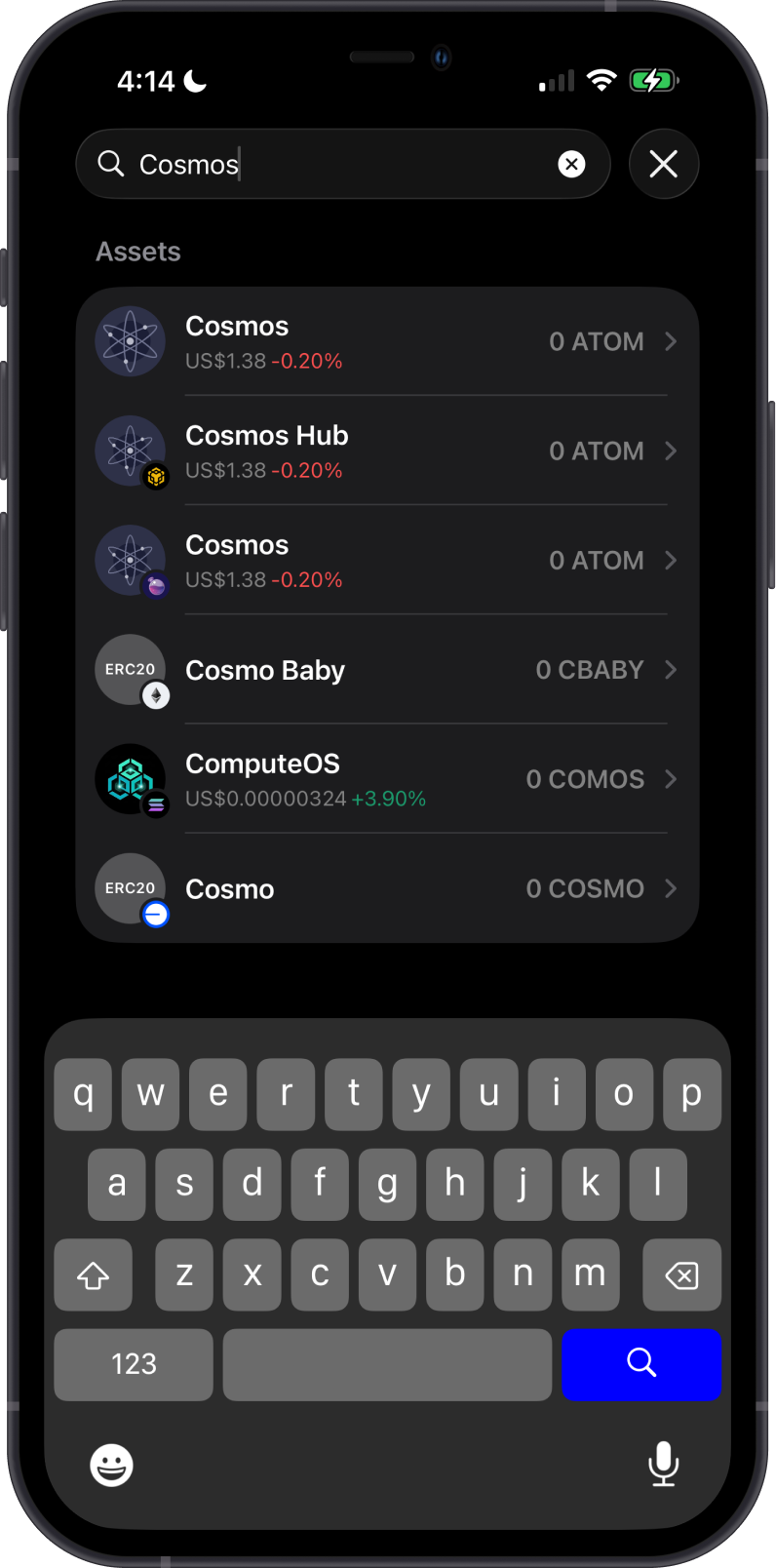
- Tap the magnifying glass in the upper-right corner.
- Search for “Cosmos” or “ATOM”.
- Select the native Cosmos asset.
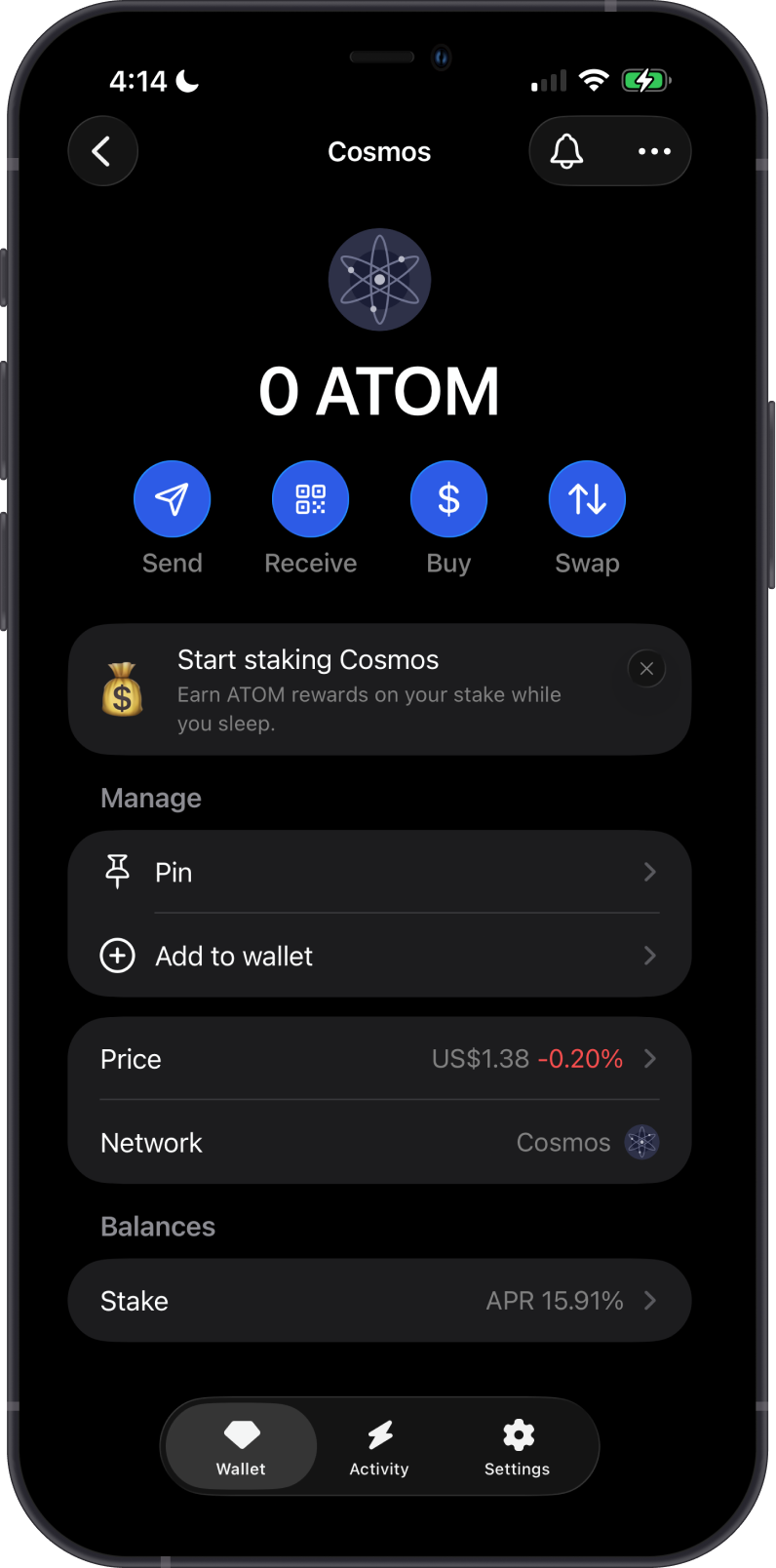
- Choose “Pin” to keep it easily accessible, or tap “Add to wallet” to enable it.
Your ATOM wallet will appear on the main wallet screen, ready for buying, sending, receiving, swapping, and staking.
How to Buy or Receive Cosmos with Gem Wallet?
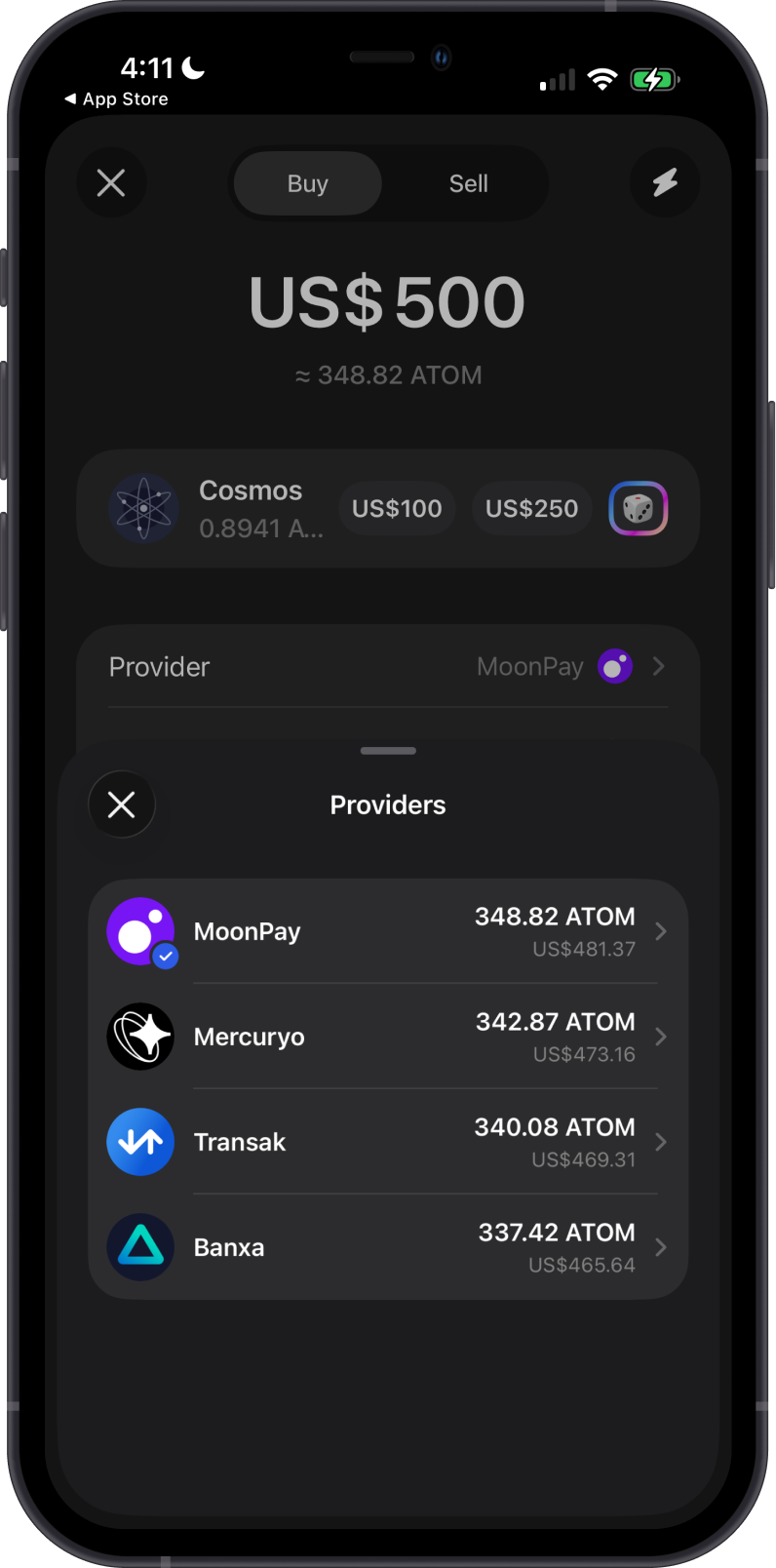
To buy ATOM, tap Buy from the Cosmos asset screen, enter the fiat amount, and select an available provider. Provider availability, supported payment methods, fees, and quoted amounts vary by region and provider.
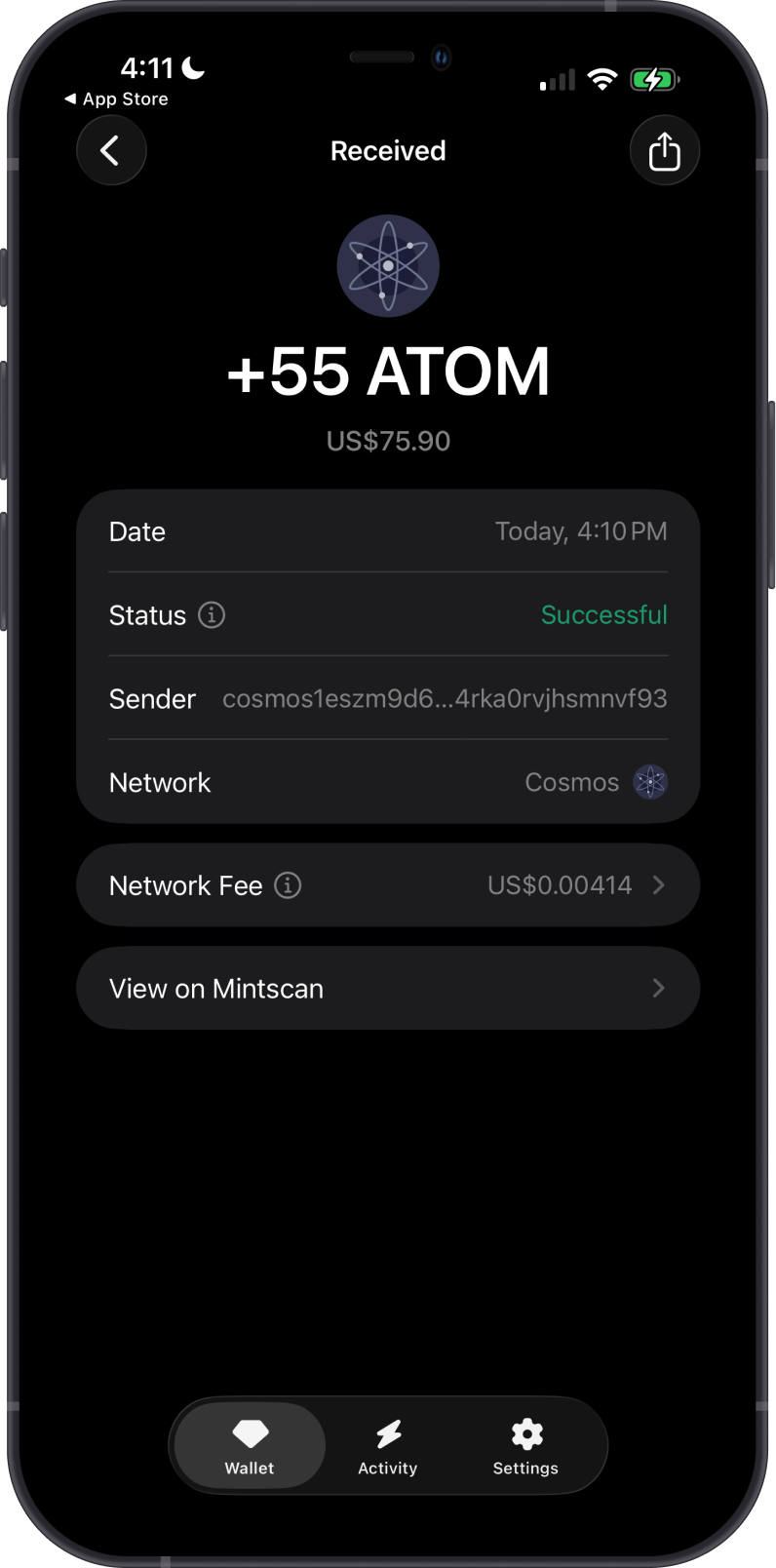
To receive ATOM, tap Receive and copy or share the Cosmos address shown in Gem Wallet. Send only native ATOM on the Cosmos Hub network to this address.
Gem Wallet does not require a memo to receive ATOM. If you send ATOM to an exchange or another custodial service, use the memo they provide when one is required; a missing or incorrect memo can delay or prevent the service from crediting your deposit.
How to Send Cosmos with Gem Wallet?
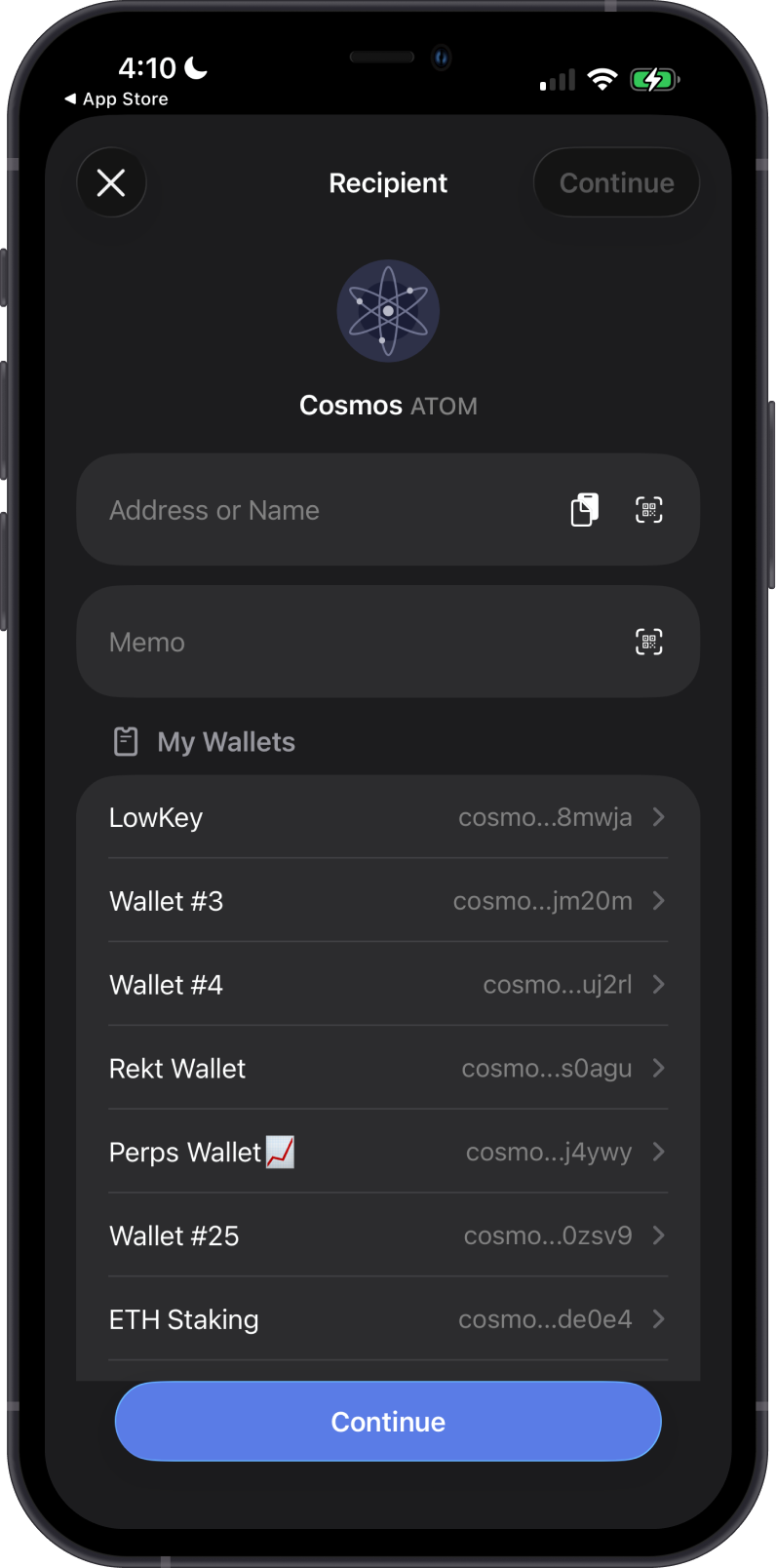
Tap Send, then enter the recipient's Cosmos address manually, paste it, scan its QR code, or select one of your wallets. Add a memo if the receiving service requires one, enter the ATOM amount, and tap Continue to review and confirm the transaction.
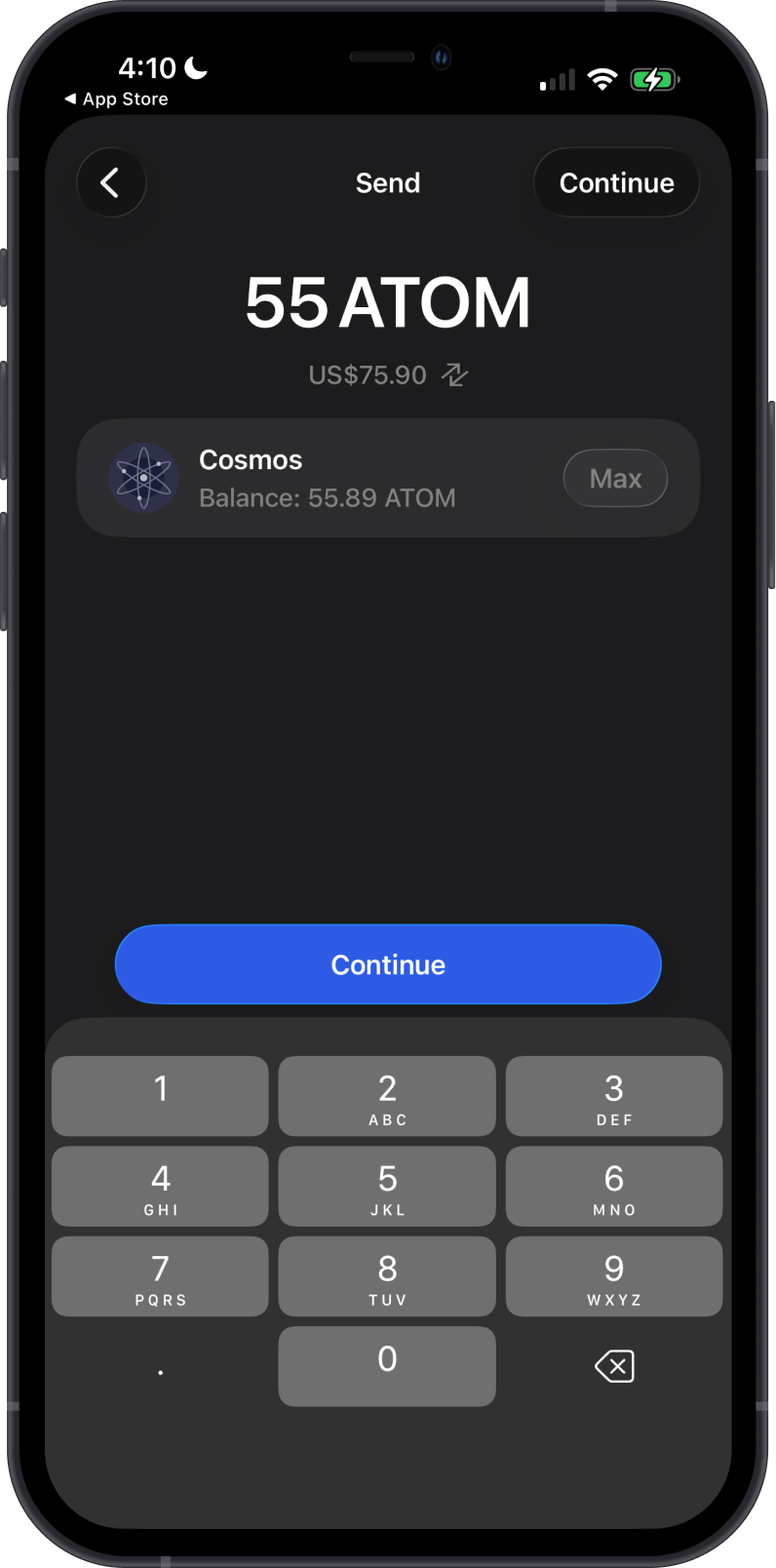
Keep enough ATOM in your wallet to cover the amount sent and the network fee. Always verify the recipient address, network, and memo before confirming because blockchain transactions cannot be reversed.
Can I Swap Cosmos on Gem Wallet?
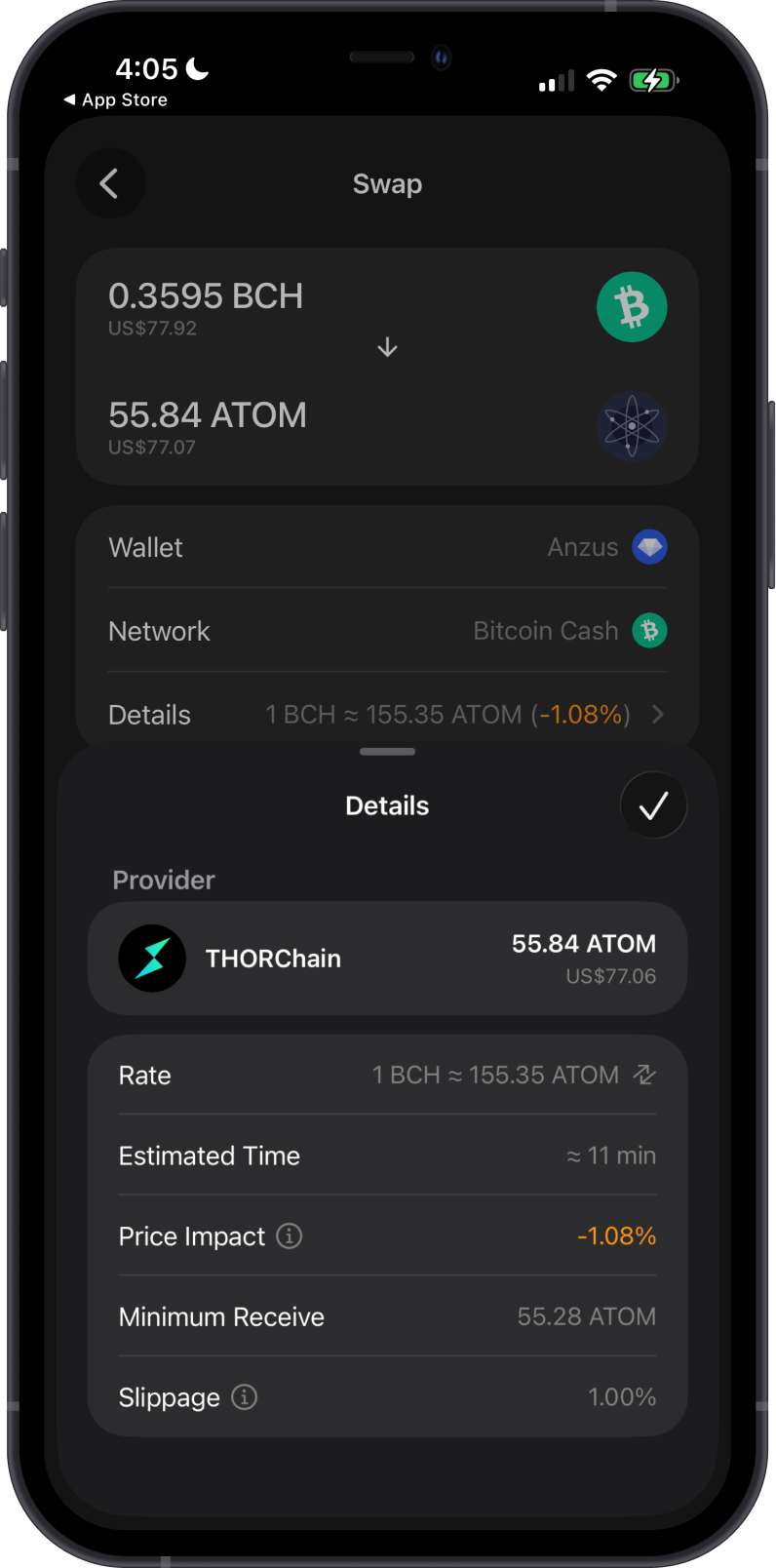
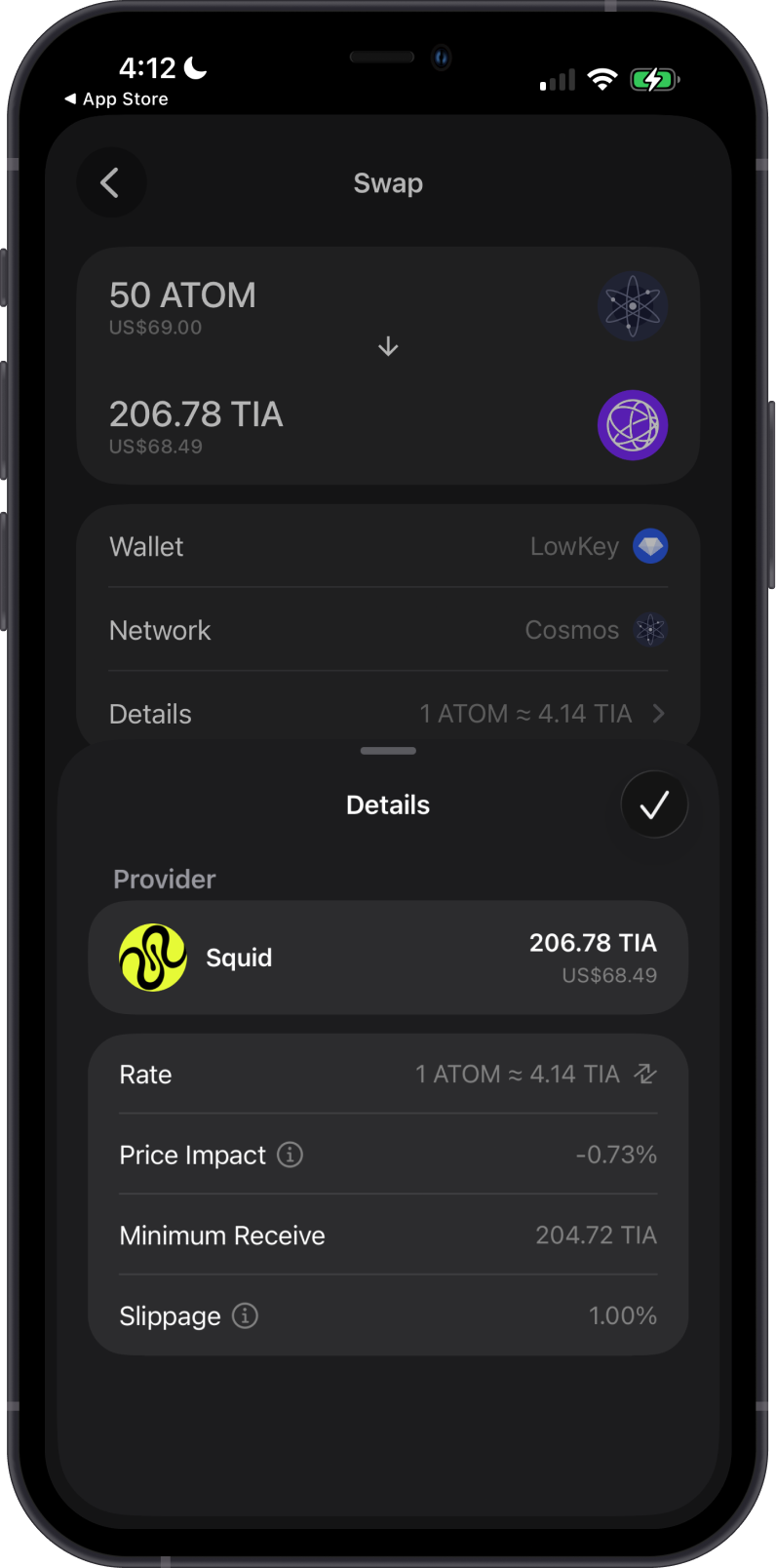
You can swap ATOM for cryptocurrencies supported by cross-chain swaps, and vice versa. Available routes and providers can vary by asset, amount, and market conditions.
The first example shows a cross-chain swap from BCH to ATOM, including the provider, rate, estimated time, price impact, minimum received amount, and slippage.
The second example shows a cross-chain swap from ATOM to TIA and the quote details provided before confirming the swap.
Can I Stake ATOM on Gem Wallet?
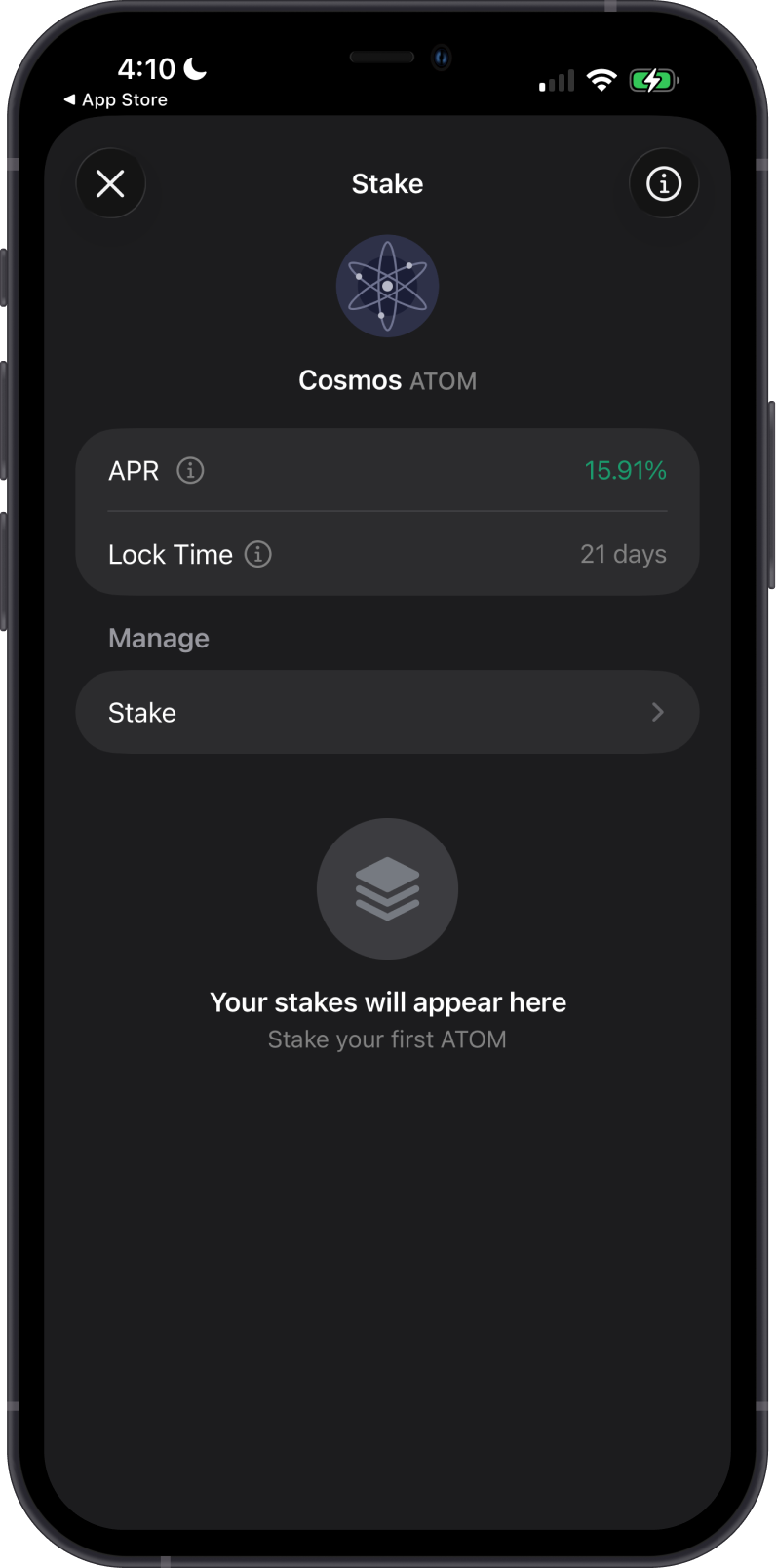
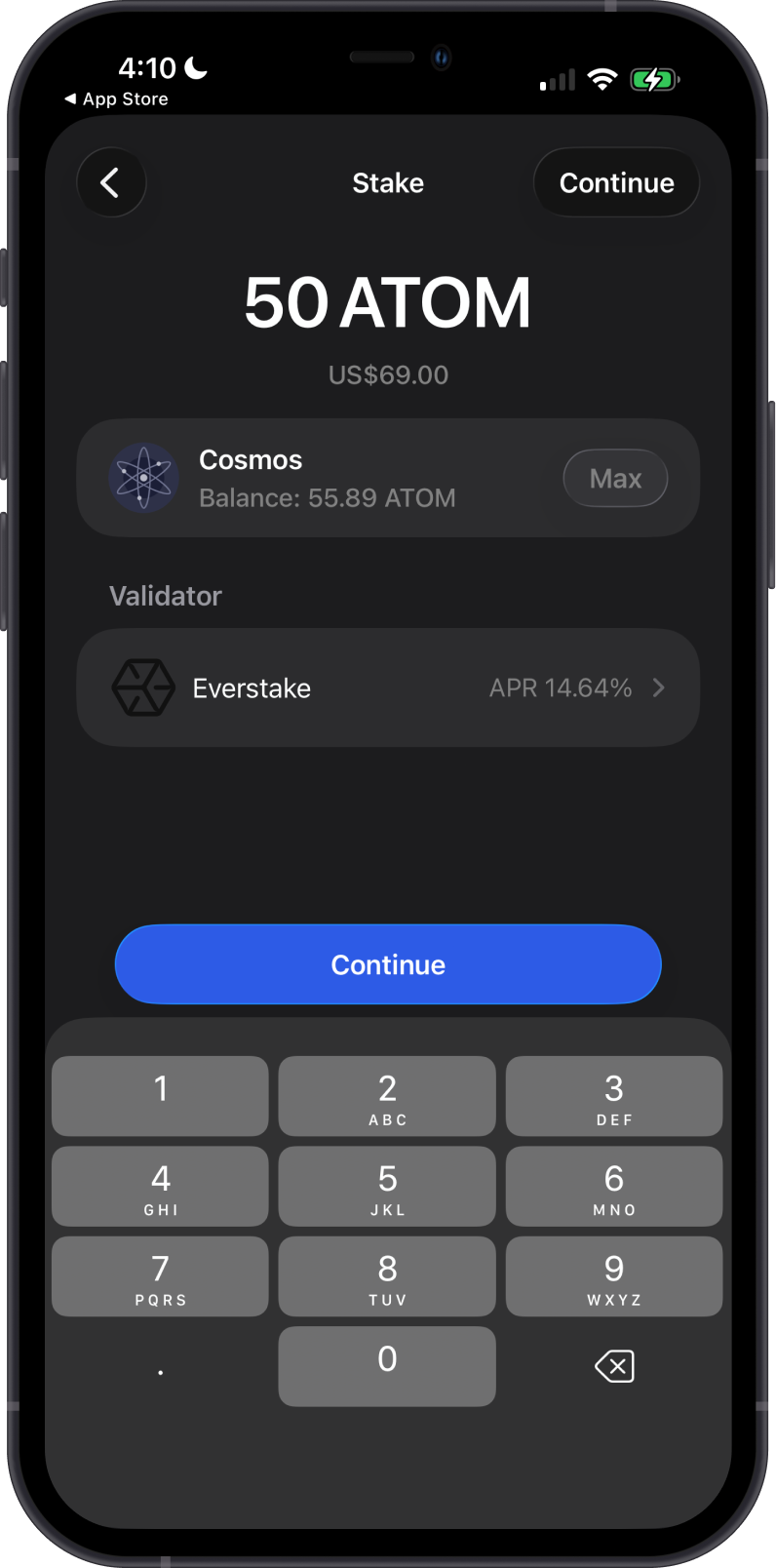
You can stake ATOM from the Cosmos asset screen by selecting Stake, choosing a validator, entering the amount, and confirming the delegation. The displayed APR is an estimate that can change and is reduced by the validator's commission.
Unstaking ATOM starts the Cosmos Hub unbonding period, which currently lasts 21 days. During this period, the unbonding ATOM cannot be transferred, and delegated ATOM can be subject to slashing if the validator misbehaves. Keep a small amount of ATOM unstaked to pay for staking, unstaking, and reward-claiming transactions.
Transaction Fees on the Cosmos Network
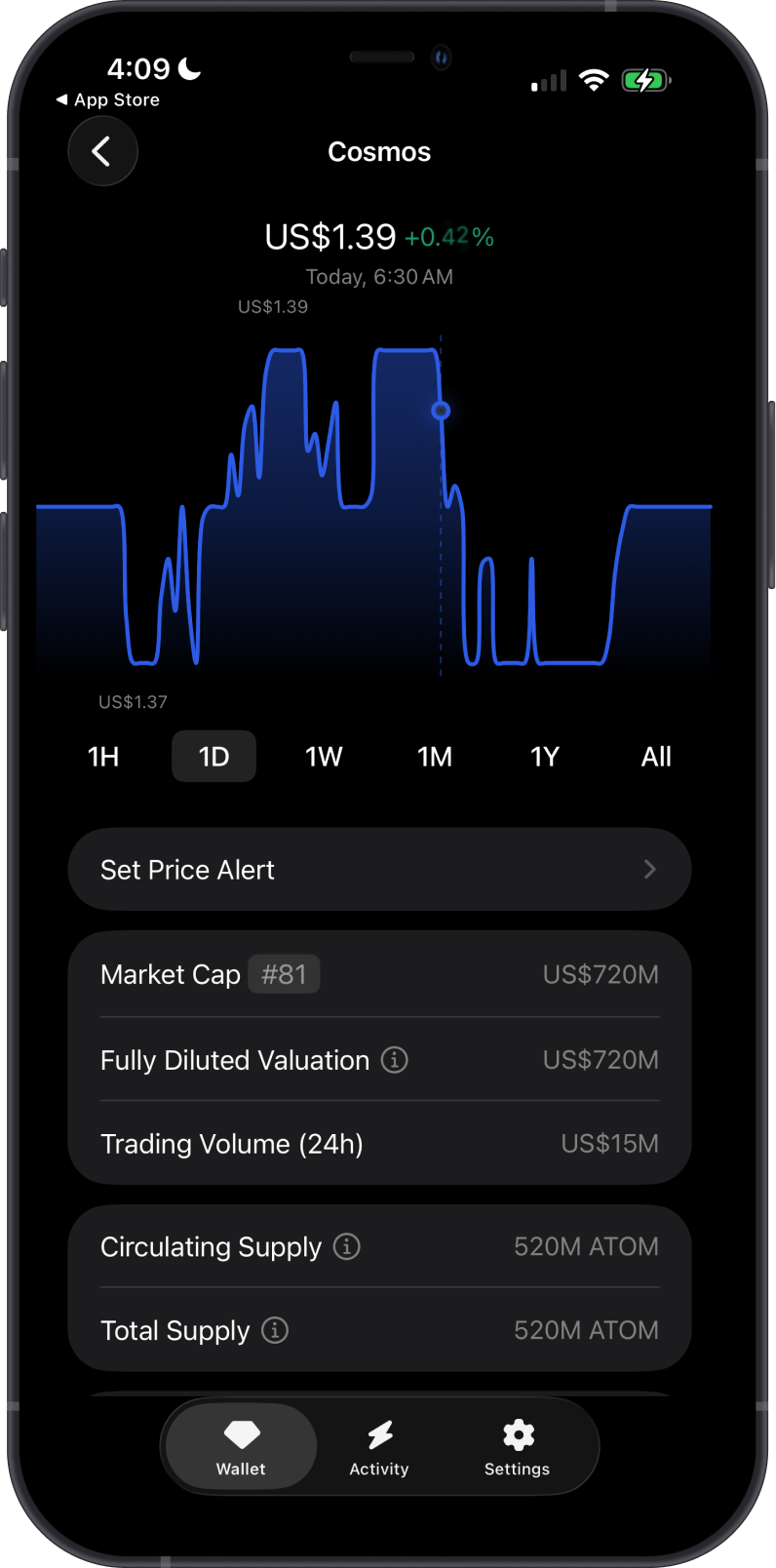
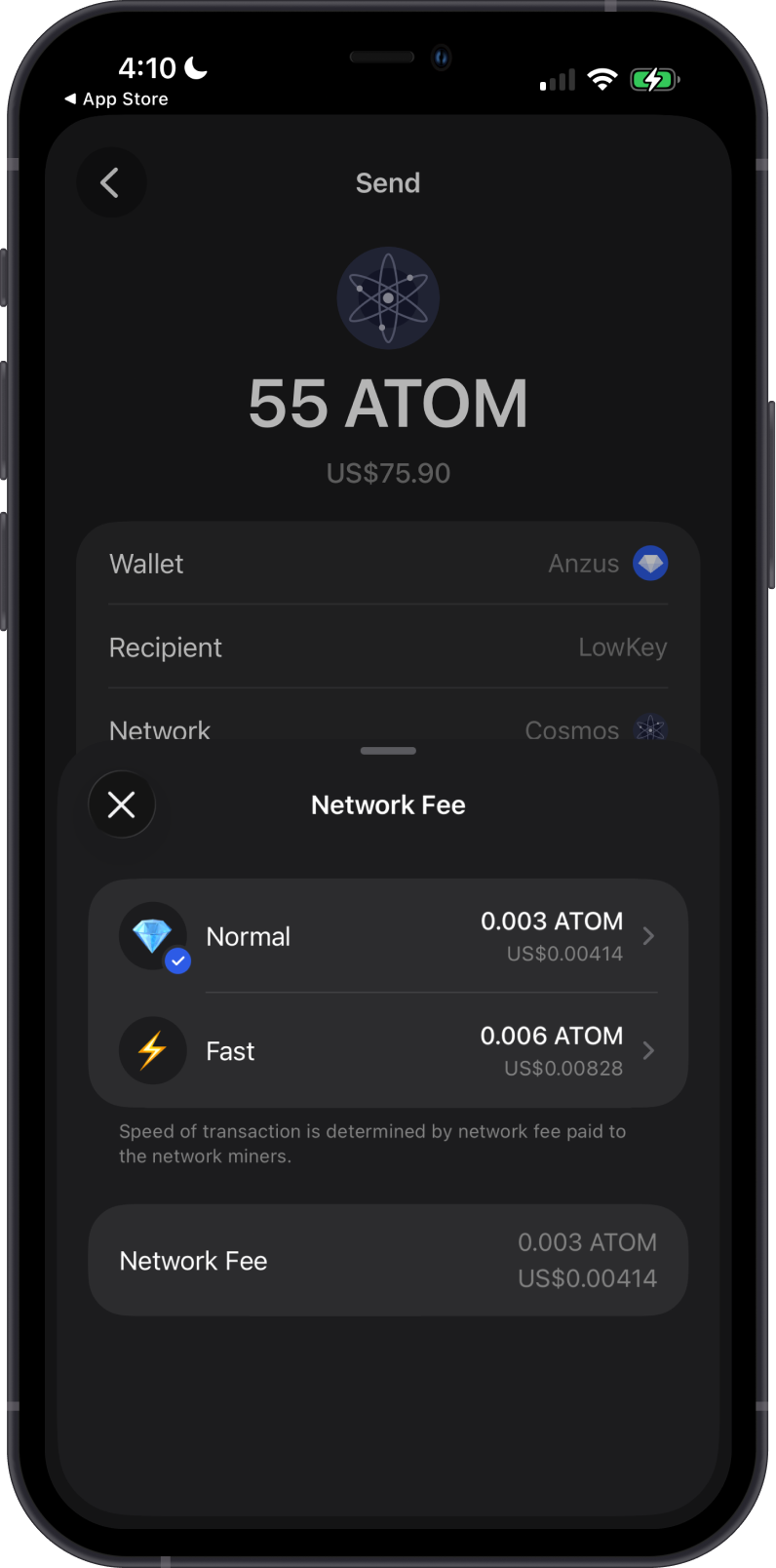
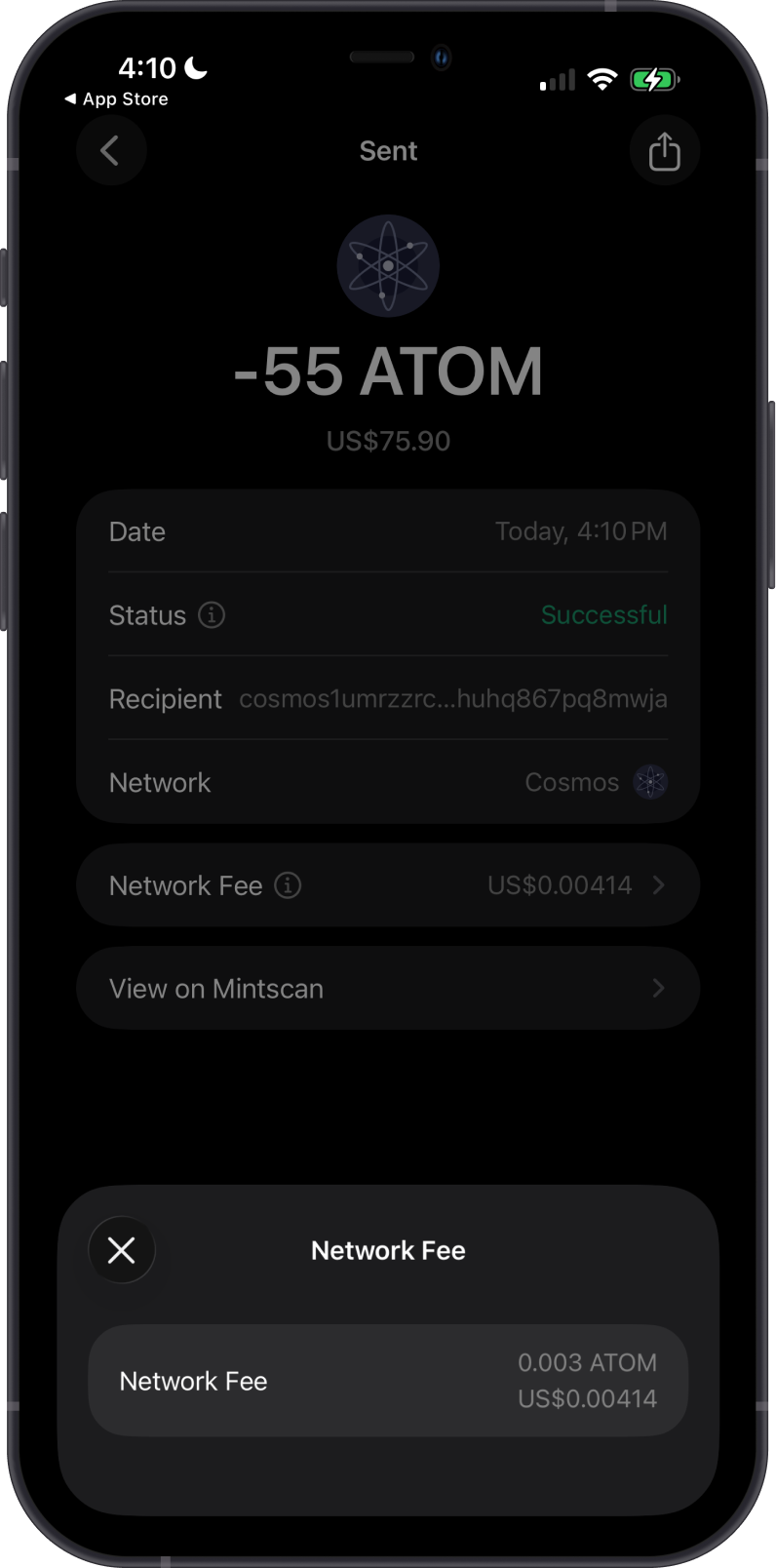
Cosmos Hub transaction fees pay for the gas required to process a transaction. The total fee depends on the gas needed by the transaction and the selected gas price, so actions such as sending, staking, unstaking, and claiming rewards can have different fees.
Tap Network Fee before confirming to choose the available Normal or Fast option. A higher fee can improve the likelihood of prompt inclusion by validators, but it does not guarantee a specific confirmation time. Gem Wallet displays the total fee in ATOM before you send.
How to Check Cosmos Balance?
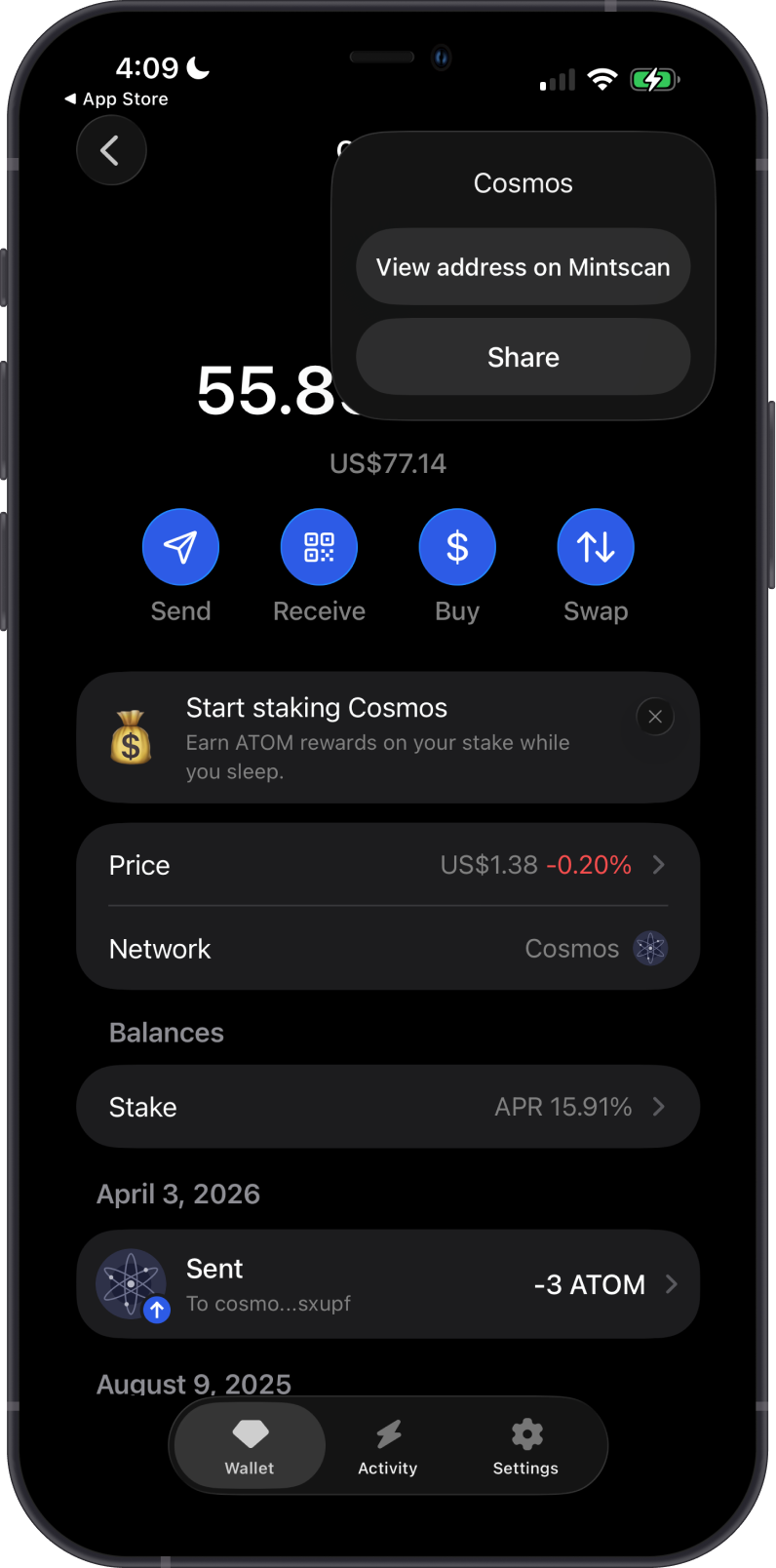
Gem Wallet connects to the Cosmos Hub to show your ATOM balance, staking positions, and transaction history. Tap the three-dot menu and select View address on Mintscan to inspect the address on the blockchain explorer.
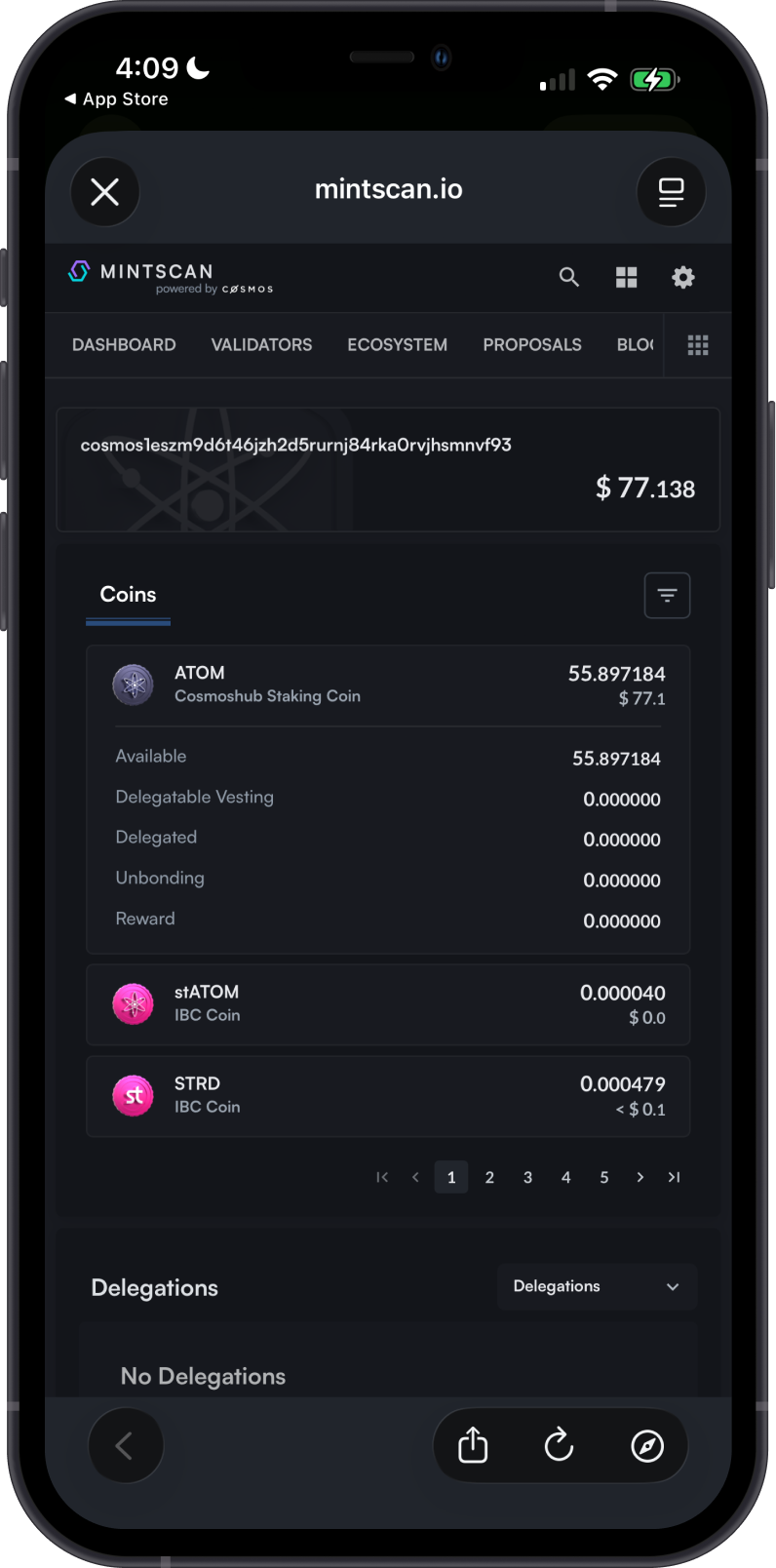
Mintscan is the default ATOM explorer in Gem Wallet. Search for a Cosmos address or transaction ID to review public balances, delegations, unbonding balances, rewards, transaction history, status, and fees.
You can also open a transaction from the Cosmos transaction history and select View on Mintscan for more detailed information.
Why Choose Gem Wallet for Cosmos?
- Self-Custody: You retain control of your ATOM and private keys.
- Built-In Staking: Delegate ATOM to a validator and manage your staking position in the same wallet.
- Cross-Chain Swaps: Swap ATOM with supported assets across different blockchains without relying on a centralized exchange.
- Multi-Currency Support: Manage Cosmos and other cryptocurrencies in one wallet.
Conclusion
Cosmos Hub is a Proof-of-Stake blockchain where ATOM supports transaction fees, staking, and governance. Gem Wallet lets you buy, hold, send, receive, stake, and cross-chain swap native ATOM while retaining control of your private keys.