Dash (DASH)
What is Dash?
Here are 5 key points about Dash:
- Dash is a proof-of-work blockchain designed for digital payments. Its native asset, DASH, is used for transfers and network fees.
- Dash uses a UTXO transaction model, similar to Bitcoin. A transaction's size—and therefore its network fee—can depend on the inputs and outputs it uses.
- Dash's masternode network provides a second network layer alongside miners. Masternodes support services such as InstantSend, ChainLocks, and network governance.
- The Dash network automatically attempts to apply InstantSend to eligible transactions, which locks their inputs to help protect against double spending before they are included in a block.
- ChainLocks use masternode quorums to provide faster certainty about the accepted chain and reduce the risk of blockchain reorganizations.
Learn more about Dash features.
Dash Support in Gem Wallet
Gem Wallet can be used to:
- Hold, send, and receive DASH.
- Swap DASH to or from supported assets via Cross-Chain Swap.
- Review Dash address history and transaction details.
- Scan compatible Dash payment QR codes when sending.
Dash is a UTXO-based network. Before you confirm a transfer, Gem Wallet shows the DASH network fee alongside the amount and recipient. Confirm that the recipient supports Dash before sending.
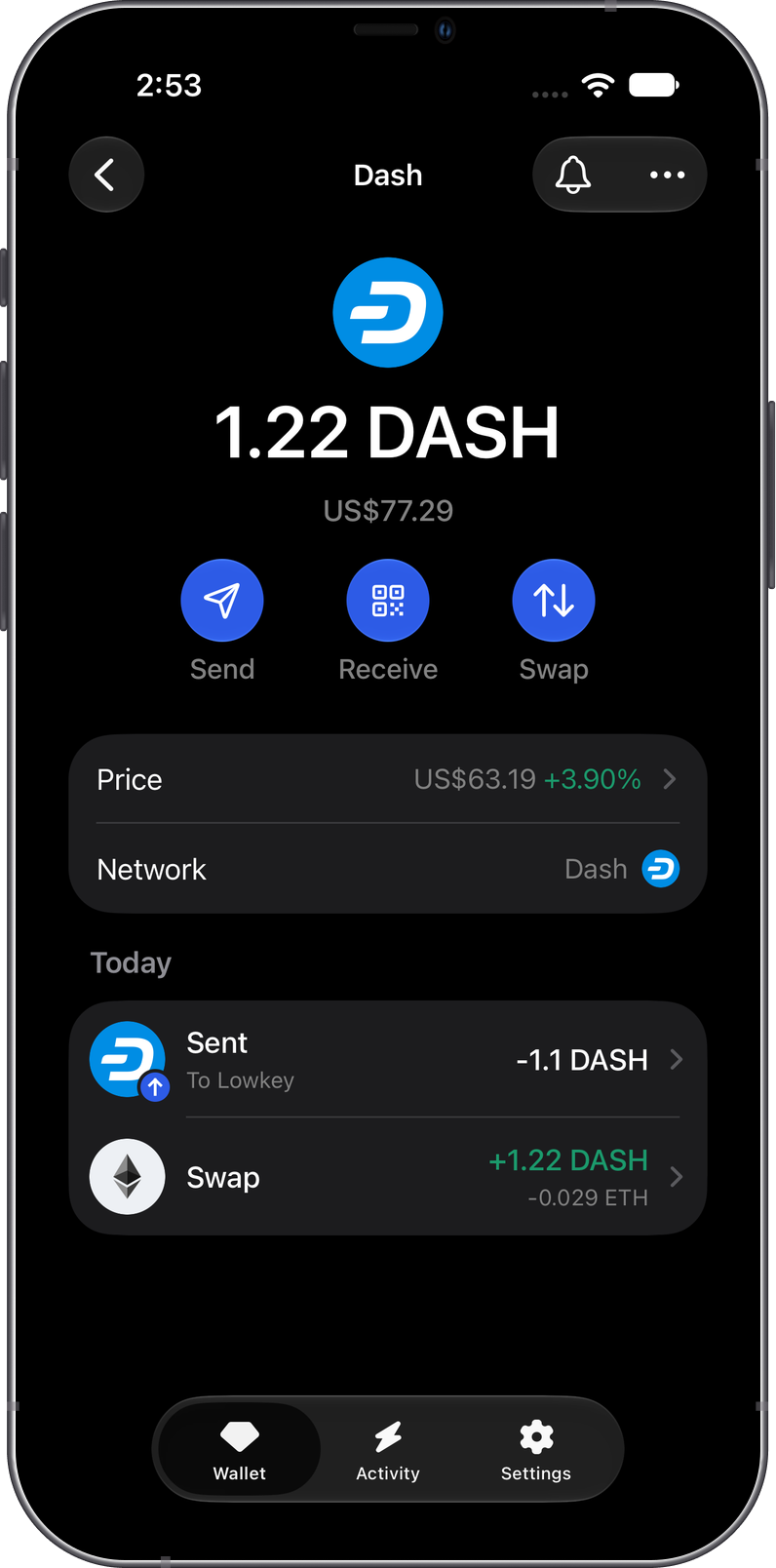
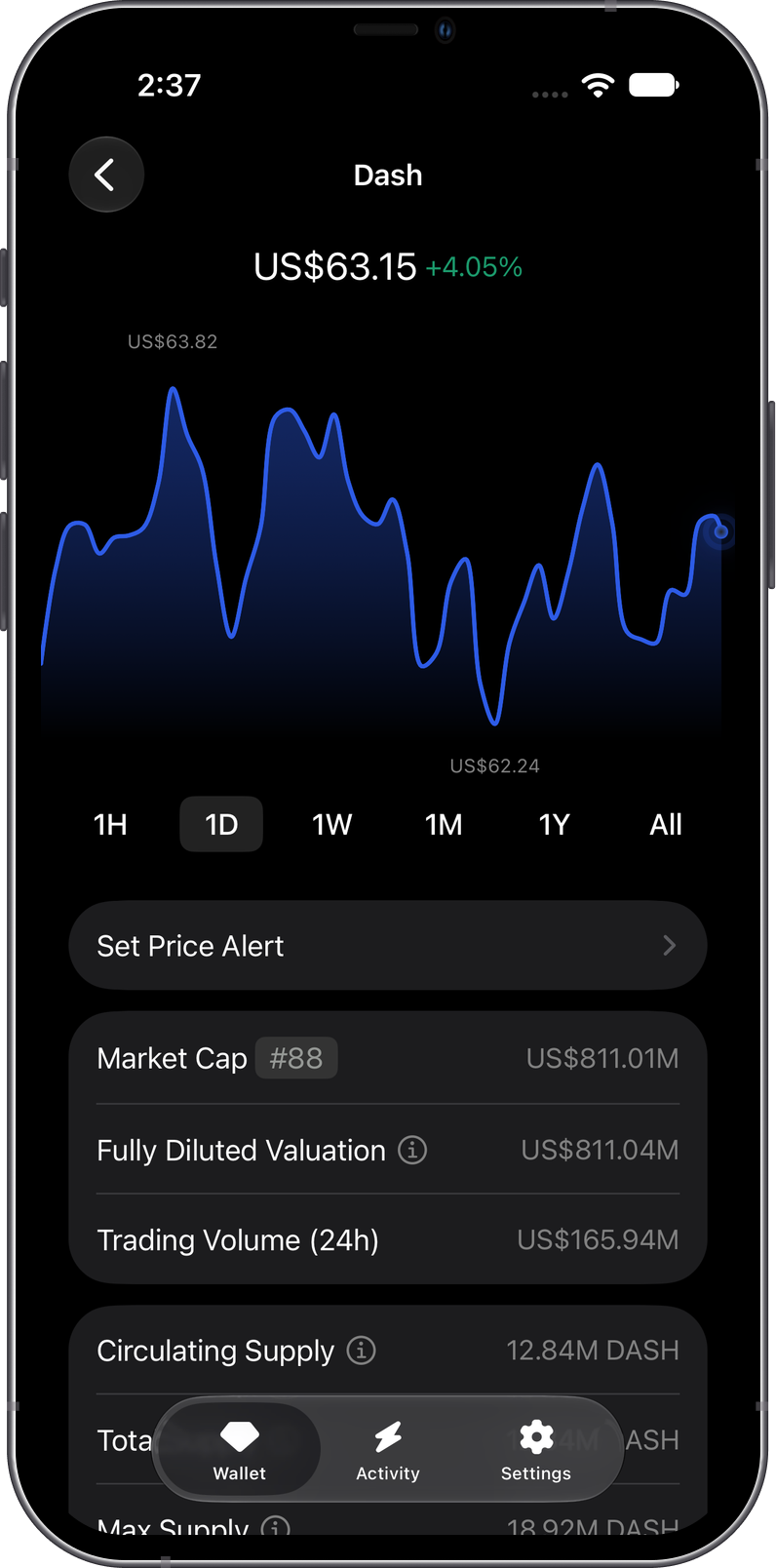
How to Add Dash to Gem Wallet
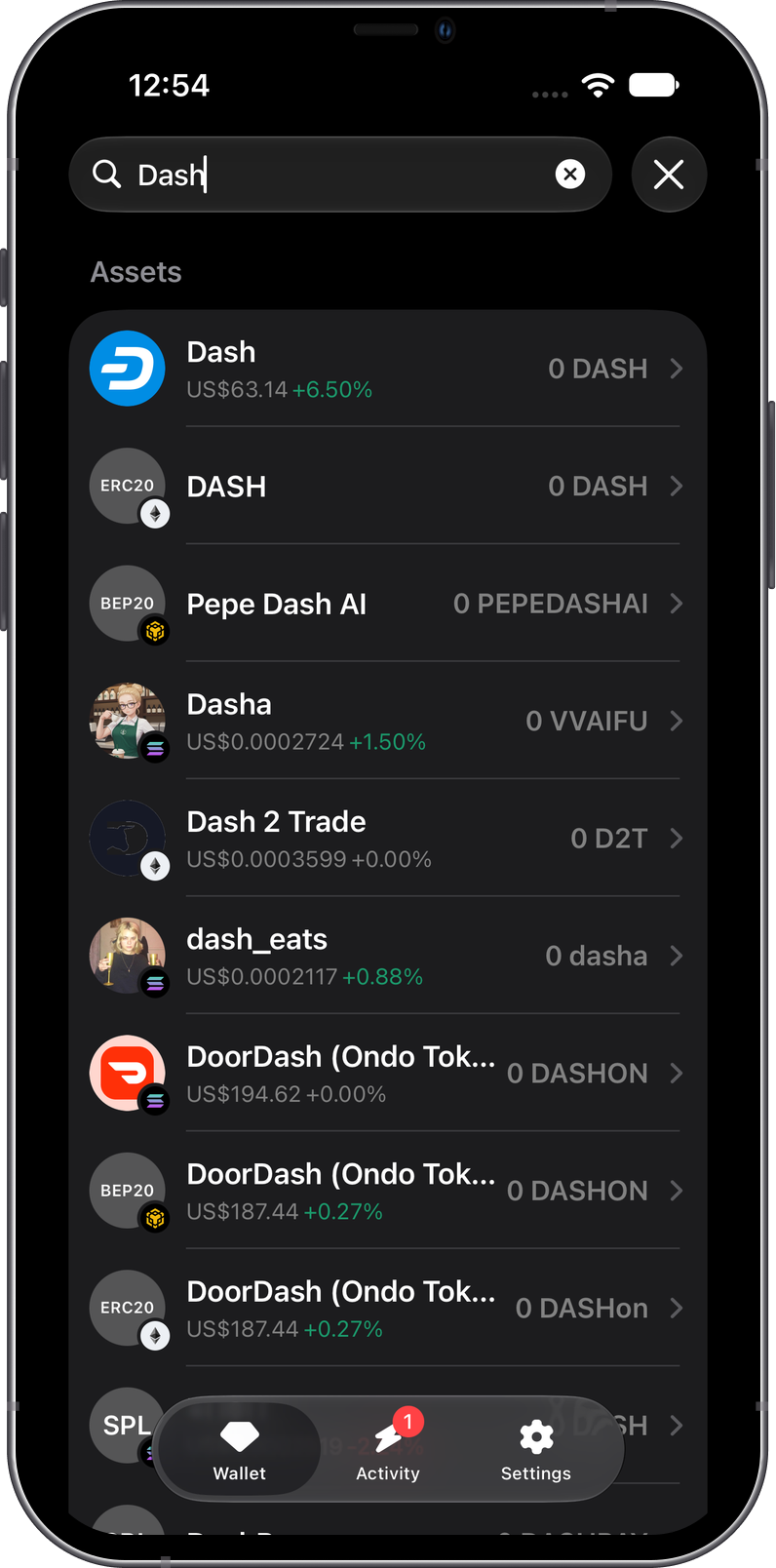
To add Dash to an existing wallet:
- Tap the search button in the upper-right corner of the main wallet screen.
- Search for Dash or DASH.
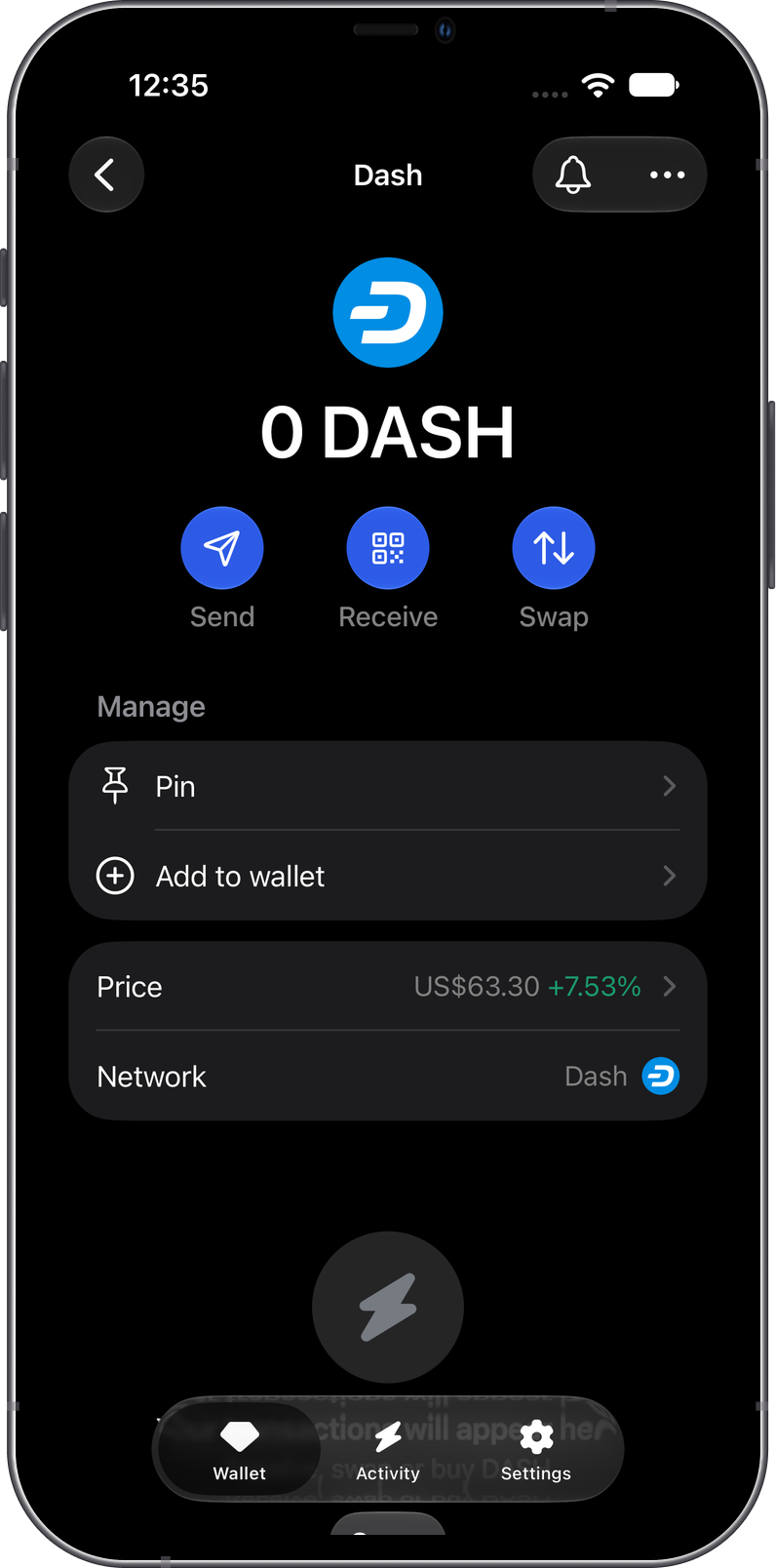
- Select Dash and enable it for your wallet.
Dash then appears as a separate asset in the main wallet screen.
How to Receive Dash with Gem Wallet
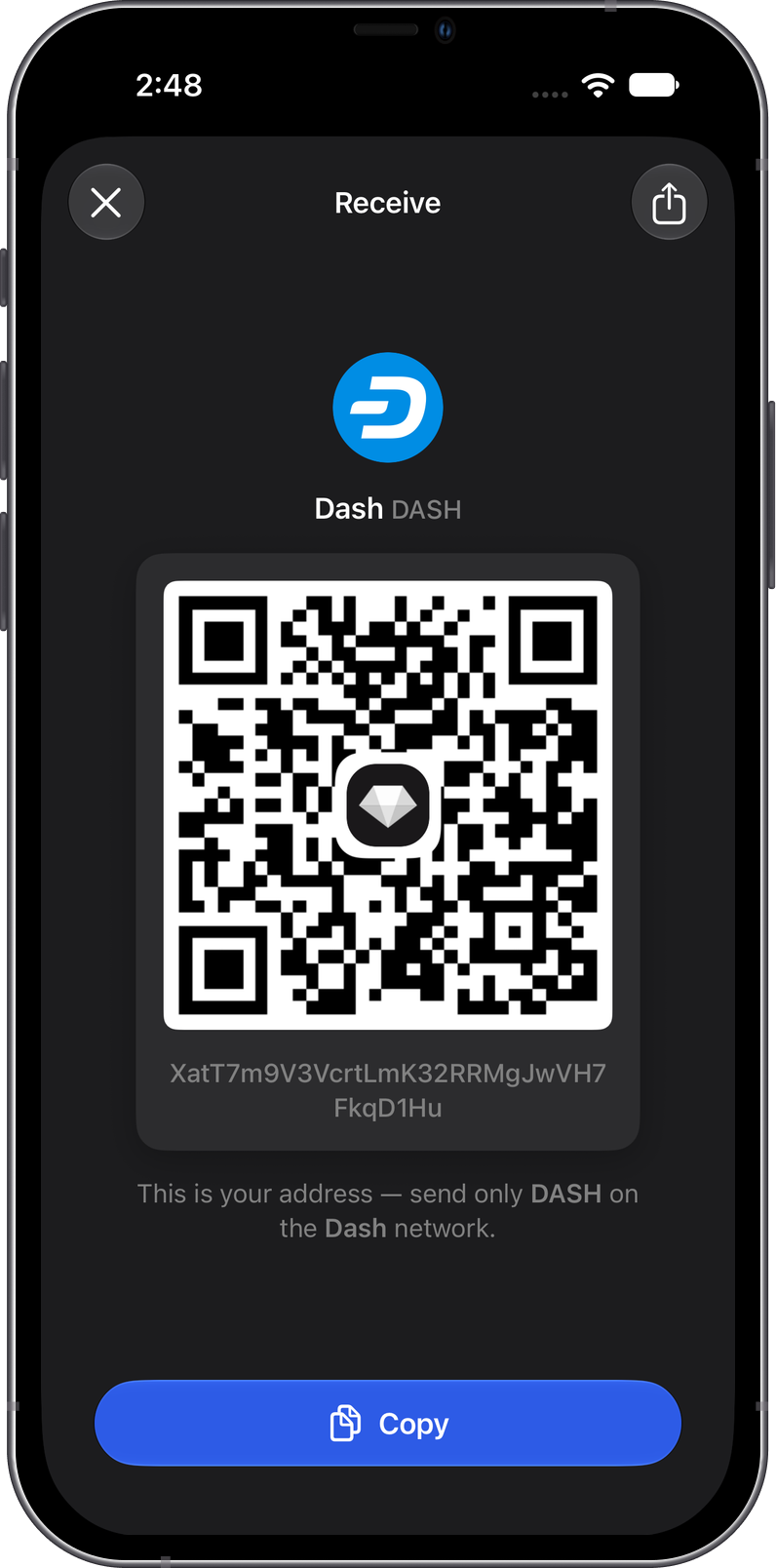
Open Dash in Gem Wallet and tap Receive. Copy or share the Dash address shown, then send only DASH on the Dash network to that address.
Always verify the recipient address and network before sending. Sending another asset or using a different network can result in a loss of funds.
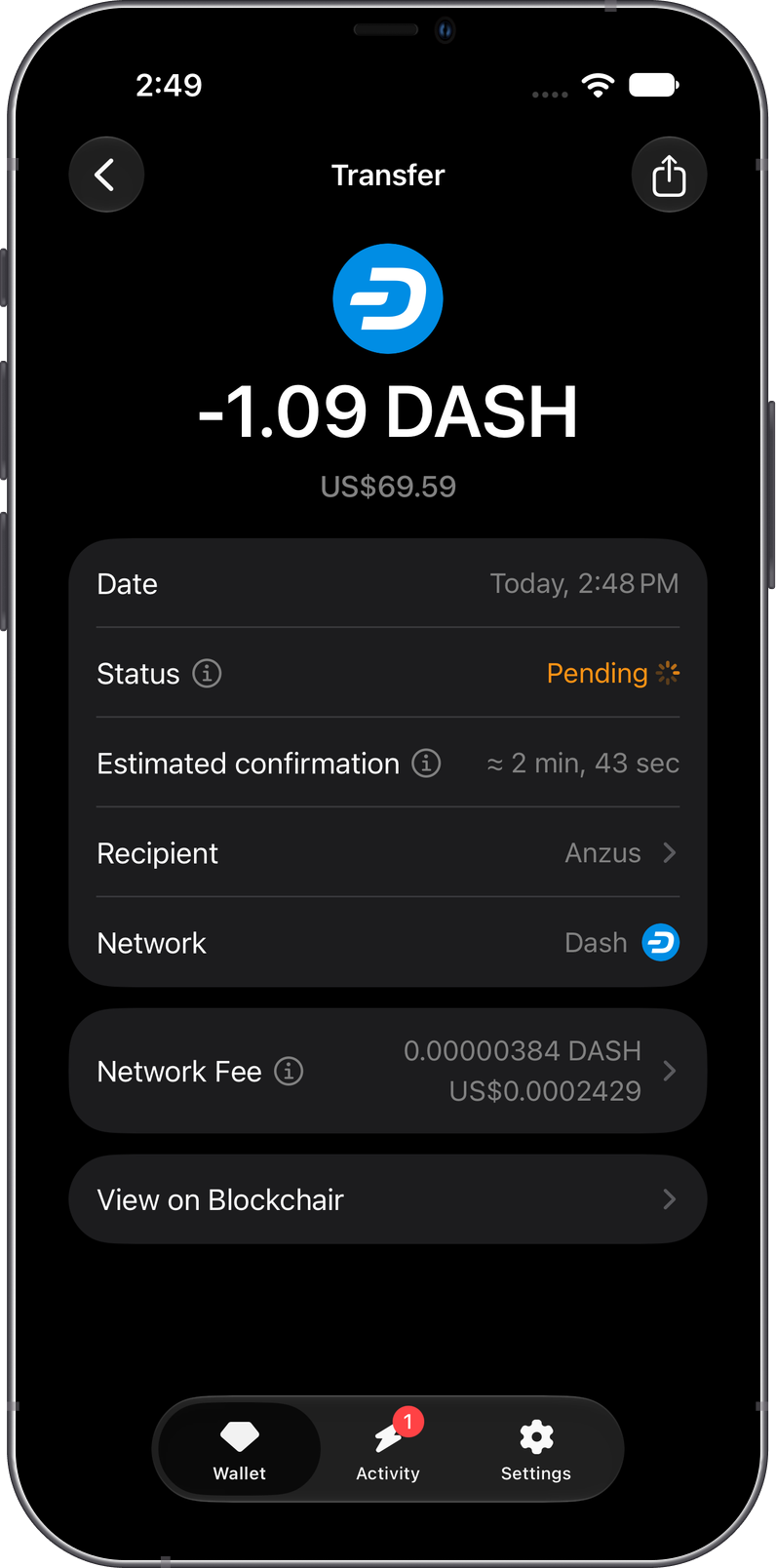
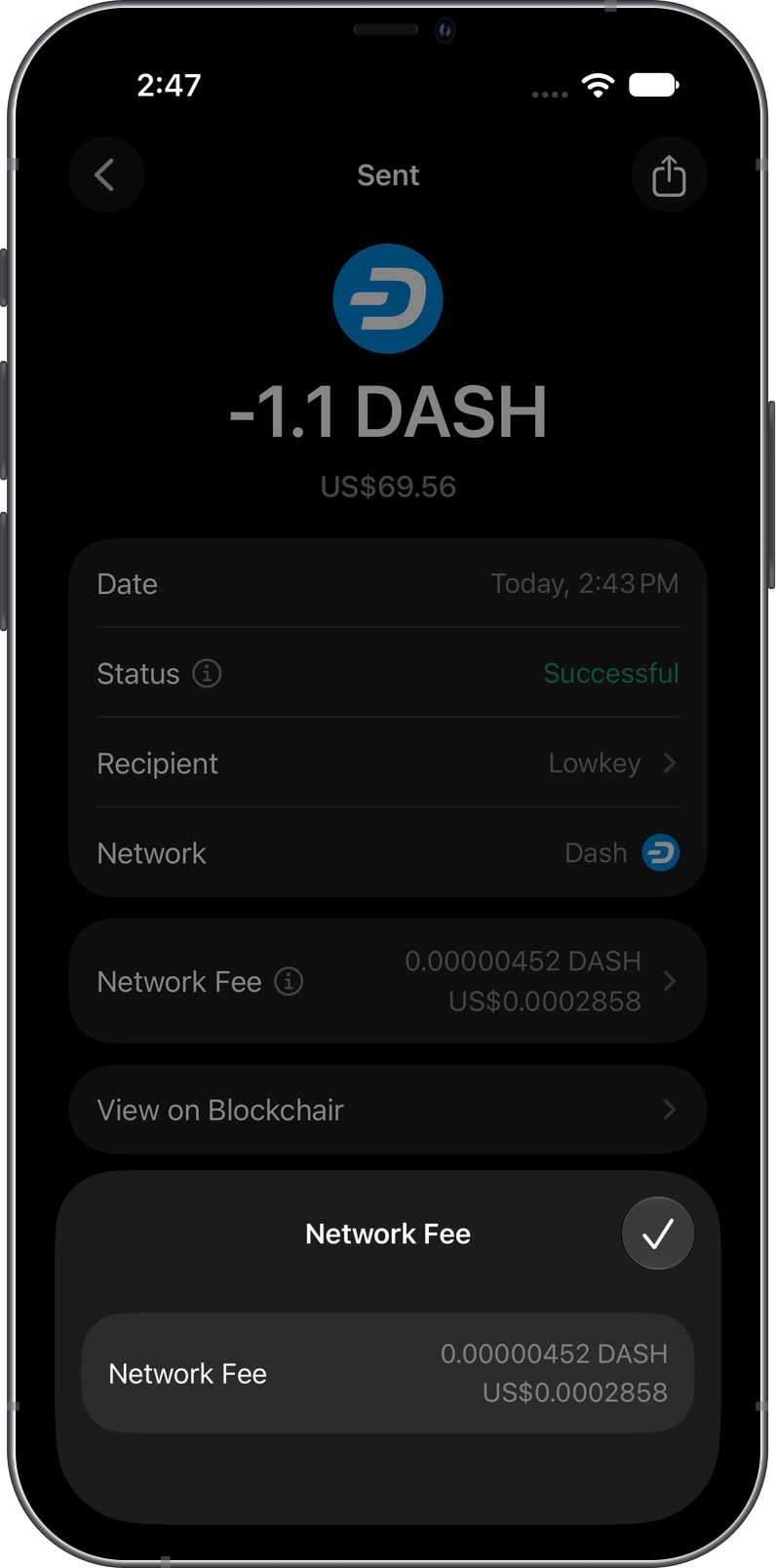
Gem Wallet displays the transaction's status, network fee, and a link to Blockchair after a Dash transfer.
How to Send Dash with Gem Wallet
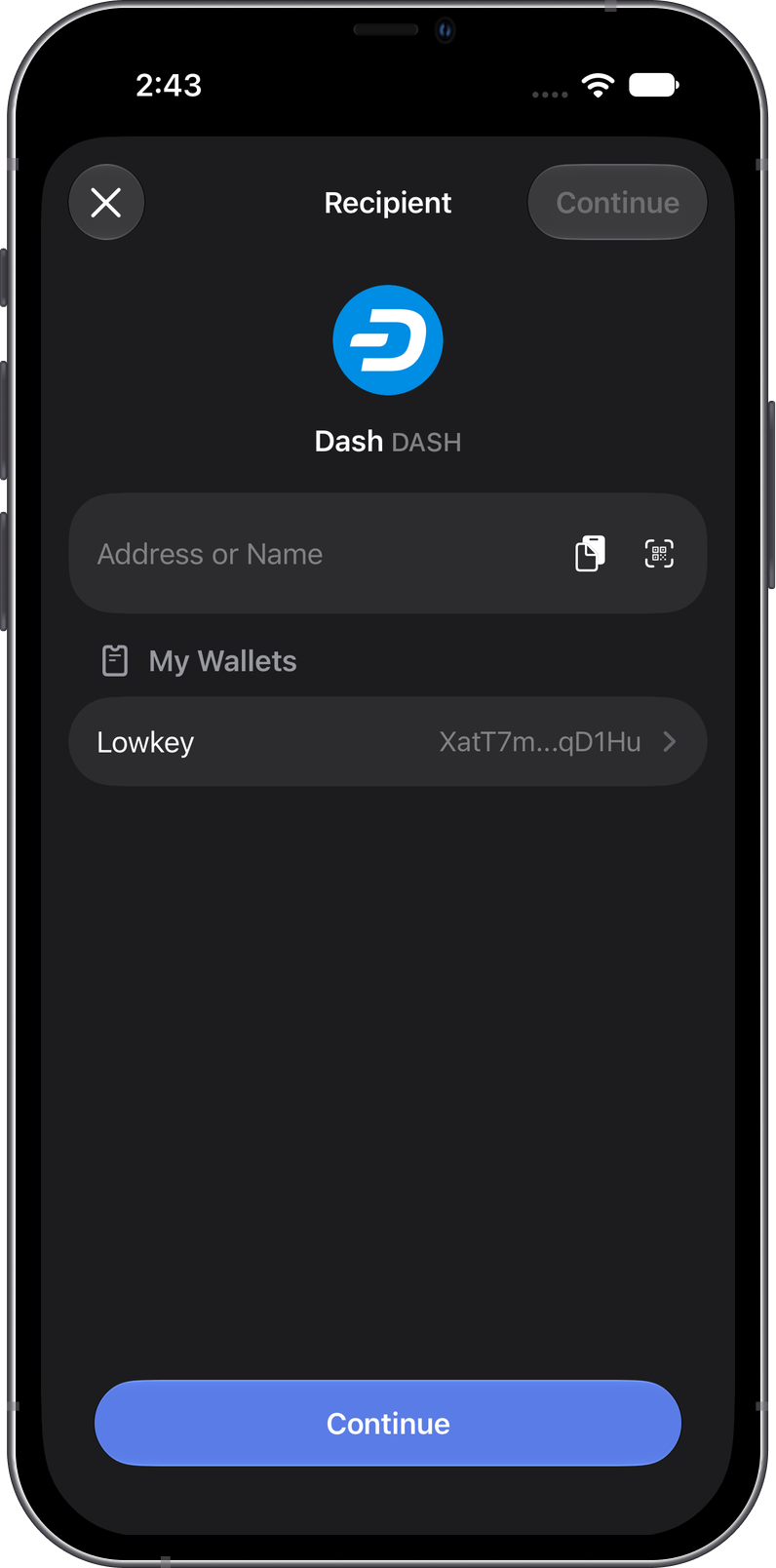
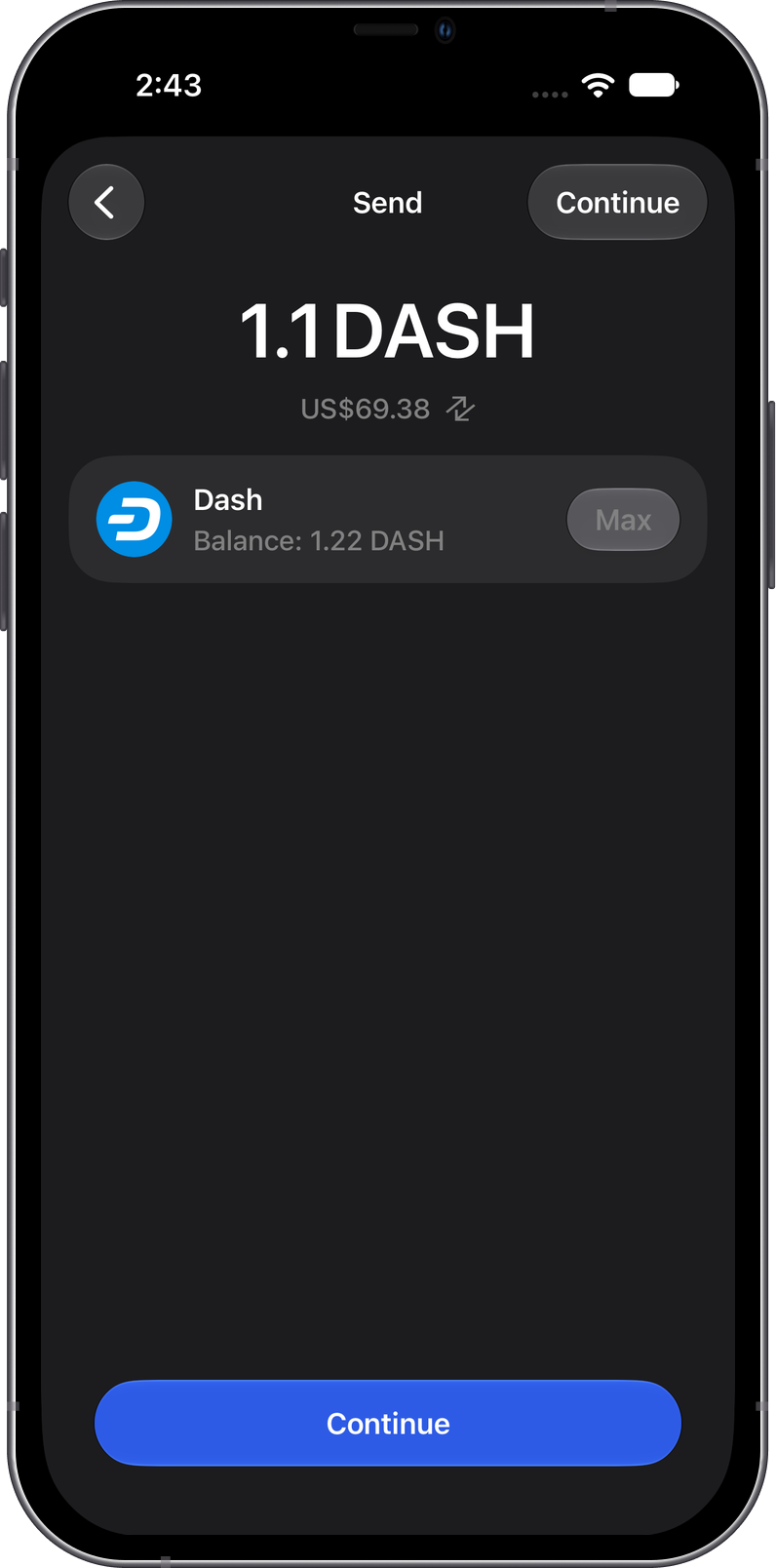
Open Dash and tap Send. Enter the recipient address manually, paste it, scan a compatible QR code, or select one of your wallets. Enter the amount, review the recipient and network fee, then confirm the transaction.
Dash automatically attempts to apply InstantSend to eligible transactions. Gem Wallet currently shows the transaction as pending until it is included in a block, even if the Dash network has already applied an InstantSend lock.
Can I Swap Dash on Gem Wallet?
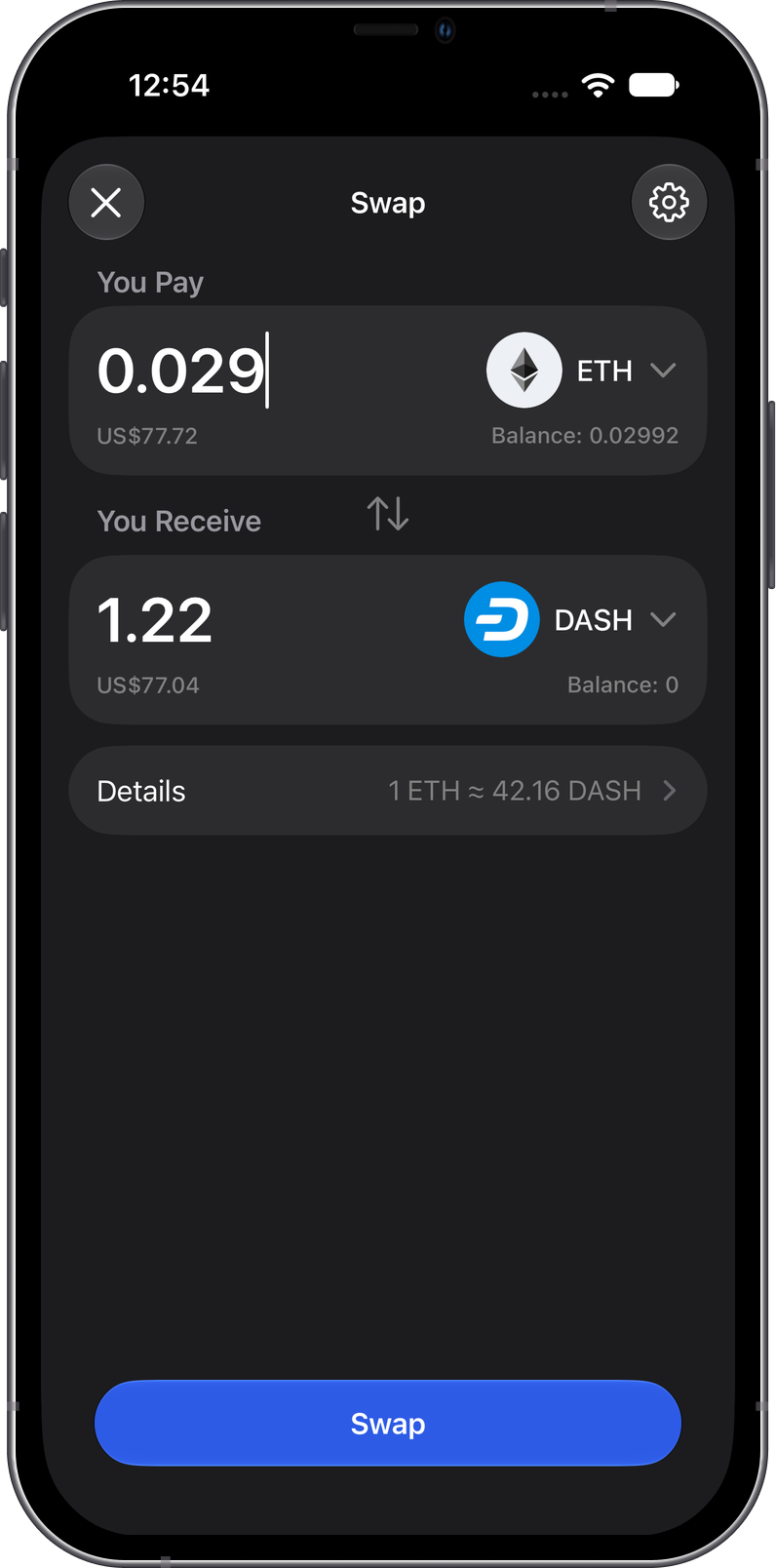
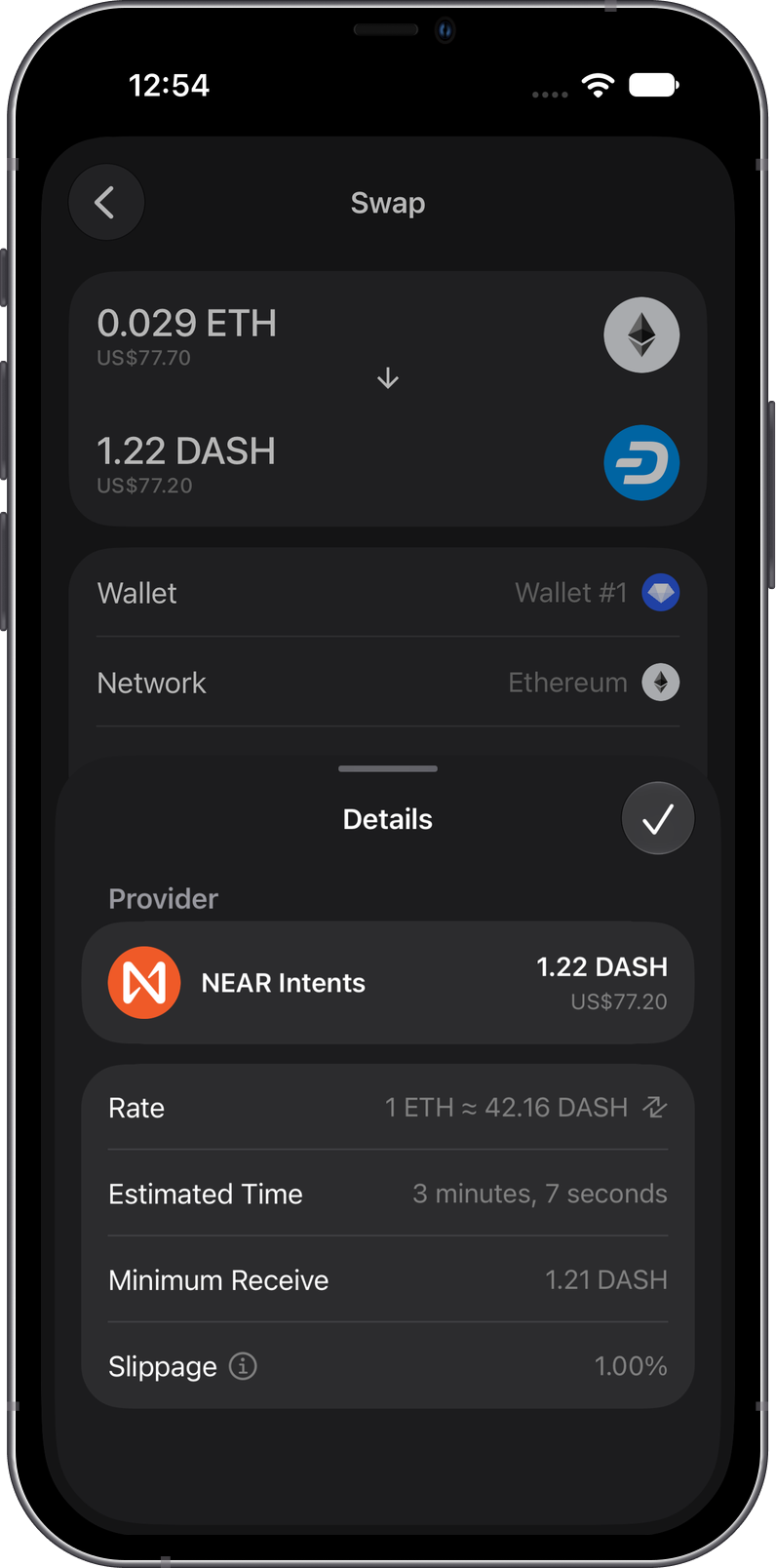
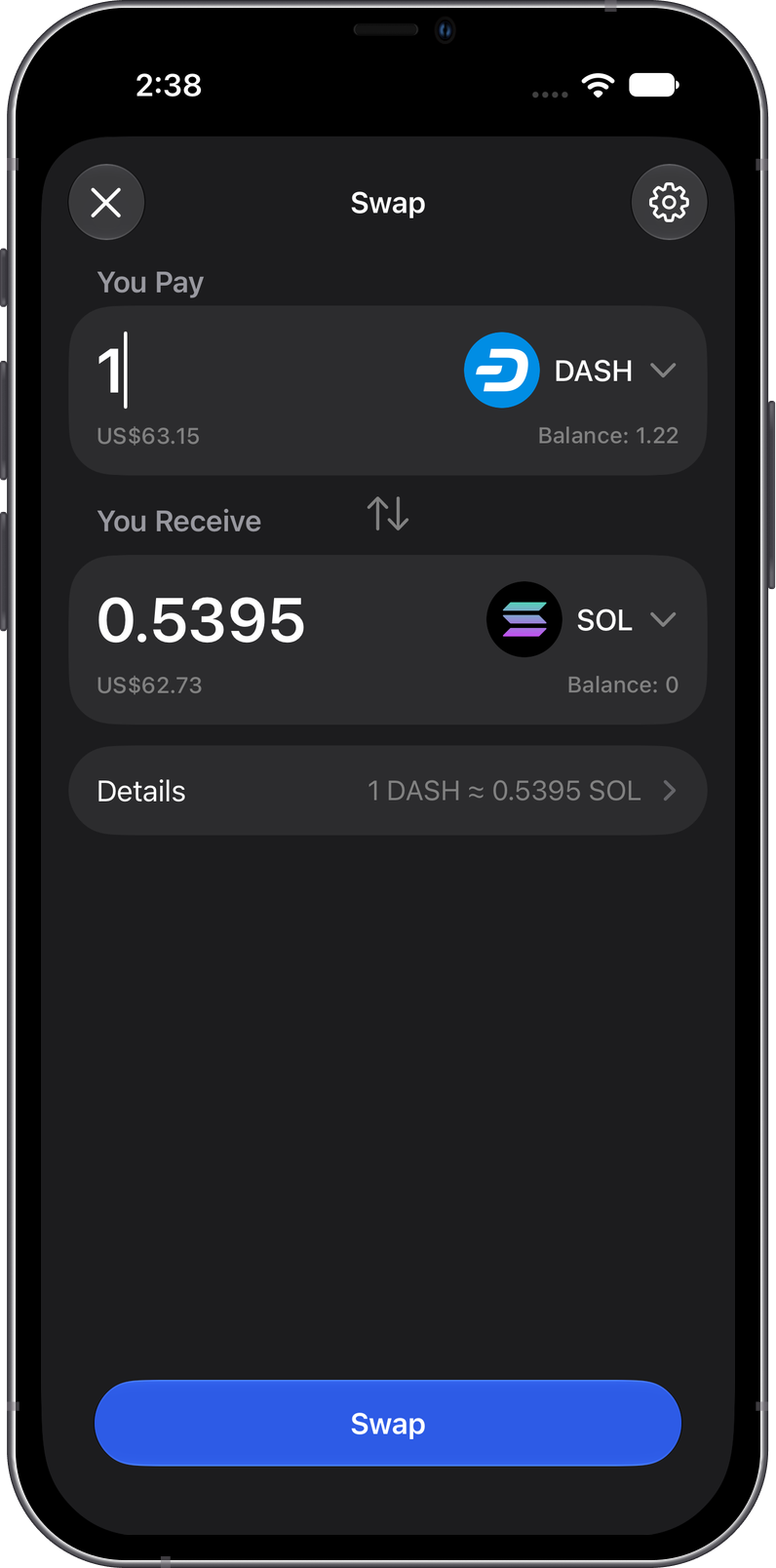
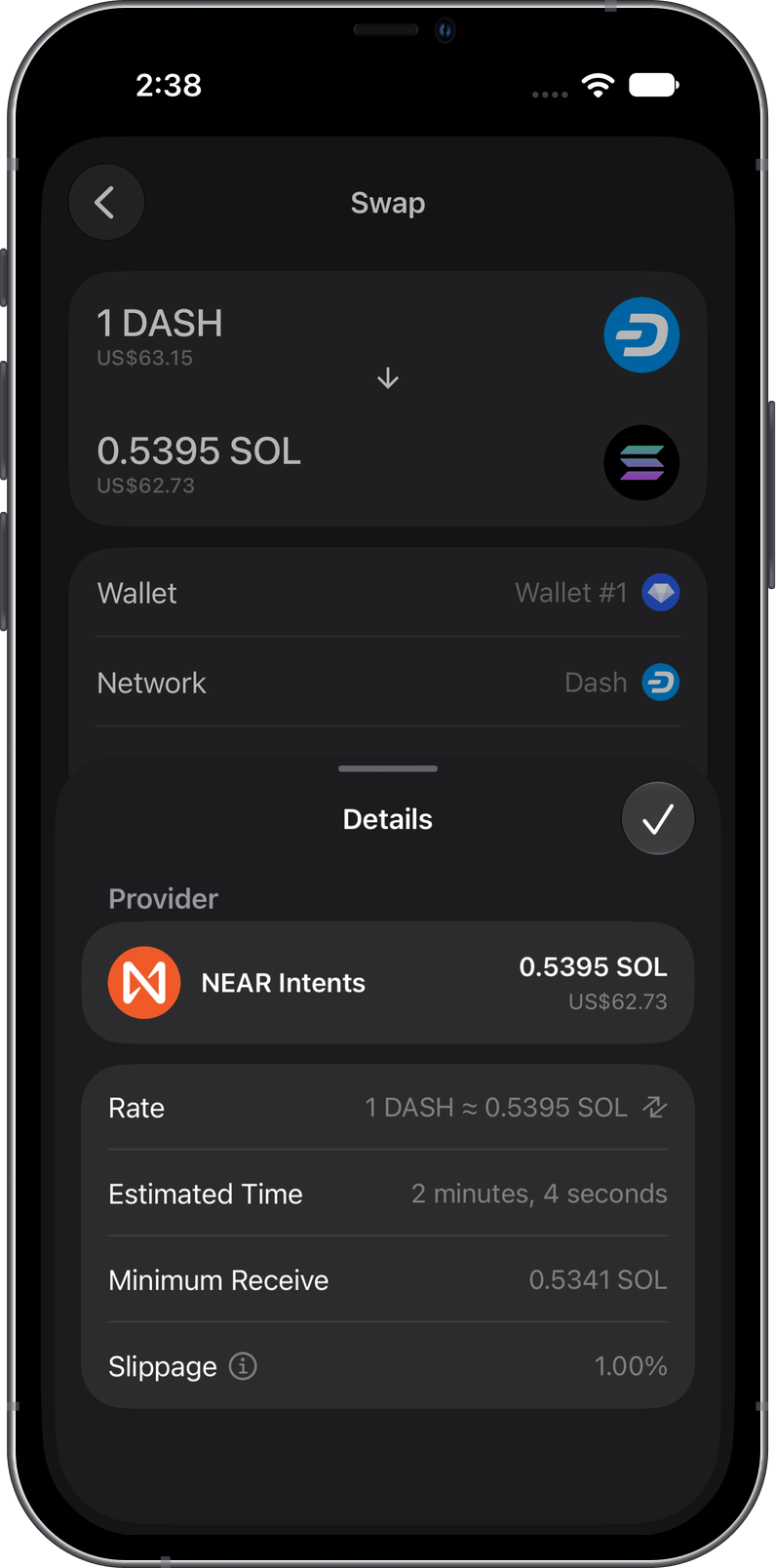
Gem Wallet displays quotes from its available providers for supported cross-chain swaps to or from DASH. Routes, providers, rates, fees, estimated times, and minimum received amounts can vary by asset, amount, and market conditions.
Always review the selected assets, provider, rate, price impact, minimum received amount, and total fees before confirming a swap.
The first example swaps ETH on Ethereum to DASH. Review the provider, estimated time, minimum received amount, and slippage before confirming.
The second example swaps DASH to SOL. Confirm the selected assets, destination network, provider, rate, minimum received amount, and slippage before proceeding.
Transaction Fees on Dash
Dash network fees are paid in DASH. Because Dash uses UTXOs, the final fee can depend on the transaction's number of inputs and outputs, in addition to the selected fee option.
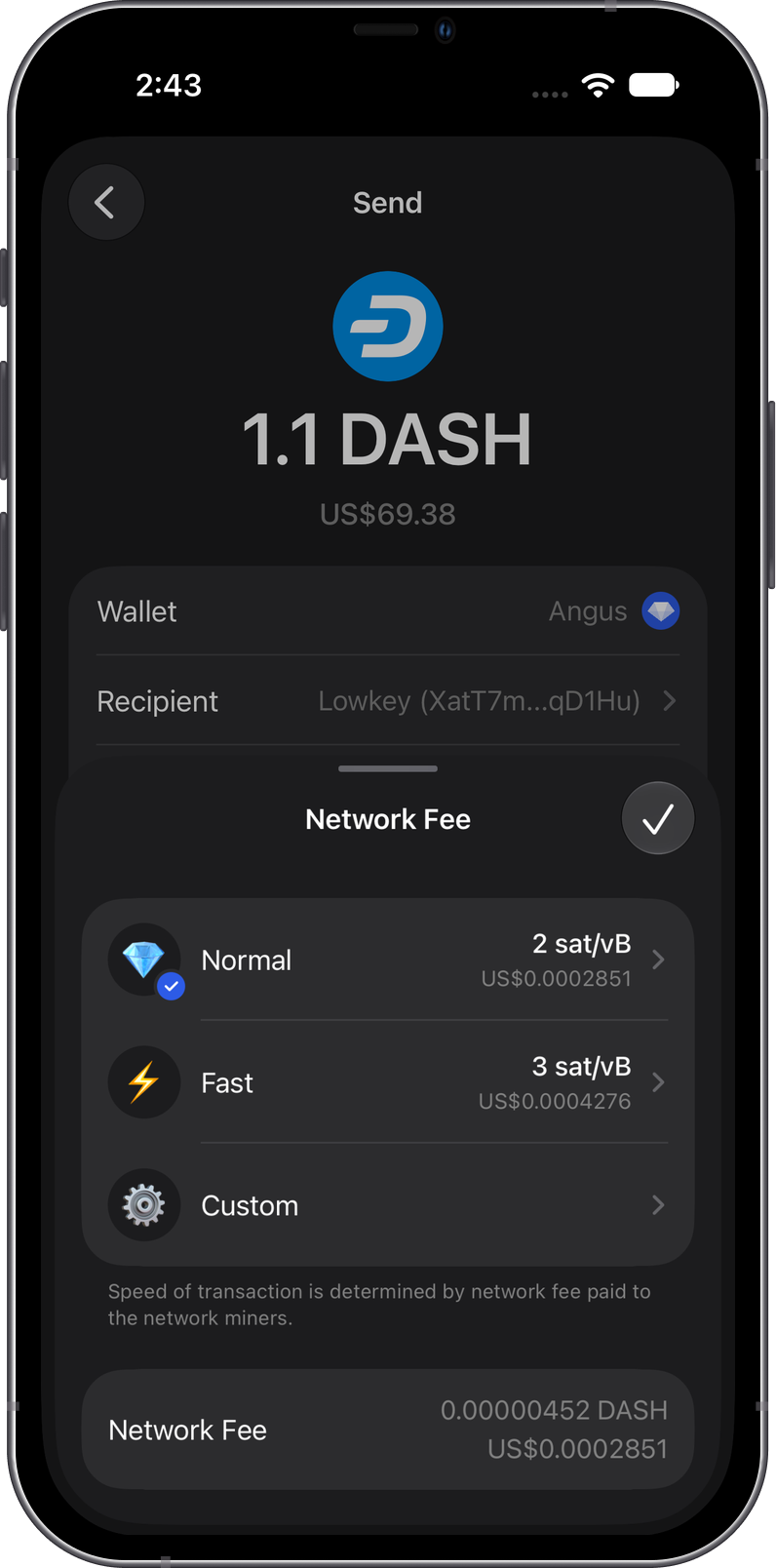
Gem Wallet calculates and displays the network fee before confirmation. Keep enough DASH to cover both the amount you are sending and the fee. A higher selected fee may help a transaction confirm sooner during busier network conditions, but does not guarantee a specific confirmation time.
Choose Normal, Fast, or Custom to adjust the fee option, then review the final DASH fee before submitting. You can also open a completed transaction and select Network Fee to review the DASH fee paid and its displayed fiat value.
How to Check Dash Transactions
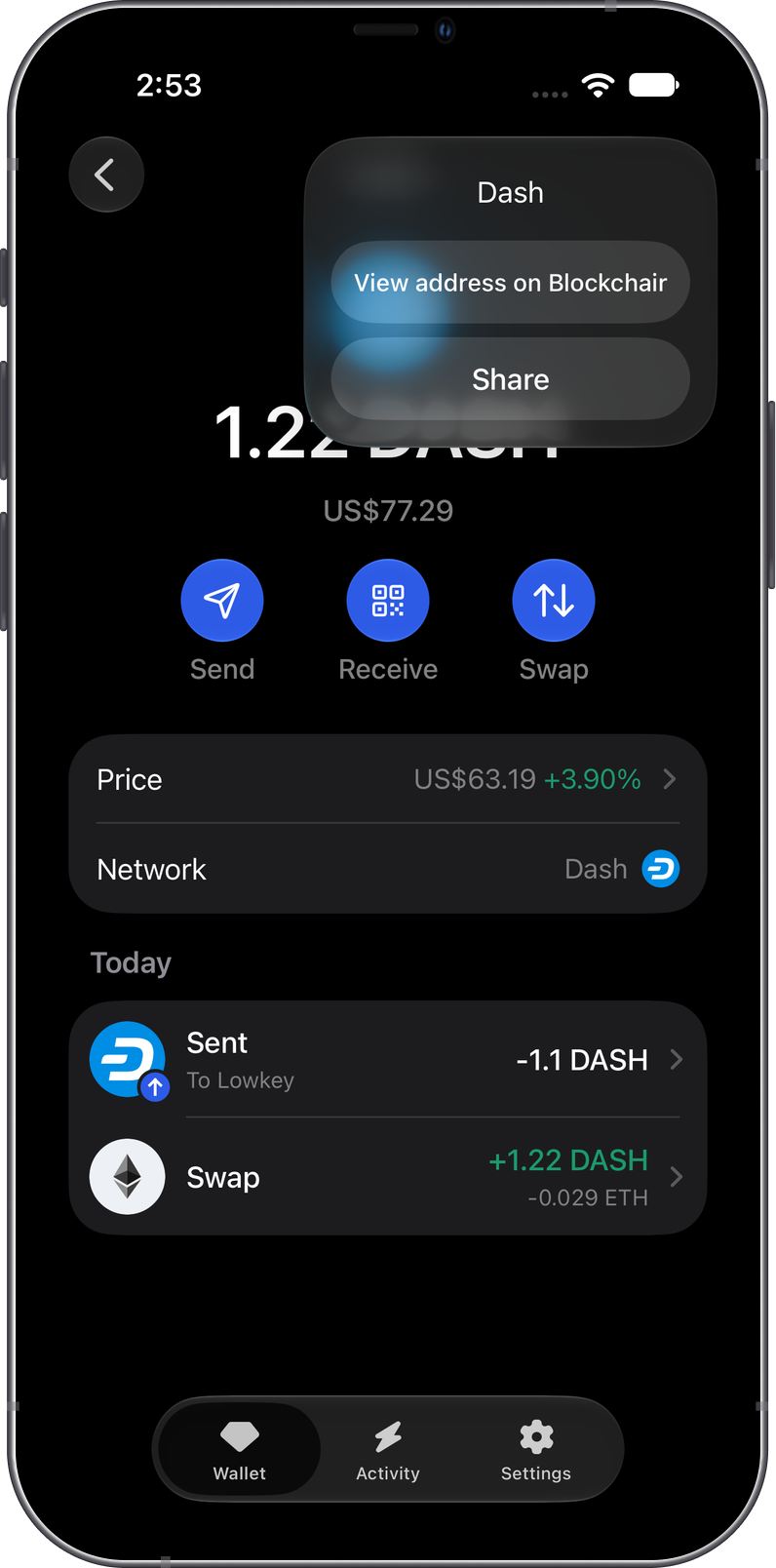
Gem Wallet displays your Dash balance and transaction history. To inspect an address or transaction on the blockchain explorer, open the Dash asset menu and select View address on Blockchair when available.
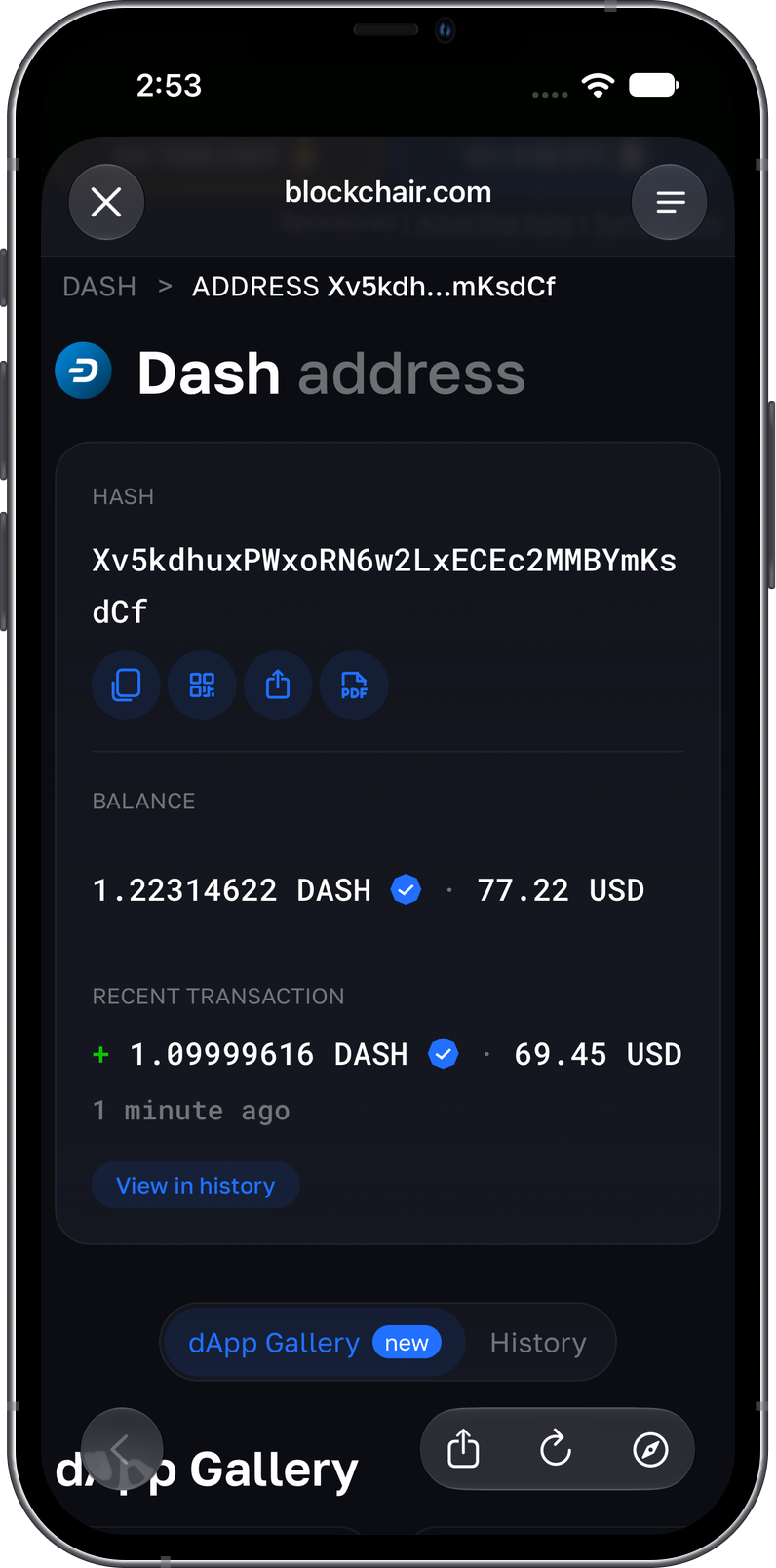
Blockchair is the default Dash explorer in Gem Wallet. Search for a Dash address or transaction ID to review public balances, transaction status, confirmations, and historical fees.
Why Choose Gem Wallet for Dash?
- Self-Custody: You retain control of your DASH and private keys.
- Payment-Ready Transfers: Send DASH by address, QR code, or a compatible Dash payment request.
- Clear Transaction Review: Confirm the recipient, amount, and network fee before signing.
- Cross-Chain Access: Review available cross-chain swap quotes to or from DASH in the same wallet.
Conclusion
Gem Wallet provides a self-custodial way to manage DASH, send and receive Dash payments, review transaction details, and access supported cross-chain swap routes.