Tempo
What is Tempo?
Here are 5 key points about Tempo:
- Tempo is an EVM-compatible blockchain purpose-built for stablecoin payments, so Ethereum-compatible applications and tooling can integrate with the network.
- Tempo has no native token. Gem Wallet shows balances for supported TIP-20 tokens, and eligible USD-denominated stablecoins pay transaction fees instead of a separate gas coin.
- TIP-20 is Tempo's payment-focused token standard. It extends token transfers with features such as 32-byte payment memos and optional issuer compliance controls.
- Dedicated payment lanes reserve blockspace for TIP-20 transfers, helping payment transactions remain predictable when other network activity is high.
- Tempo Transactions add payment-oriented capabilities including fee sponsorship, batch calls, scheduled transactions, access keys, and parallel transactions using independent nonces.
Learn more about Tempo with Gem Wallet: Tempo Wallet
Tempo Support in Gem Wallet
Gem Wallet can be used to:
- Hold, send, and receive supported Tempo TIP-20 tokens.
- Swap supported assets to or from Tempo via Cross-Chain Swap.
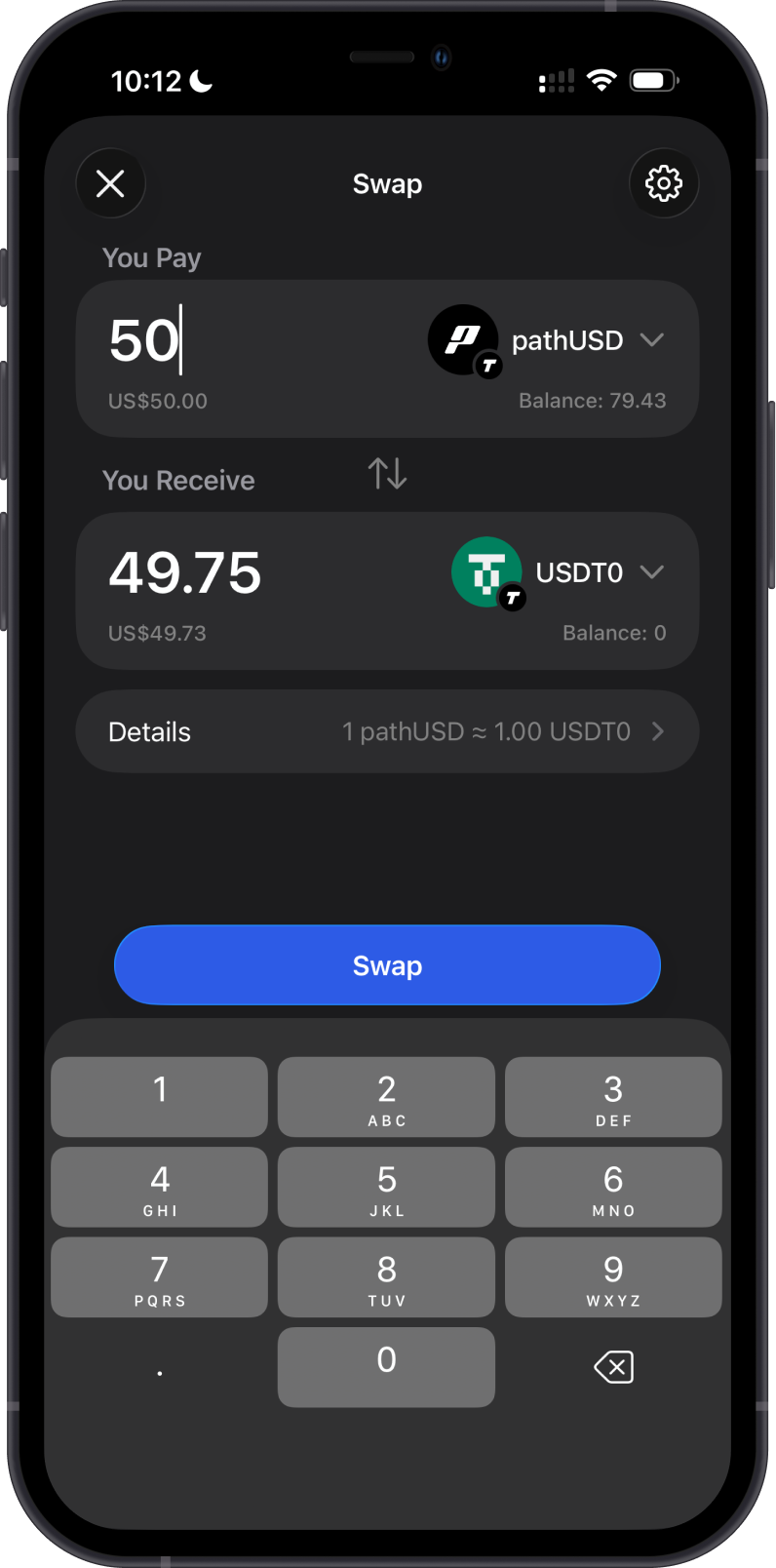
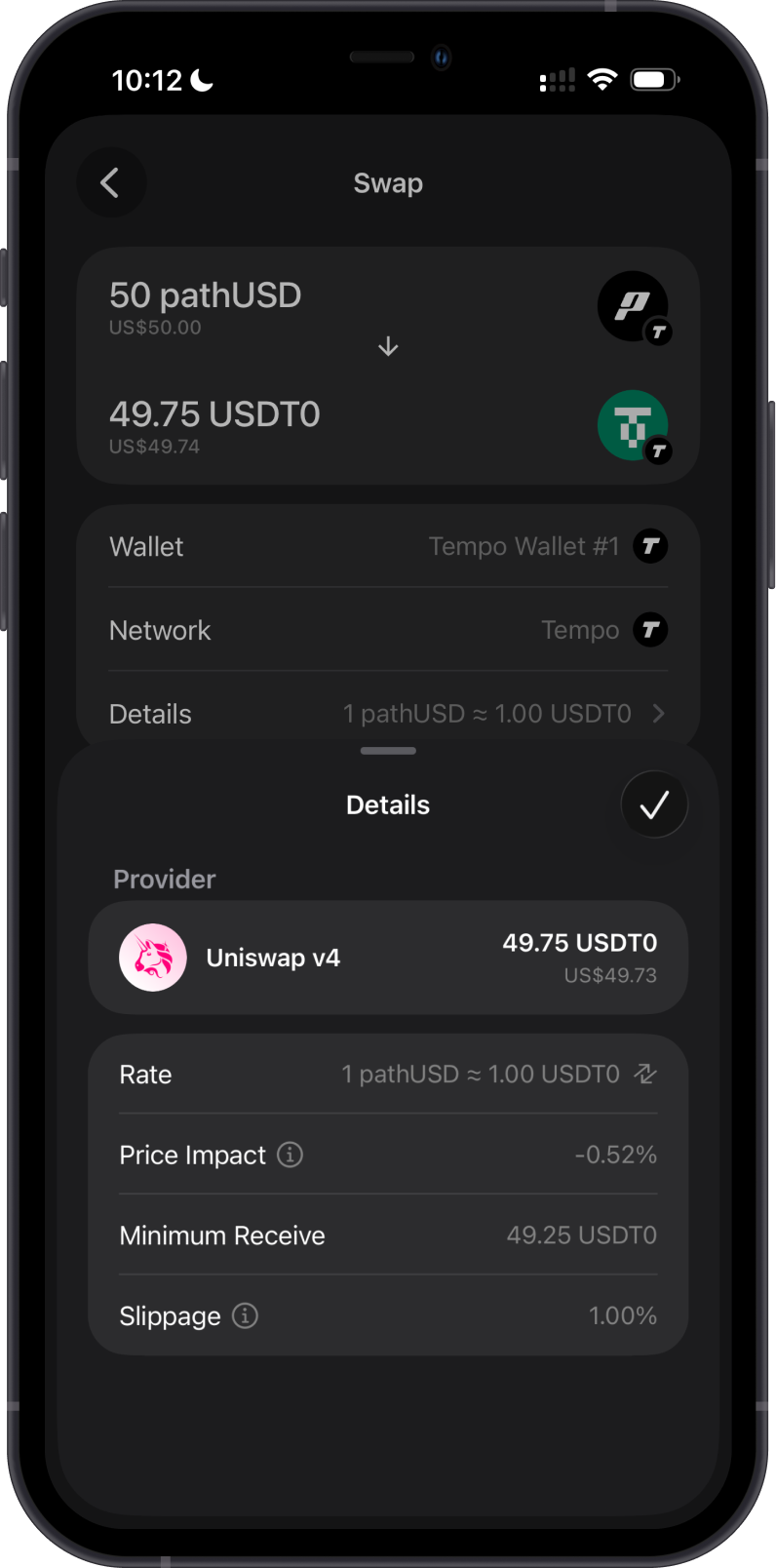
- Swap supported Tempo TIP-20 tokens to other supported Tempo TIP-20 tokens when an on-chain quote is available.
- Connect to compatible applications with WalletConnect.
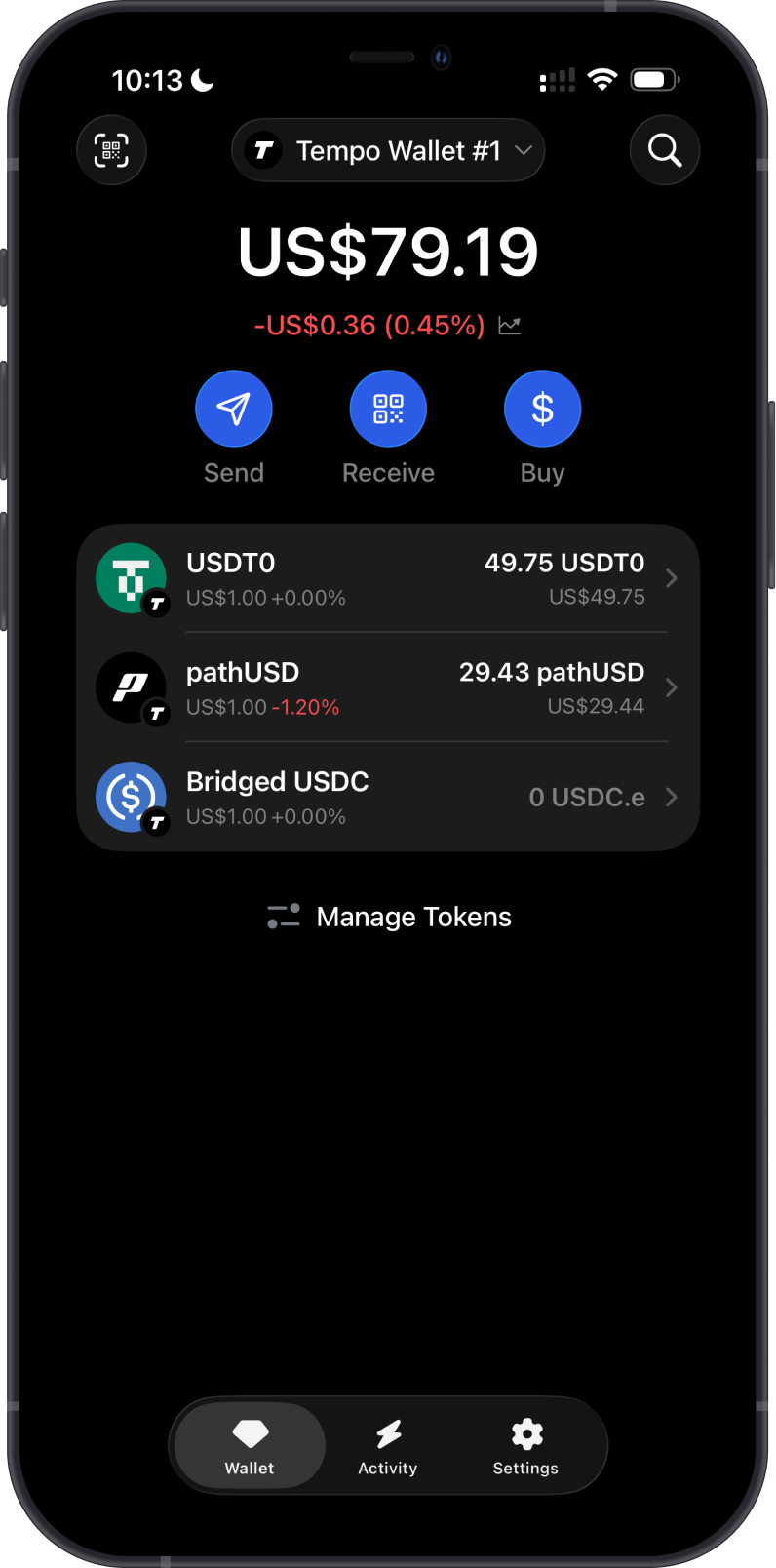
Tempo does not have a native asset. The supported assets available in Gem Wallet are TIP-20 tokens, such as USDC.e, USDT0, and pathUSD. Token availability can change, so always confirm the selected token and network before completing a transaction.
How to Add a Tempo Token?
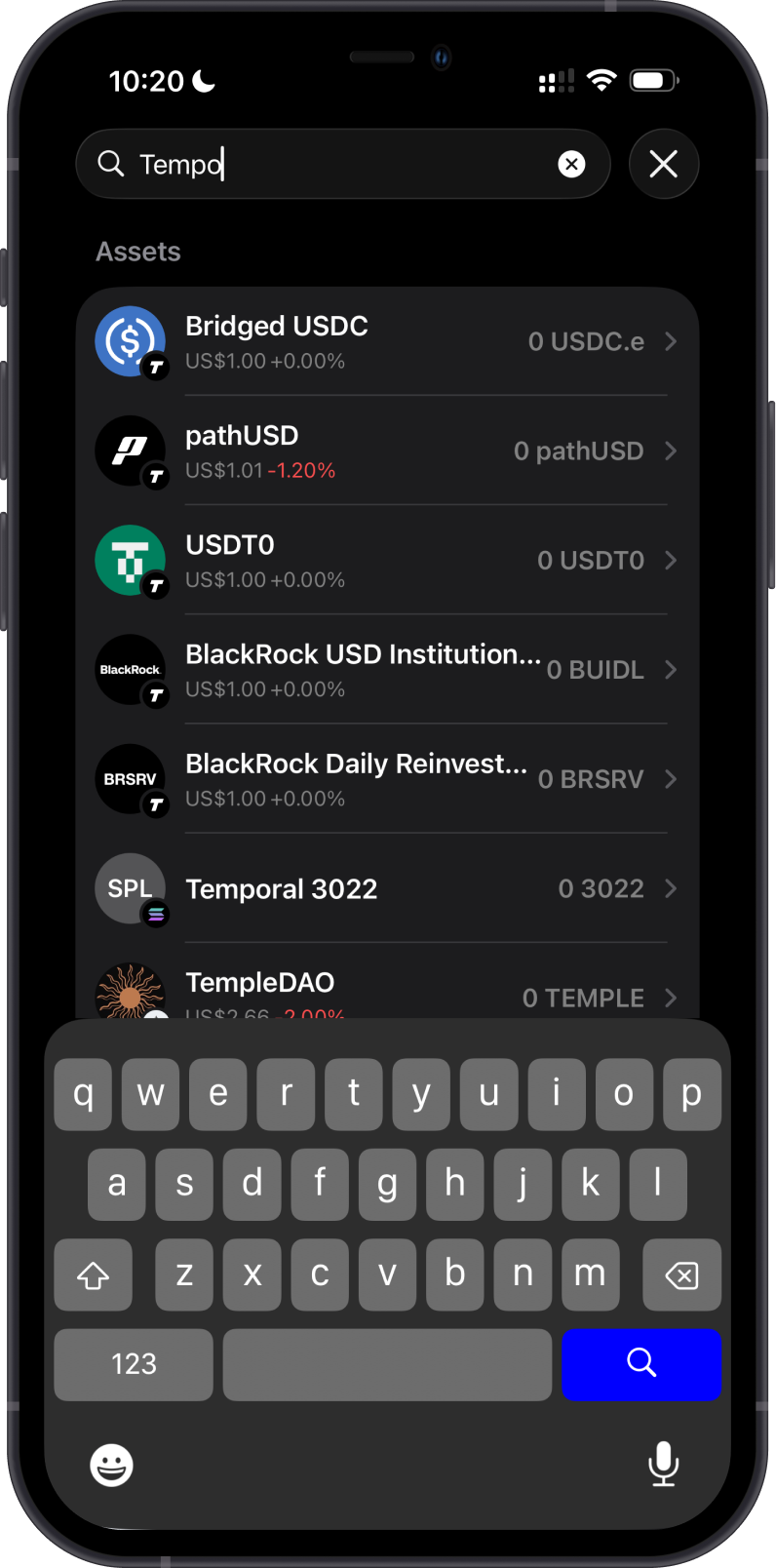
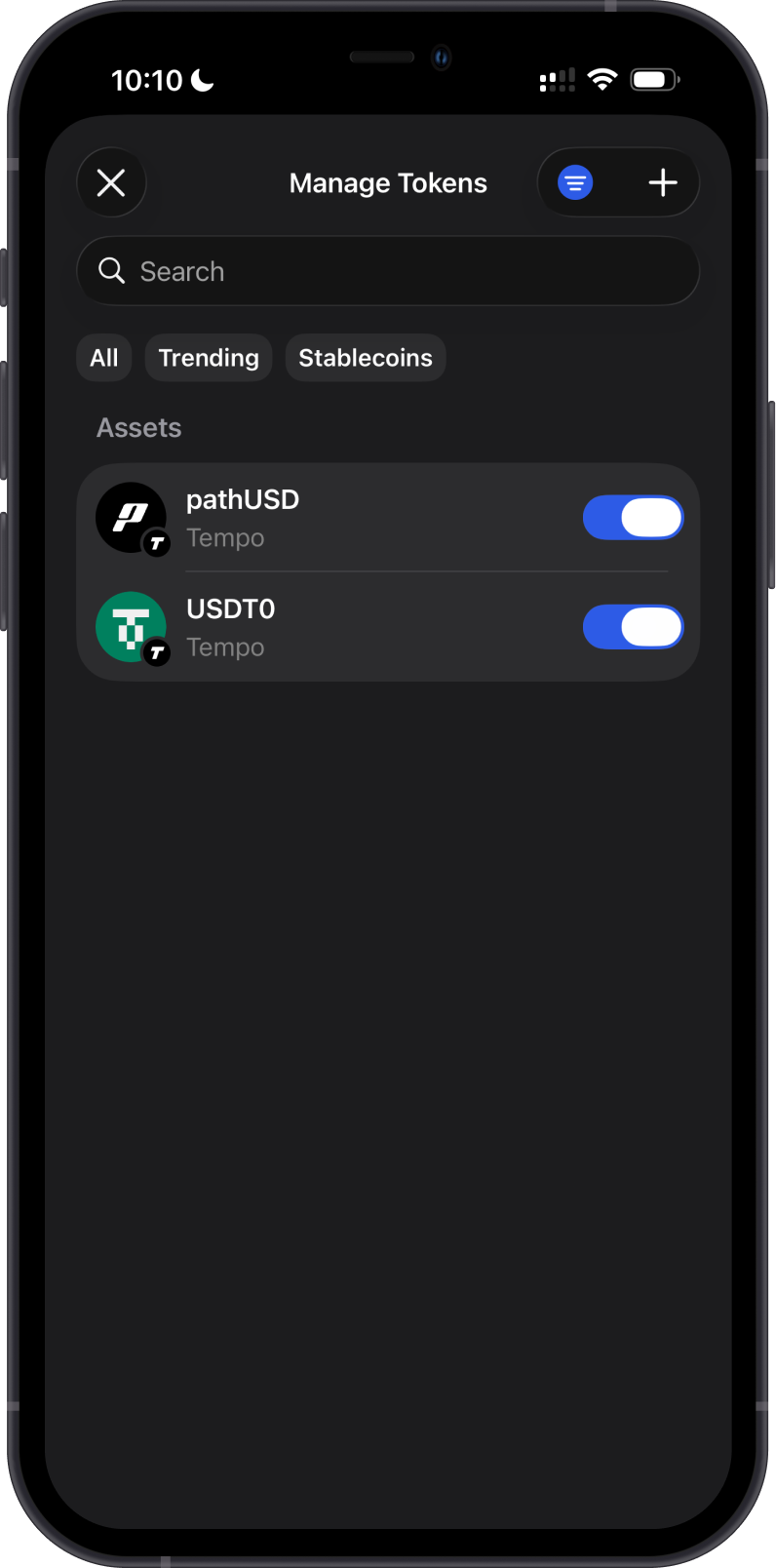
You can add a supported Tempo TIP-20 token in either of these ways:
- Use the search button at the top of the main wallet screen, search for the token, and enable it.
- Scroll to the bottom of the main wallet screen and select Manage Tokens. Search for the token manually, or tap the filter icon and set the network to Tempo, then enable the token.
Each supported Tempo token appears as a separate asset. Make sure you select the intended token before sending, receiving, or swapping.
How to Receive Tempo Tokens with Gem Wallet?
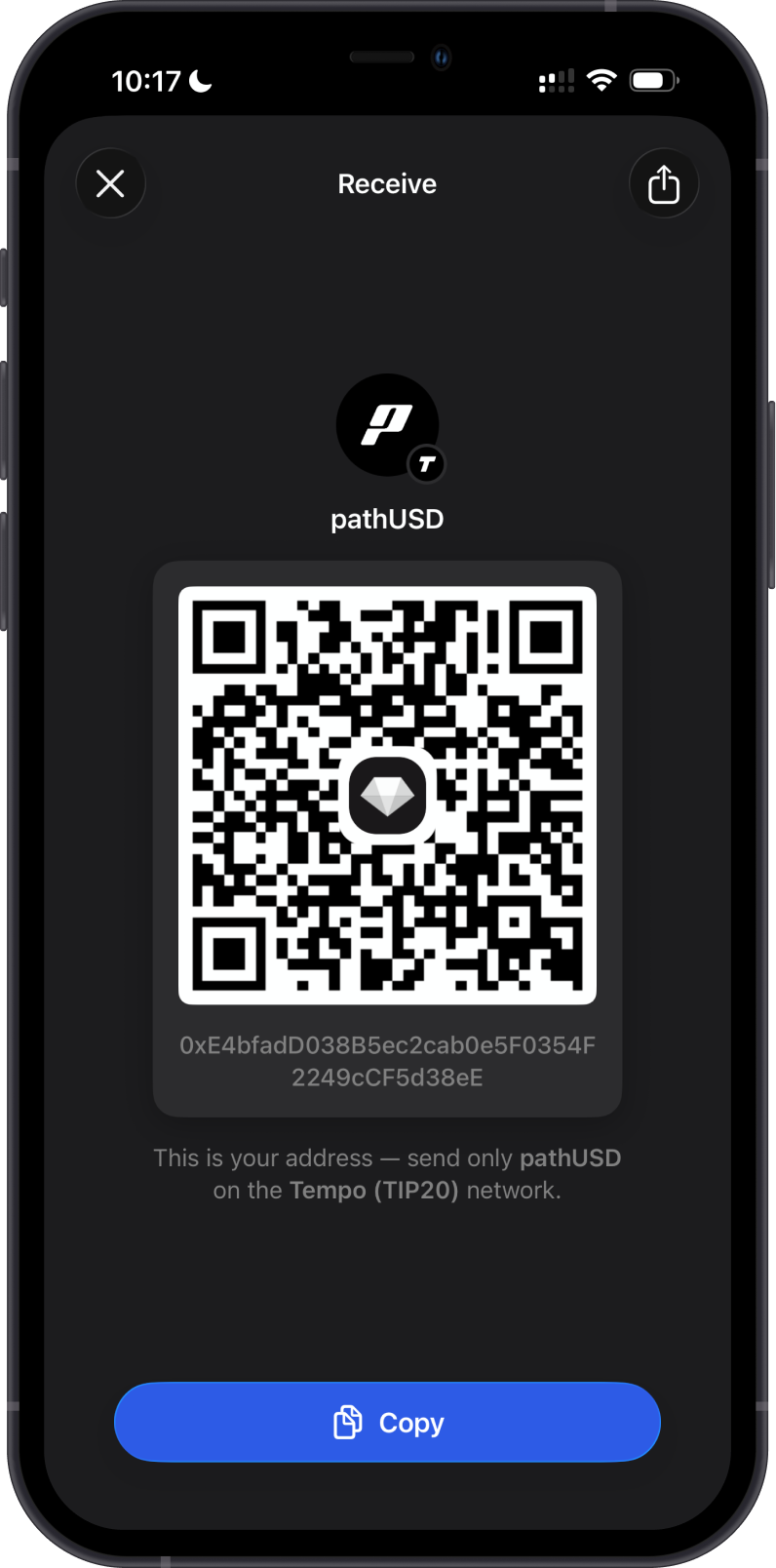
Open the supported Tempo token in Gem Wallet, tap Receive, then copy or share the address shown. Send only the selected TIP-20 token on the Tempo network to that address.
Tempo uses EVM-style addresses, which begin with 0x. Although supported Tempo tokens share the same wallet address, the sender must choose the correct token and the Tempo network. Sending an asset on a different network can result in a loss of funds.
How to Send Tempo Tokens with Gem Wallet?
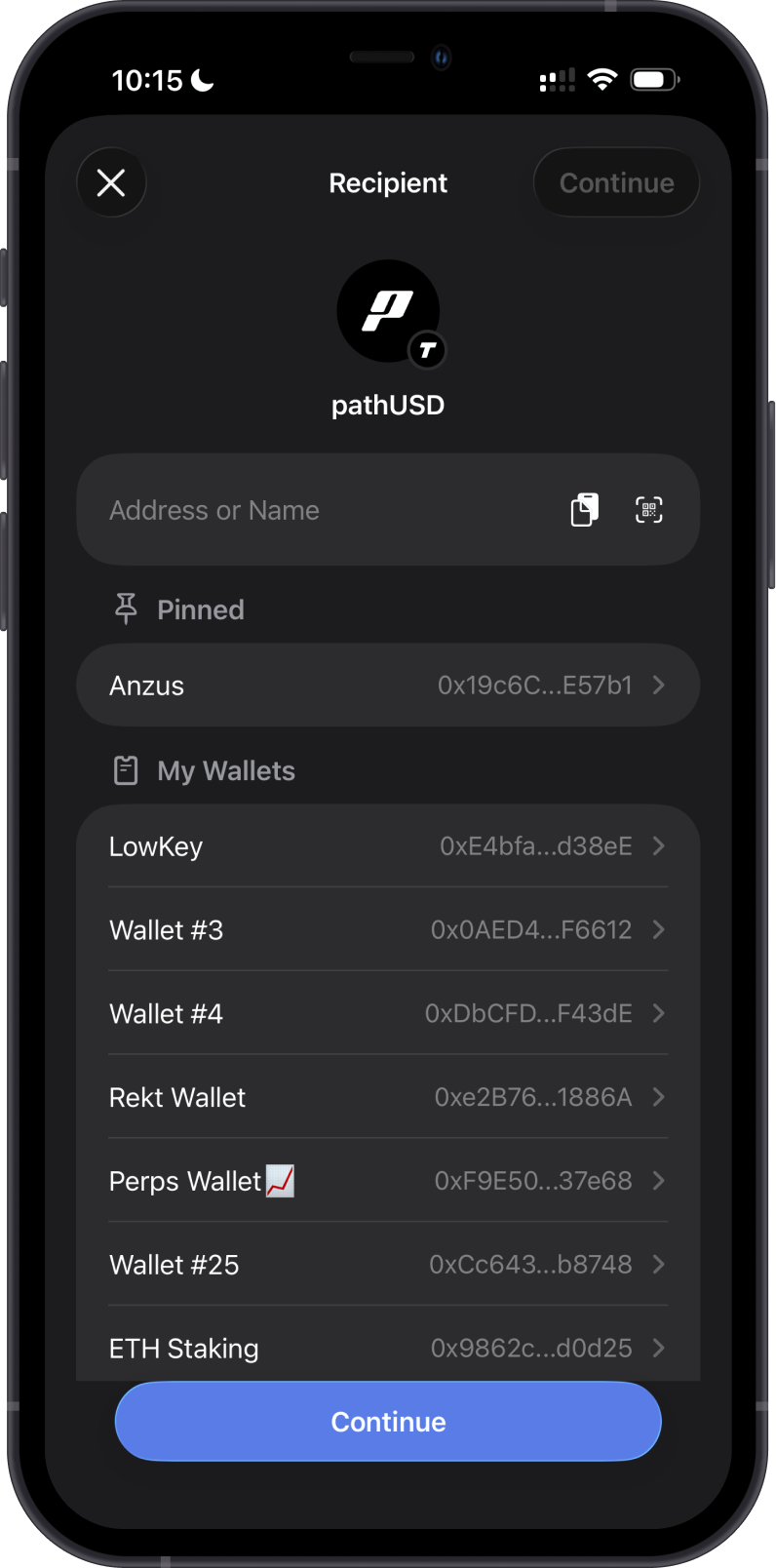
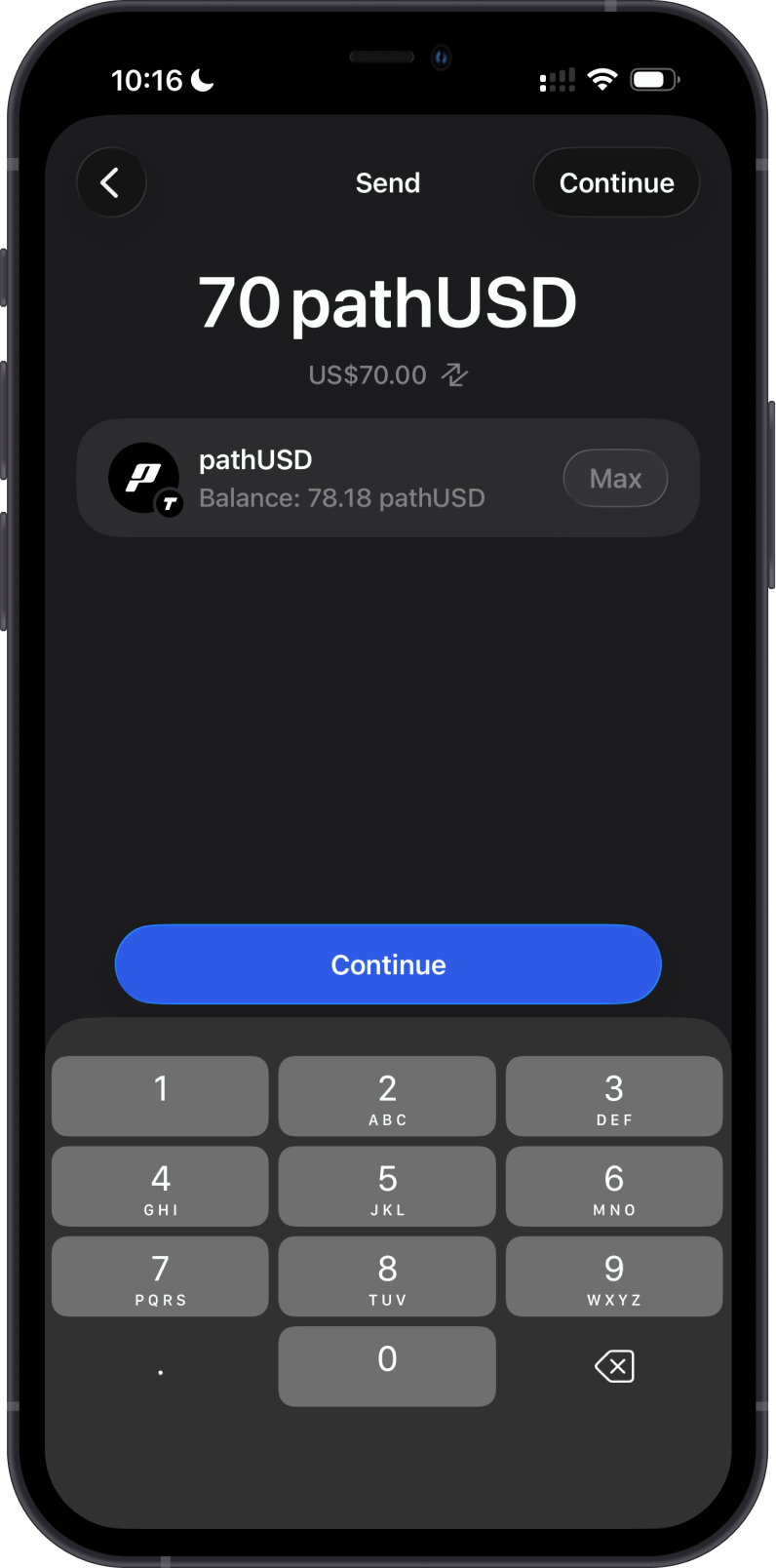
Open the Tempo token you want to send, tap Send, then enter the recipient address manually, paste it, scan its QR code, or select one of your wallets. Enter the amount, review the selected token, network, and fee, then confirm the transaction.
Tempo TIP-20 transfers can support payment references at the protocol level. If a receiving service provides a memo or payment reference, follow its instructions carefully before sending.
Can I Swap Tempo Tokens on Gem Wallet?
Gem Wallet displays swap quotes for routes supported by its available providers. You can review supported cross-chain routes to or from Tempo, as well as available on-chain swaps between supported Tempo tokens. Routes, providers, fees, and quote details can vary by asset, amount, and market conditions.
Always review the token, network, provider, rate, price impact, minimum received amount, and fee before confirming a swap.
The first example below shows a cross-chain swap into a supported Tempo TIP-20 token.
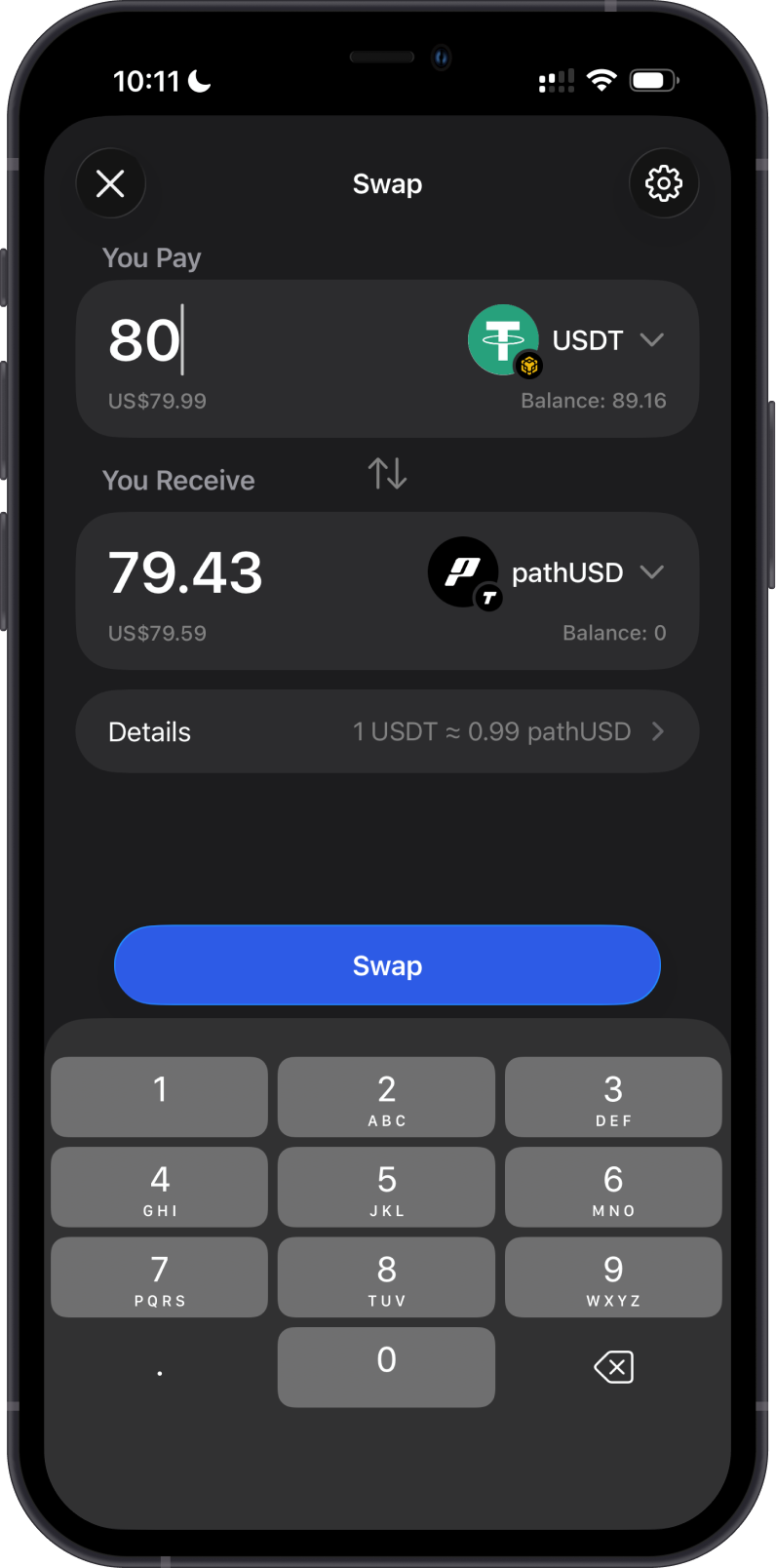
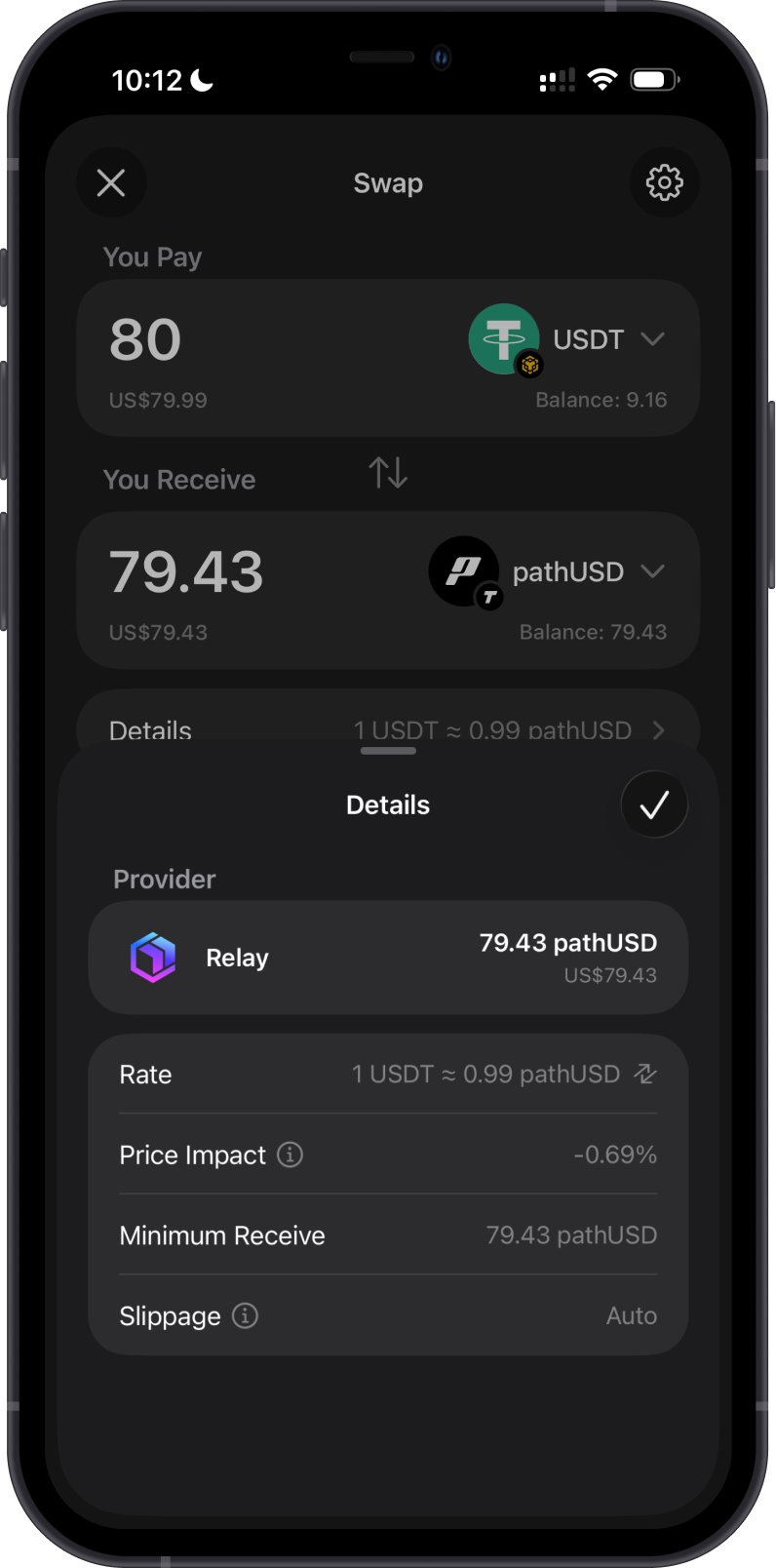
The second example shows an on-chain swap between supported Tempo TIP-20 tokens. Review the token pair, provider, rate, price impact, minimum received amount, and fee before confirming.
Transaction Fees on Tempo
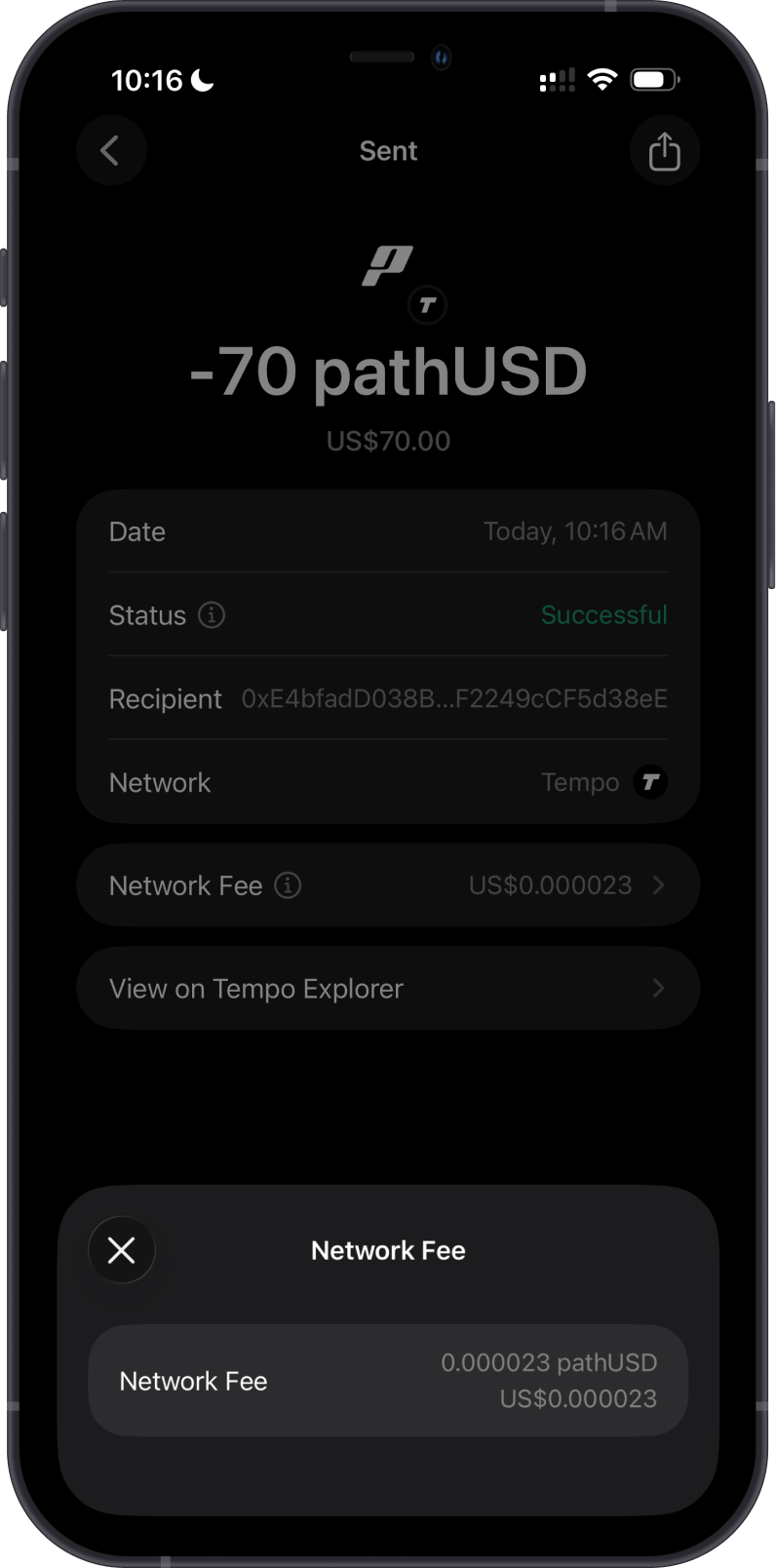
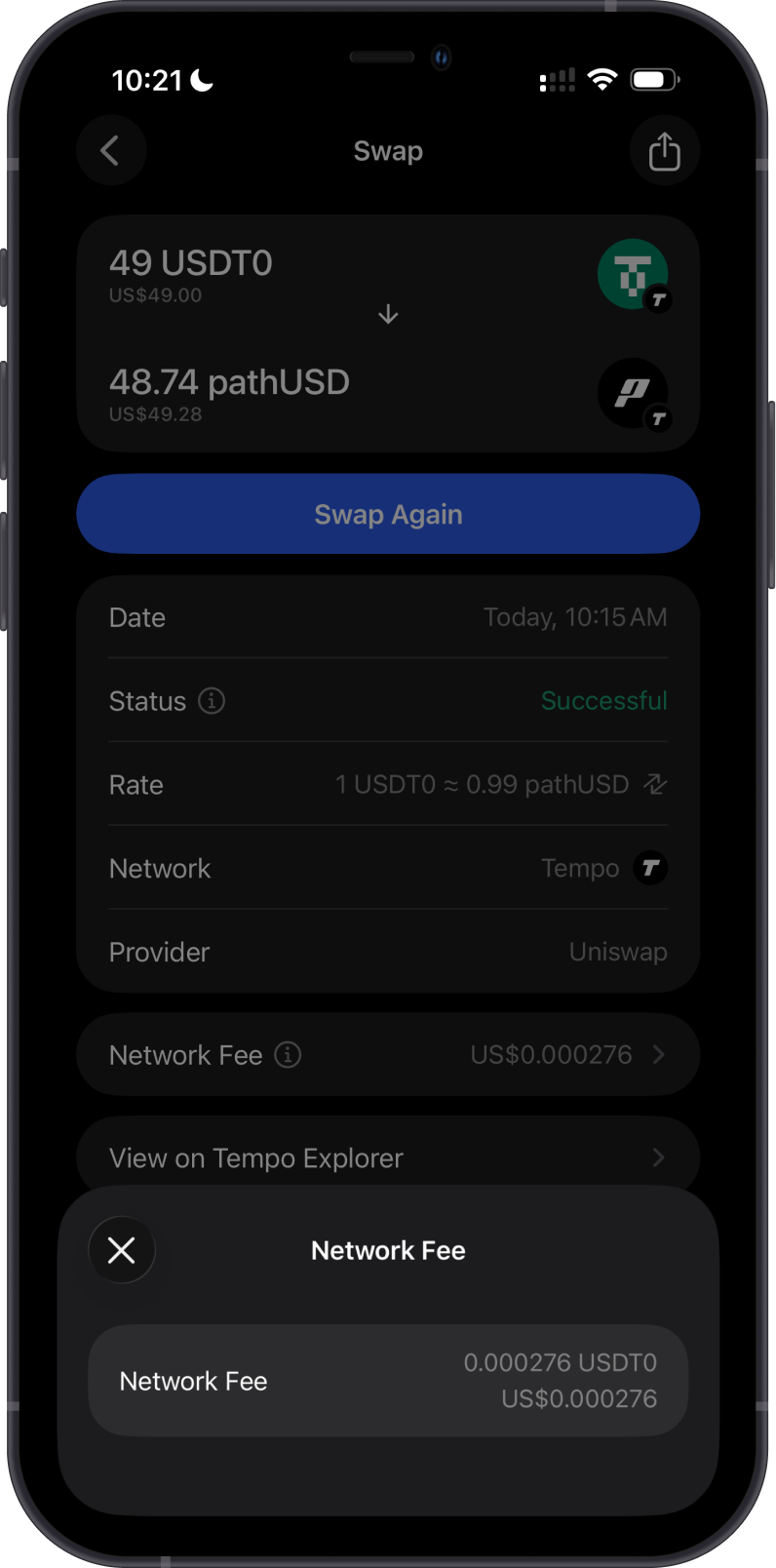
Tempo has no native gas token. Fees are denominated in USD and paid with an eligible USD-denominated TIP-20 stablecoin that has sufficient liquidity in Tempo's fee mechanism. Gem Wallet shows the fee before confirmation, so keep enough of an eligible token to cover it.
The examples below show a send transaction paid with pathUSD and a swap transaction paid with USDT0, demonstrating that different eligible TIP-20 tokens can pay fees.
How to Check Tempo Token Balances?
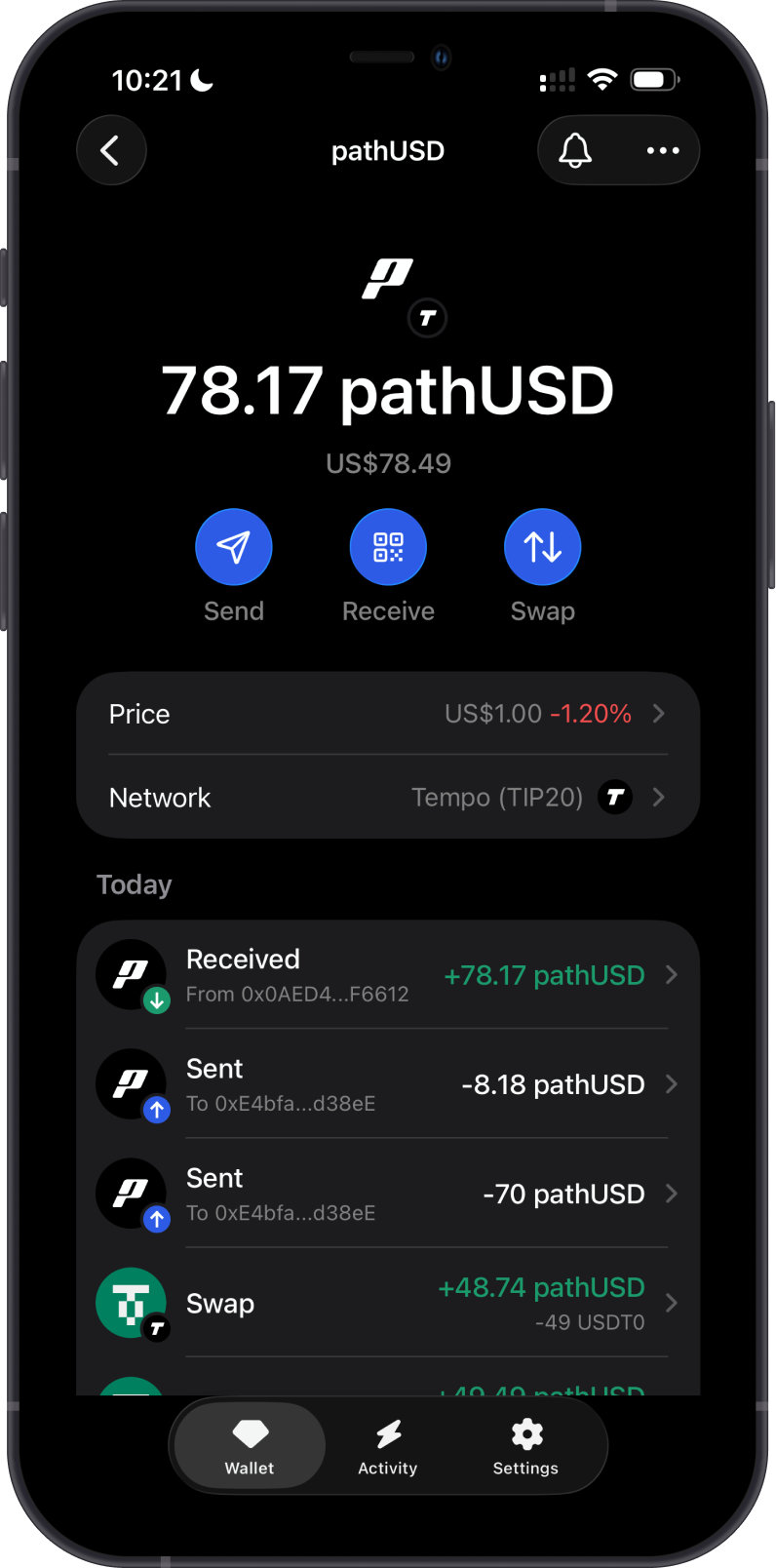
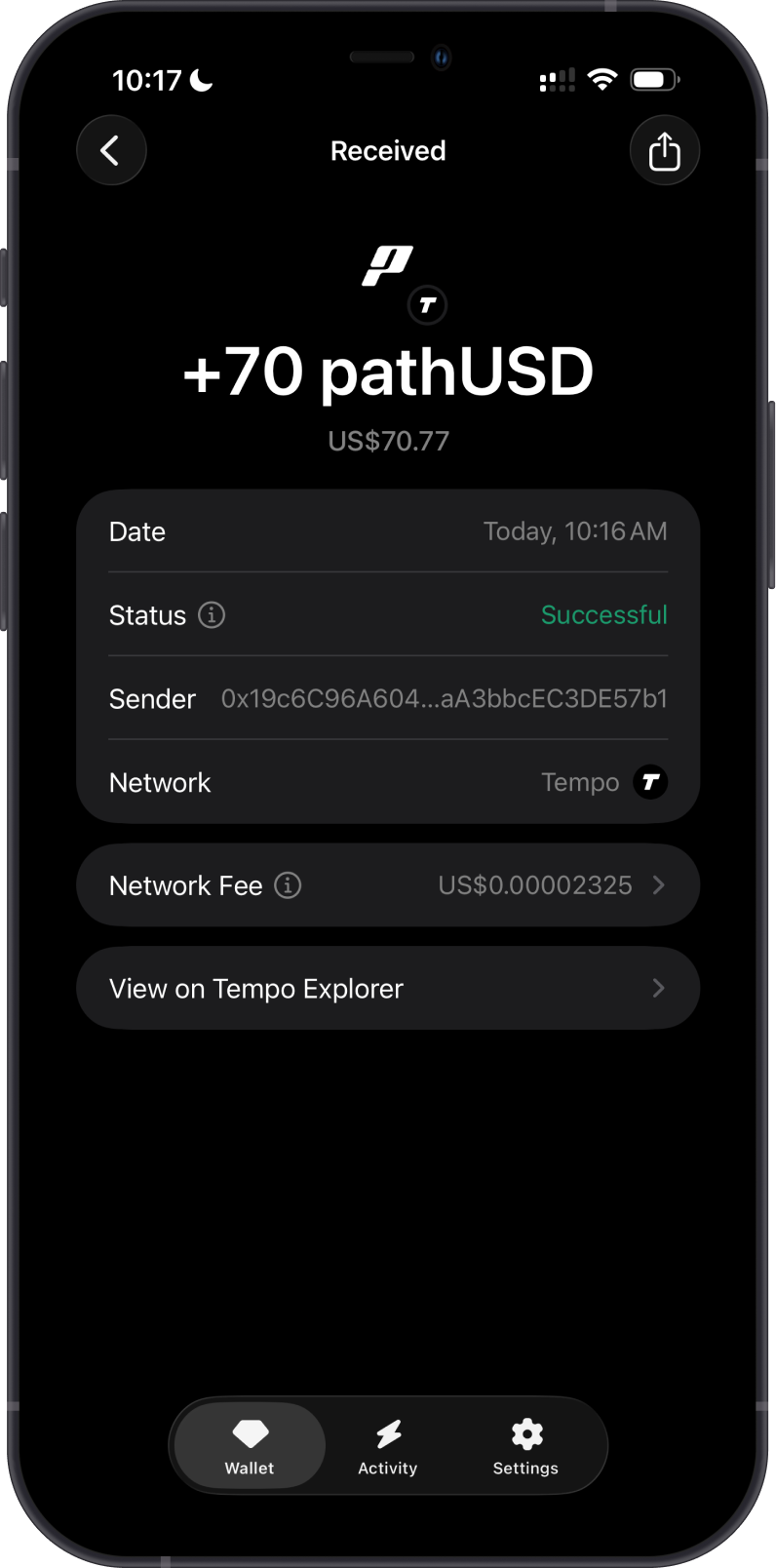
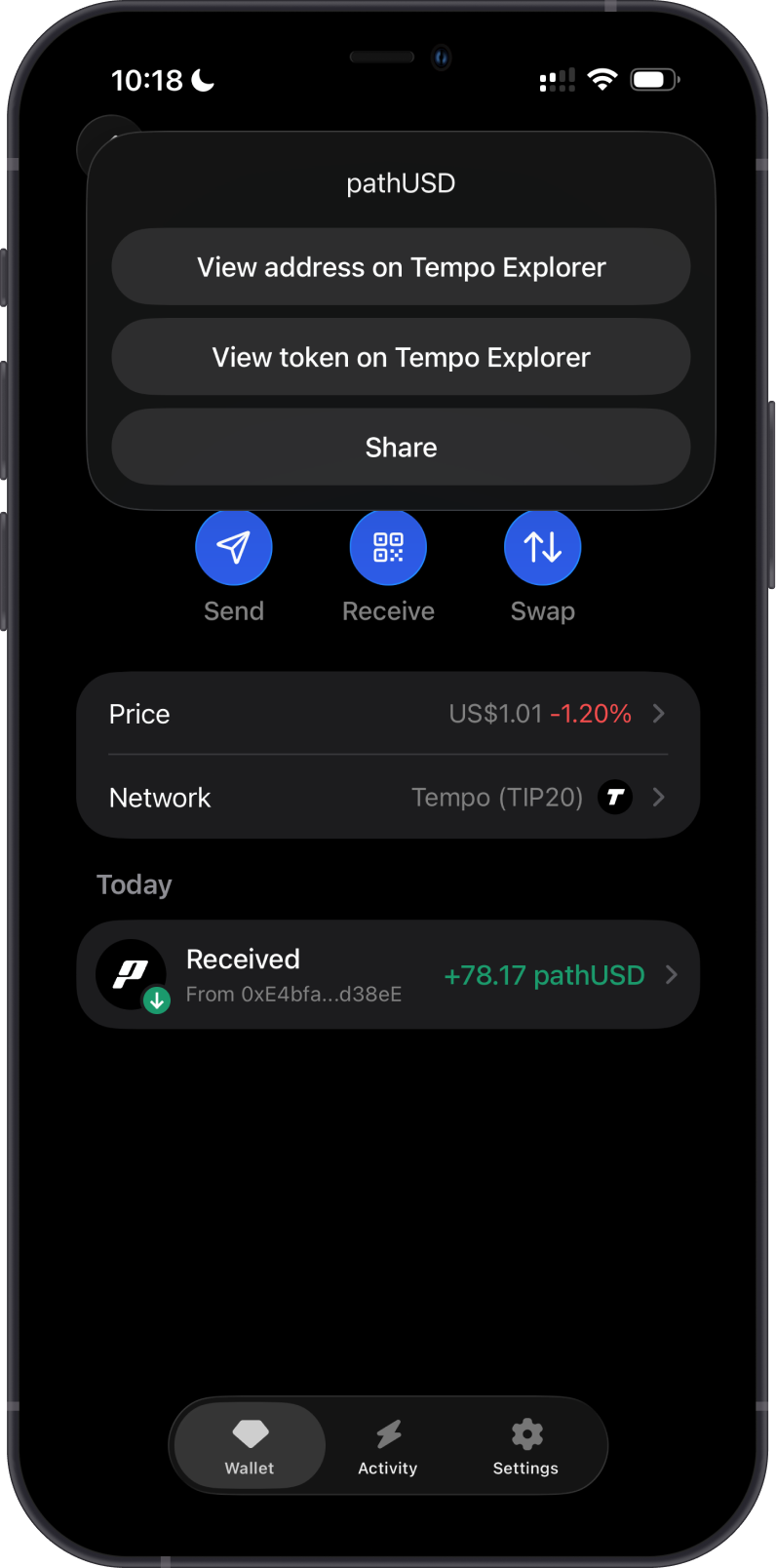
Gem Wallet displays balances and transaction history for your supported Tempo tokens. To inspect the address on the blockchain explorer, open the token or Tempo network menu and select View address on Tempo Explorer when available.
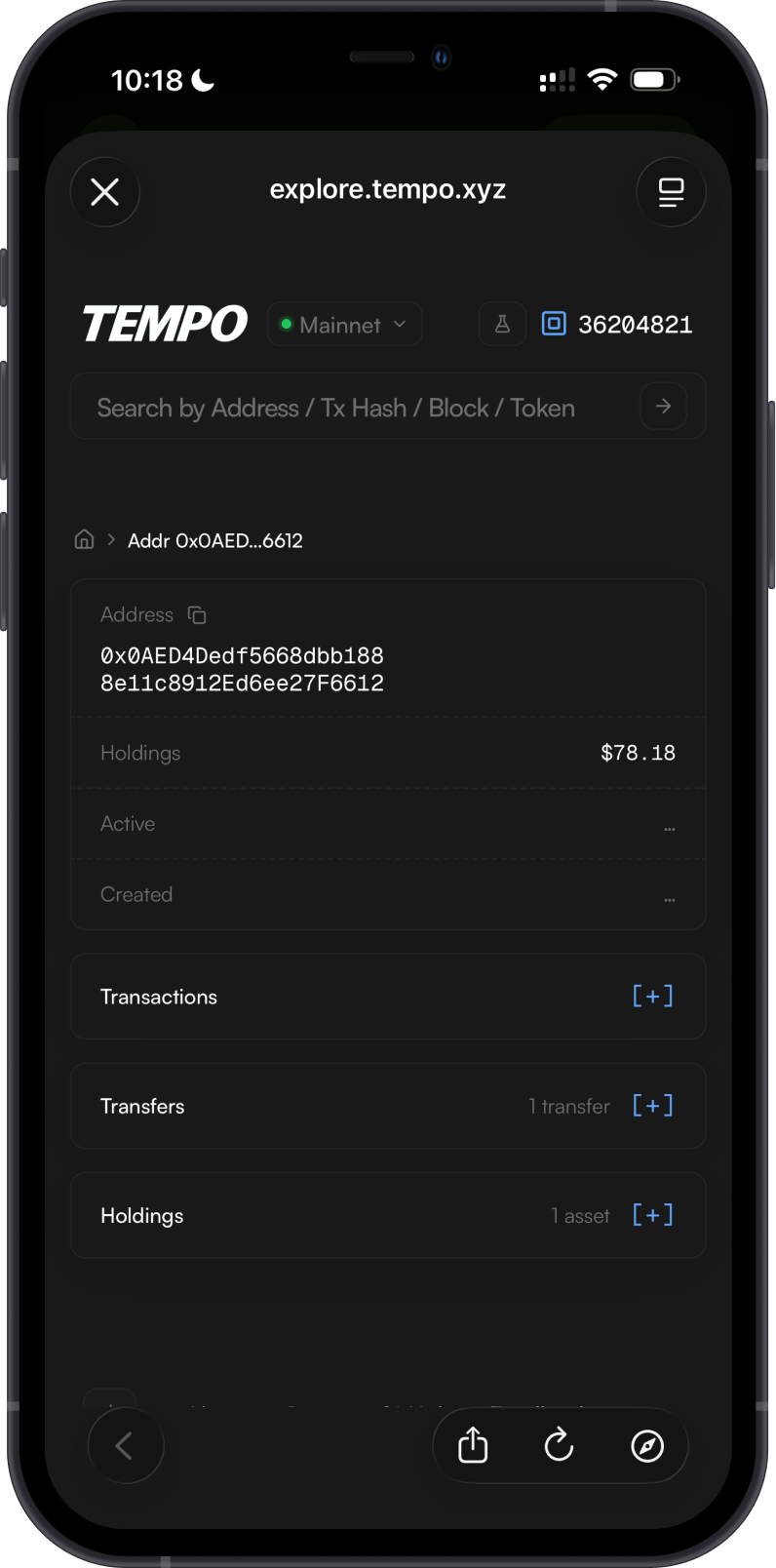
Tempo Explorer is the default Tempo explorer in Gem Wallet. Search for an address, token, or transaction ID to review public balances, token transfers, transaction status, and fees.
Why Choose Gem Wallet for Tempo?
- Self-Custody: You retain control of your supported Tempo tokens and private keys.
- Simple Token Discovery: Find supported TIP-20 tokens through search or filter them by the Tempo network.
- Payments and Swaps: Send, receive, and review available on-chain and cross-chain swap routes in one wallet.
- App Connectivity: Connect to compatible applications with WalletConnect.
Conclusion
Gem Wallet provides a self-custodial way to manage supported Tempo TIP-20 tokens, make payments, review swap routes, and inspect activity on Tempo Explorer.