What is WalletConnect?
What is WalletConnect?
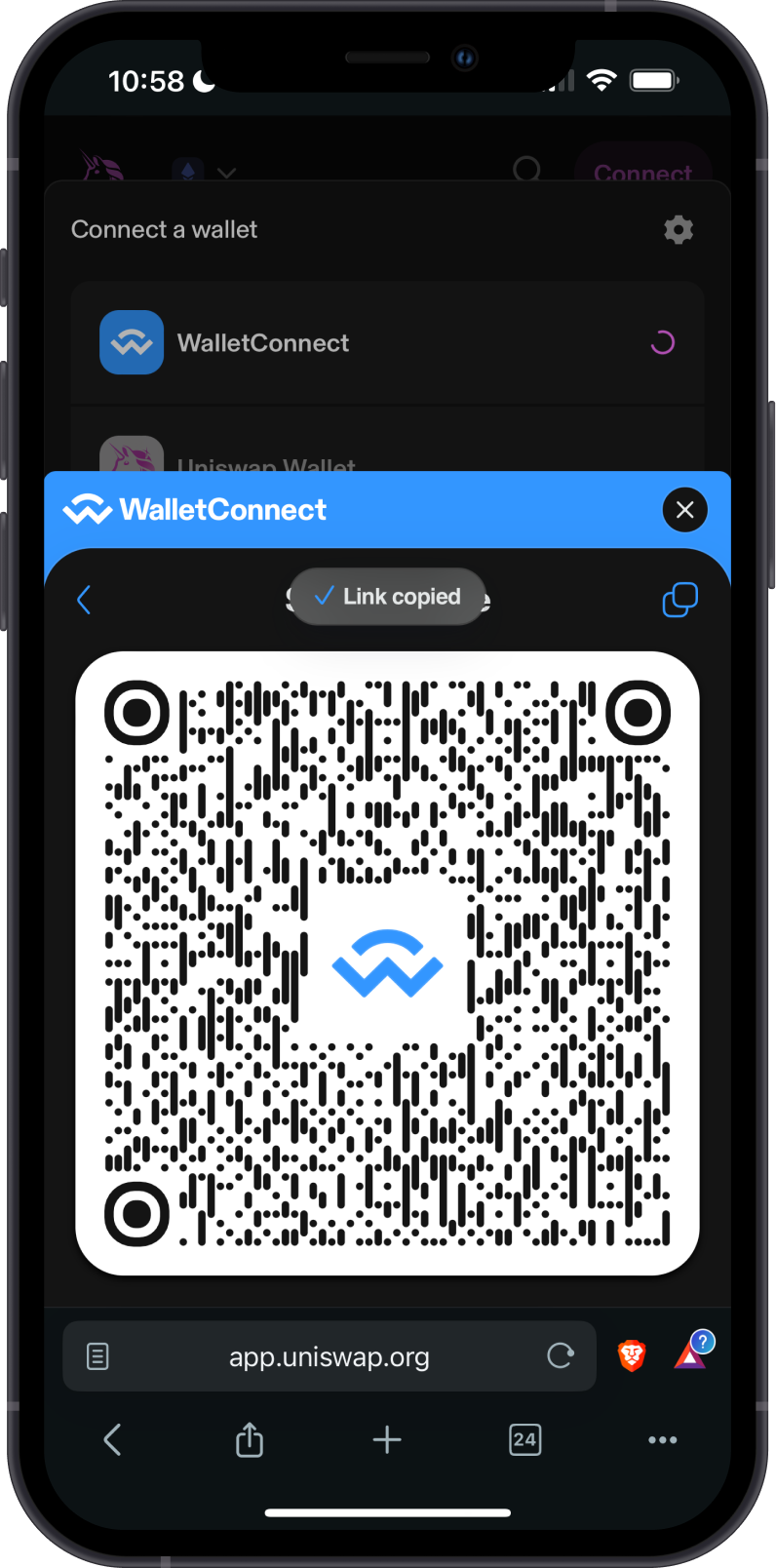
WalletConnect is an open-source protocol that enables secure communication between decentralized applications (dApps) and crypto wallets. It lets you connect Gem Wallet to a supported dApp by selecting the wallet, opening a deep link, scanning a QR code, or pasting a WalletConnect URI.
Compatible dApps can also request Sign in with Ethereum or Sign in with Solana. These requests sign an authentication message instead of sending an on-chain transaction. They should still be reviewed carefully because the signature can authorize access or another action in the requesting app. See the Sign in with Solana guide.
Your private keys remain in Gem Wallet. The dApp sends connection and transaction requests to the wallet, where you can review, approve, or reject them.
The connection process is explained below with links to the available step-by-step guides.
WalletConnect has rebranded to Reown. The connection protocol and the feature in Gem Wallet are still commonly called WalletConnect.
Which Networks Does Gem Wallet Support with WalletConnect?
Gem Wallet supports WalletConnect across EVM and selected non-EVM blockchains.
Network support in Gem Wallet does not mean that every dApp on that network supports WalletConnect. The dApp must also offer WalletConnect for the same blockchain.
Supported Non-EVM Networks
| Network | Type | Guide |
|---|---|---|
| Solana | Non-EVM | Using WalletConnect with Gem Wallet on Solana |
| Sui | Non-EVM | Using WalletConnect with Gem Wallet on Sui |
| The Open Network (TON) | Non-EVM | Using WalletConnect with Gem Wallet on TON |
| TRON | Non-EVM | Using WalletConnect with Gem Wallet on TRON |
Supported EVM Networks
EVM networks use the Ethereum Virtual Machine and generally follow the same WalletConnect connection and signing flow. Follow the WalletConnect Guide for step-by-step EVM instructions.
- Ethereum
- BNB Chain
- Polygon
- Plasma
- Arbitrum
- Optimism
- Base
- Avalanche C-Chain
- opBNB
- Fantom
- Gnosis Chain
- Manta
- Blast
- zkSync Era
- Linea
- Mantle
- Celo
- World Chain
- Sonic
- Sei EVM
- Abstract
- Berachain
- Ink
- Unichain
- HyperEVM
- Monad
- X Layer
- Robinhood Chain
- Stable
- Tempo
- Arc
The same connection steps below apply to supported EVM networks.
How Does WalletConnect Work?
- Open a supported dApp: Visit the official dApp website and select the network you want to use.
- Choose WalletConnect: Tap Connect or Connect Wallet, then choose WalletConnect.
- Open Gem Wallet: Select Gem Wallet, scan the displayed QR code, or copy and paste the WalletConnect URI in Gem Wallet > Settings > WalletConnect.
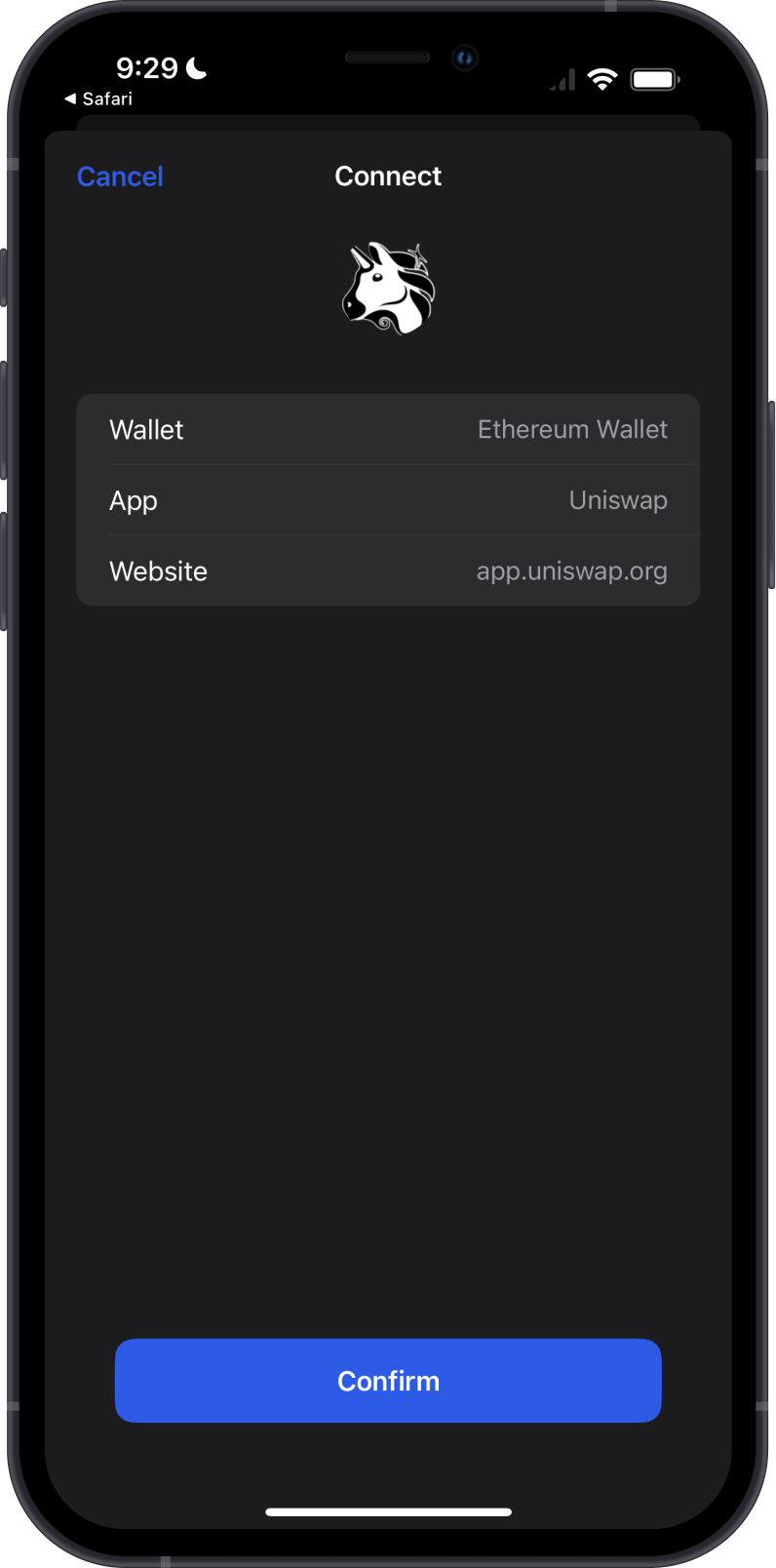
- Review the connection: Verify the dApp name, website, selected wallet, network, and requested permissions.
- Approve transactions separately: Each transaction request must be reviewed and confirmed in Gem Wallet.
Key Features
- Self-Custody: Your private keys and recovery phrase remain under your control in Gem Wallet.
- EVM and Non-EVM Support: Connect across compatible EVM networks as well as Solana, Sui, TON, and TRON.
- Mobile and Desktop Connections: Use a deep link or copied URI on one device, or scan a QR code displayed on another device.
- Request Approval: Review connection permissions and approve or reject each transaction from Gem Wallet.
- Session Management: View and disconnect active sessions through Settings > WalletConnect.
Common WalletConnect Use Cases
- Decentralized Exchanges: Trade tokens through supported dApps.
- DeFi: Use lending, borrowing, liquidity, staking, and other supported protocols.
- NFT Marketplaces: Buy, sell, or manage supported digital collectibles.
- Names and Digital Identity: Register or manage blockchain names through compatible services.
- Games and Web3 Apps: Connect your wallet to supported blockchain games and applications.
Is WalletConnect Safe?
WalletConnect keeps your private keys inside Gem Wallet, but you must still verify every website and request.
- Confirm that you are visiting the dApp's official domain.
- Check that the requested network matches the network selected in the dApp.
- Review the asset, amount, destination, permissions, and network fee before approval.
- Reject unexpected requests or details you do not recognize.
- Disconnect sessions you no longer use in Gem Wallet > Settings > WalletConnect.
Connecting a wallet does not give a dApp your recovery phrase or private keys. However, approving a malicious signature, token approval, or transaction may put your assets at risk.