How to Export a Private Key from Gem Wallet
Gem Wallet can show the private key of one account, for example to use that account in another wallet app. You normally don't need to: your Secret Phrase already backs up every account in the wallet.
To learn what a private key is, which networks can be exported, and the format each one uses, see What Is a Private Key?.
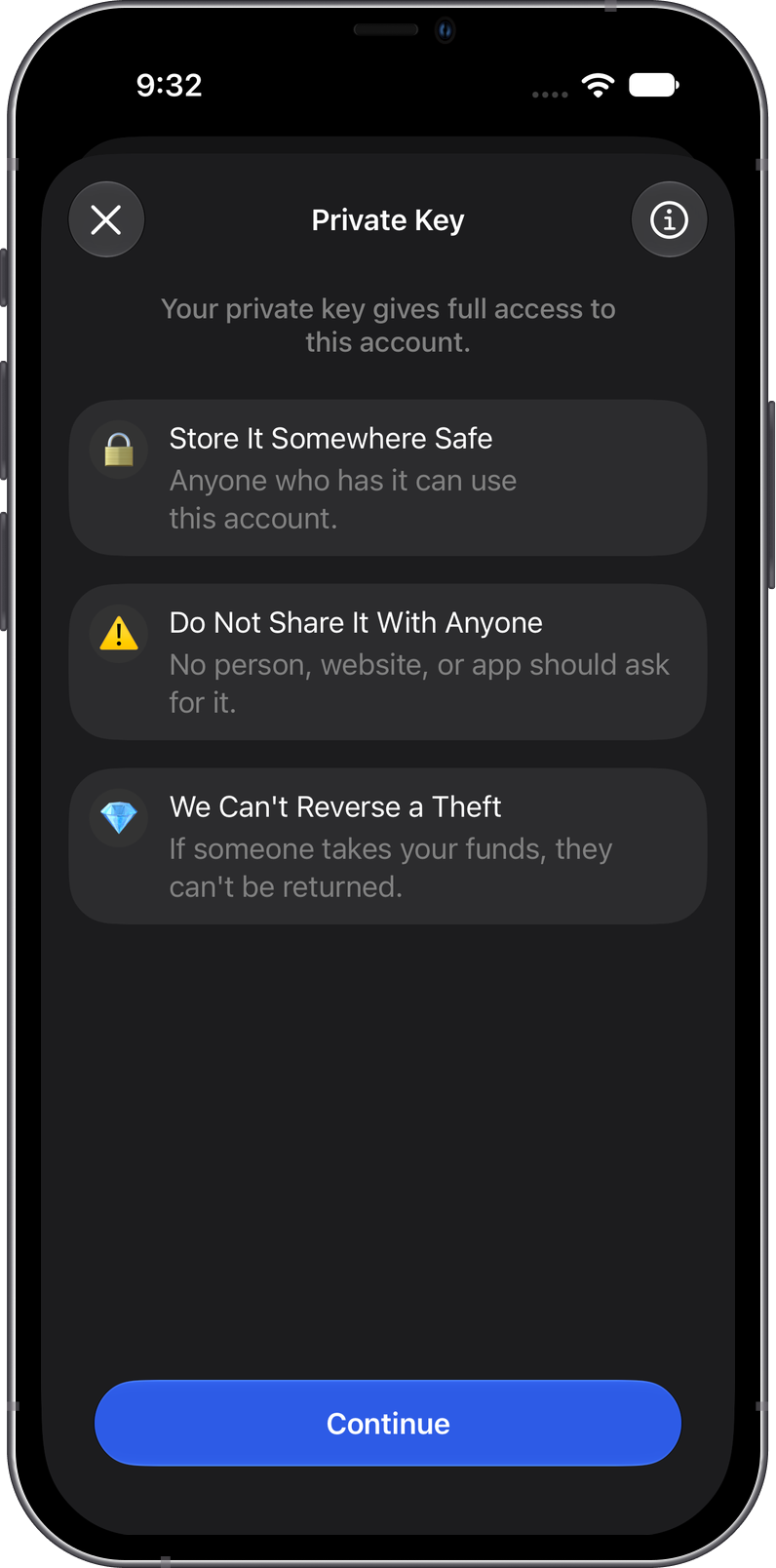
Anyone who has your private key can take everything in that account. Never share it, and never enter it on a website. Gem Wallet support will never ask for it.
Export a Key from a Secret Phrase Wallet
A Multi-Coin or single-network wallet created from a Secret Phrase can show the private key of one of its accounts.
- Open Settings > Wallets and tap the gear icon beside the wallet.
- Under Advanced, select Show Private Key.
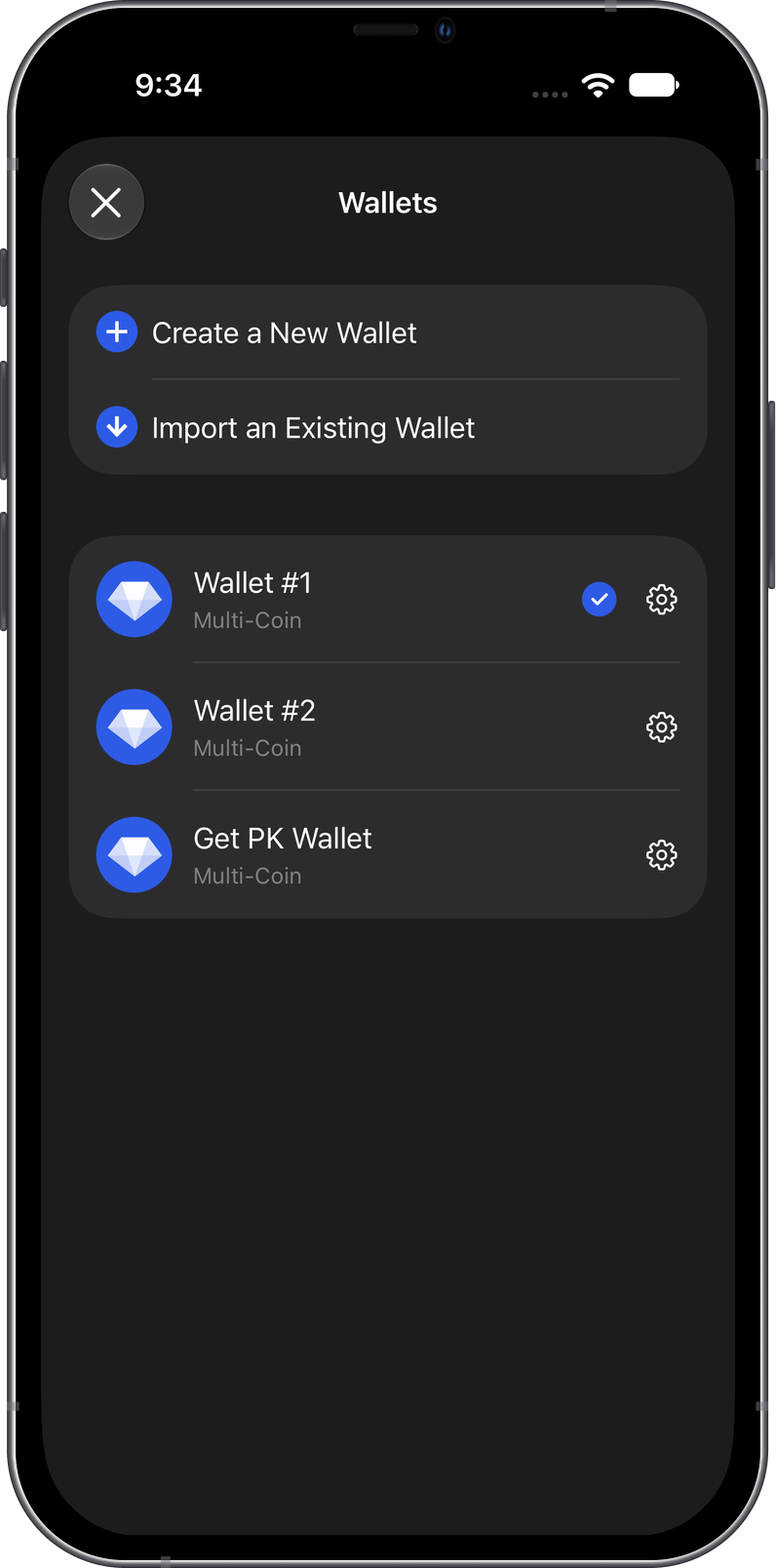
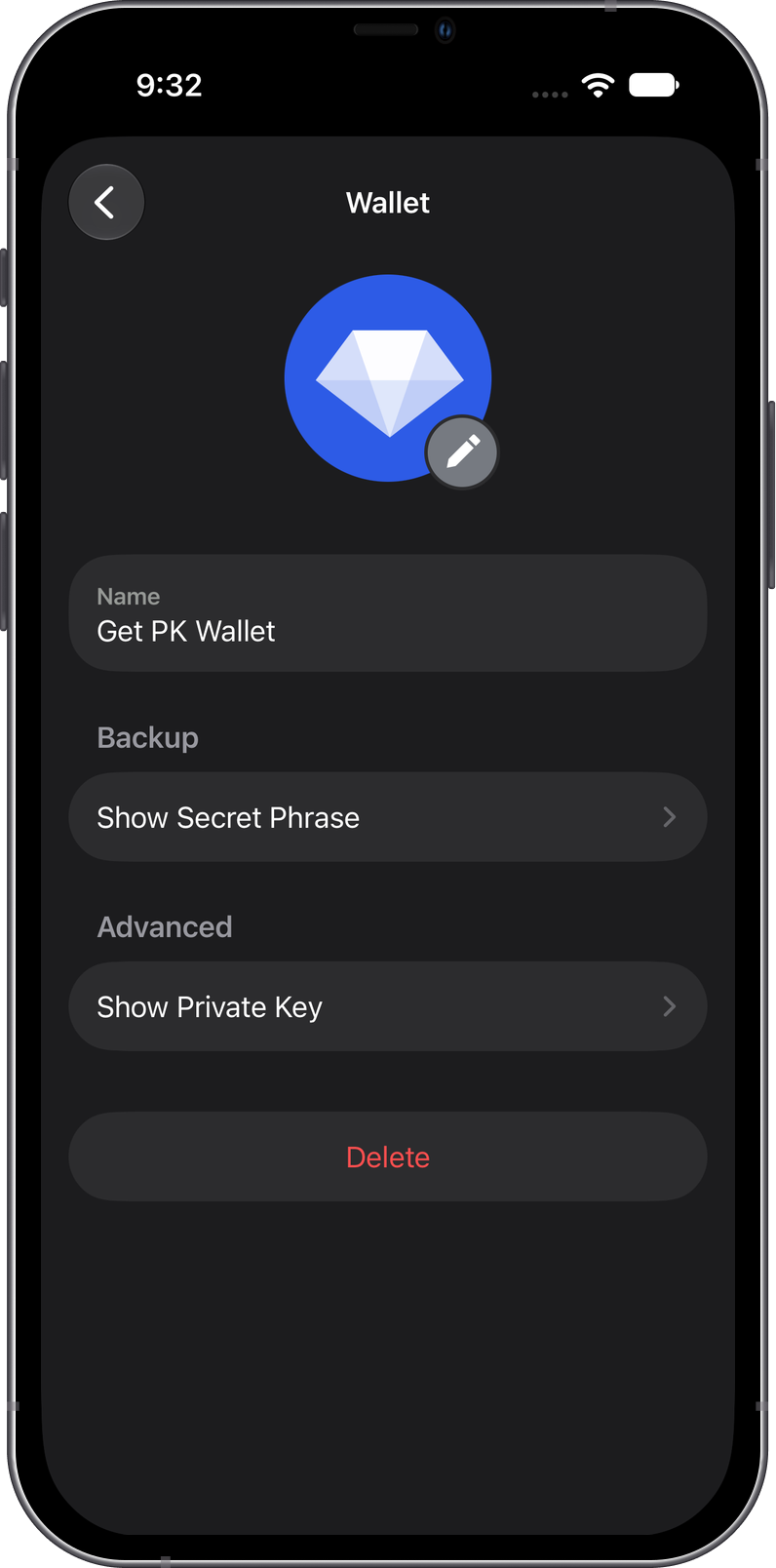
- Read the security reminders, then tap Continue.
- Under Networks, choose the account. The list shows each network with its short address. If the wallet has only one account that can be exported, this step is skipped.
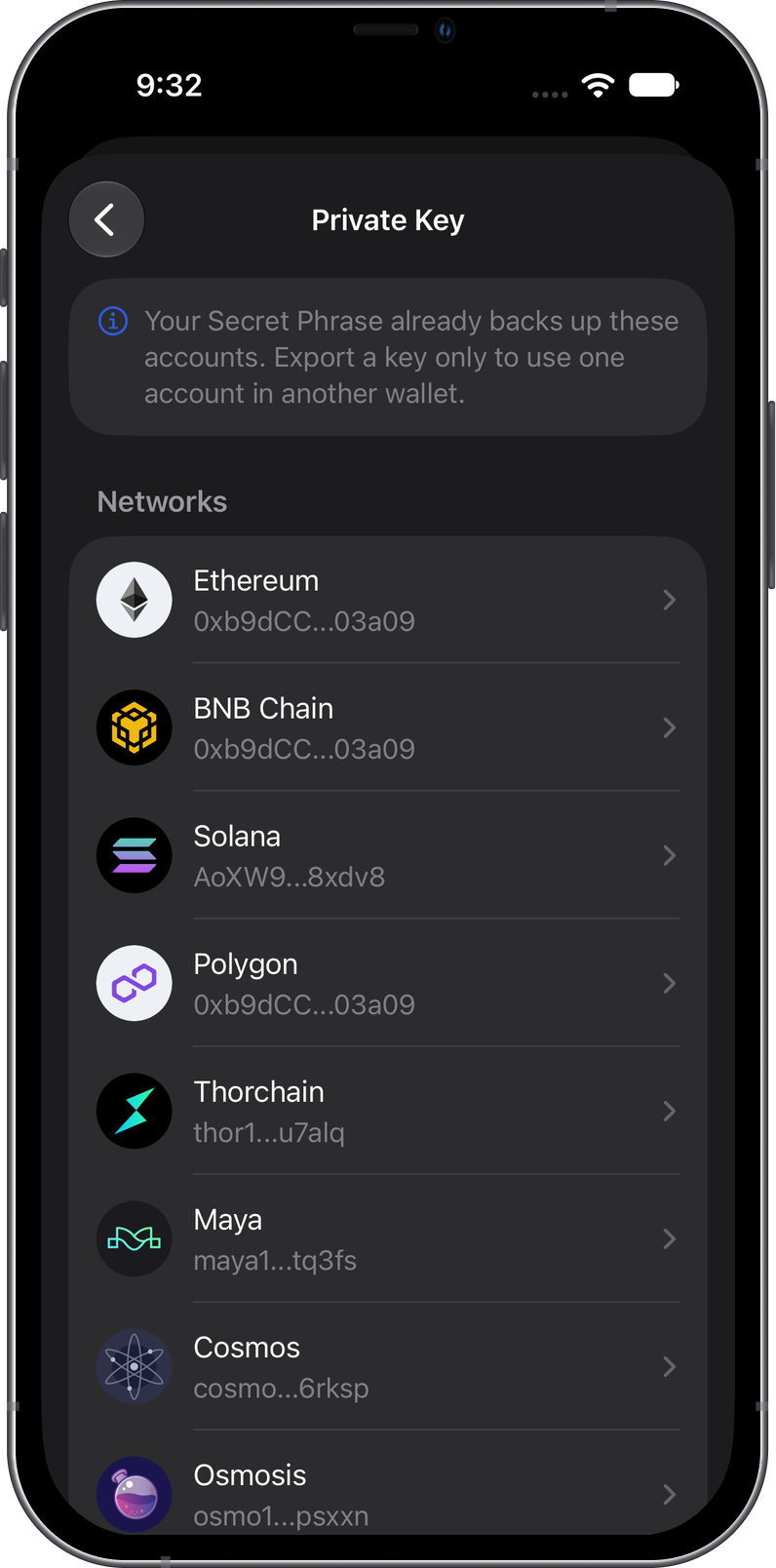
- Authenticate with Face ID, Touch ID, or your passcode, then view the key or tap Copy.
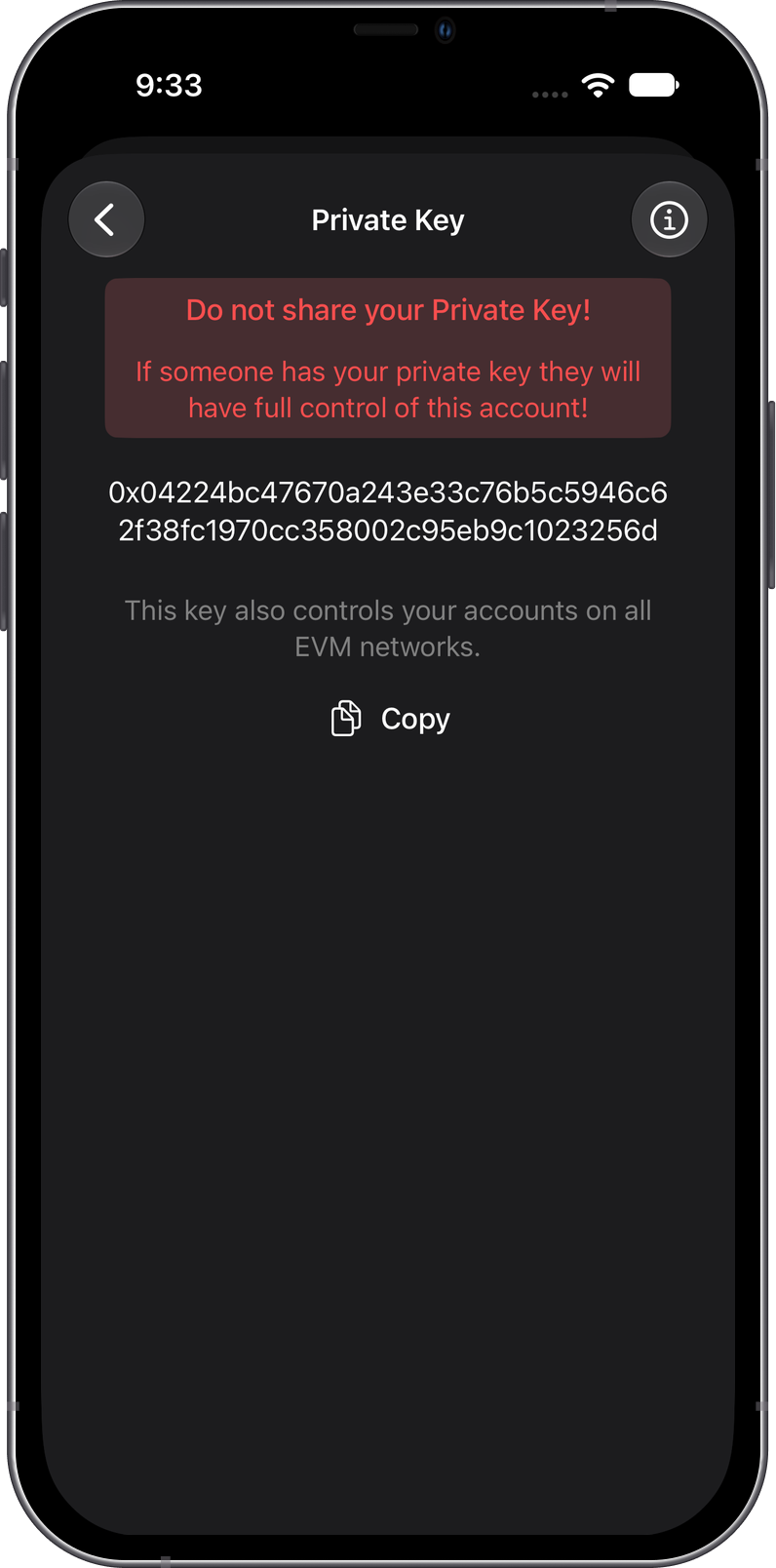
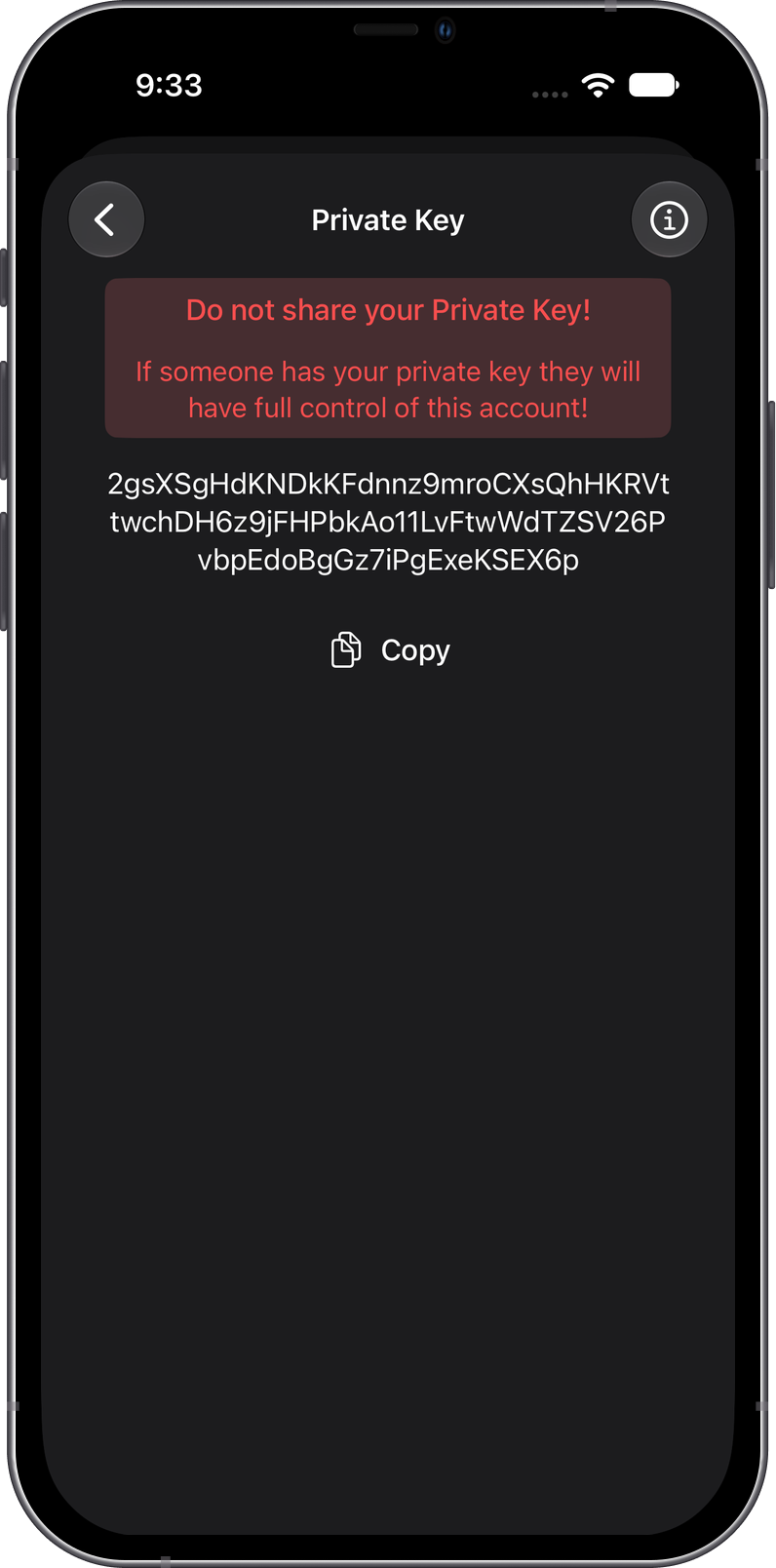
Bitcoin-family networks and Cardano aren't in the Networks list, because other wallets can't import their raw keys. On EVM networks, one key controls your account on every EVM network, and Gem Wallet tells you so under the key. See What Is a Private Key? for all export formats.
Check an Exported Key
To make sure you copied the right key, import it as a single-network wallet and compare the address:
- Open Settings > Wallets, select Import an Existing Wallet, and choose the same network as the account.
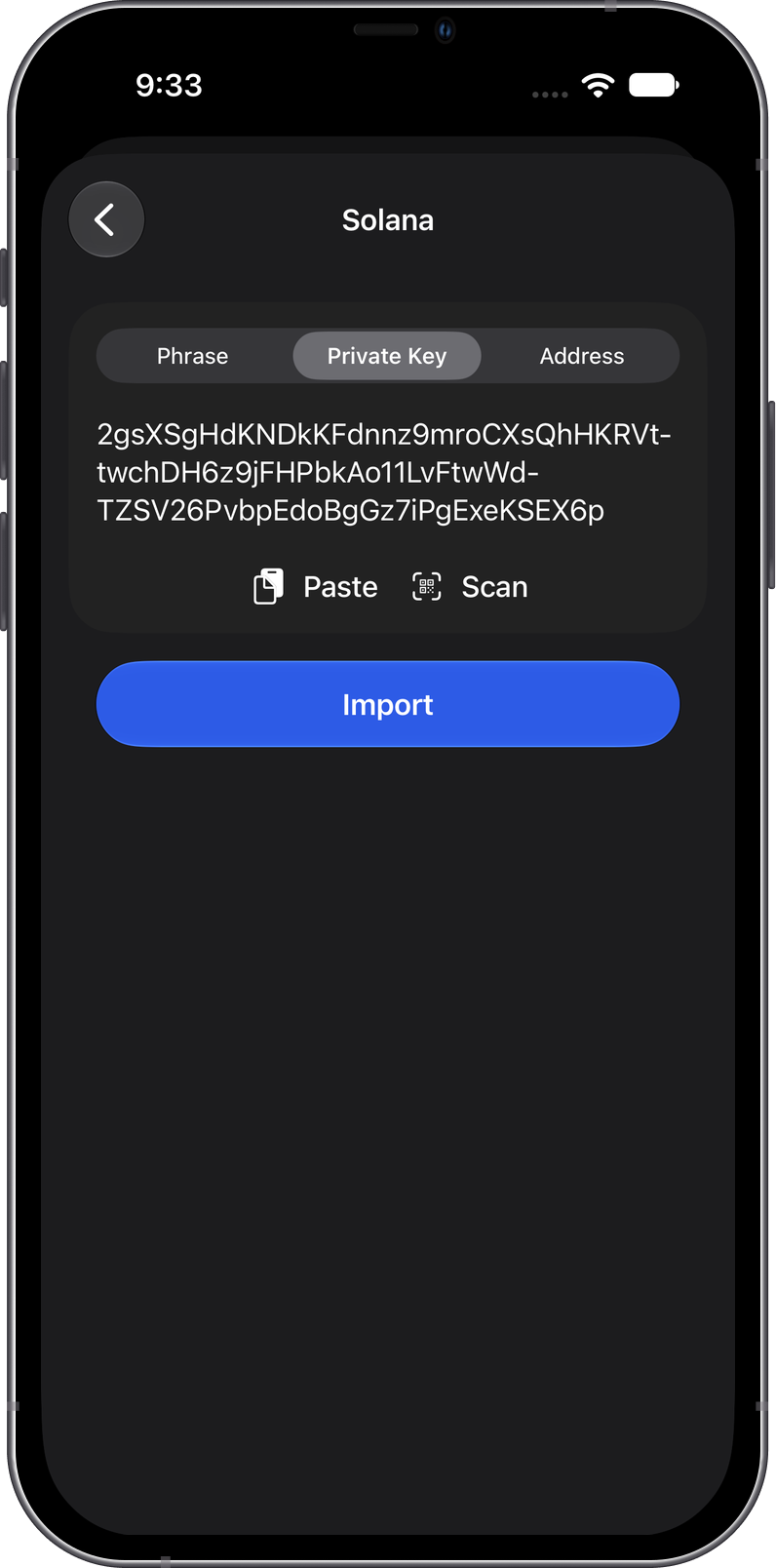
- Select Private Key, paste the key, and tap Import.
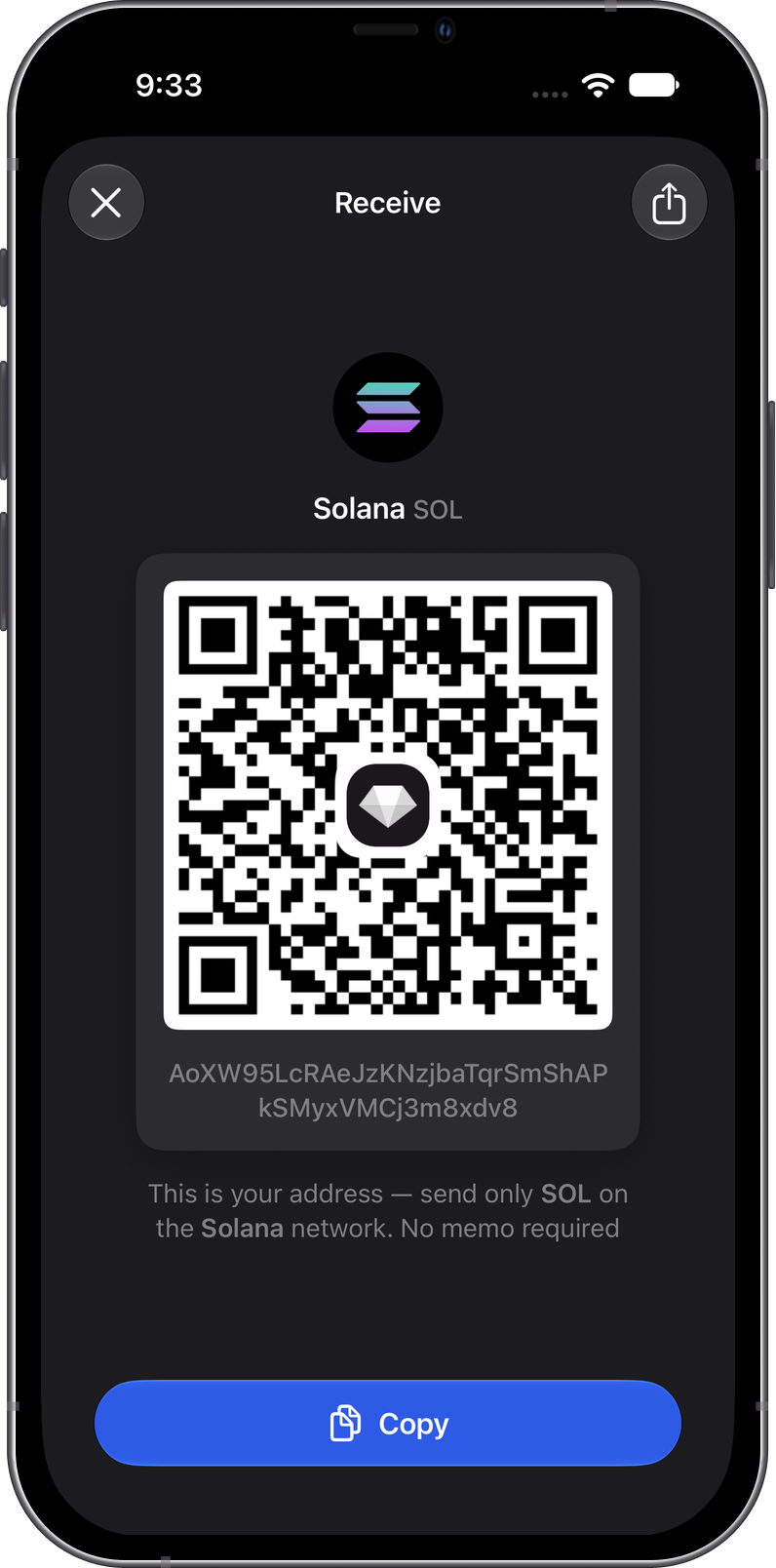
- Open the new wallet, tap Receive, and check that the address matches the one in the Networks list.
In the example below, the imported Solana key shows the same address, AoXW9…8xdv8, as the Solana account it was exported from. You can delete the test wallet afterwards. Deleting it doesn't affect the original wallet.
Show the Key of a Wallet Imported with a Private Key
- Open Settings > Wallets and tap the gear icon beside the wallet.
- Under Backup, select Show Private Key and authenticate with Face ID, Touch ID, or your passcode.
- Read the security reminders, then view or copy the key.
For a wallet imported from a key, that key is its only backup, so store it as carefully as a Secret Phrase.
How Gem Wallet Protects a Shown Key
- A copied private key is removed from the clipboard after one minute, and isn't shared with your other devices.
- On iOS and Mac, the key is left out of screenshots and recordings, and Gem Wallet warns you if you take a screenshot. On Android, screenshots of this screen are blocked.
- The key is hidden whenever the app isn't active.
If Someone Else Has Seen Your Key
Move the funds in that account to a new wallet right away. See What to Do If Your Crypto Wallet Is Compromised?.