How to Get Your Private Key from a 12-Word Recovery Phrase
- Always perform this process offline to avoid exposing your Recovery Phrase or Private Key to hackers. Never enter your phrase into an online tool or website.
- Your Private Key controls access to your funds. If anyone else gets it, they can steal your assets. Treat it like cash in a physical wallet—keep it secret and secure.
- The 12-word phrase generates multiple private keys for different addresses and coins. Make sure you select the correct blockchain and derivation path for the specific asset you’re targeting.
- Multi-Coin wallets in Gem Wallet only show the Secret Phrase, not individual private keys, to protect users. Proceed at your own risk.
Here’s a simple, step-by-step guide to help you derive your private key from the 12-word recovery phrase provided by Gem Wallet. Since Gem Wallet, like many modern cryptocurrency wallets, uses a 12-word recovery phrase (also called a seed phrase) based on the BIP-39 standard, you can follow this process to extract your private key. Note that this requires using an external tool, because Gem Wallet shows a Multi-Coin wallet's Secret Phrase, not the private key of each network.
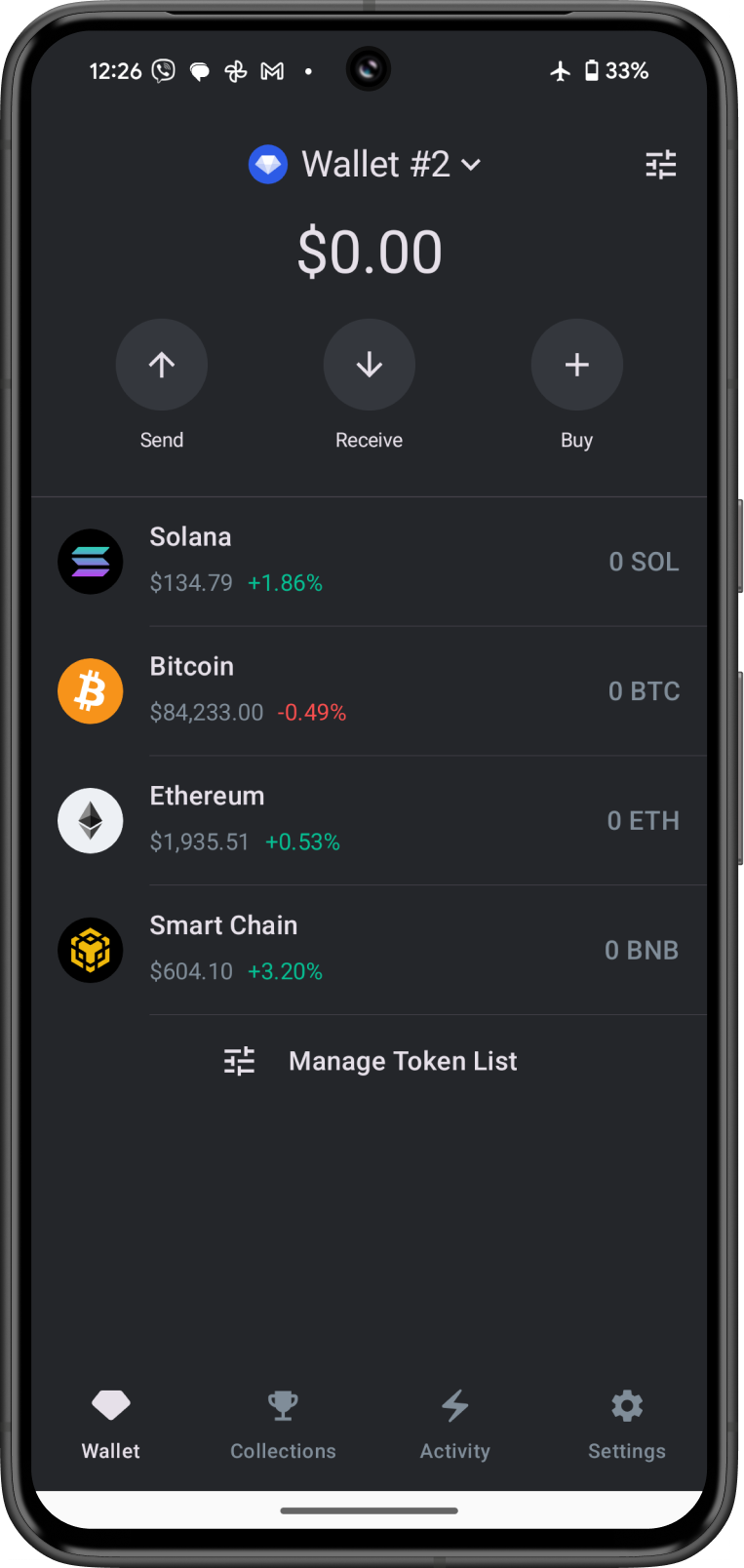
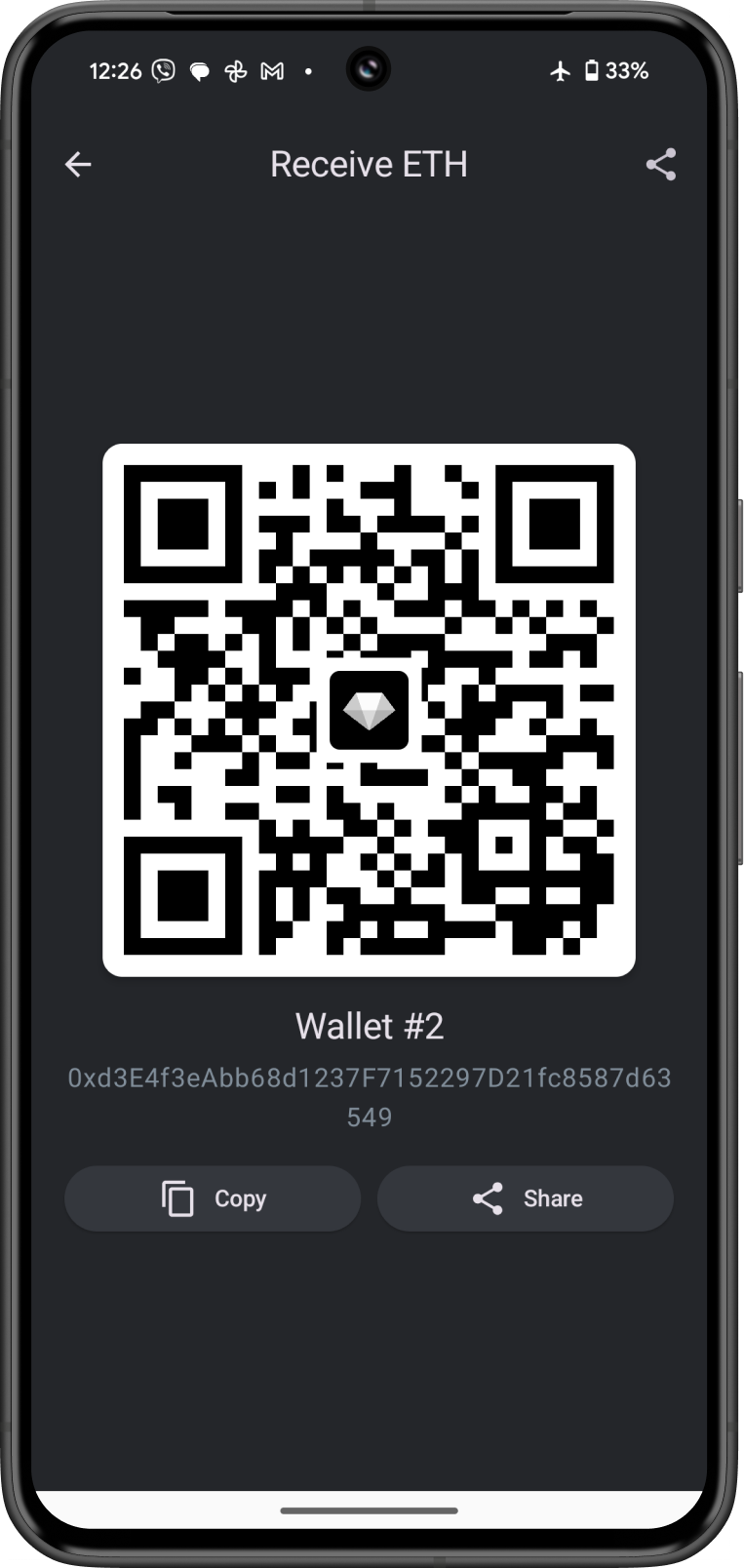
For this guide, we are trying to get the Private Key for the Ethereum address.
What You’ll Need:
- Your 12-word recovery phrase from Gem Wallet (written down exactly as provided, in the correct order).
- A tool like the Ian Coleman BIP-39 Tool (available offline for security).
Steps:
- Write Down Your 12-Word Recovery Phrase
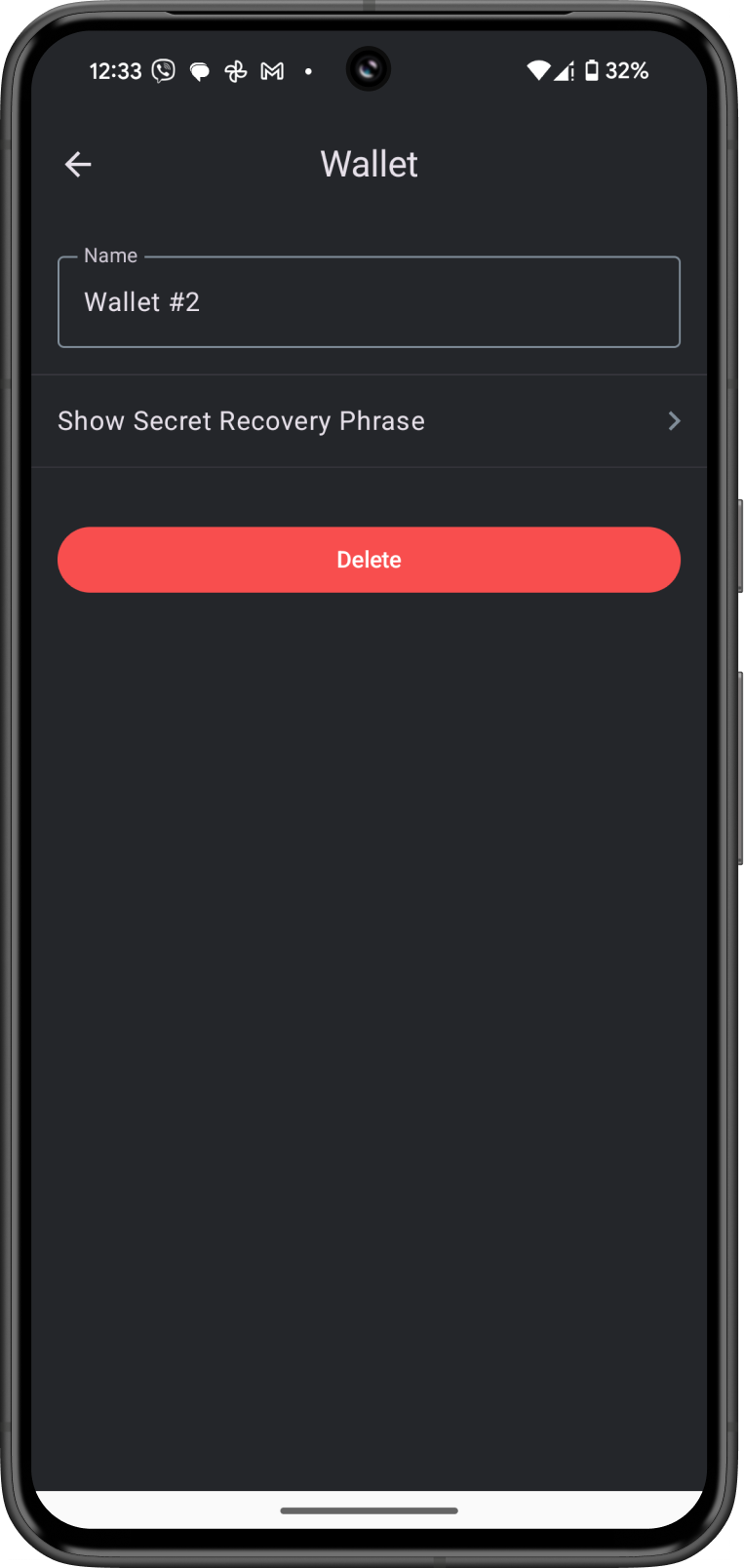
- Open Gem Wallet on your device, go to the Settings > Wallets.
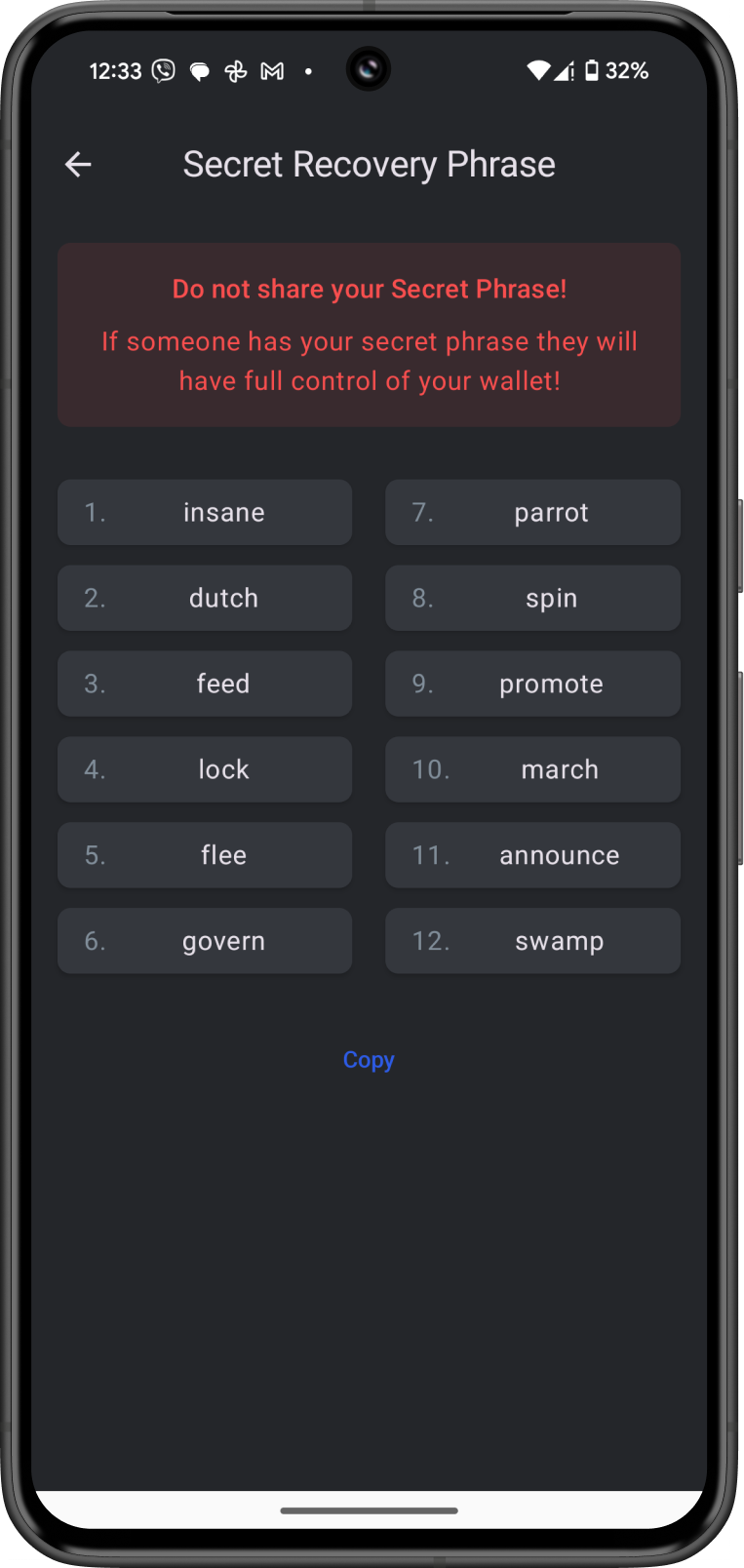
- Tap on the gear icon for the wallet, then tap on Show Secret Phrase.
- Carefully write down all 12 words in the exact order they appear. Double-check for accuracy.
- Download the Ian Coleman BIP-39 Tool
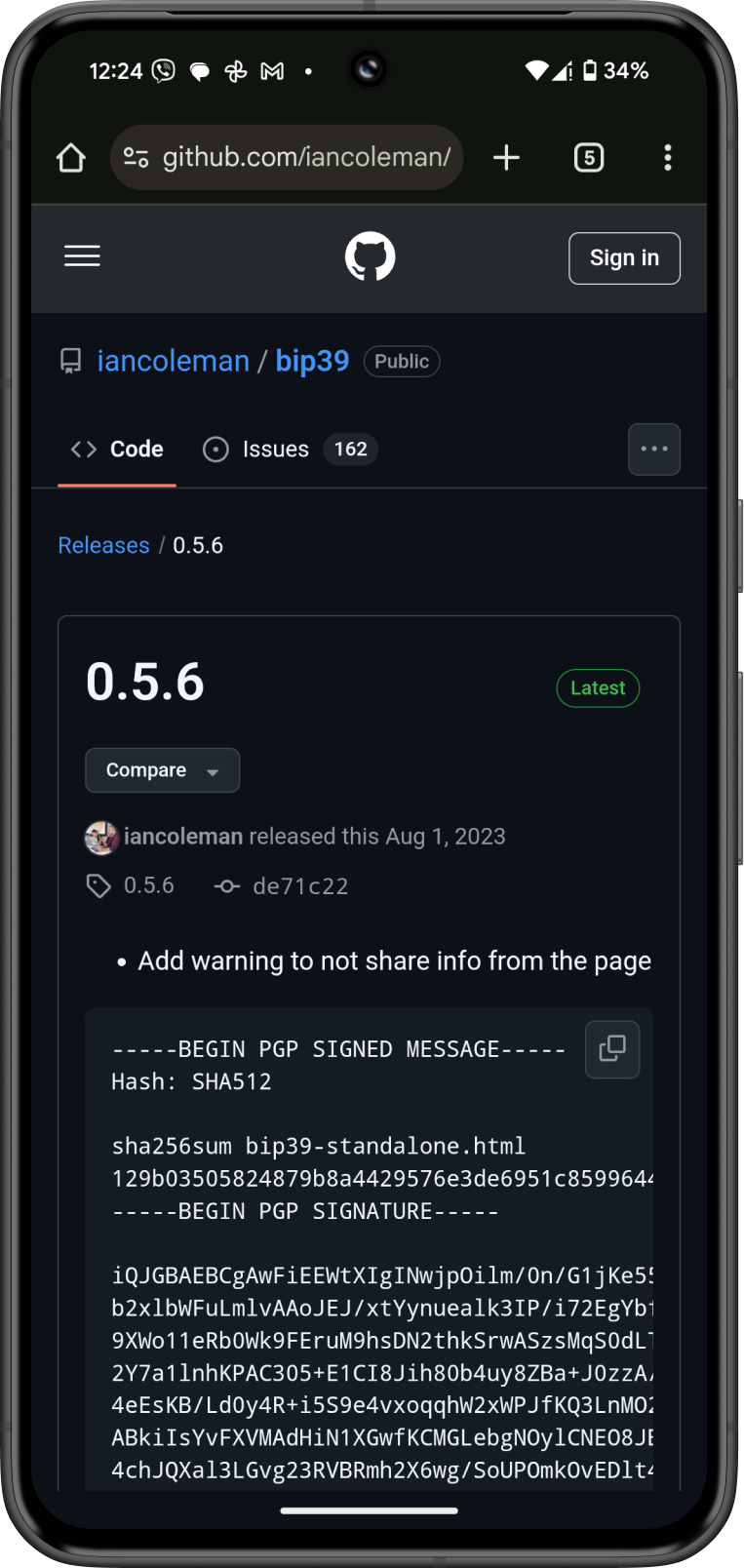
- Go to Ian Coleman BIP-39 Tool Github page.
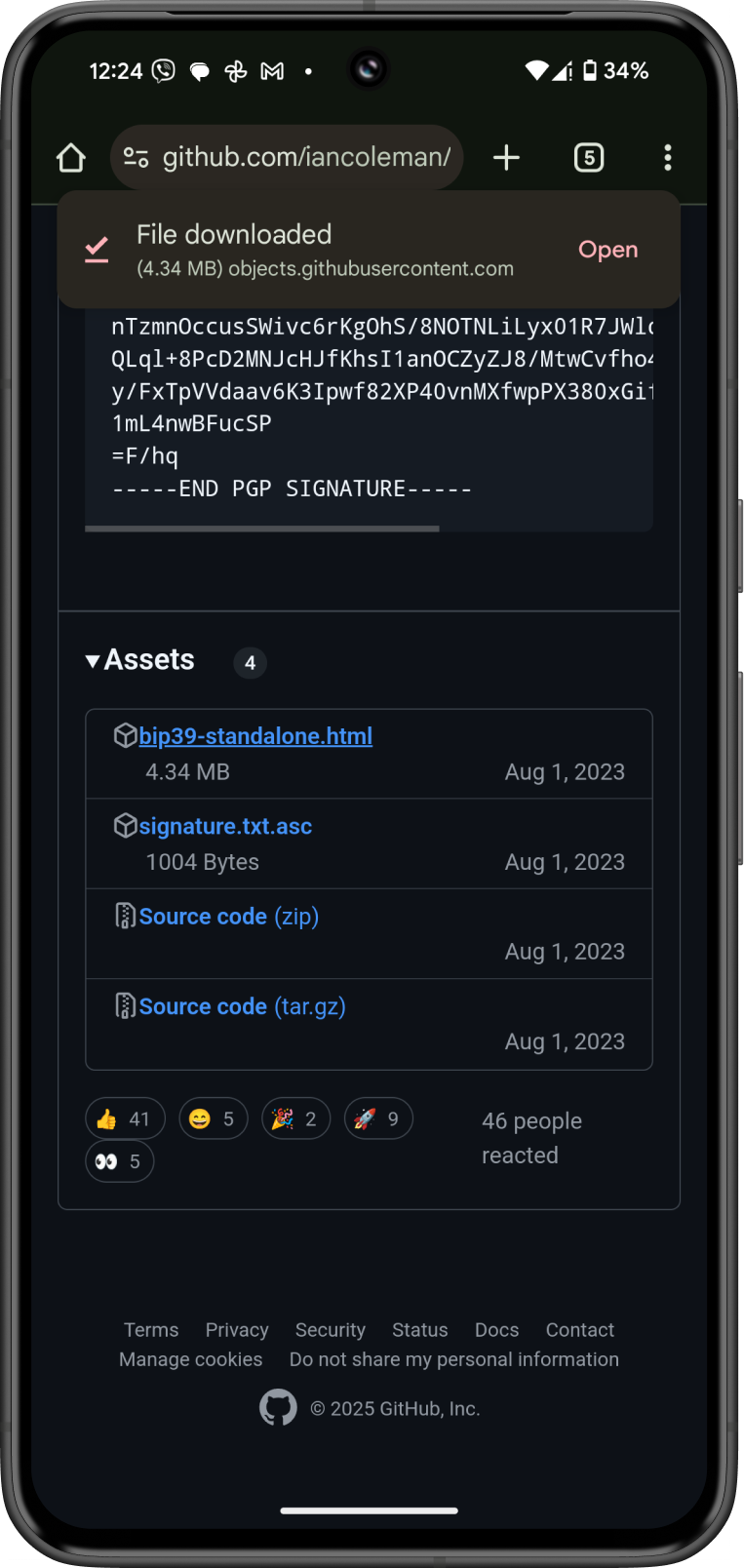
- Under Assets, tap on
bip39-standalone.htmlto download the tool on your device.
- Open the Tool Offline
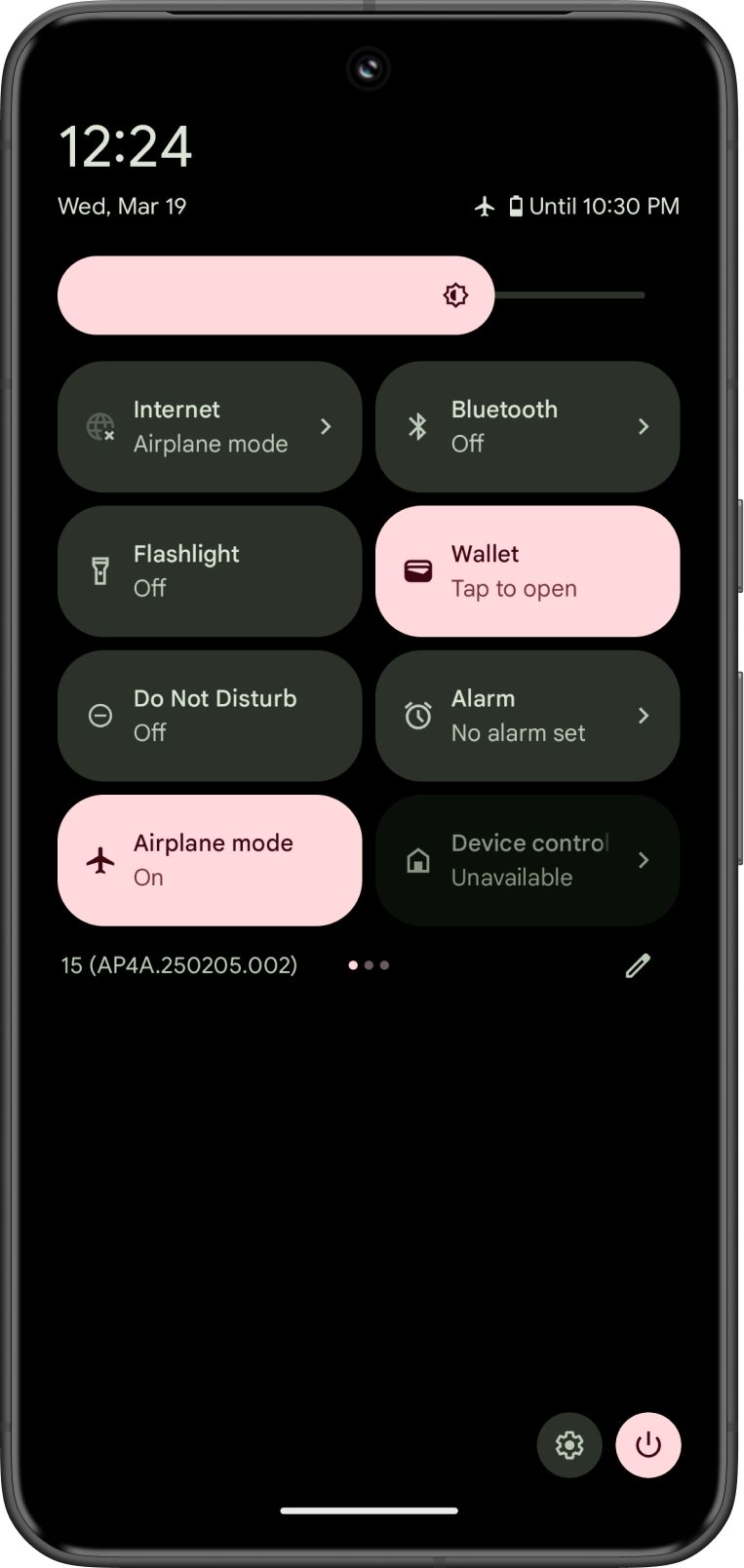
- If you are using a mobile device, Turn on Airplane mode. If you are on a computer, disconnect from the internet.
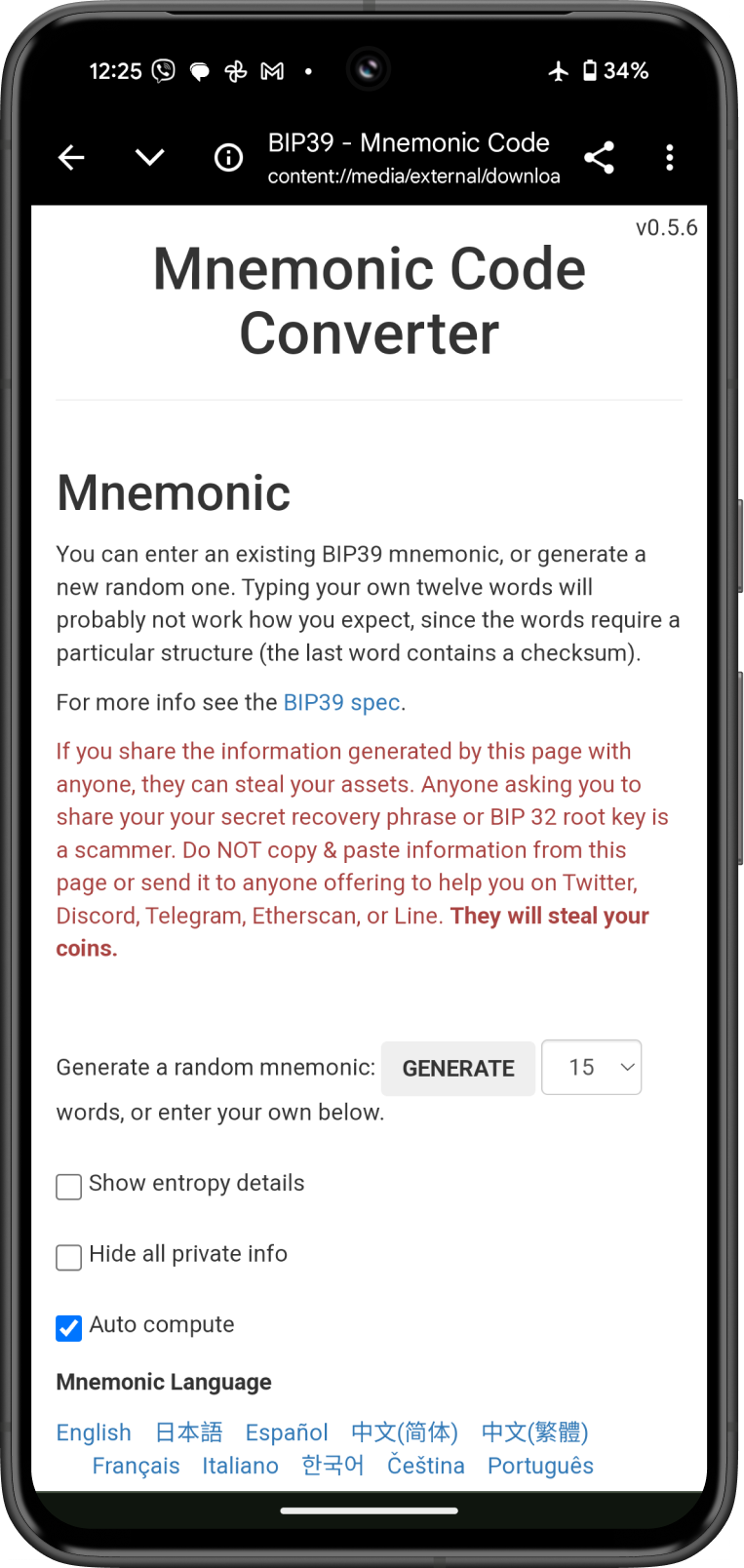
- Open the
bip39-standalone.htmlfile in a web browser (e.g., Chrome, Firefox) while staying disconnected from the internet.
- Enter Your Recovery Phrase
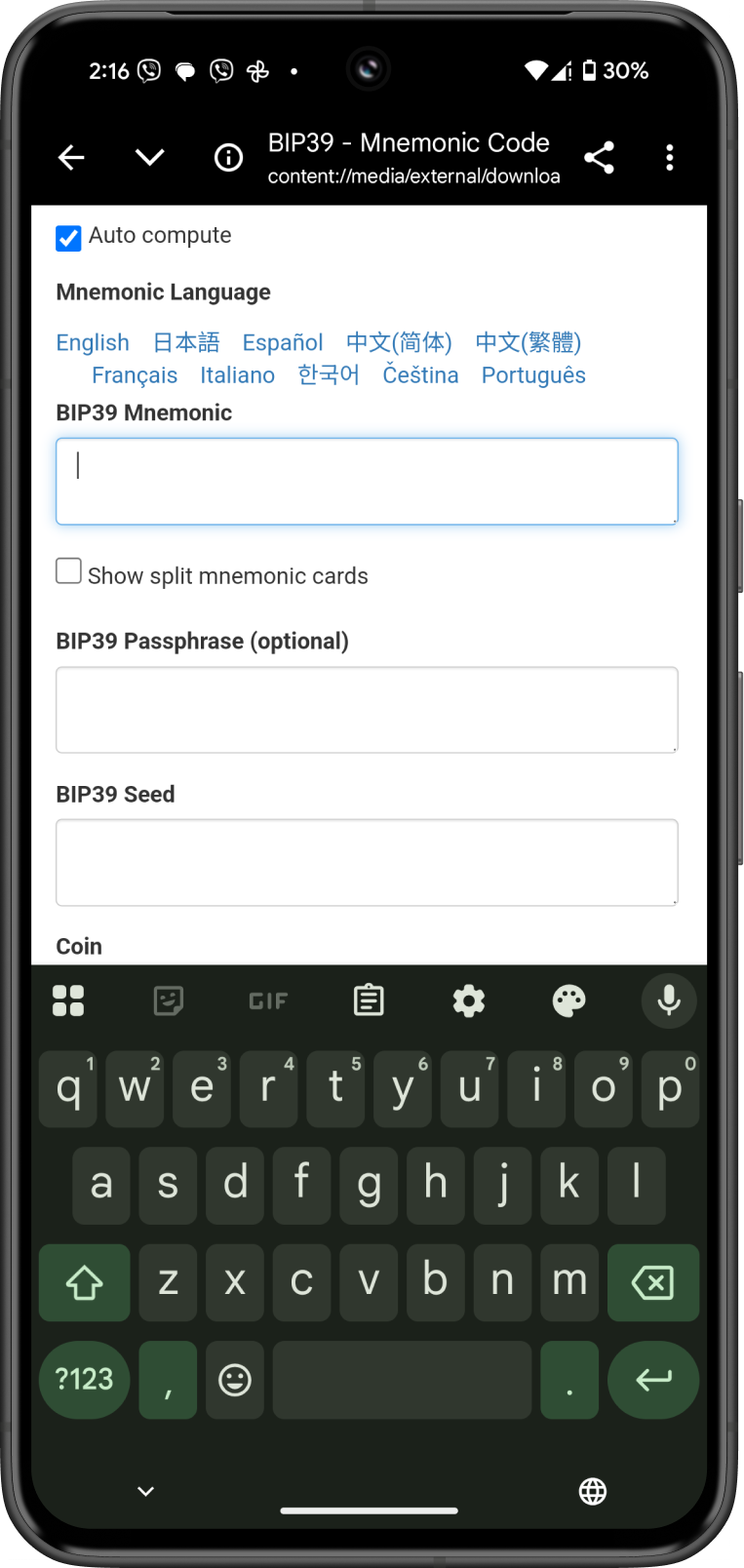
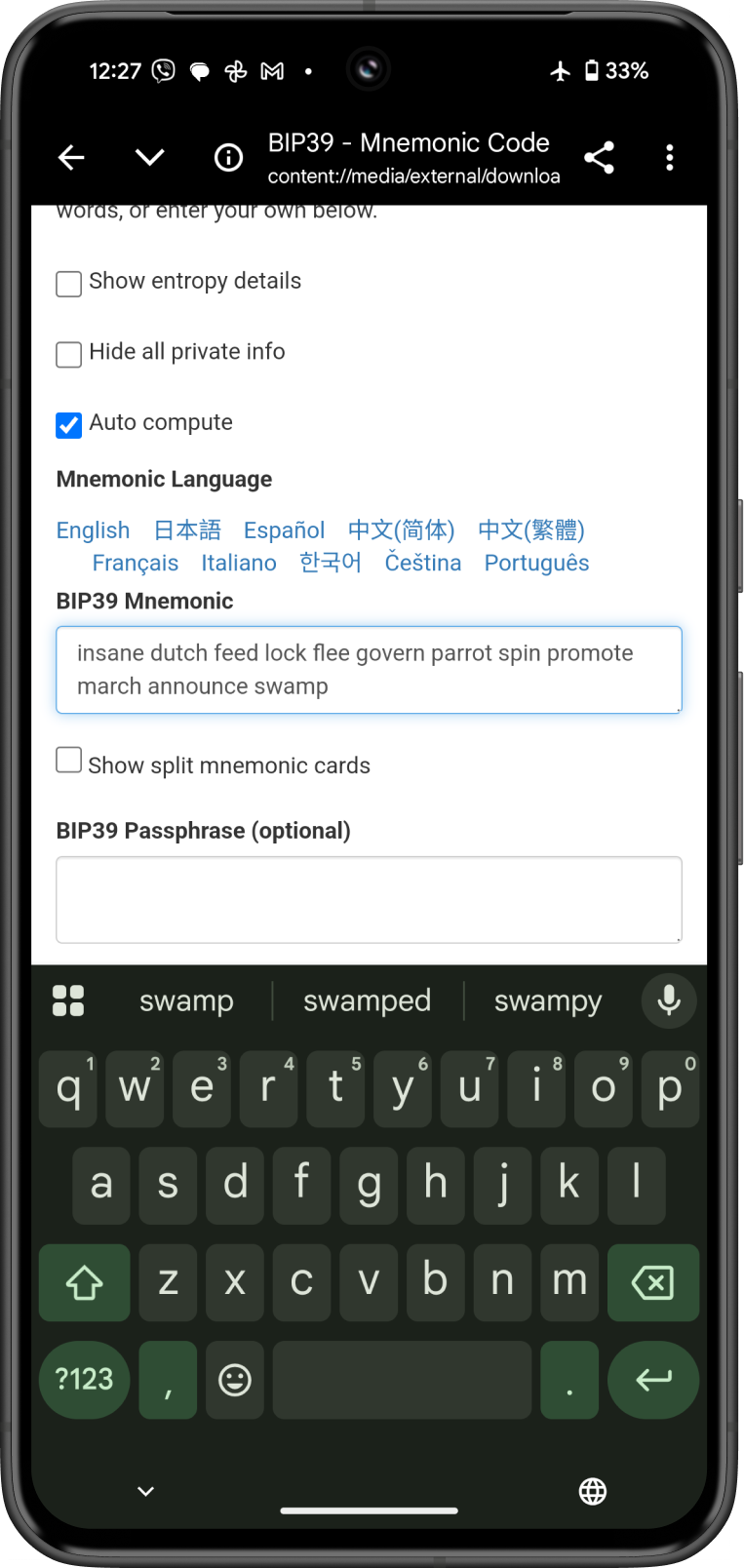
- In the tool, find the section labeled “BIP39 Mnemonic.”
- Type or paste your 12-word recovery phrase into the box. Ensure the words are separated by spaces and spelled correctly.
- Select the Coin
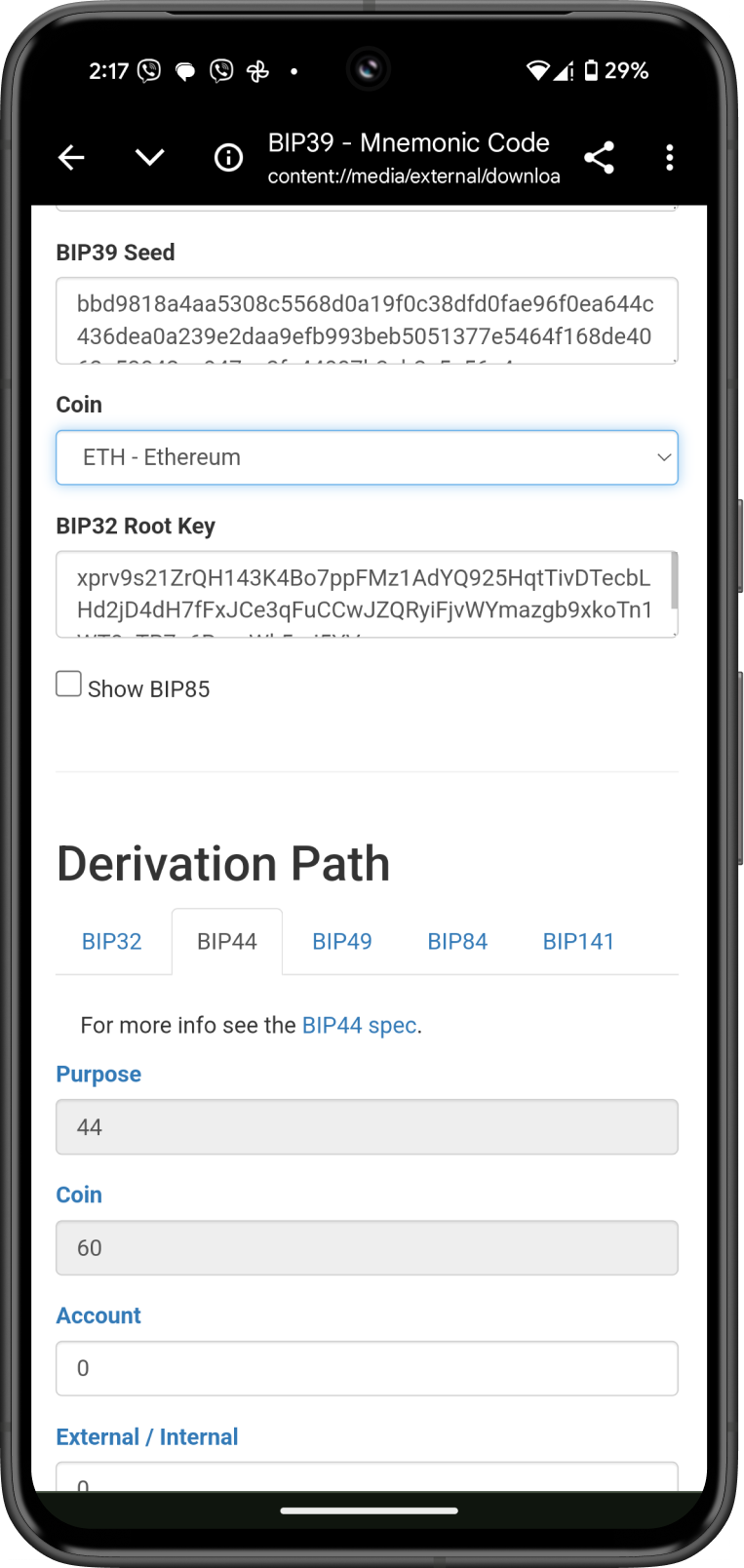
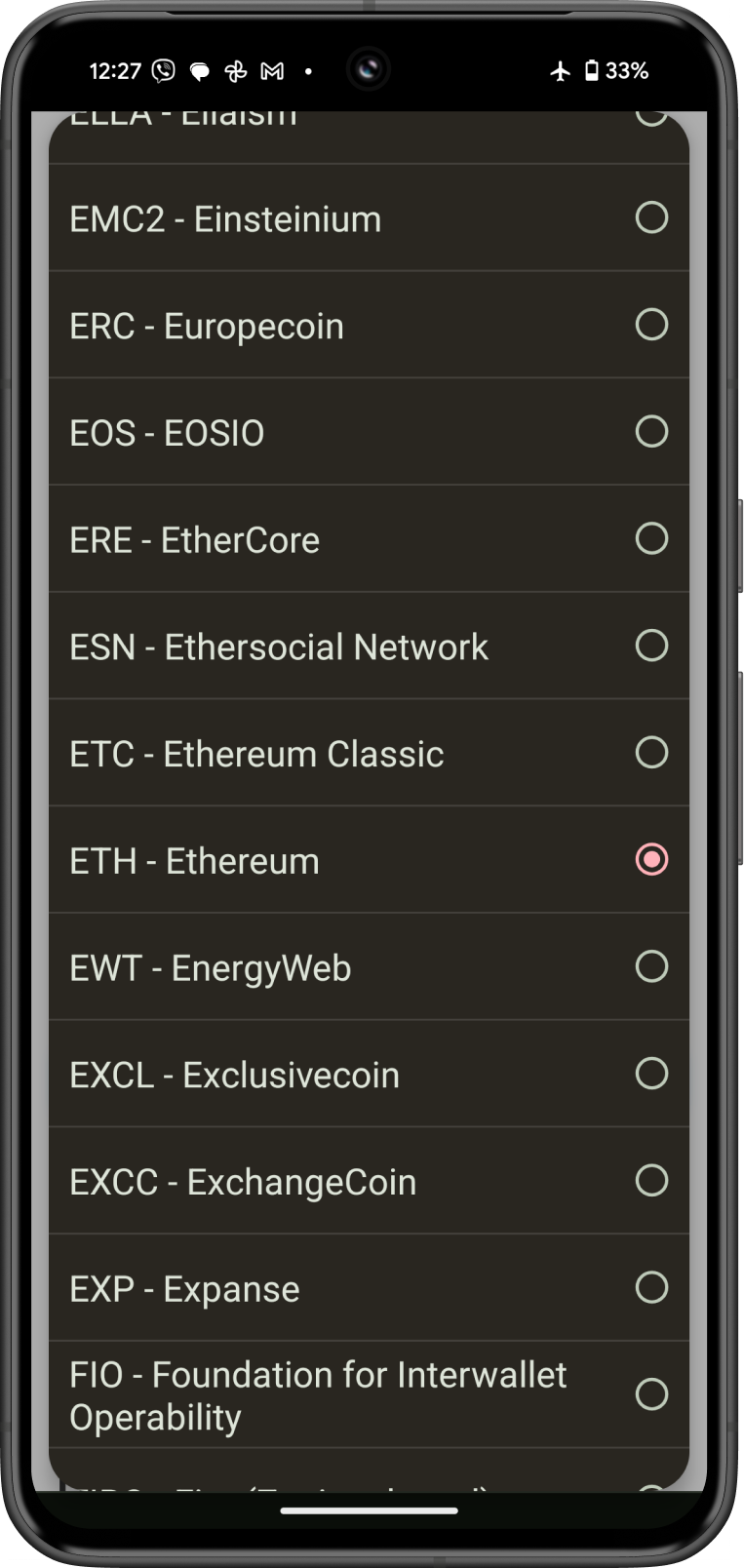
- Under “Coin,” choose the cryptocurrency you’re using in Gem Wallet (e.g., Bitcoin, Ethereum, etc.). Gem Wallet supports multiple blockchains, so pick the one tied to the private key you want.
- Leave the “Derivation Path” as the default for Ethereum and other EVM networks: Gem Wallet uses
m/44'/60'/0'/0/0, the first address of the first account. For other networks, see Gem Wallet's Derivation Paths below. - If your funds are on an address from another wallet app that used a different path, follow Alternative: Use a Different Derivation Path.
- Get the Private Key
- Scroll down to the “Derived Addresses” section. The tool will display a list of addresses, private keys, and public keys generated from your recovery phrase.
- Look for the private key corresponding to the address you use in Gem Wallet. The private key is usually a long string of letters and numbers (e.g., starting with “5” or “K” for Bitcoin in WIF format, or a 64-character hexadecimal string for Ethereum).
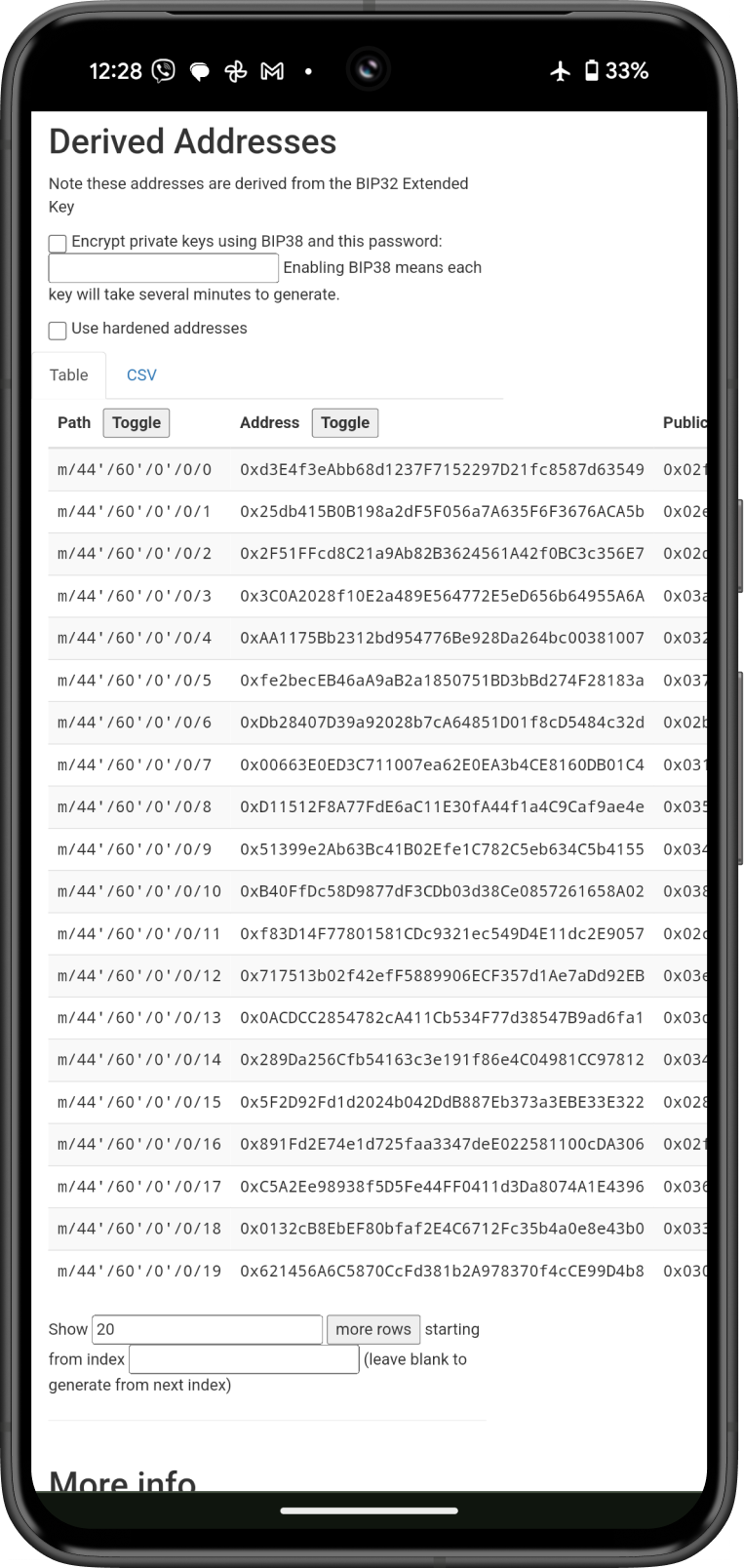
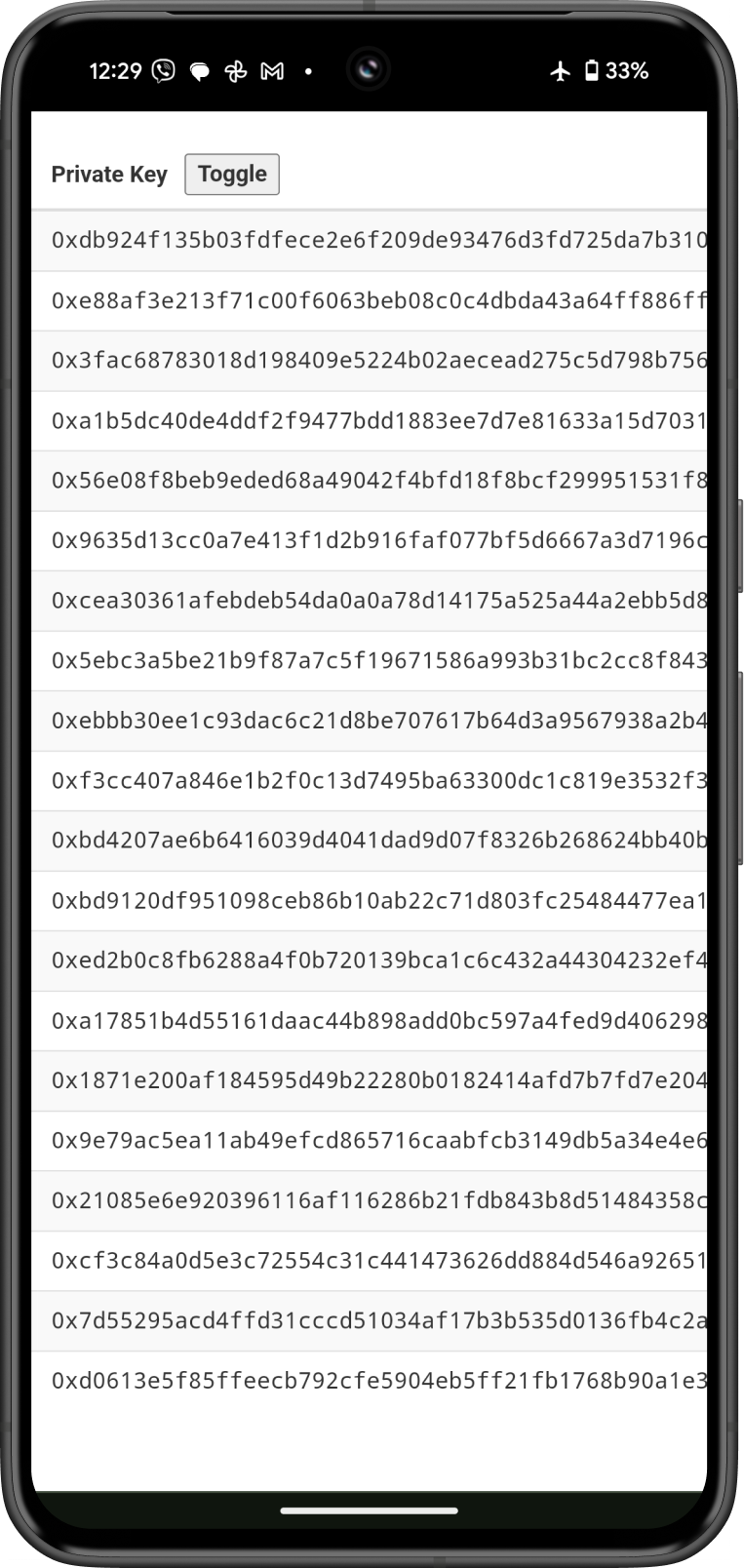
- Once you identify the correct private key, write it down on paper or store it securely offline (e.g., in a safe or encrypted USB drive).
- Never store it digitally on a connected device or share it with anyone.
- Verify (Optional)
- To ensure you have the right private key, you can import it at as a Single Coin Wallet.
- Go to Settings > Wallets, then tap on Import an Existing Wallet.
- Copy your Private Key from the Ian Coleman BIP-39 Tool and paste it on the Private Key section of the Import Wallet screen.
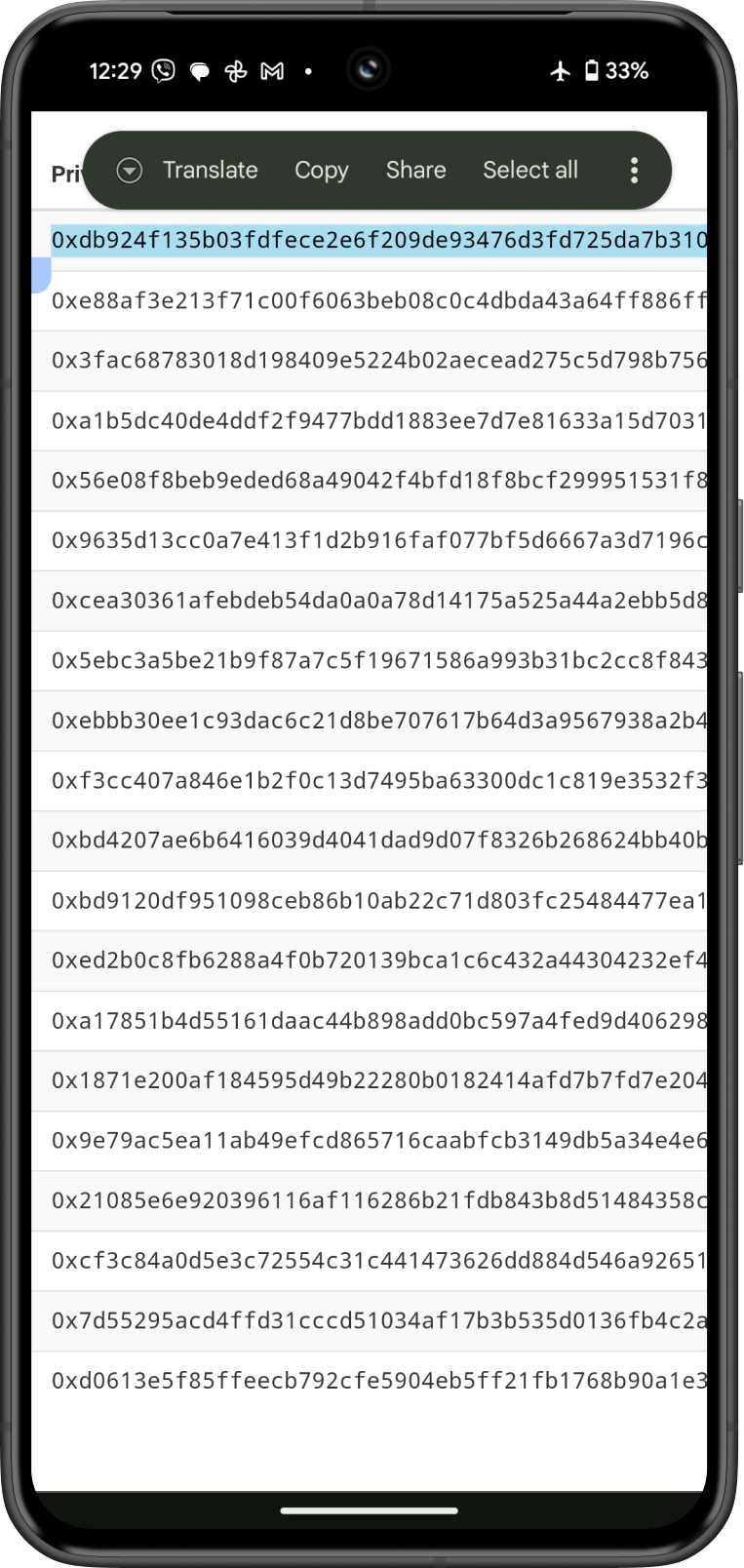
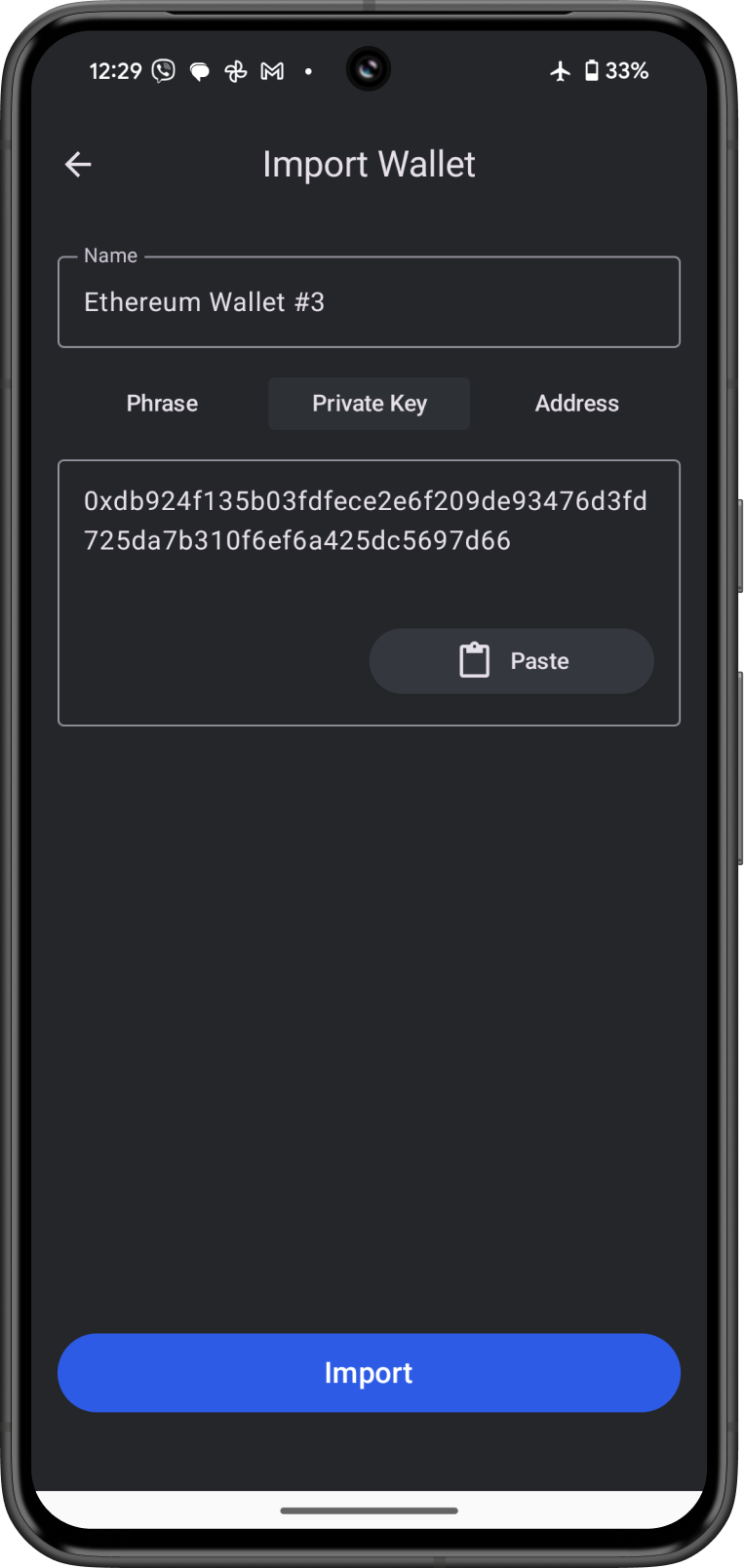
- The Private Key will now be added as a Single Coin wallet.
- Tap on the Ethereum wallet then Receive to view your address.
- You will see the same ETH address.
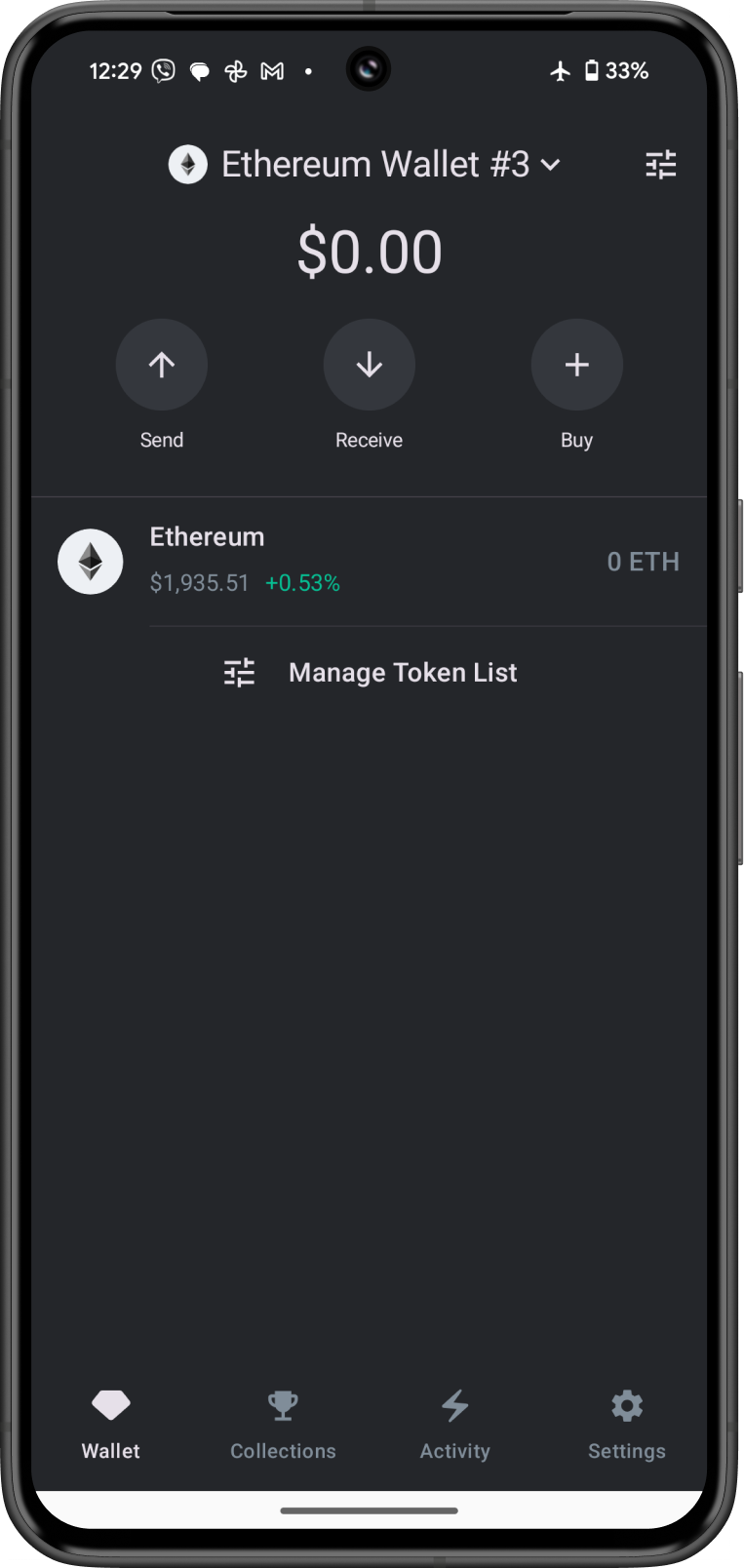
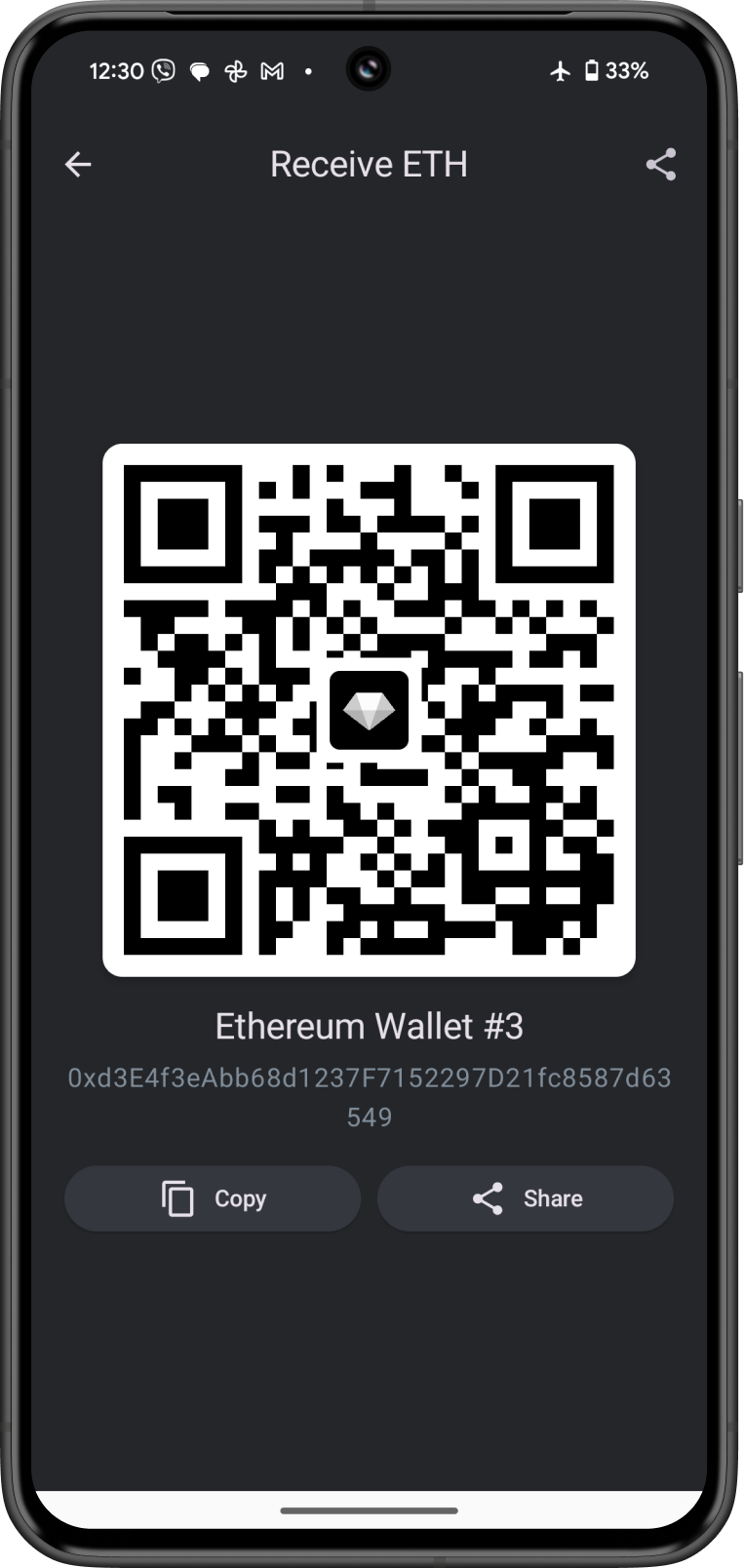
That’s it! By following these steps, you can safely derive your private key from your Gem Wallet 12-word recovery phrase.
Alternative: Use a Different Derivation Path
A derivation path tells a wallet which address to create from your Recovery Phrase. For an introduction, see What Is a Derivation Path? Gem Wallet uses one path per network: the first address of the first account. Some wallet apps use a different path, or let you create more accounts from the same phrase.
So if you import a Recovery Phrase from another app and Gem Wallet shows a different address or an empty balance, your funds are usually still there, on an address from a different path. You can get that address's private key and import it into Gem Wallet as a single-network wallet.
Gem Wallet can import a private key for most networks, but not for Bitcoin-family networks or Cardano. For those, open the other wallet app and send the funds to your Gem Wallet address instead. See What Is a Private Key?
Common Paths Used by Other Wallet Apps
| Where your funds are | Derivation path | Same as Gem Wallet? |
|---|---|---|
| EVM: account 1 in MetaMask and most EVM wallets | m/44'/60'/0'/0/0 | Yes |
| EVM: account 2, 3, … in MetaMask and most EVM wallets | m/44'/60'/0'/0/1, m/44'/60'/0'/0/2, … | No |
| EVM: account 2, 3, … in Ledger Live | m/44'/60'/1'/0/0, m/44'/60'/2'/0/0, … | No |
| EVM: "Ledger Legacy" path used by older tools | m/44'/60'/0'/0, m/44'/60'/0'/1, … | No |
Bitcoin: Native SegWit address starting with bc1q | m/84'/0'/0'/0/0 | Yes |
Bitcoin: Nested SegWit address starting with 3 | m/49'/0'/0'/0/0 | No |
Bitcoin: Legacy address starting with 1 | m/44'/0'/0'/0/0 | No |
| TRON: account 2, 3, … | m/44'/195'/0'/0/1, m/44'/195'/0'/0/2, … | No |
Your old wallet app may show the path in its account or advanced settings. If not, compare addresses: the right path is the one whose first derived address matches the address that holds your funds.
Steps
-
Open the tool offline and enter your phrase. Follow steps 2 to 4 above, with your device disconnected from the internet.
-
Select the coin. Under “Coin,” choose the network, such as ETH - Ethereum for any EVM network.
-
Set the path. In the “Derivation Path” section, pick the tab that matches your path:
- BIP44, BIP49, or BIP84 for standard paths that start with
m/44',m/49', orm/84'. Change Account for paths like Ledger Live'sm/44'/60'/1'/0/0. - BIP32 for any other path. Select the custom derivation path option and type the path without the last number, for example
m/44'/60'/0'/0for MetaMask accounts orm/44'/60'/0'for the Ledger Legacy path.
- BIP44, BIP49, or BIP84 for standard paths that start with
-
Find your address. Scroll to Derived Addresses. Each row shows the full path, the address, and its private key. Find the row whose address matches the one that holds your funds. If you don't see it, select Show more rows.
-
Copy the private key from that row only. Write it down or store it offline, as in the tip above.
-
Import it into Gem Wallet. Go to Settings > Wallets, tap Import an Existing Wallet, choose the network, select Private Key, and paste it. Check that the imported wallet shows the same address as your old wallet before you send anything to it.
-
Close the tool. Close the browser tab, and clear anything you copied, before you reconnect to the internet.
To keep everything in one Multi-Coin wallet, you can instead send the funds from the imported private-key wallet to your Multi-Coin wallet's address on the same network. This costs a network fee.
Gem Wallet's Derivation Paths
Gem Wallet uses these paths for a Multi-Coin wallet:
| Network | Derivation path |
|---|---|
| Ethereum and all EVM networks (BNB Chain, Polygon, Base, Arbitrum, and others), Hyperliquid, Injective | m/44'/60'/0'/0/0 |
| Bitcoin | m/84'/0'/0'/0/0 |
| Litecoin | m/84'/2'/0'/0/0 |
| Bitcoin Cash | m/44'/145'/0'/0/0 |
| Dogecoin | m/44'/3'/0'/0/0 |
| TRON | m/44'/195'/0'/0/0 |
| Cosmos Hub, Osmosis, Celestia, Noble, Sei | m/44'/118'/0'/0/0 |
| THORChain, Maya | m/44'/931'/0'/0/0 |
| XRP Ledger | m/44'/144'/0'/0/0 |
| Solana | m/44'/501'/0'/0' |
| Sui | m/44'/784'/0'/0'/0' |
| Aptos | m/44'/637'/0'/0'/0' |
| TON | m/44'/607'/0' |
| Stellar | m/44'/148'/0' |
| NEAR | m/44'/397'/0' |
| Cardano | m/1852'/1815'/0'/0/0 |
The Ian Coleman tool works for networks that use the same key type as Bitcoin and Ethereum, such as EVM networks, Bitcoin-family networks, TRON, Cosmos networks, and XRP. Networks like Solana, Sui, Aptos, TON, Stellar, NEAR, and Cardano use a different key type, and the tool doesn't derive their keys correctly. For those, import the Recovery Phrase in a wallet app that supports the path you need.