NFTs in Gem Wallet
What is an NFT?
An NFT, or non-fungible token, is a unique digital asset recorded on a blockchain. NFTs can represent artwork, collectibles, memberships, game items, and other digital content. Unlike regular cryptocurrency tokens, each NFT has its own identity and may have different properties or value.
Gem Wallet lets you view and manage supported NFTs while keeping control of your private keys.
Which NFT networks does Gem Wallet support?
Gem Wallet currently displays NFTs on:
- Ethereum
- Polygon
- BNB Smart Chain
- Solana
- TON
NFT availability can depend on the token standard and the collection metadata supplied by the network or NFT data provider. An NFT on a supported network may take a short time to appear after it is received.
NFT support is separate from general network support. Gem Wallet may support coins and tokens on a network without displaying NFTs from that network.
Where can I find my NFTs?
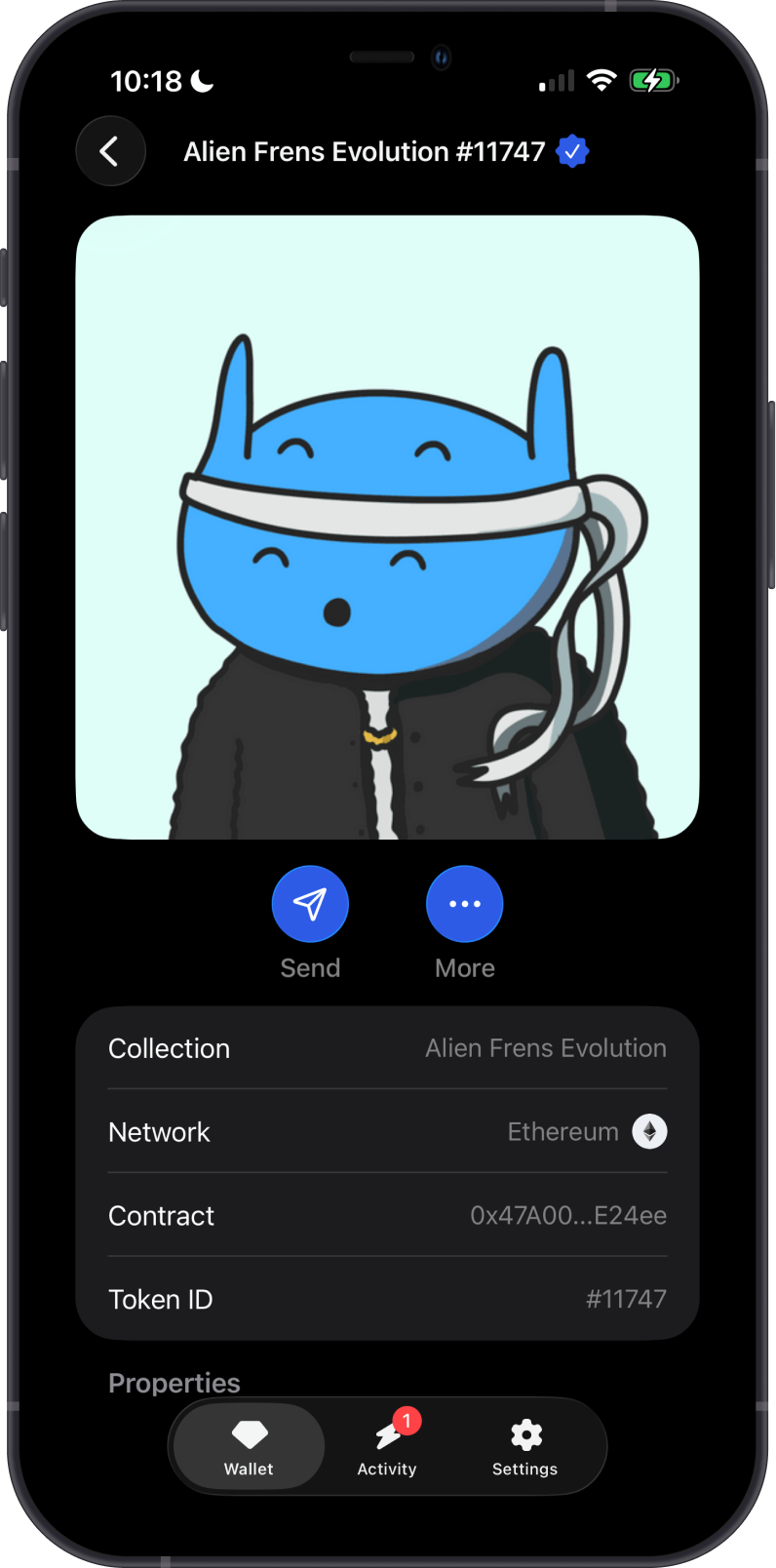
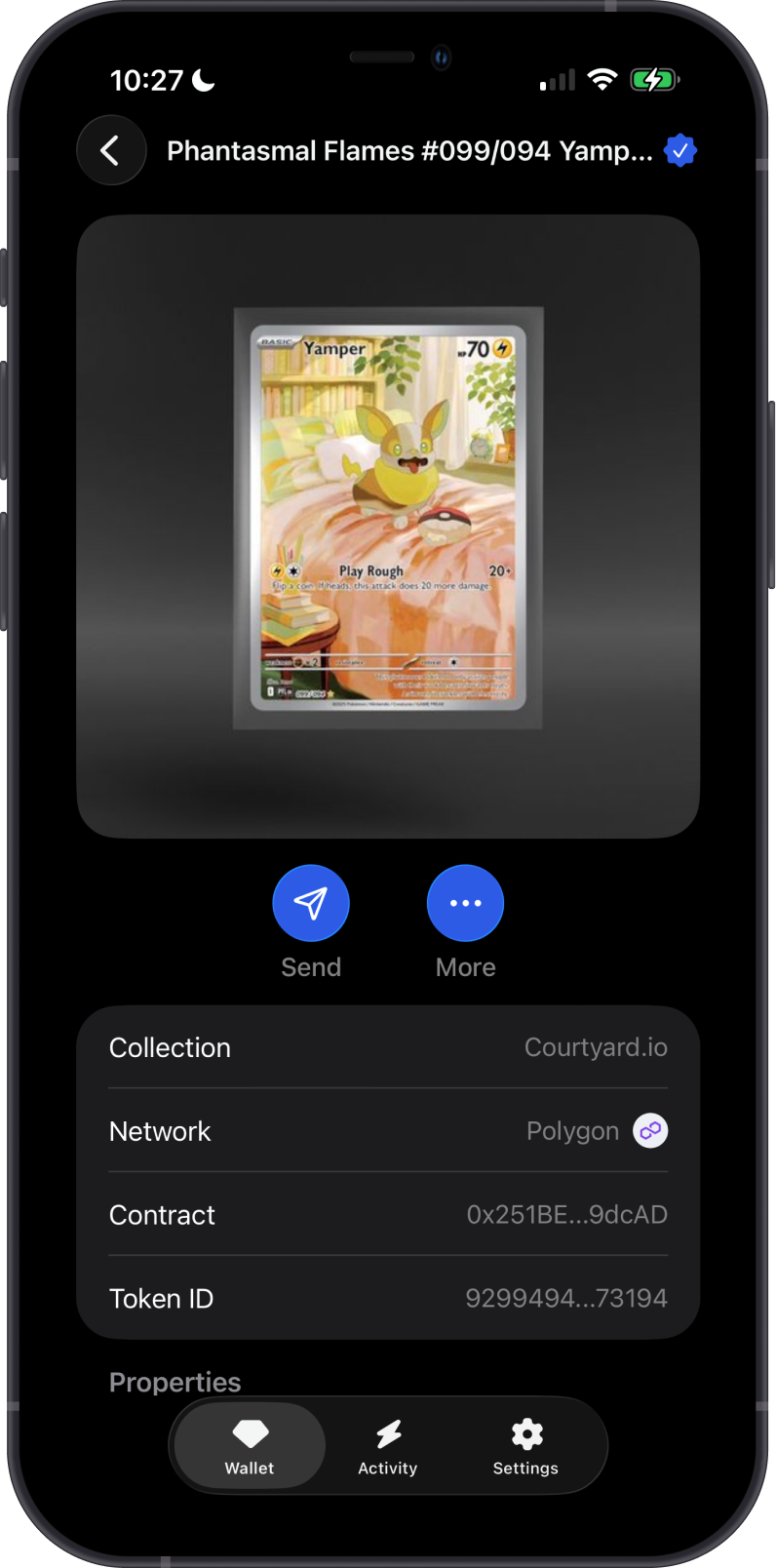
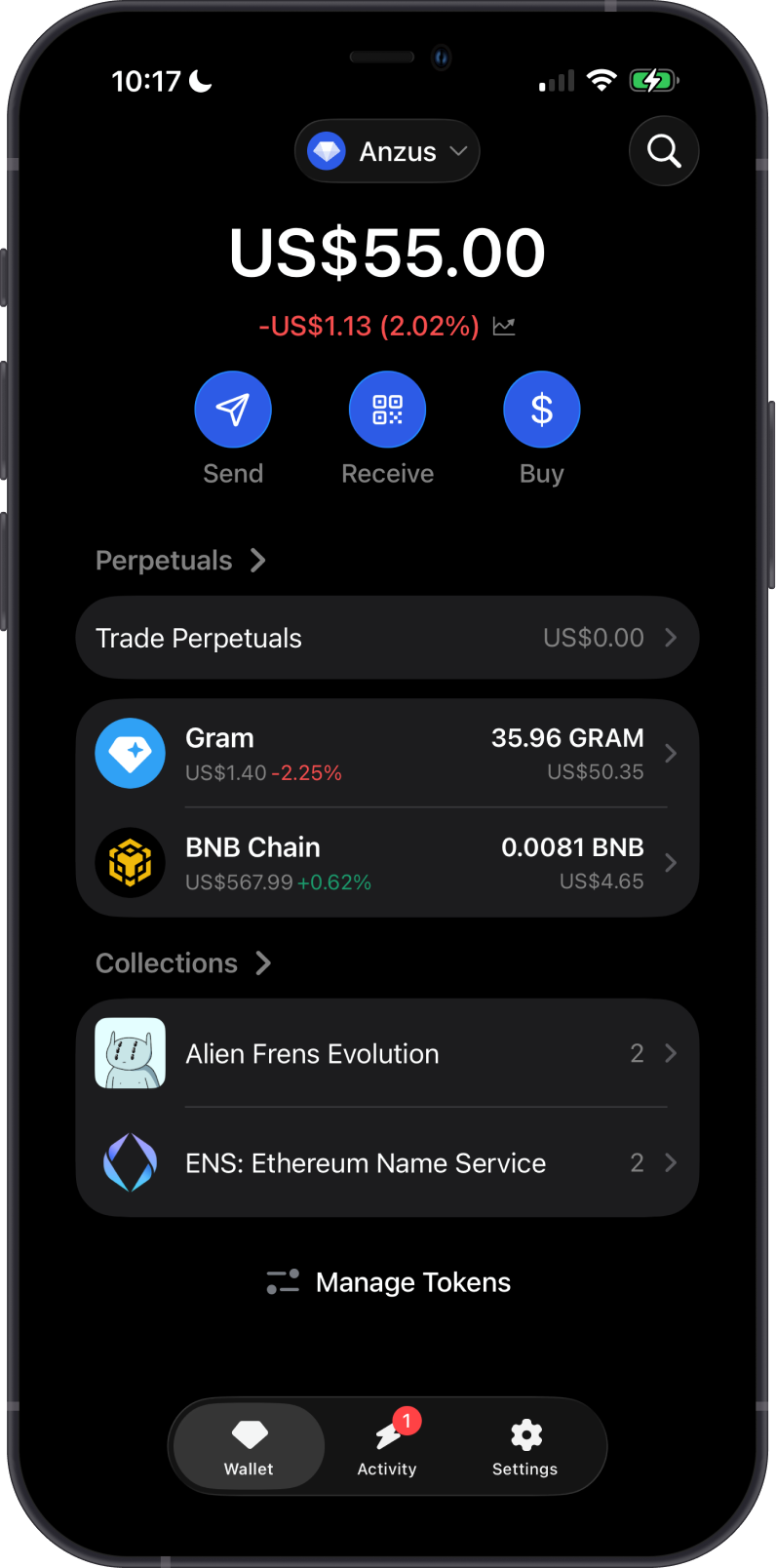
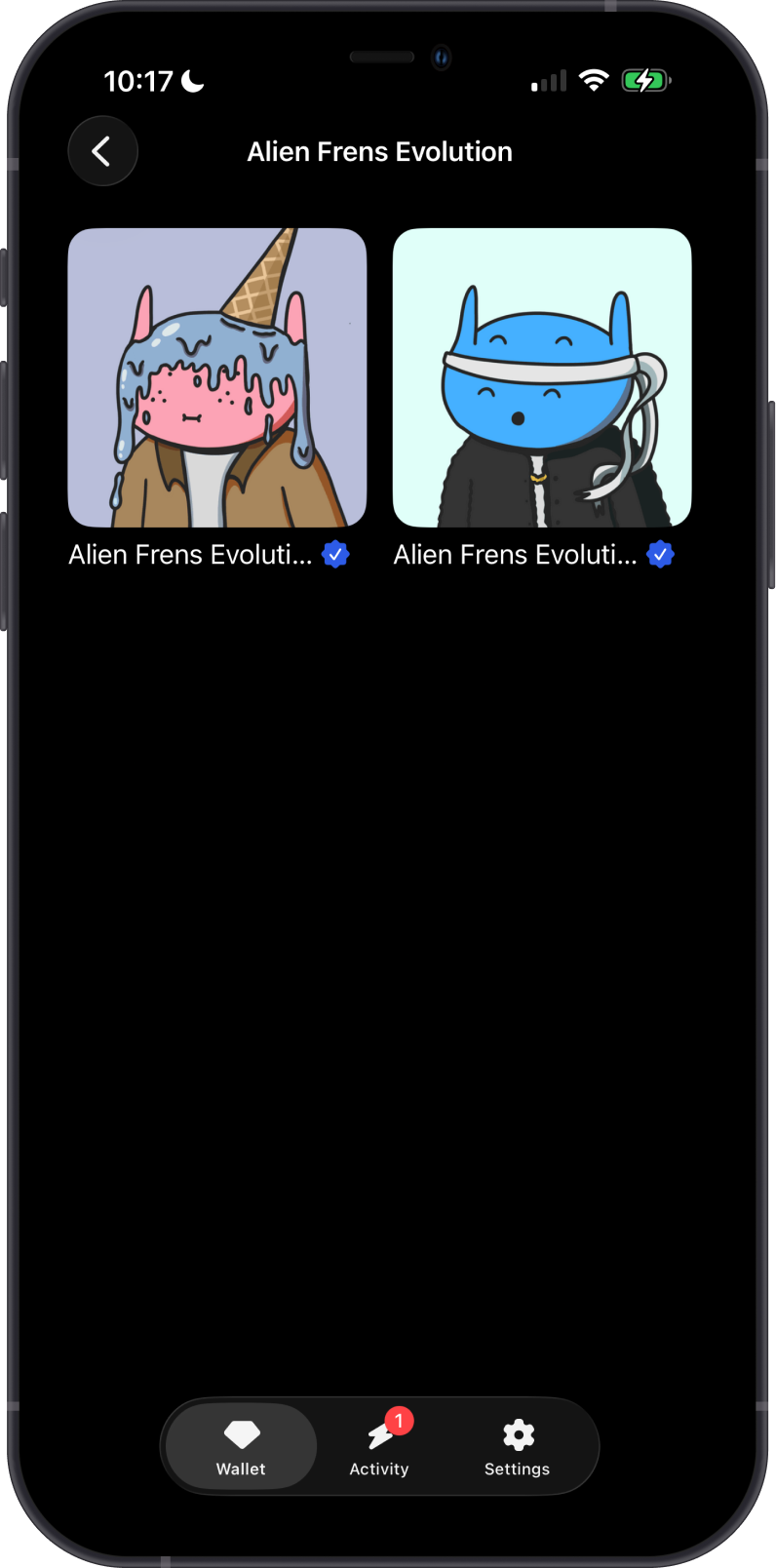
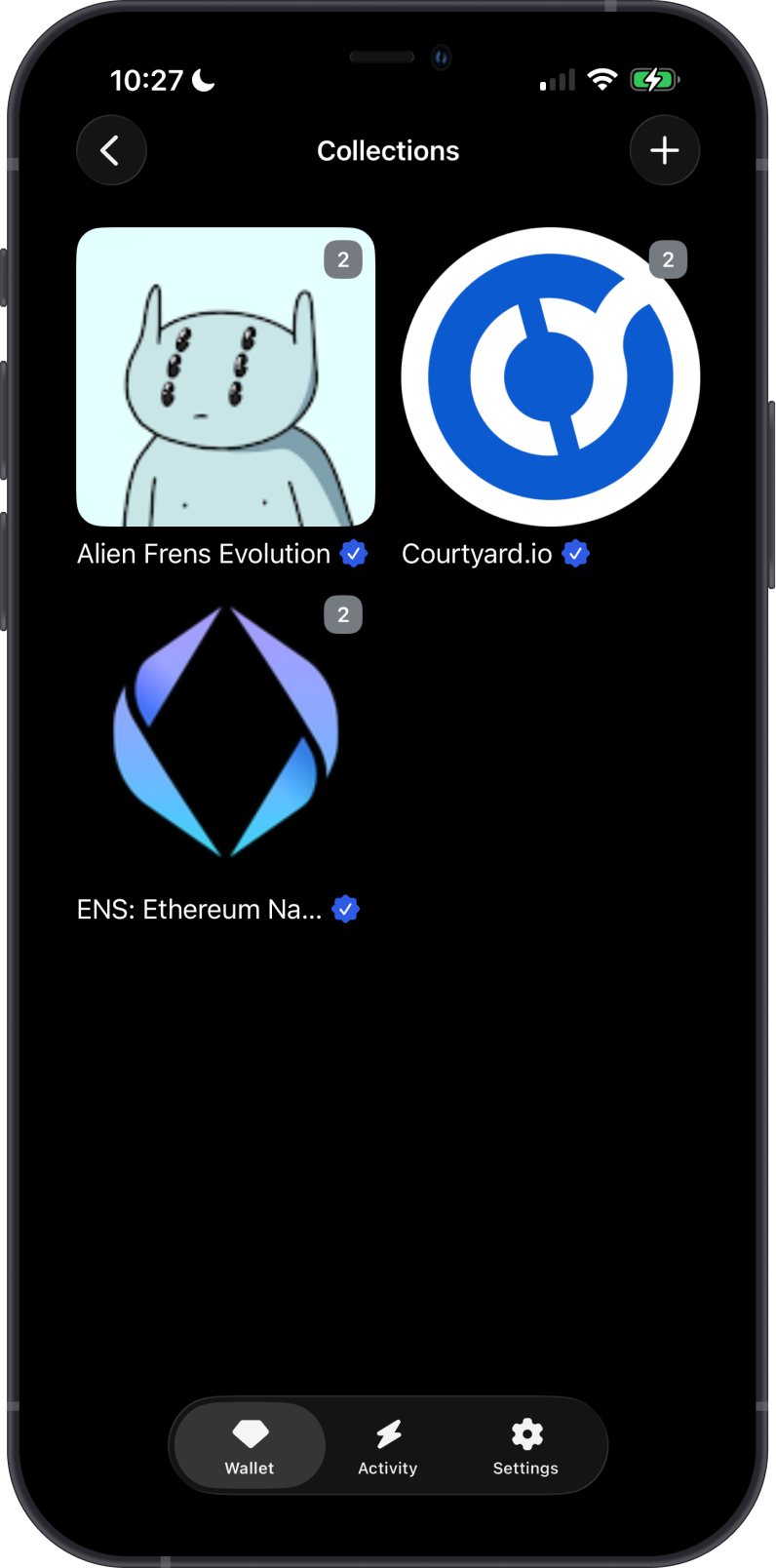
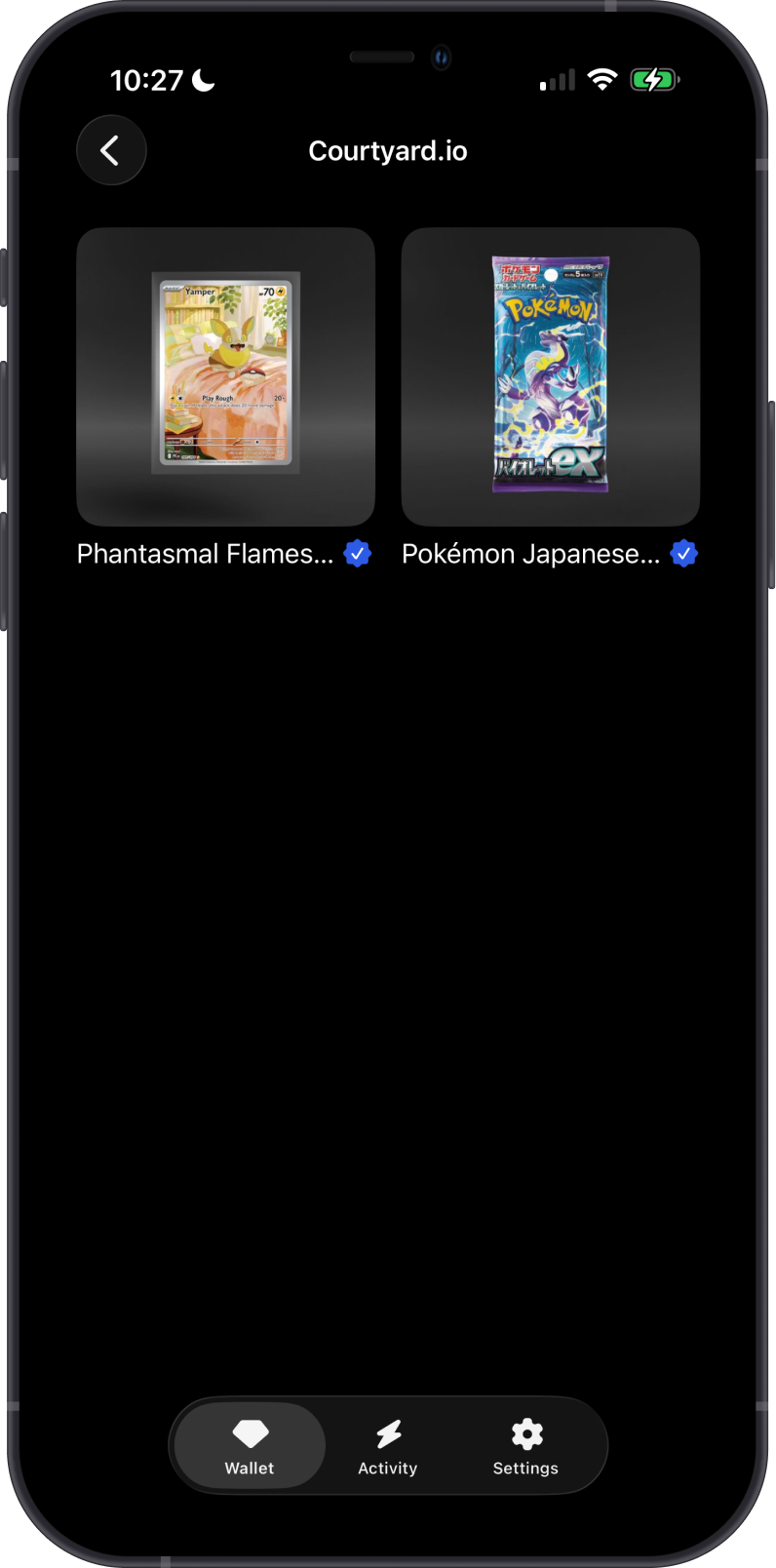
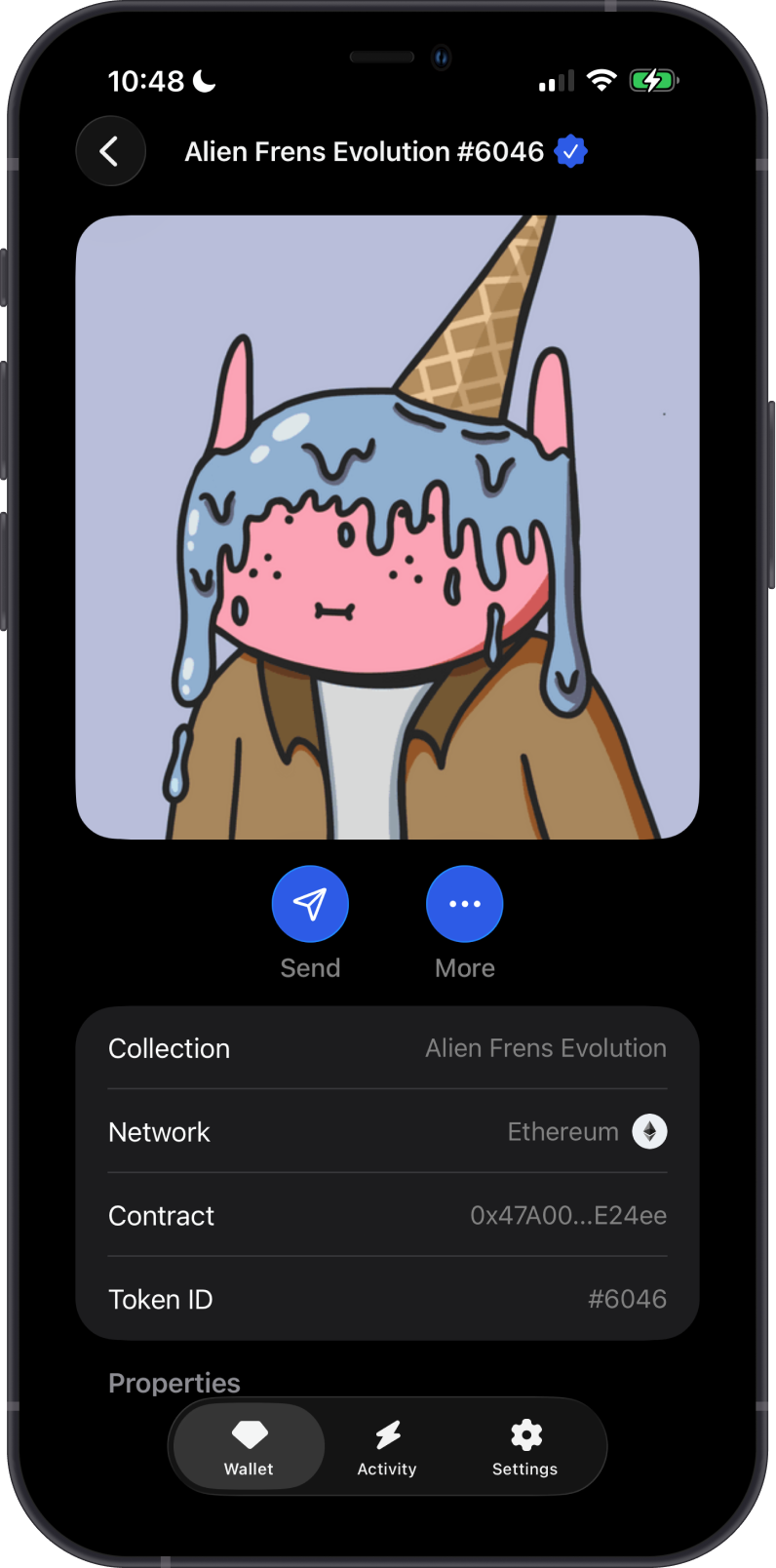
Open Gem Wallet and select your wallet. Your NFT collections appear in the Collections section. Select a collection to view its NFTs, then select an NFT to see its image, properties, collection information, and available actions.
Only NFTs owned by the address for the selected wallet are shown. If you use multiple wallets, make sure you have opened the wallet that received the NFT.
How do I receive an NFT?
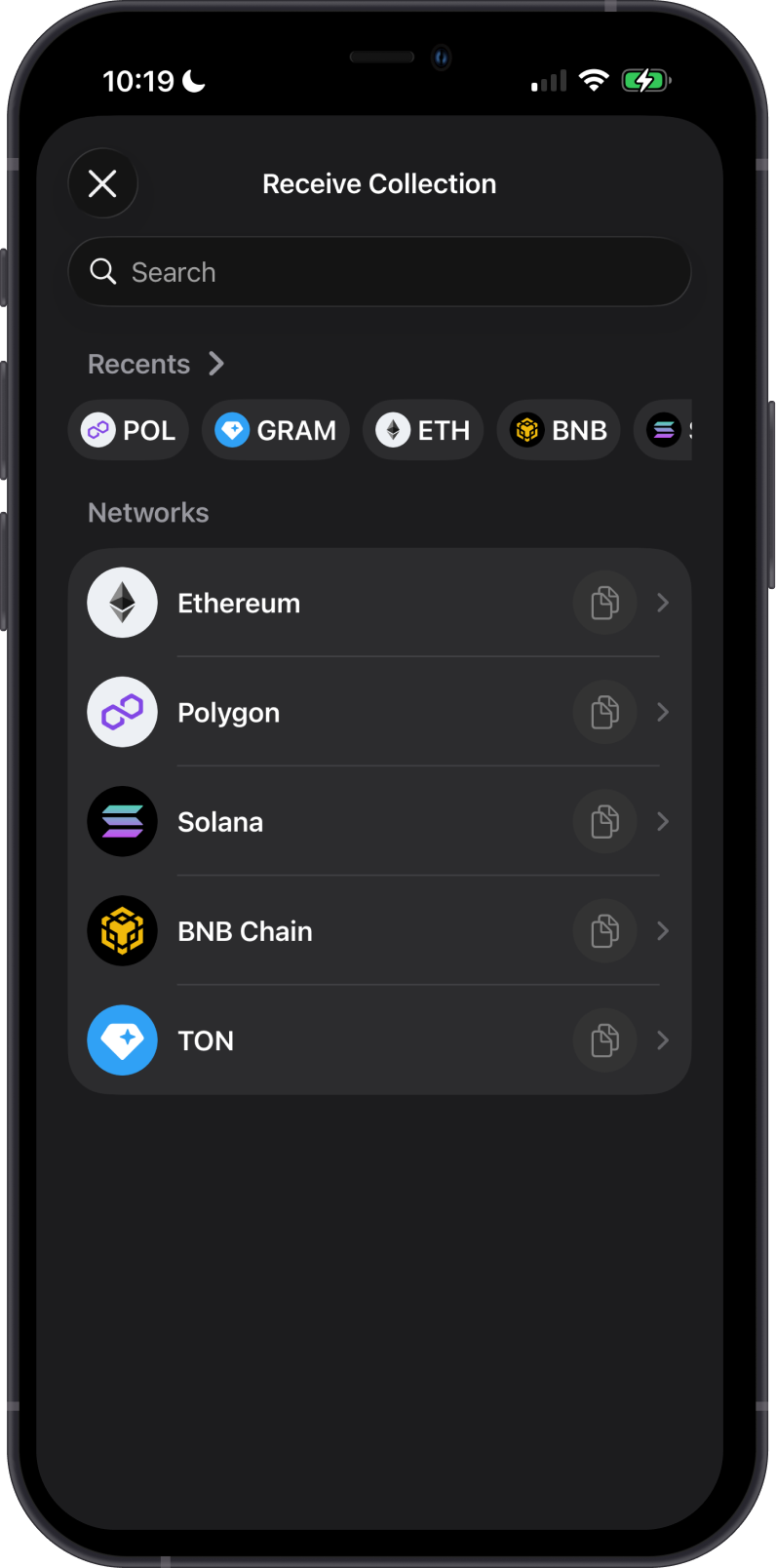
- On the Collections page, select + to see the supported networks.
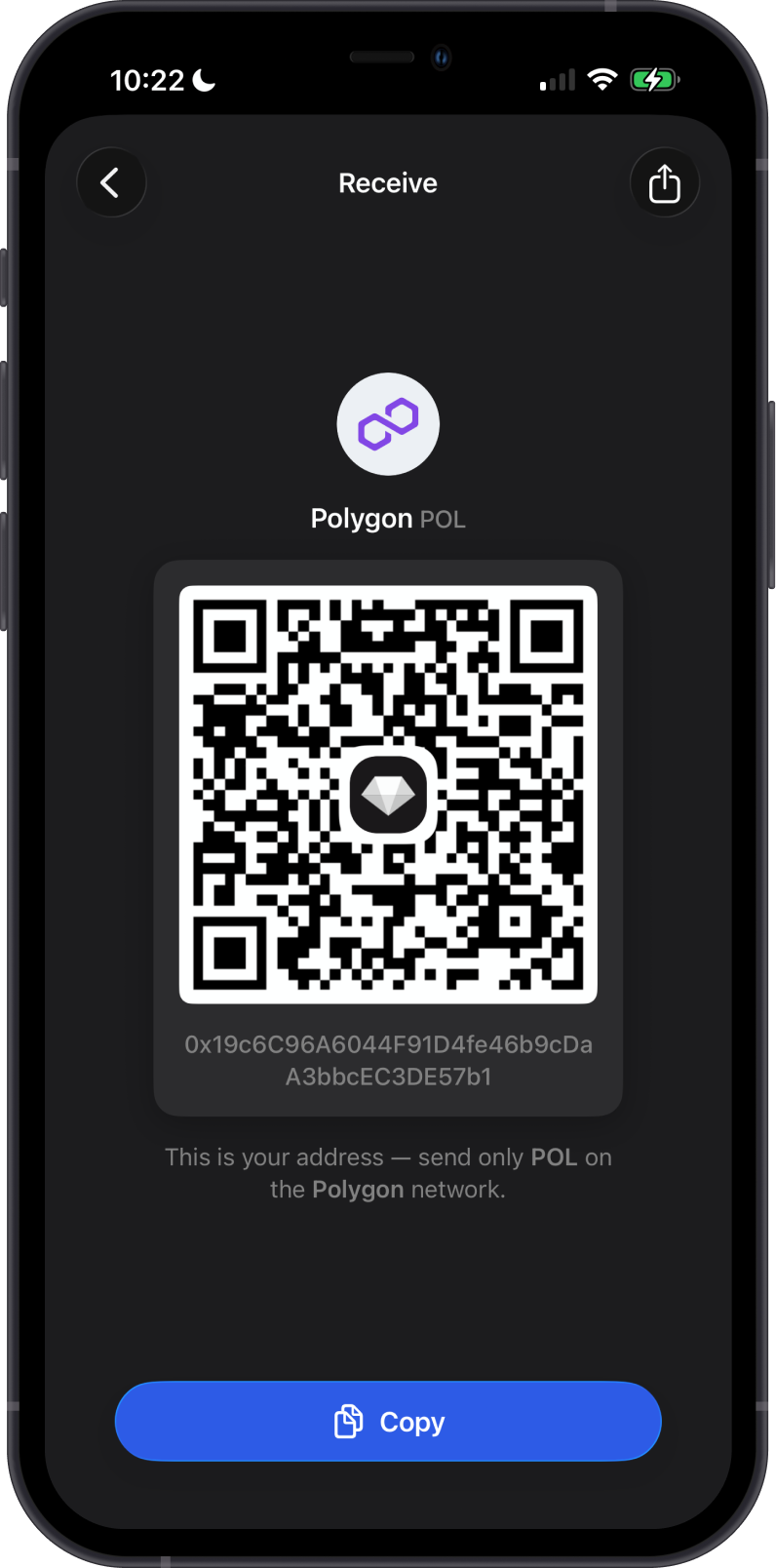
- Select the network used by the NFT and copy your receiving address or show its QR code.
- Give the address to the sender and confirm that they are sending the NFT on the same network.
- Wait for the transfer to be confirmed on the blockchain.
Always verify the network and the complete receiving address before the NFT is sent. Blockchain transfers cannot be reversed.
After the transfer is confirmed, the new NFT and its collection will appear in Gem Wallet.
How do I send an NFT?
- Open the NFT from the Collections section.
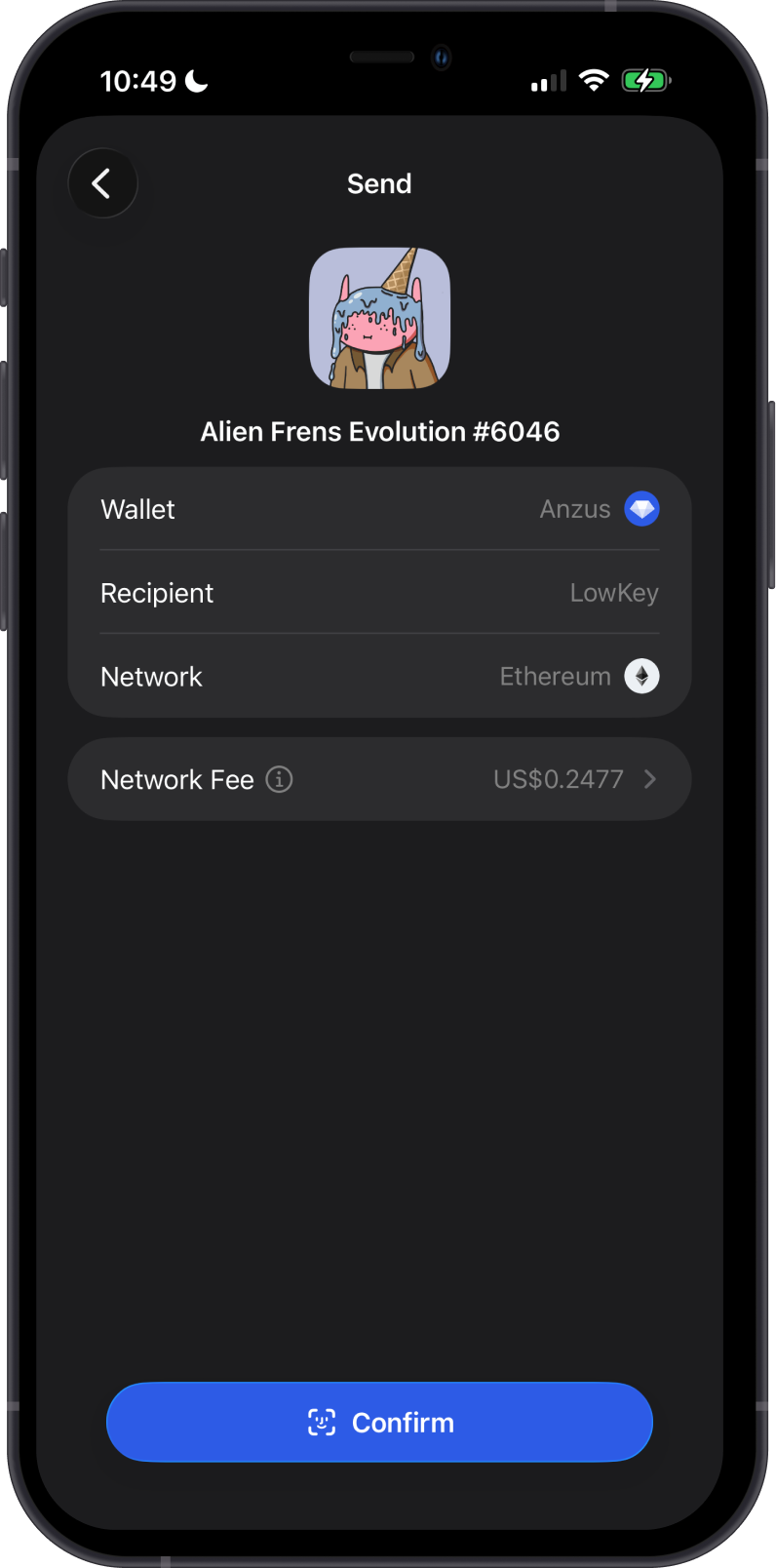
- Select Send.
- Enter or scan the recipient's address.
- Review the NFT, destination address, network, and network fee.
- Confirm the transfer.
You need enough of the network's native coin to pay the transaction fee. For example, an Ethereum NFT transfer requires ETH, while a Solana NFT transfer requires SOL.
How do I buy or sell an NFT?
NFTs are traded through third-party marketplaces. Gem Wallet connects to compatible marketplaces using WalletConnect, allowing you to review and approve marketplace requests from the wallet.
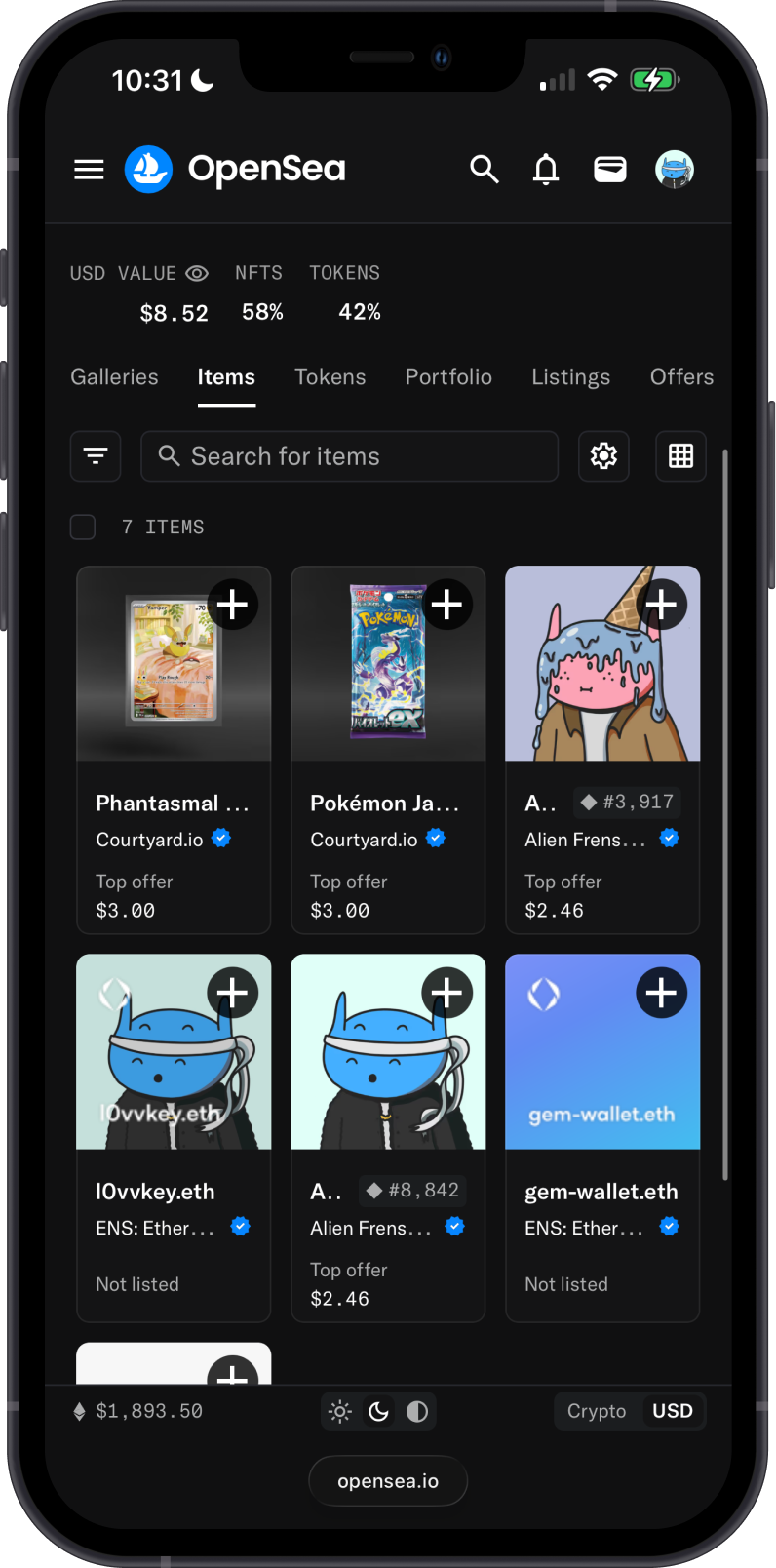
For example, you can connect Gem Wallet to OpenSea to buy, sell, or list supported NFTs.
- Open a reputable NFT marketplace that supports the NFT's network.
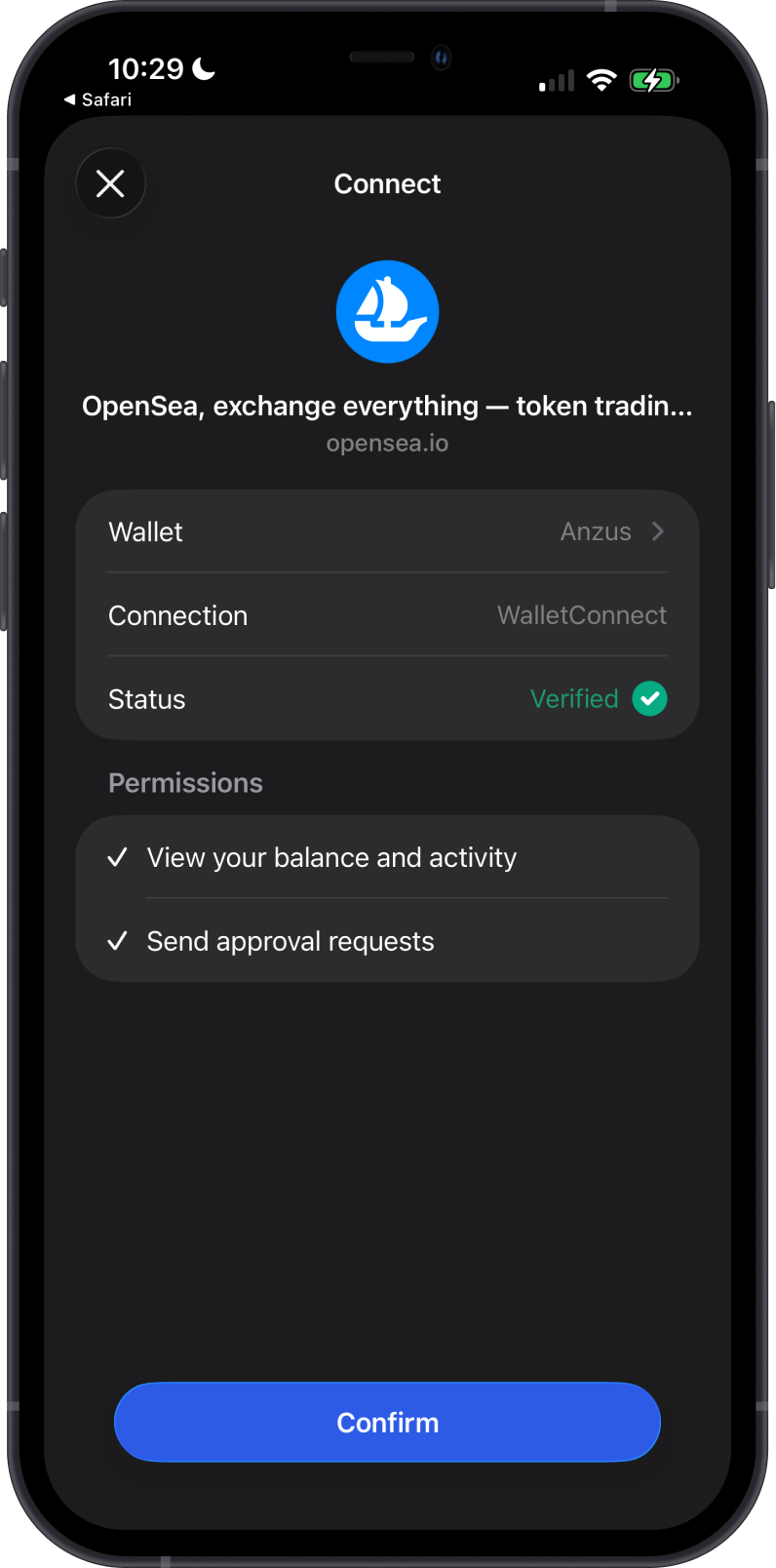
- Select Connect Wallet, then choose WalletConnect and Gem Wallet.
- Confirm the connection in Gem Wallet.
If Gem Wallet is not shown in the marketplace's wallet list, follow the connection steps in the WalletConnect Guide.
To sell an NFT:
- On the marketplace, select the NFT you want to sell and choose the option to list it.
- Carefully review each request in Gem Wallet, including the NFT, price, permissions, and network fee.
- Confirm only if every detail is correct.
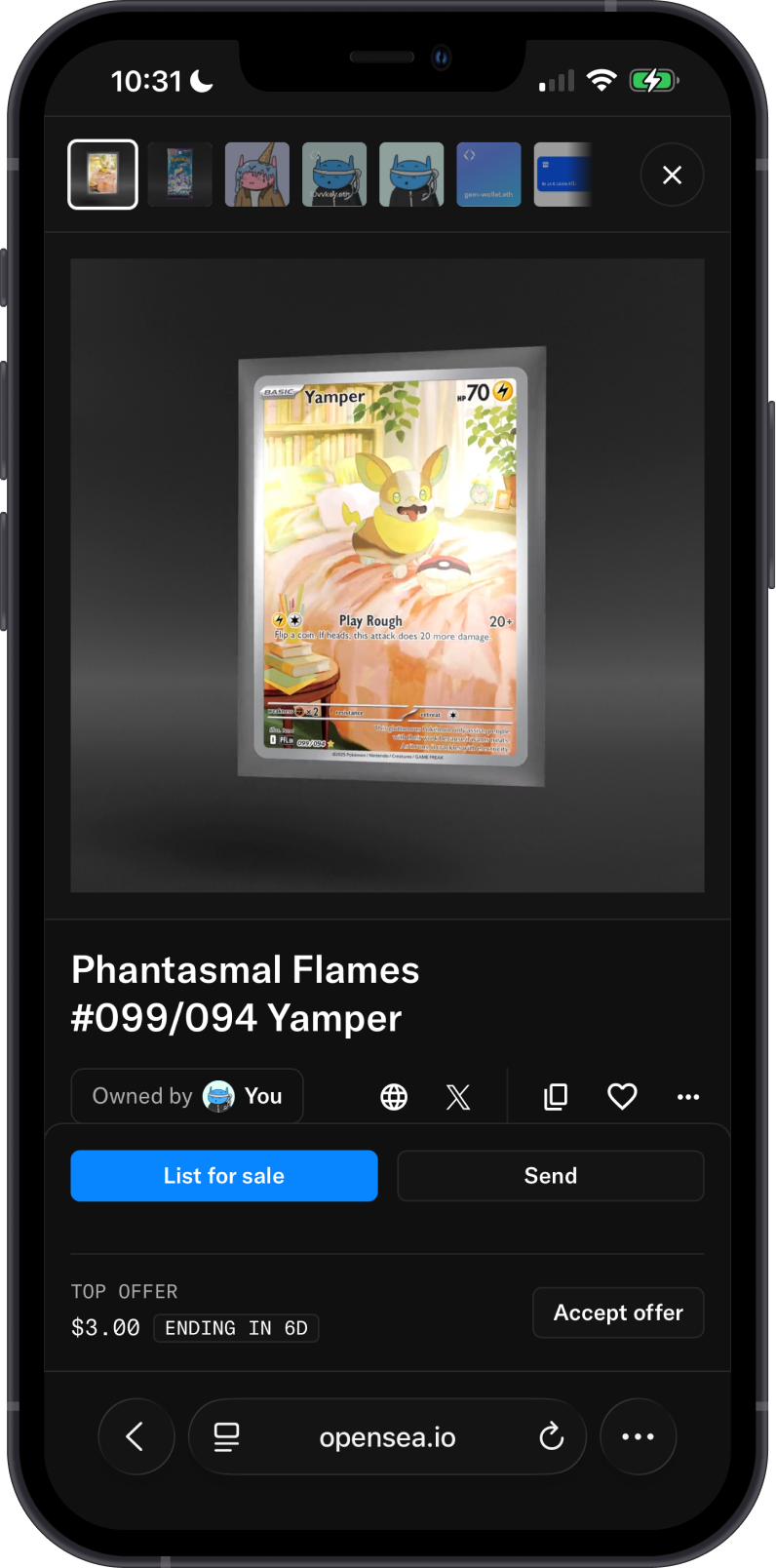
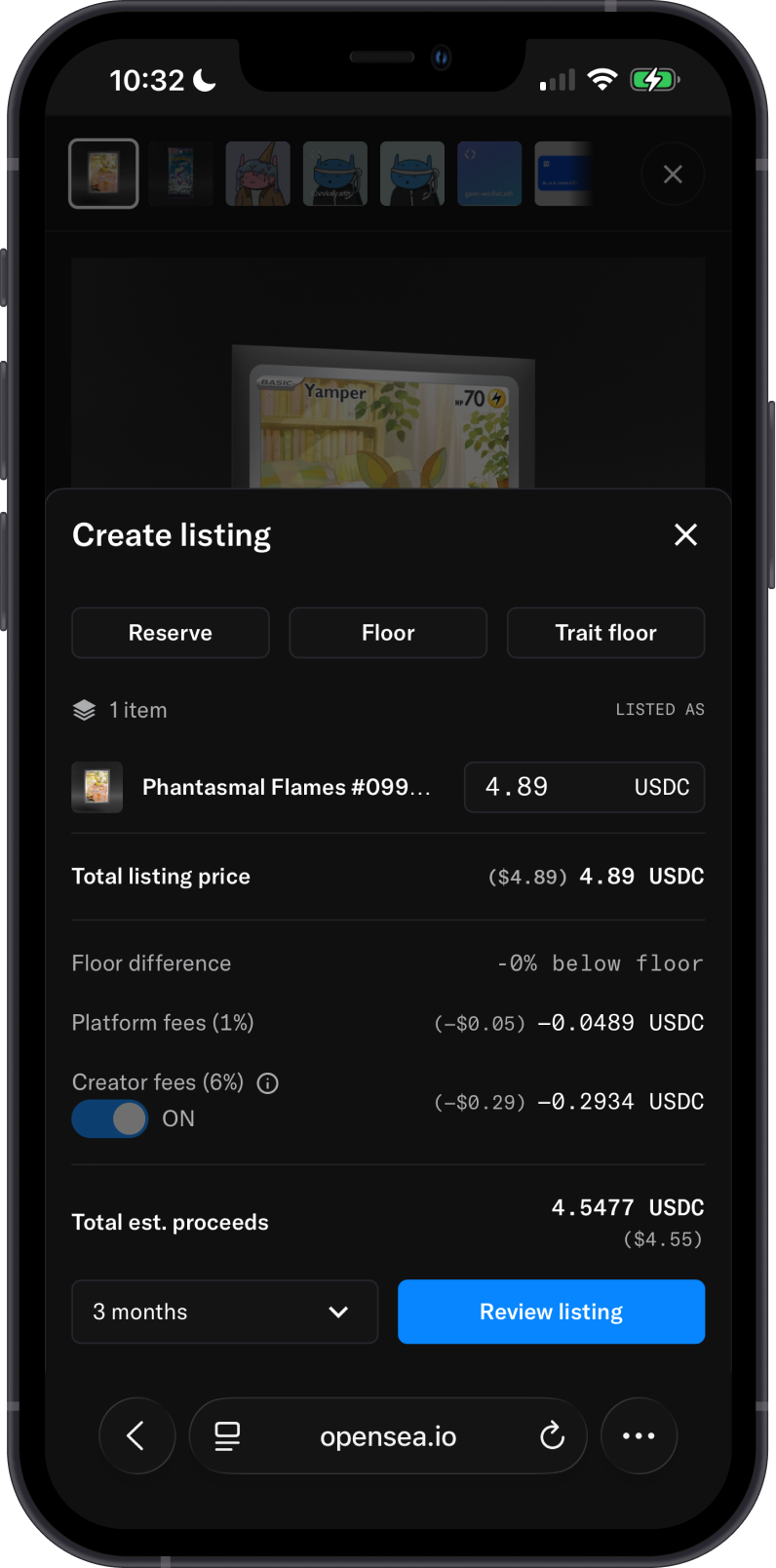
Gem Wallet does not operate the marketplace or control NFT listings. Marketplace fees, royalties, supported collections, payment assets, and transaction rules are set by the marketplace and the NFT's network.
What fees apply when trading or transferring NFTs?
You may encounter:
- Network fees paid to blockchain validators for transfers, approvals, purchases, and listings.
- Marketplace fees charged by the platform where the NFT is traded.
- Creator royalties included by some collections or marketplaces.
Keep enough of the network's native coin in your wallet to cover all required network transactions. Learn more about network fees.
Why is my NFT not showing?
Check the following:
- The NFT is on a network supported by Gem Wallet.
- You opened the wallet and address that received the NFT.
- The transfer is confirmed on the blockchain explorer.
- The device has an internet connection and the wallet has finished refreshing.
- The collection has not been filtered as unverified or spam.
NFT images and properties rely on collection metadata. If ownership is confirmed on-chain but the artwork or details are missing, the collection's metadata or its hosting service may be temporarily unavailable.
How do I report a suspicious NFT?
On supported Gem Wallet versions:
- Open the NFT from Collections.
- Open the menu in the NFT details screen.
- Select Report.
- Choose Spam, Malicious, Inappropriate Content, Copyright, or Other.
Reporting helps classify the collectible; it does not send the NFT, sign a transaction, or recover funds. Do not open links in the NFT metadata or connect to a website to remove an unsolicited collectible.
For the complete reporting and incident-response workflow, see How to Report a Suspicious NFT in Gem Wallet.
How can I stay safe when using NFTs?
- Use only marketplaces and links you trust.
- Never share your secret recovery phrase or private keys.
- Verify the NFT contract, collection, price, network, and website address.
- Treat unexpected NFTs as potential spam. Do not visit links in their names or descriptions.
- Read every signing request. A collection approval may allow a contract to transfer every NFT in that collection.
- Disconnect marketplace sessions that you no longer use.
- Remember that blockchain transactions are irreversible.
Receiving an NFT does not require you to share your secret recovery phrase, connect to a website, or sign a transaction. Anyone asking you to do so may be attempting a scam.