How to Switch a Blockchain Network Node in Gem Wallet
Gem Wallet connects to blockchain nodes to retrieve balances, transactions, staking details, and other on-chain information. You can switch the node used by a specific blockchain without changing your wallet address or moving your funds.
Why Switch Network Nodes?
Gem Wallet makes multiple network sources available for several reasons:
- More node providers: Choose from available providers and regional Gem Wallet nodes instead of relying on a single source.
- Better connection: A different node may respond faster or be more up to date for your location.
- Troubleshooting: Switching nodes can temporarily resolve missing balances, transactions, staking details, or other data that has not loaded correctly.
- Testing: Testers and advanced users can compare how different endpoints respond.
- Custom setup: Advanced users can connect to their own endpoint by following the Custom RPC guide.
Switching nodes only changes the source Gem Wallet uses to communicate with the selected blockchain. It does not transfer funds, change the blockchain used by an asset, or create a new wallet.
How to Switch a Network Node
Step 1 - Open Preferences
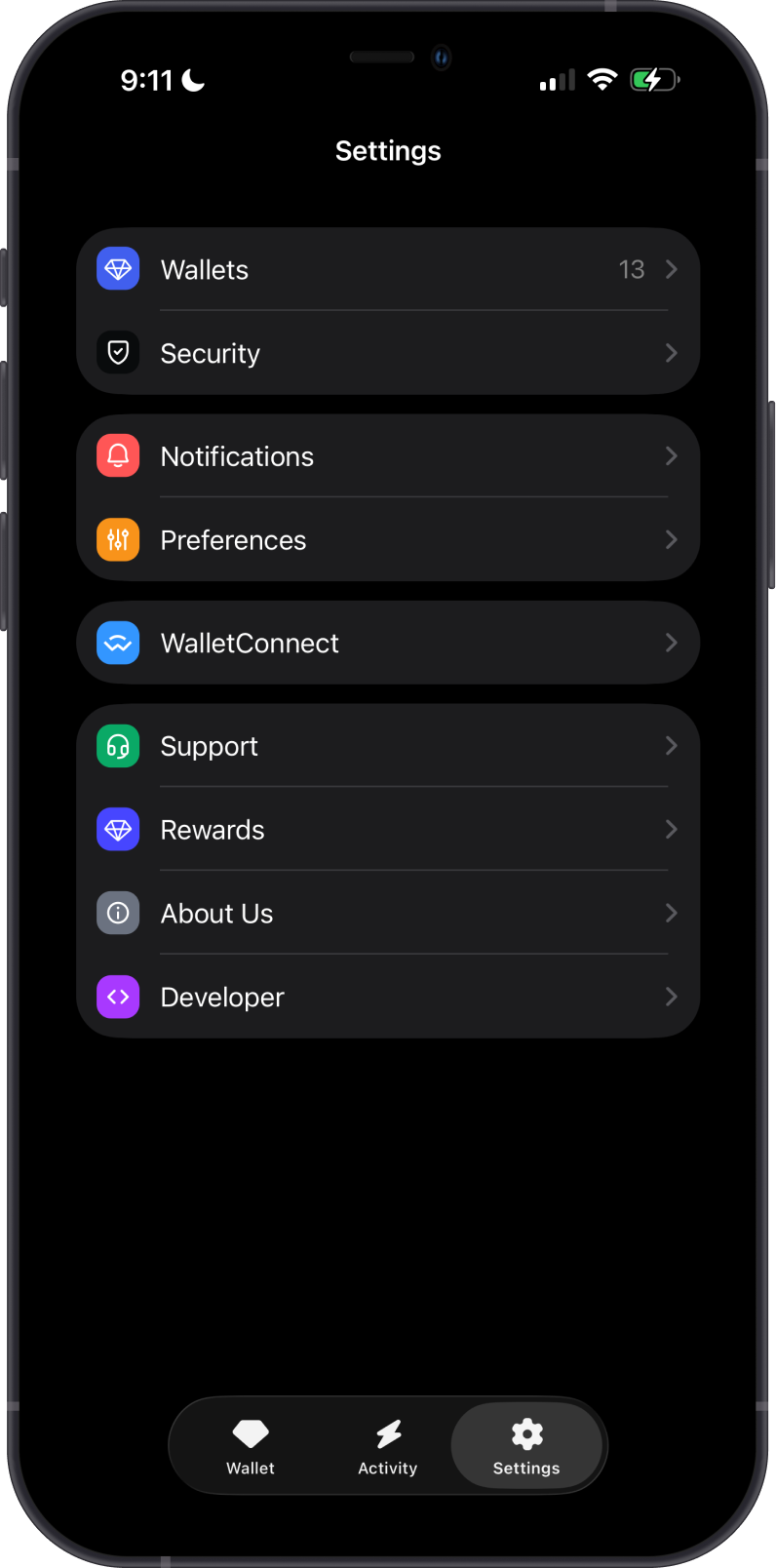
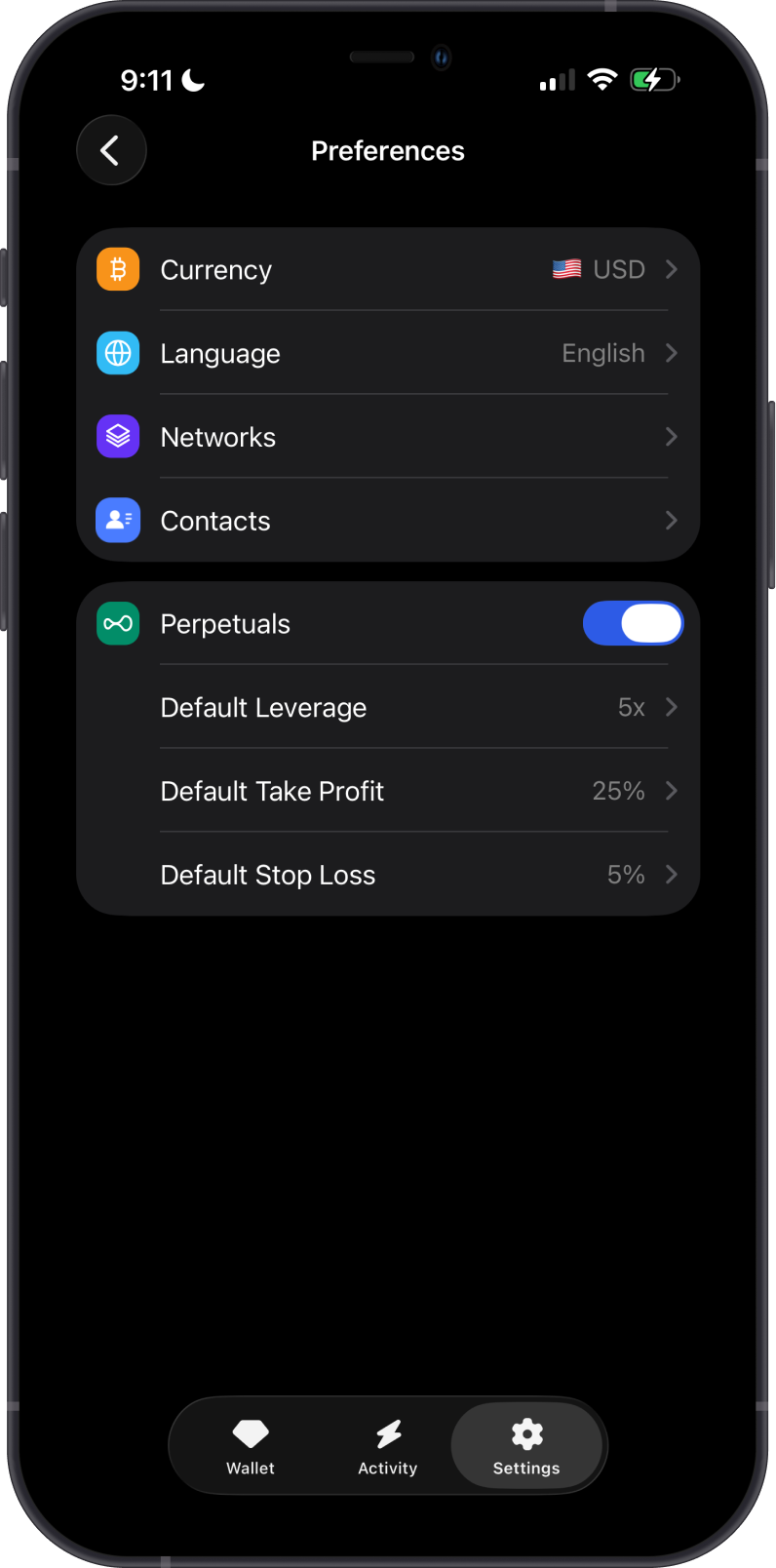
Open Settings, then tap Preferences.
Step 2 - Select Networks
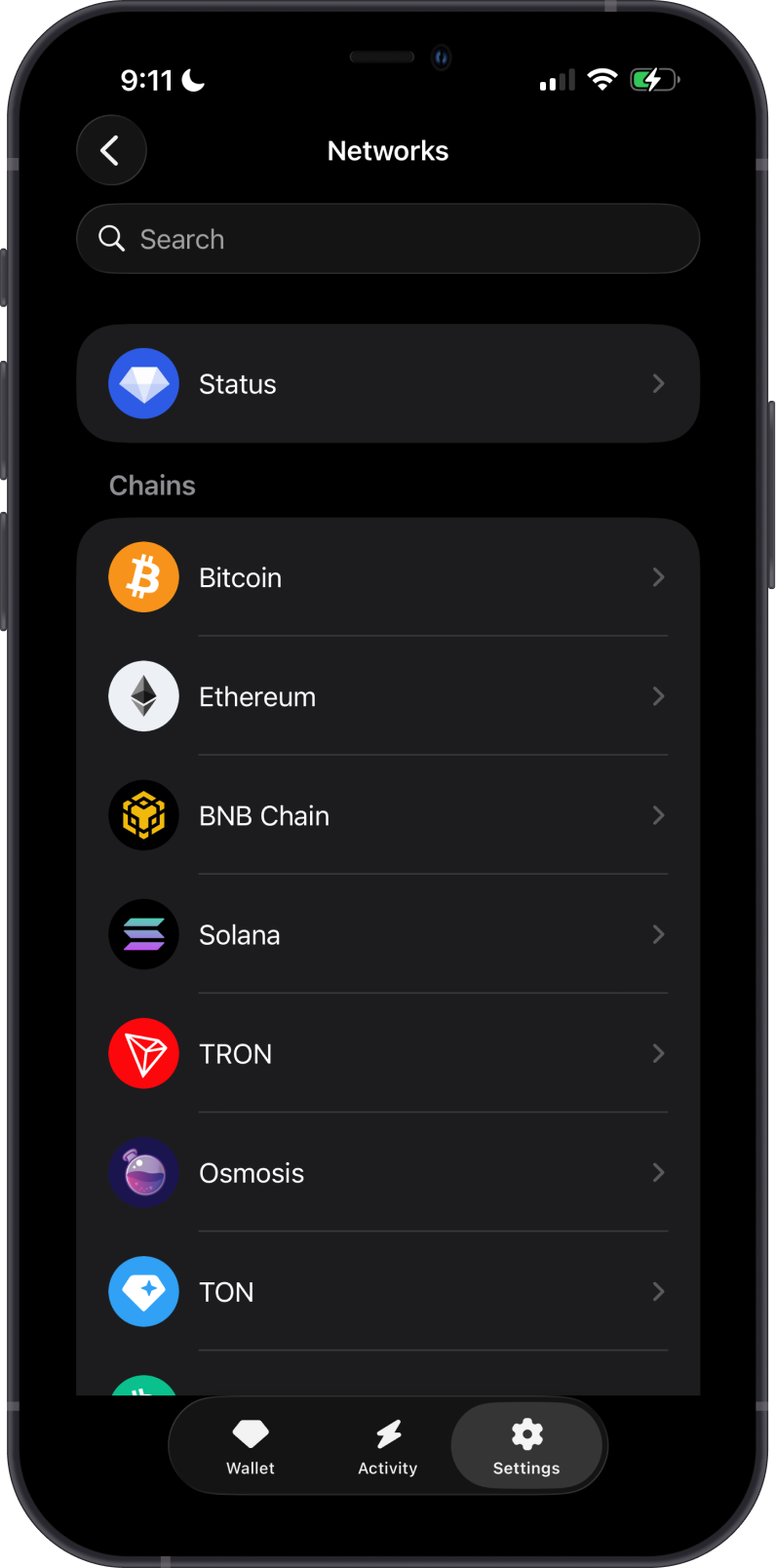
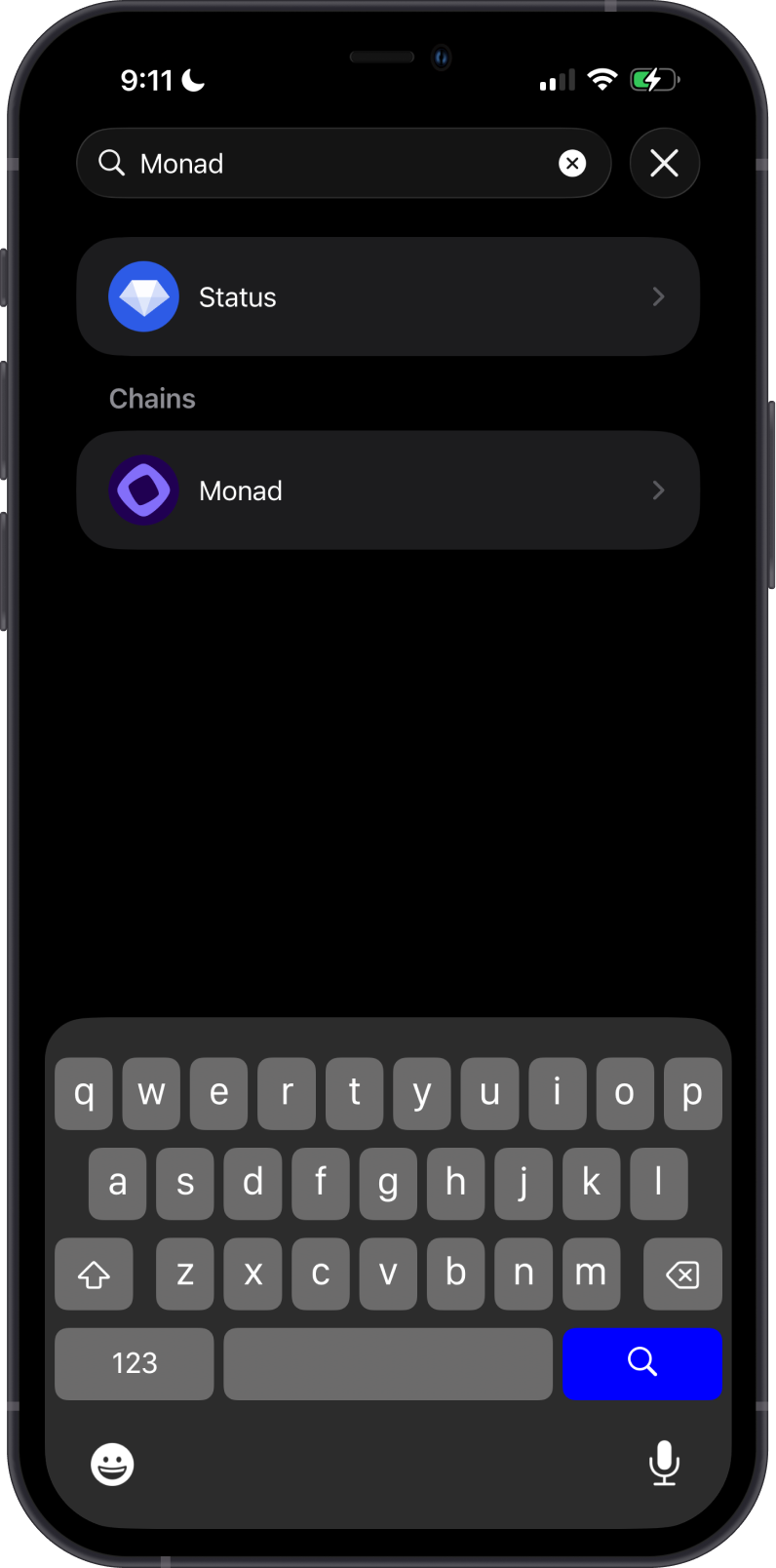
Tap Networks to see the blockchains supported by Gem Wallet. You can scroll through the list or use the search bar to find a specific blockchain.
Step 3 - Choose Another Source
Select the blockchain, then choose another option under Source. Gem Wallet displays the response time and latest block reported by each available node to help you compare them.
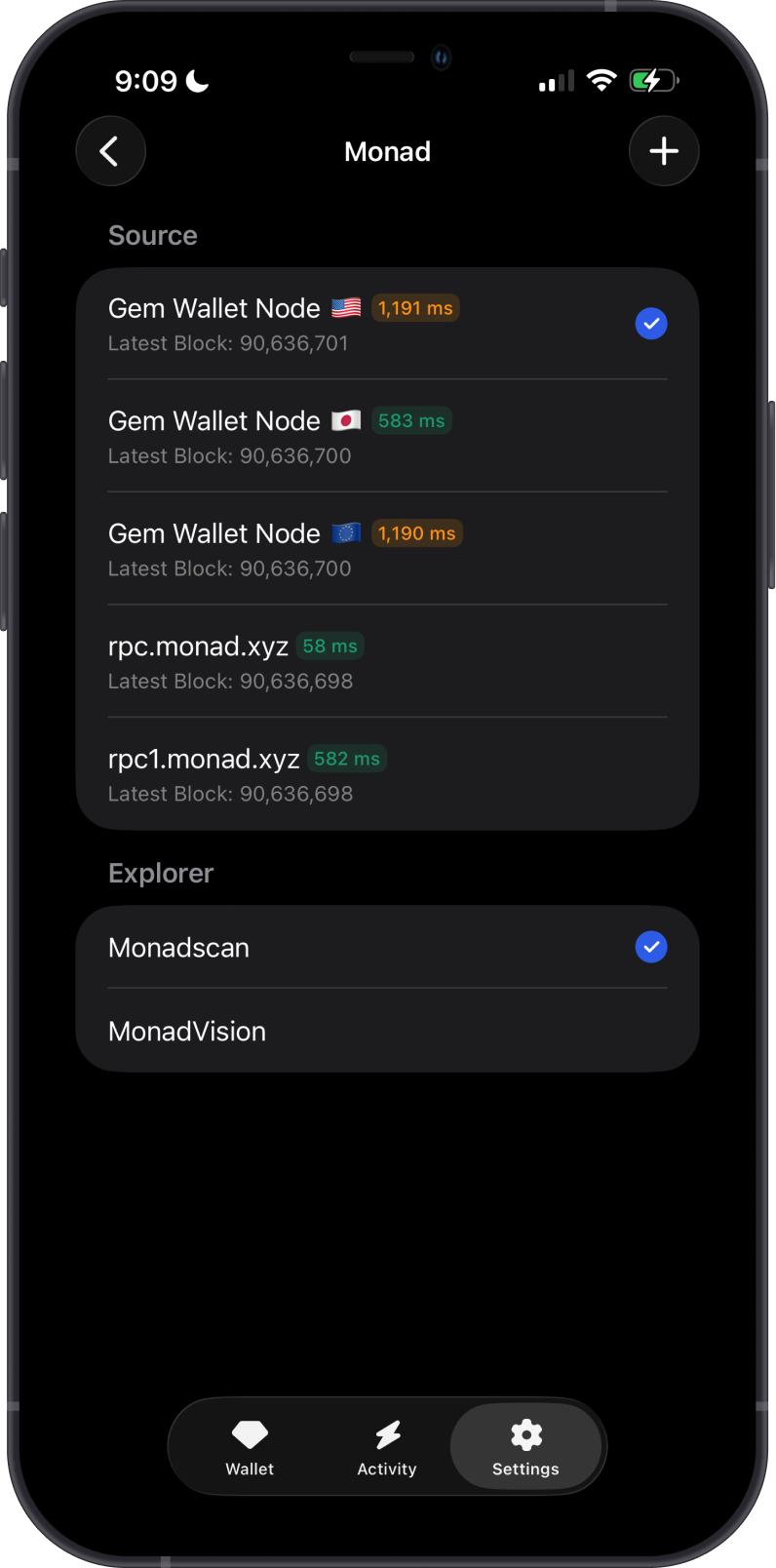
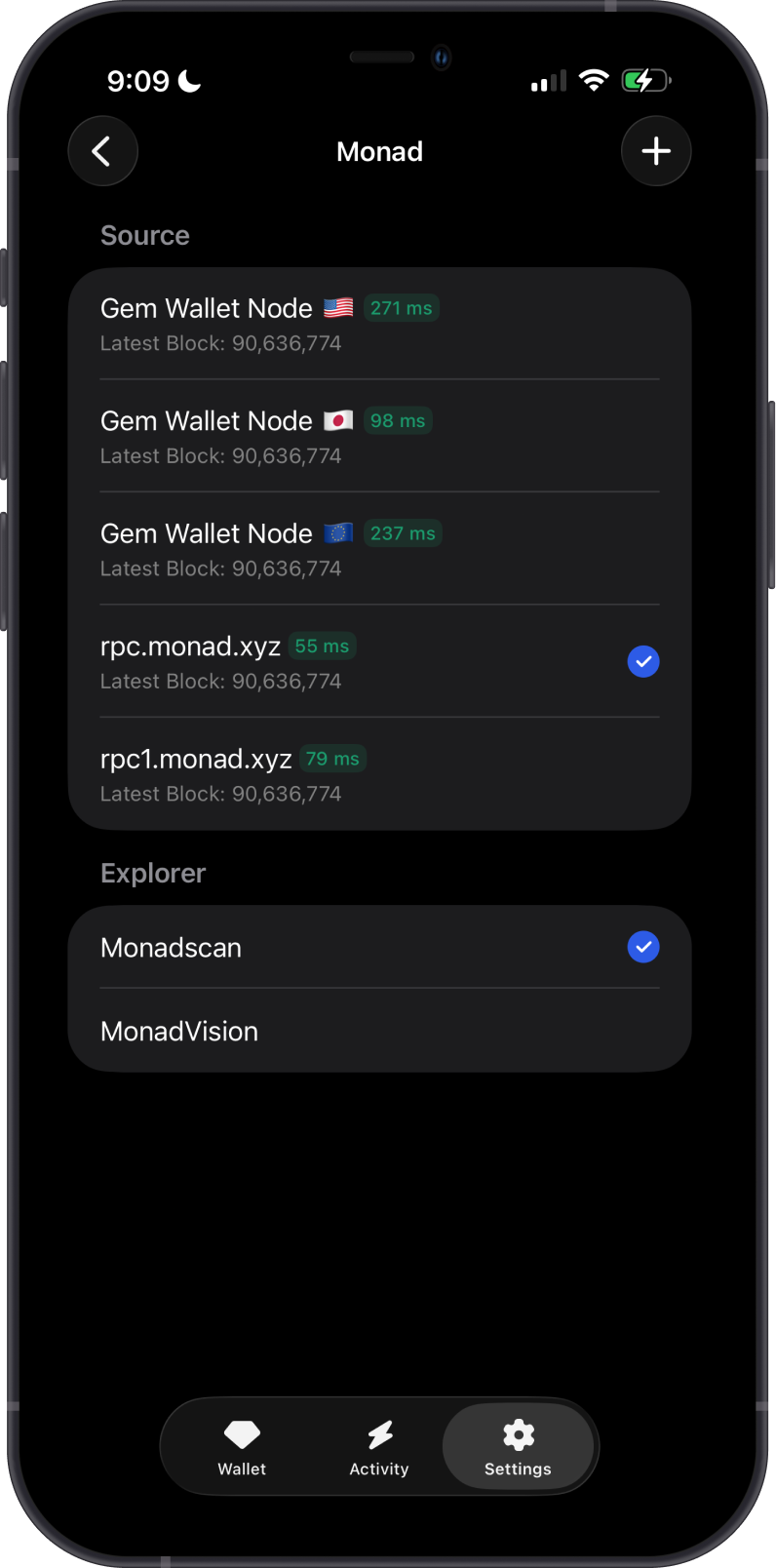
The check mark shows the selected node. Return to the relevant asset or feature and refresh it to check whether the information now loads correctly.
When troubleshooting, try a responsive node that reports the latest block. If switching nodes does not resolve the issue, go to Settings > Support in Gem Wallet.