How to Manage Contacts in Gem Wallet
Contacts let you save wallet addresses with a recognizable name and description. This guide shows how to create a contact, add a wallet address, and delete a contact you no longer need.
New to Contacts? Start with the Contacts FAQ for a quick overview of what Contacts are and where the information is saved.
How to Create a Contact
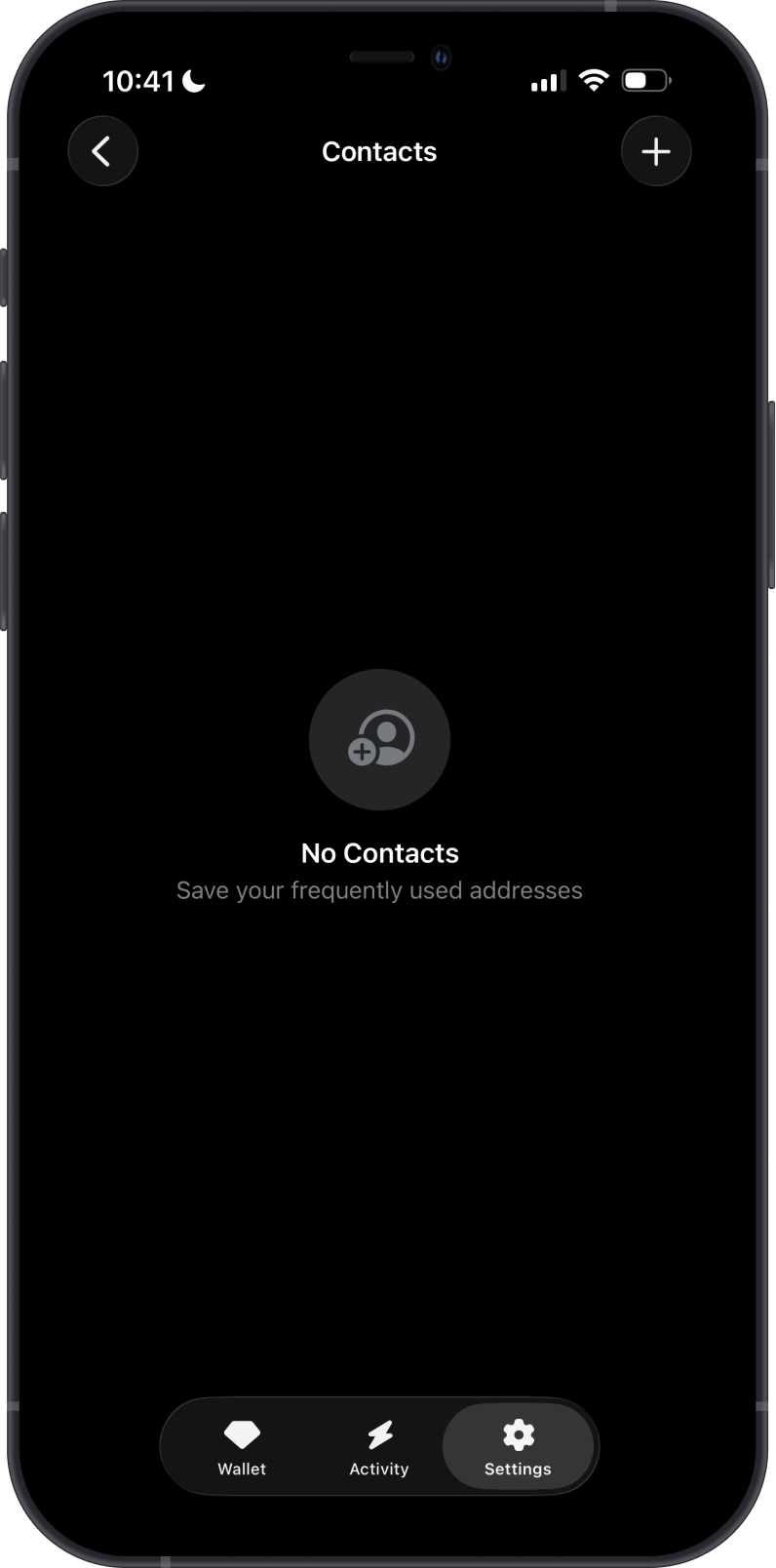
Open Settings > Preferences > Contacts, then tap the + icon to start saving a new recipient. Enter a clear contact name so the recipient is easy to recognize later. This name is only for your own reference inside Gem Wallet.
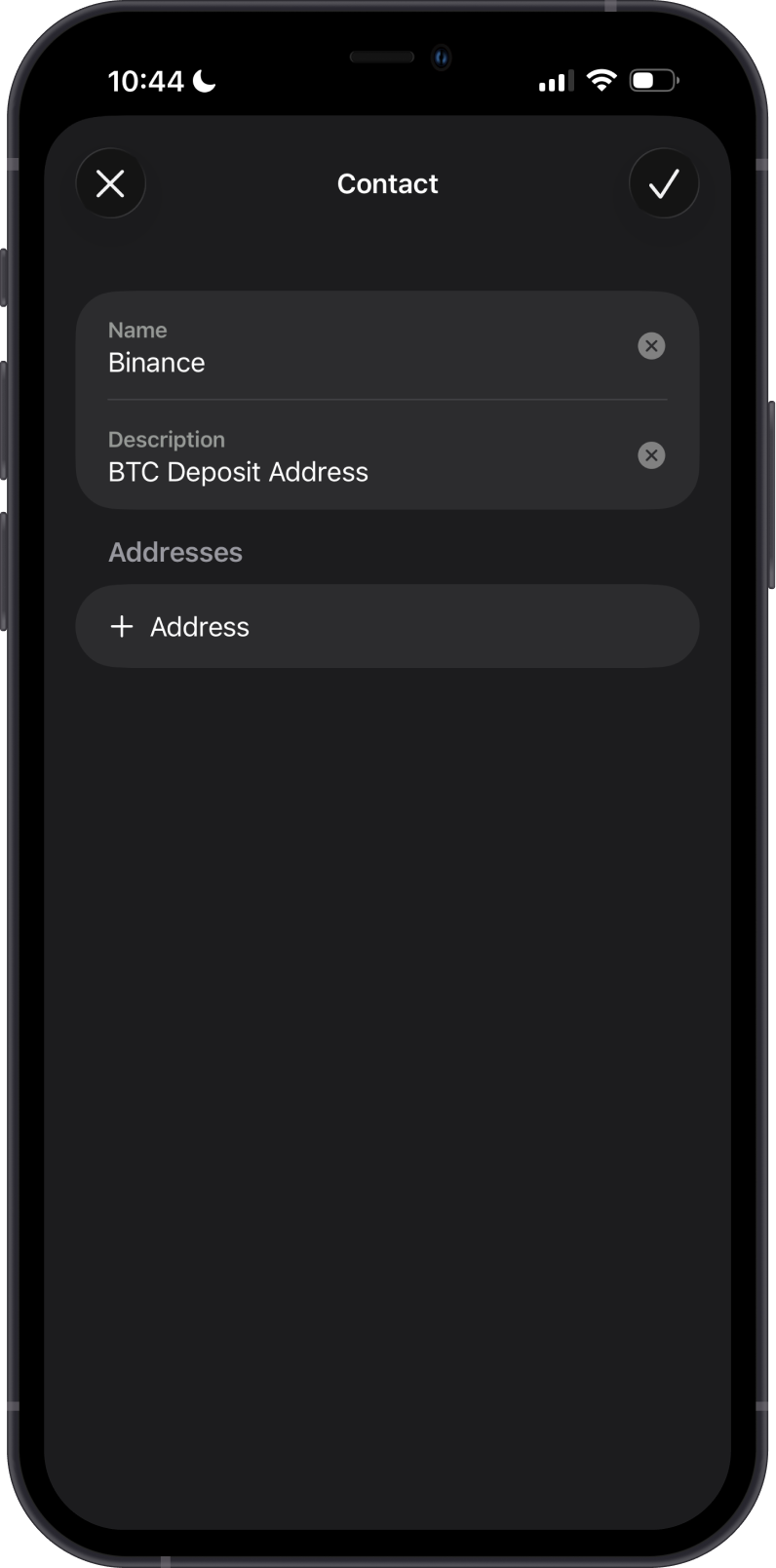
Add a short description if you want extra context for the contact, such as where you met the recipient, what the address is used for, or why you saved it.
Tap + Address to add a wallet address to the contact. Gem Wallet will automatically select Bitcoin as the network.
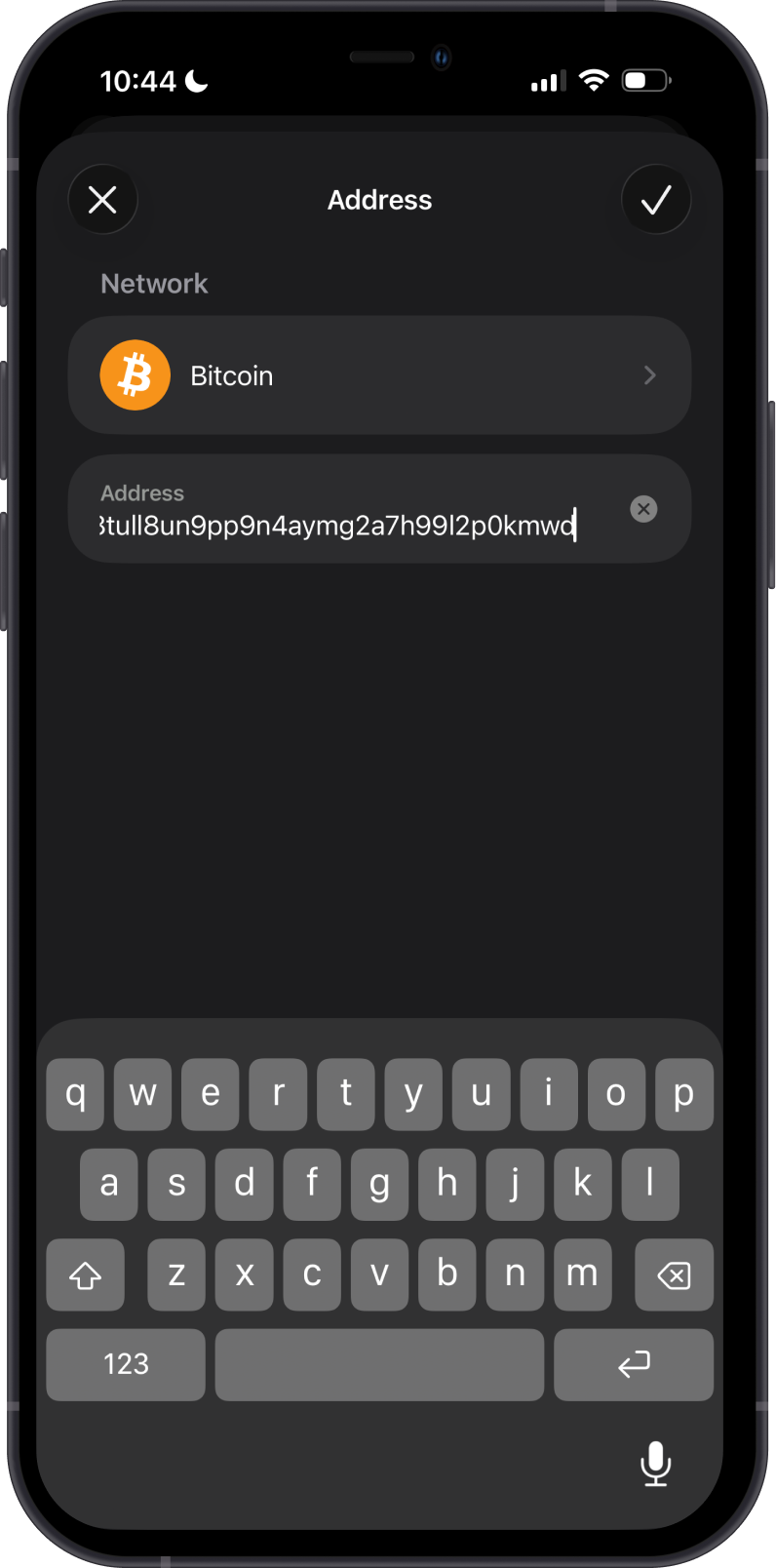
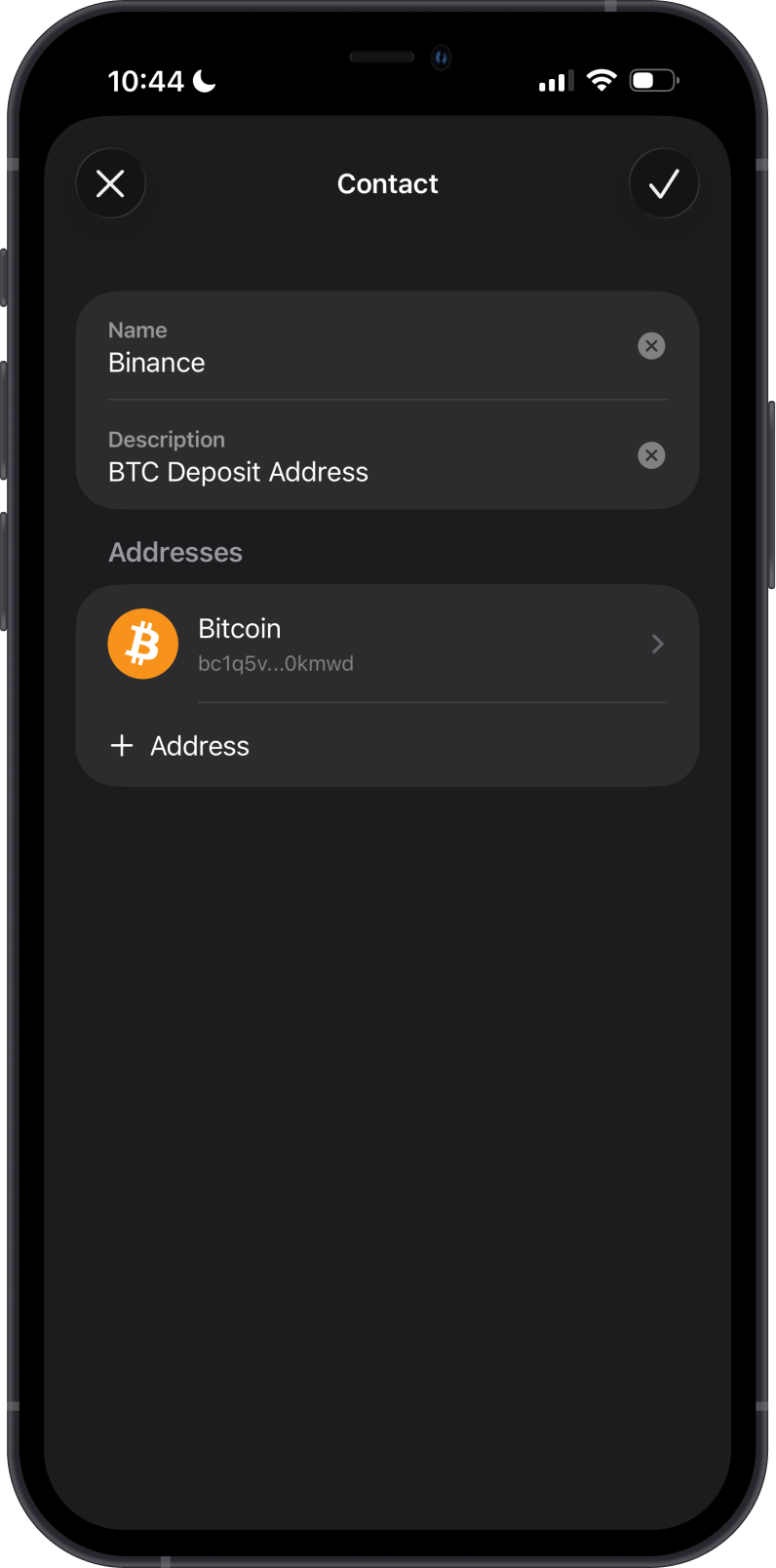
If you are adding a Bitcoin address, fill in the address details, then tap the check mark to add it to the contact.
If it is a different blockchain, tap the arrow for Network to see the list of supported assets. In the example below, an Ethereum address is being added.
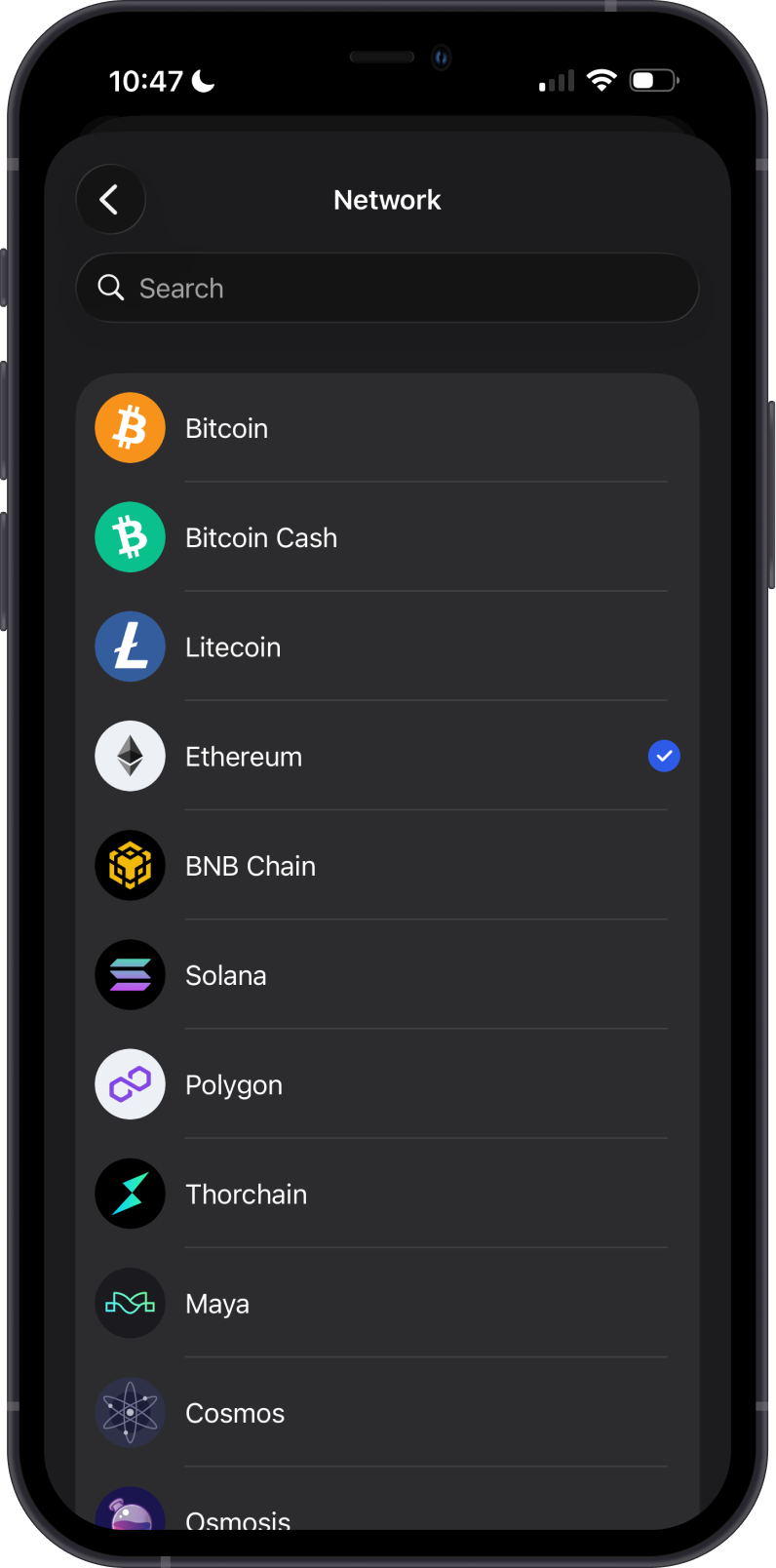
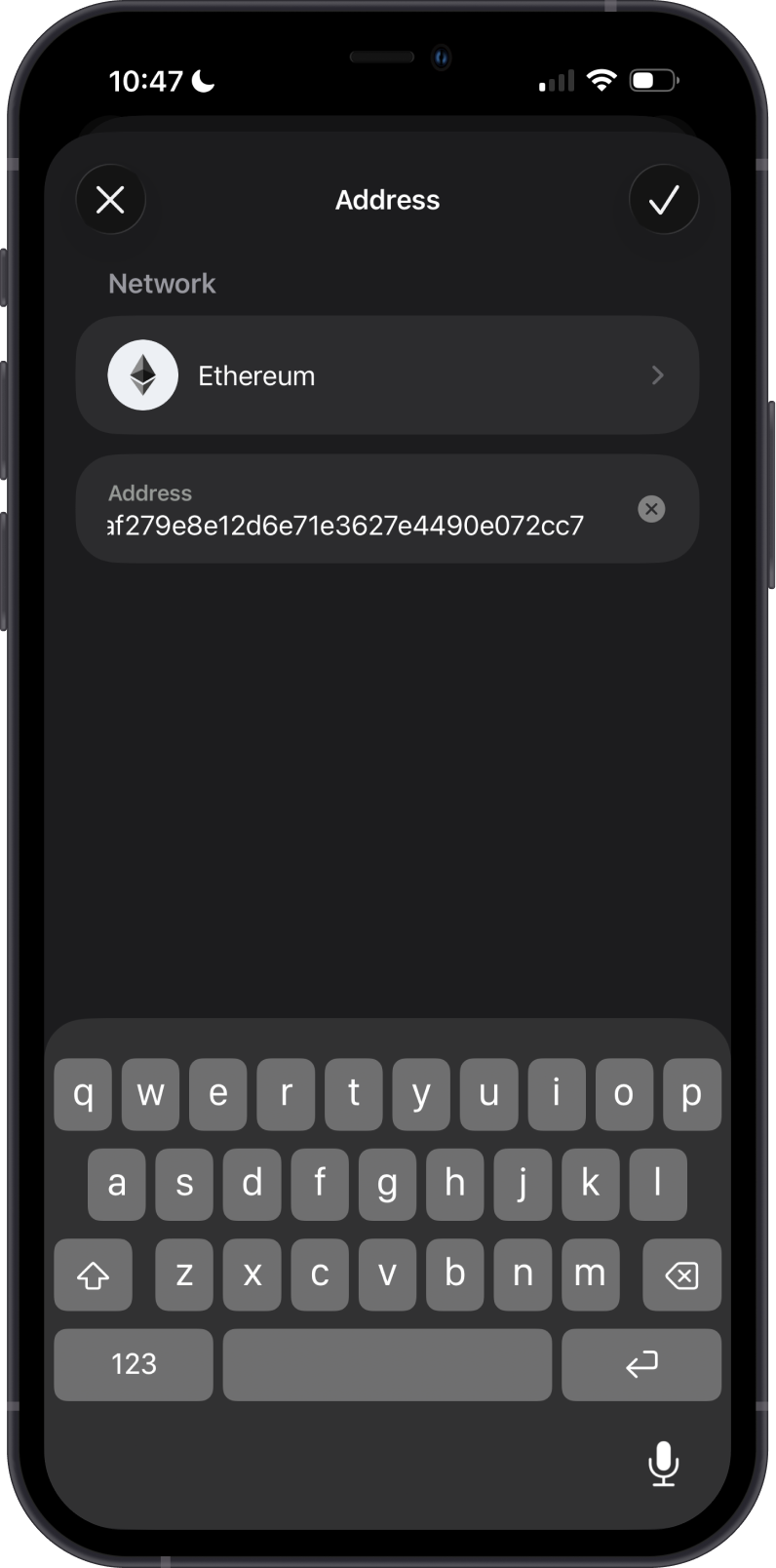
Paste the wallet address, or scan it if you have a QR code available. Make sure the address matches the network you selected.
After entering the details, review the contact name, description, network, and address. If everything looks correct, tap the check mark to save the contact.
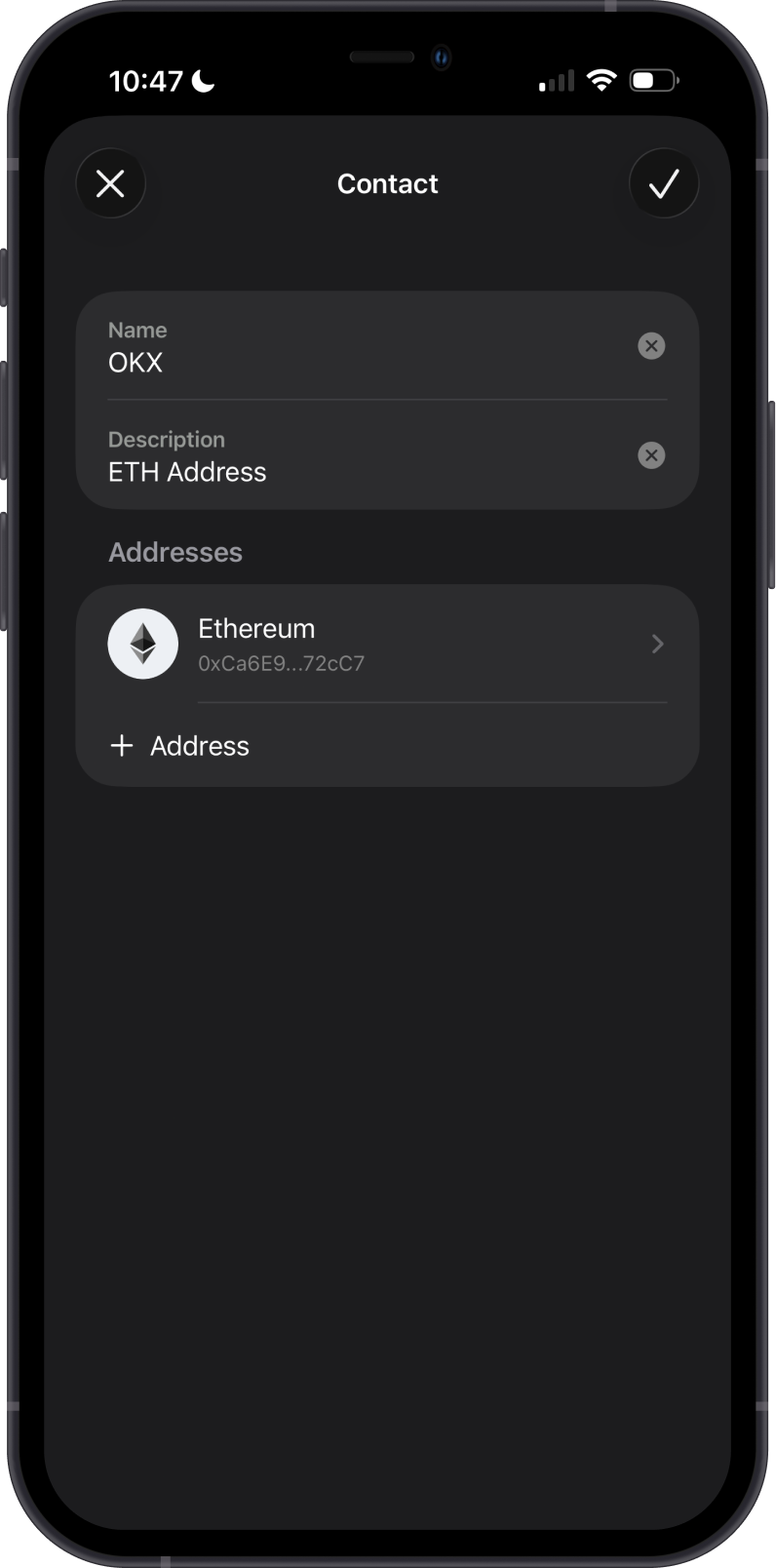
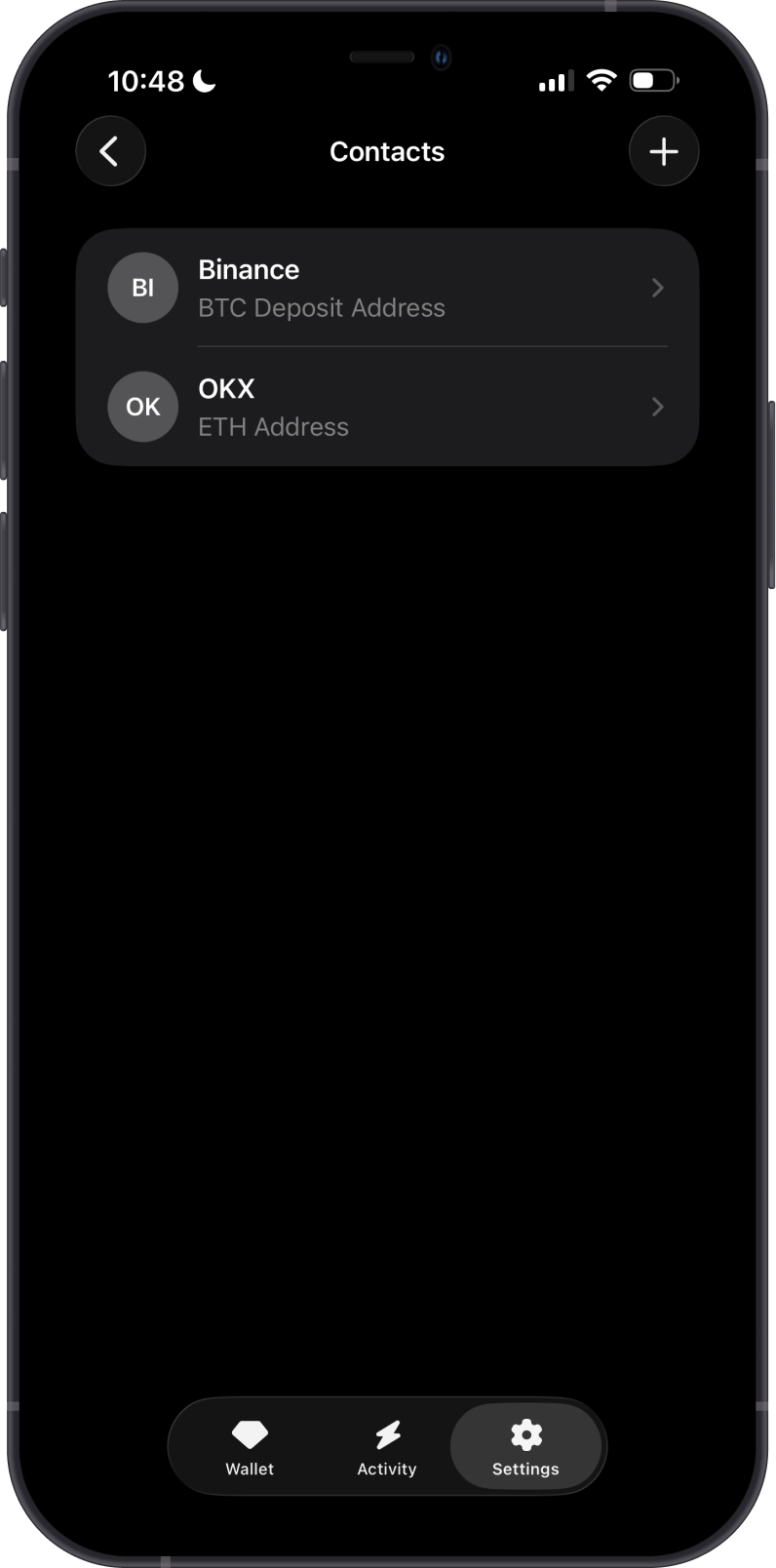
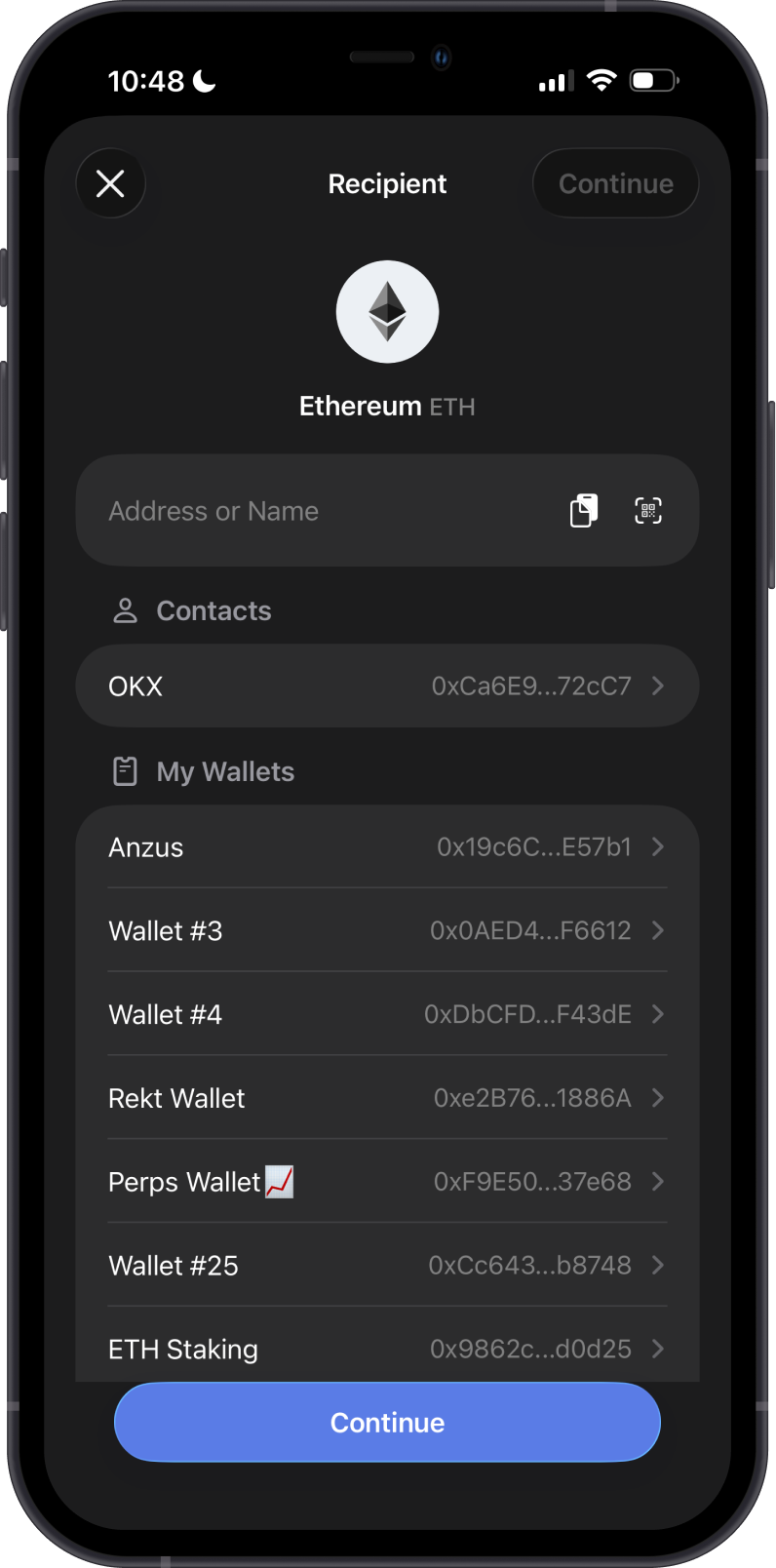
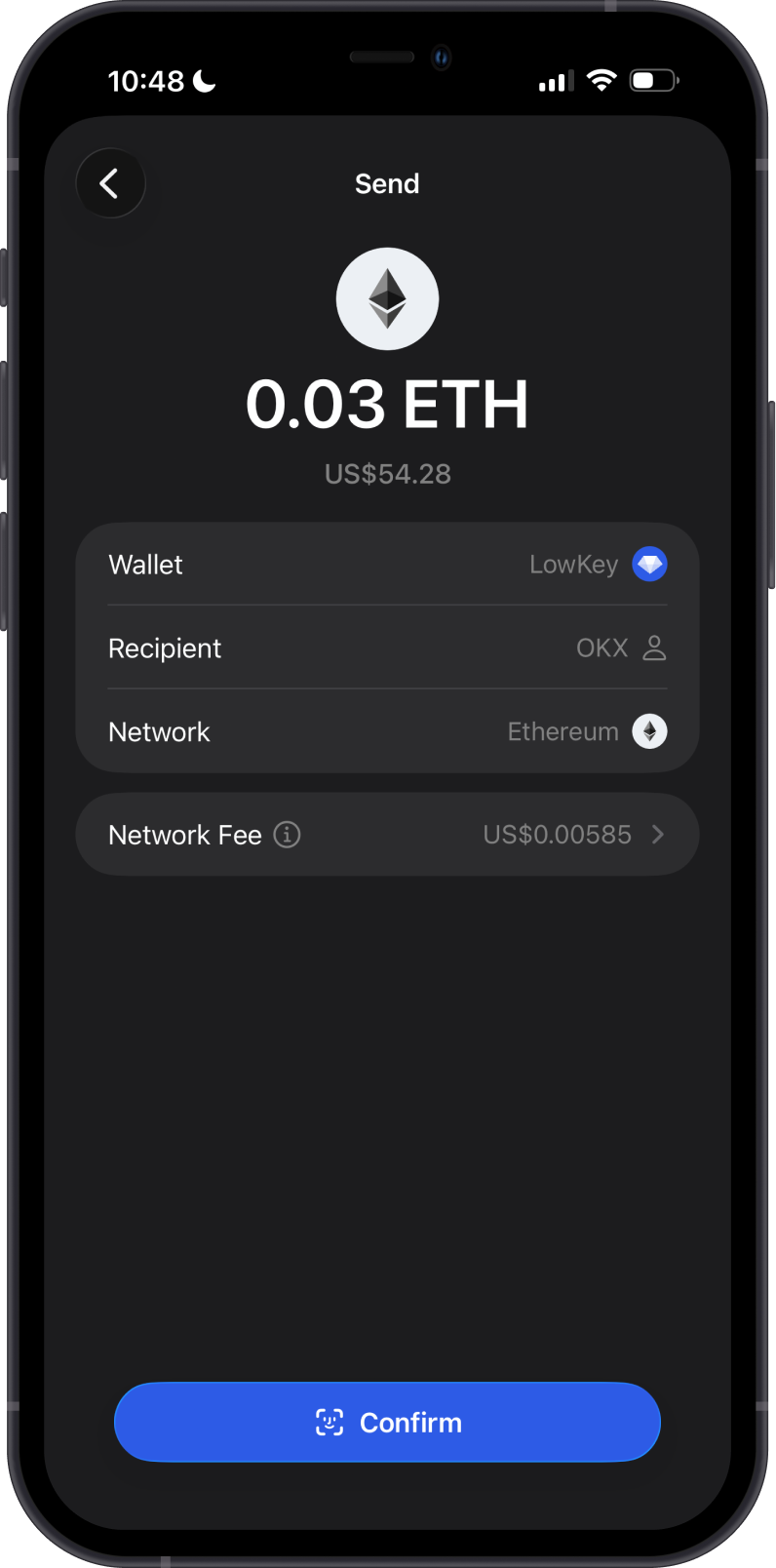
The contact will now appear in your Contacts list and can be selected the next time you send crypto.
How to Delete a Contact
- Go to Settings > Preferences > Contacts. Swipe the contact you want to remove to the left.
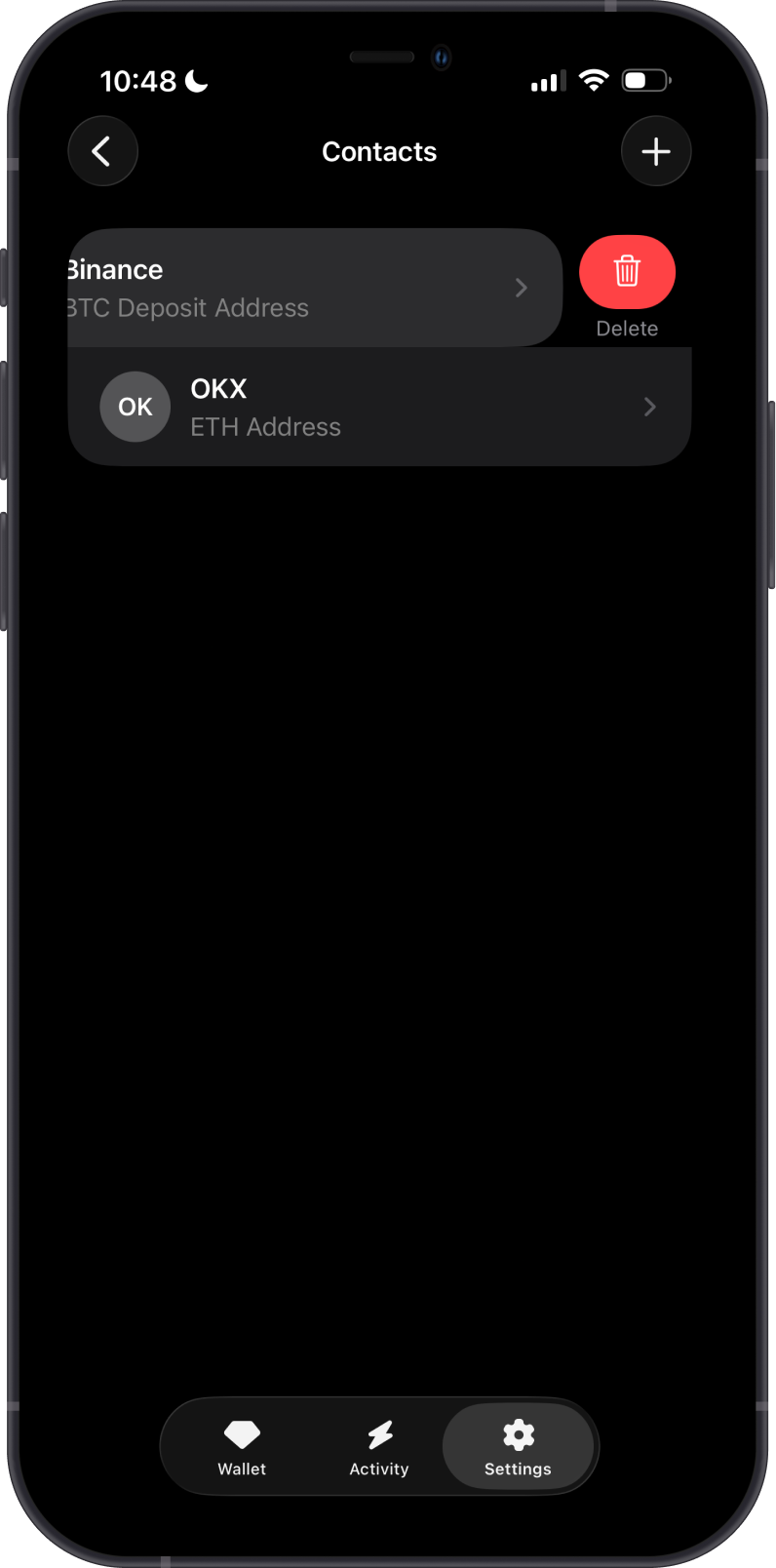
Tap Delete icon then confirm that you want to delete the contact.
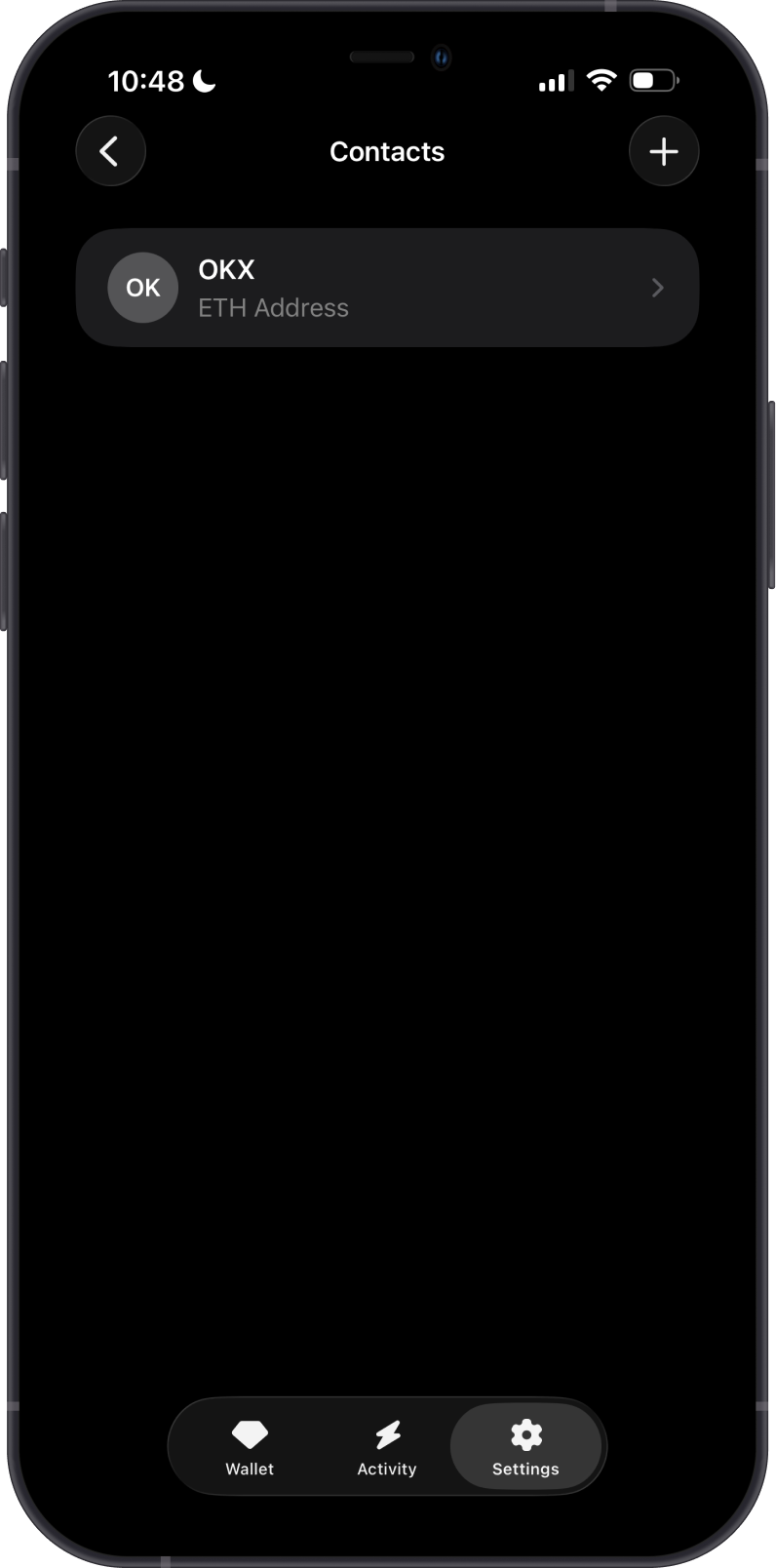
Deleting a contact only removes the saved contact from Gem Wallet. It does not affect the blockchain address, its funds, or any previous transactions.