How to Withdraw Perpetuals Collateral in Gem Wallet
After you close or reduce a position, you can withdraw available collateral from your Perpetuals account back to your Gem Wallet balance.
Make sure you have enough available balance before withdrawing. Collateral that is being used by an open position may not be available until the position is reduced or closed.
Withdraw Collateral
Step 1 - Open Trade Perpetuals
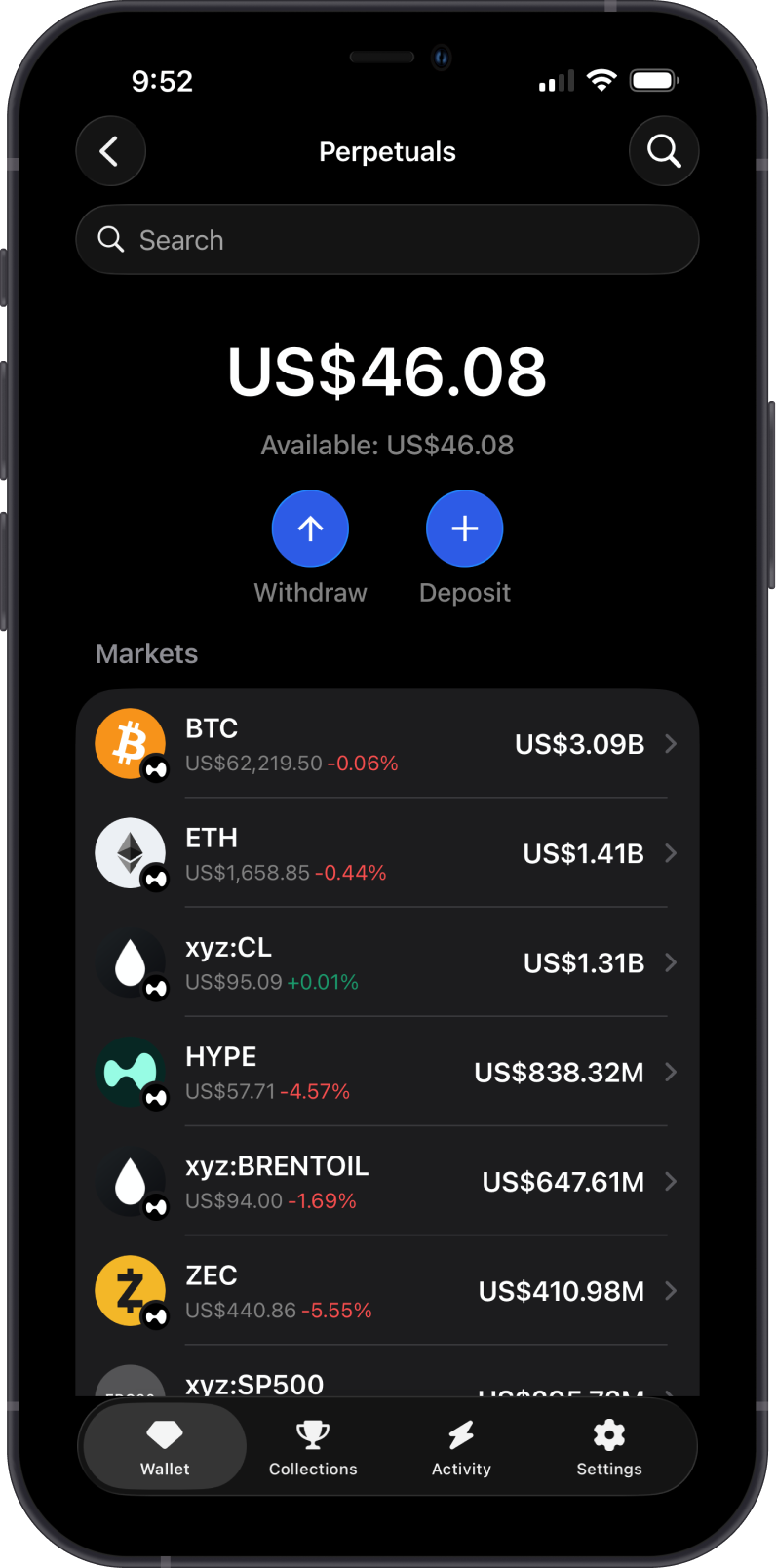
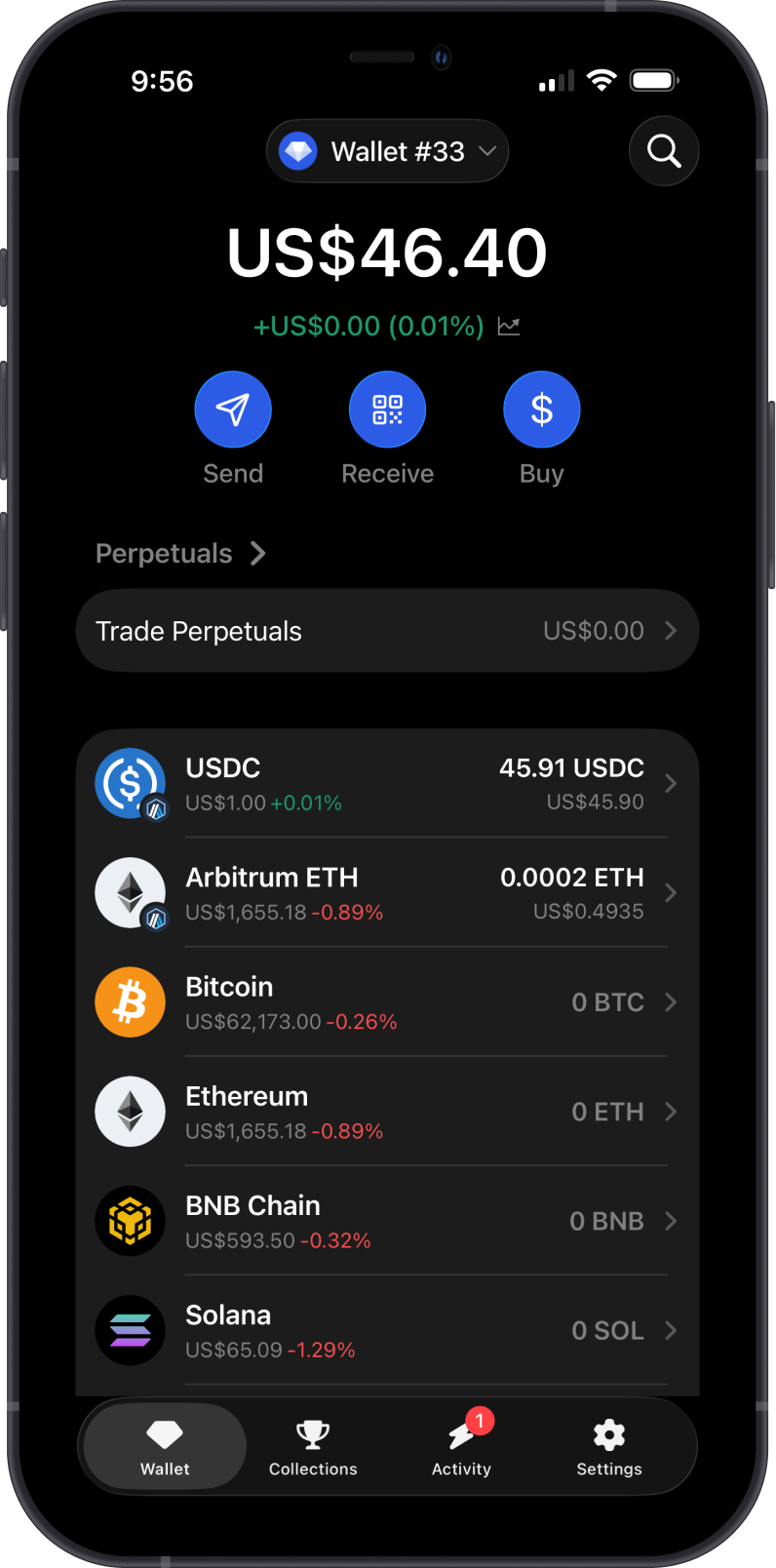
Open Gem Wallet, go to the Wallet tab, then tap Trade Perpetuals.
On the Perpetuals screen, review your total and available balance, then tap Withdraw.
Step 2 - Select the Asset
Choose the collateral asset you want to withdraw.
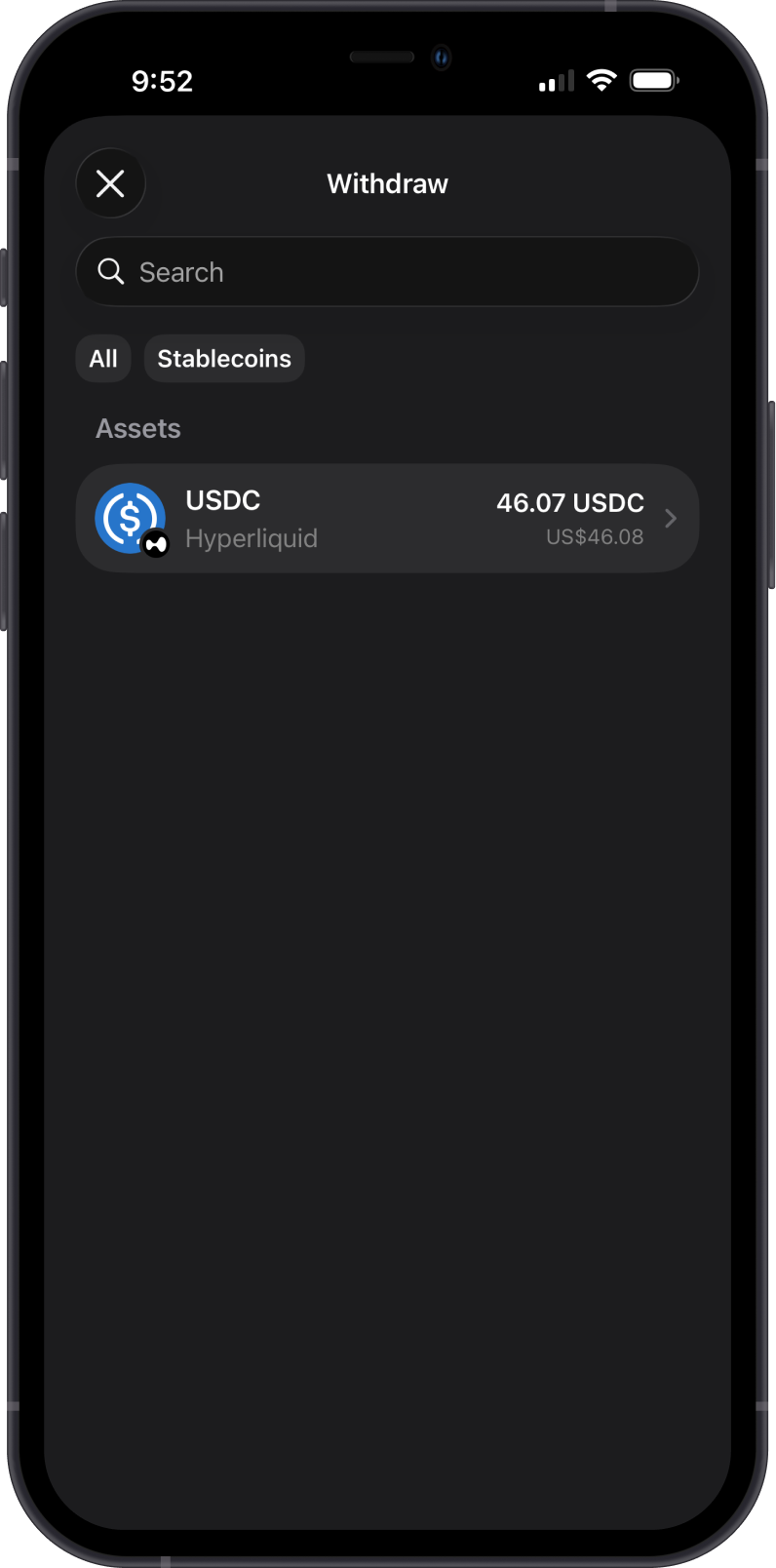
For this example, we are withdrawing USDC from the Perpetuals account back to the wallet.
Step 3 - Enter the Withdrawal Amount
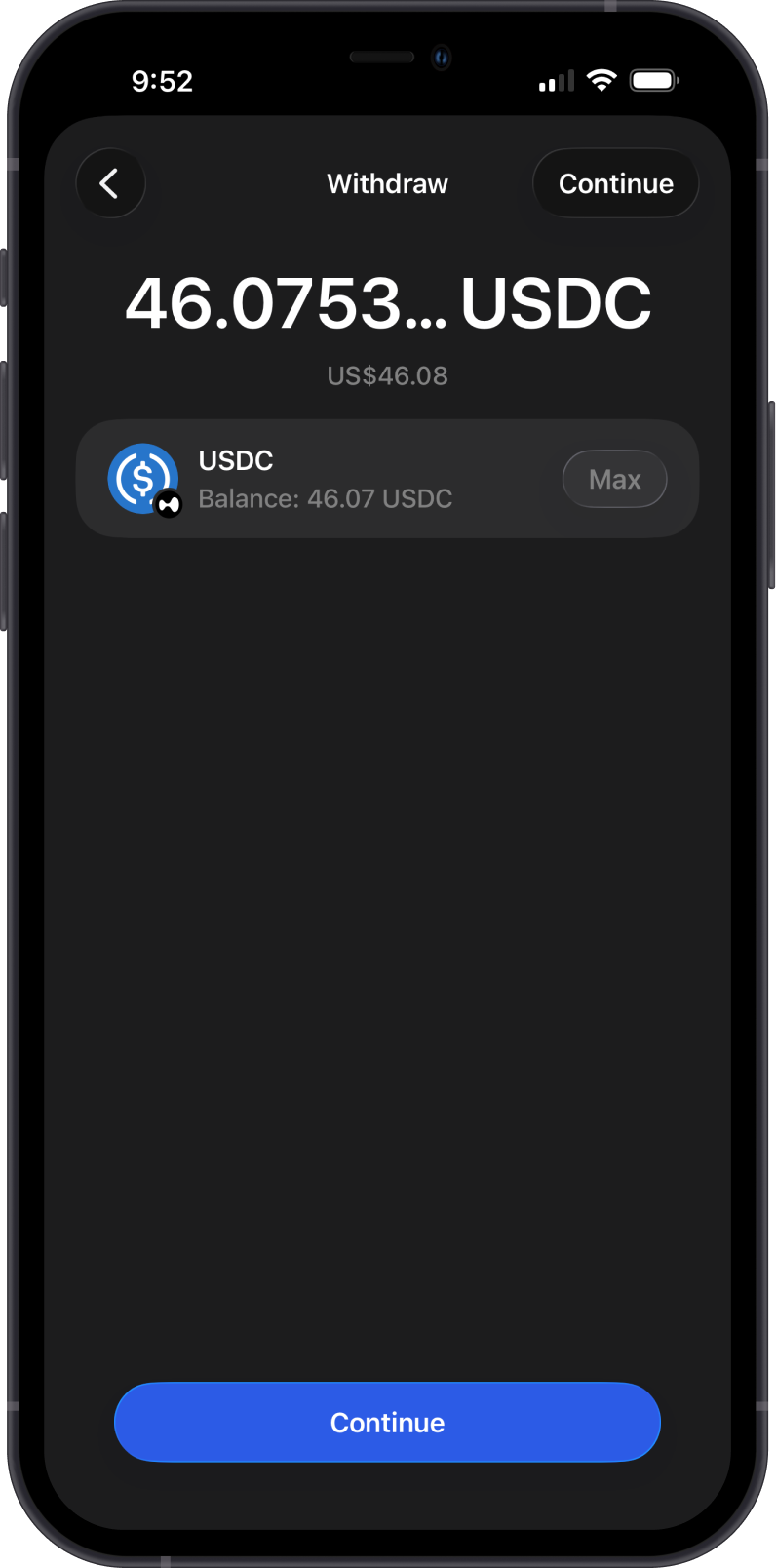
Enter the amount you want to withdraw, or tap Max to withdraw the available balance. Then tap Continue.
Step 4 - Review Details
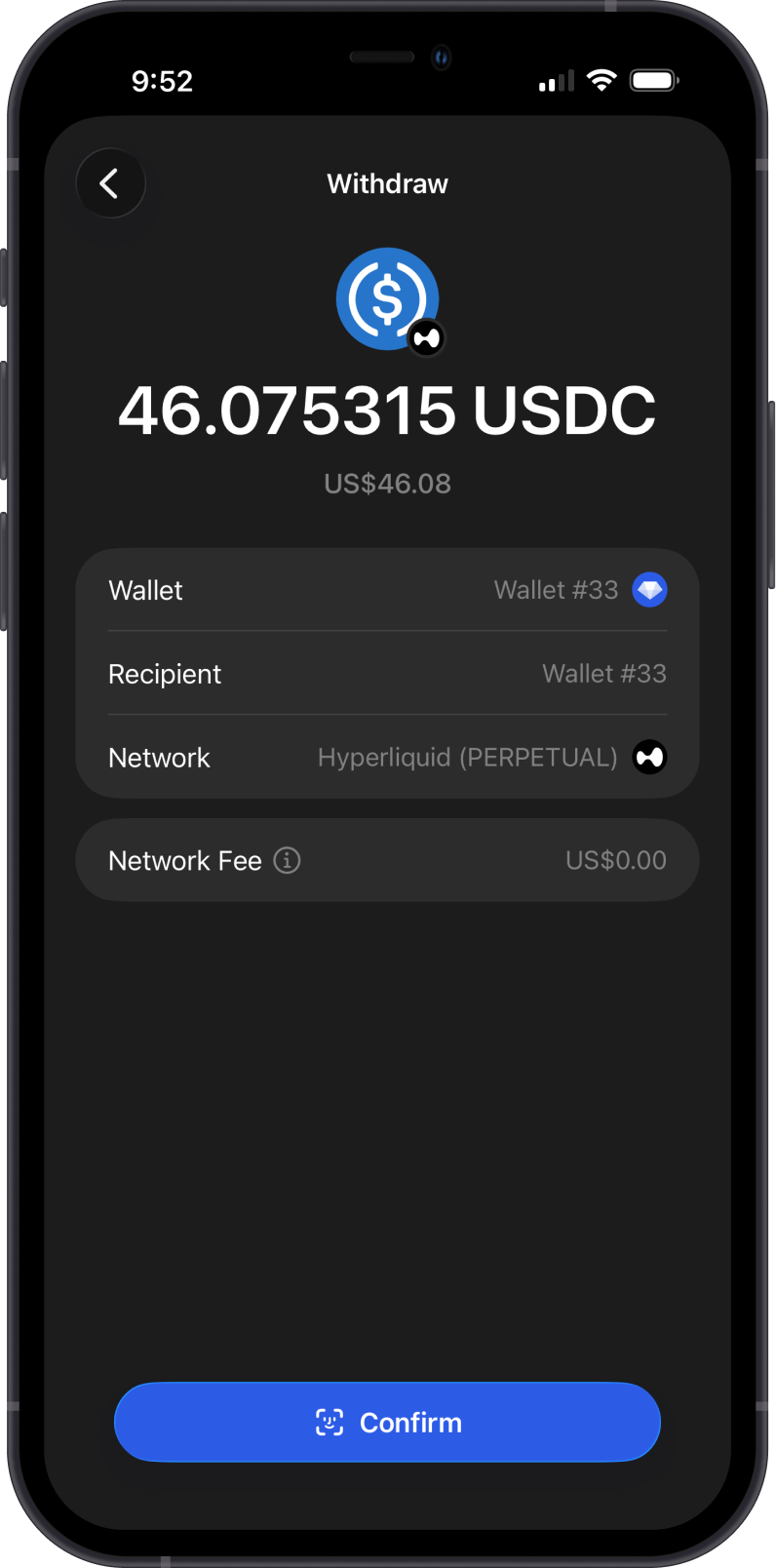
Review the withdrawal details carefully before confirming. Make sure the amount, wallet, recipient, network, and network fee are correct.
Step 5 - Confirm the Withdrawal
Confirm the withdrawal in Gem Wallet. After it completes, the funds return to your wallet balance.
Step 6 - Check Activity
Open the asset or Activity tab to review the withdrawal transaction details.
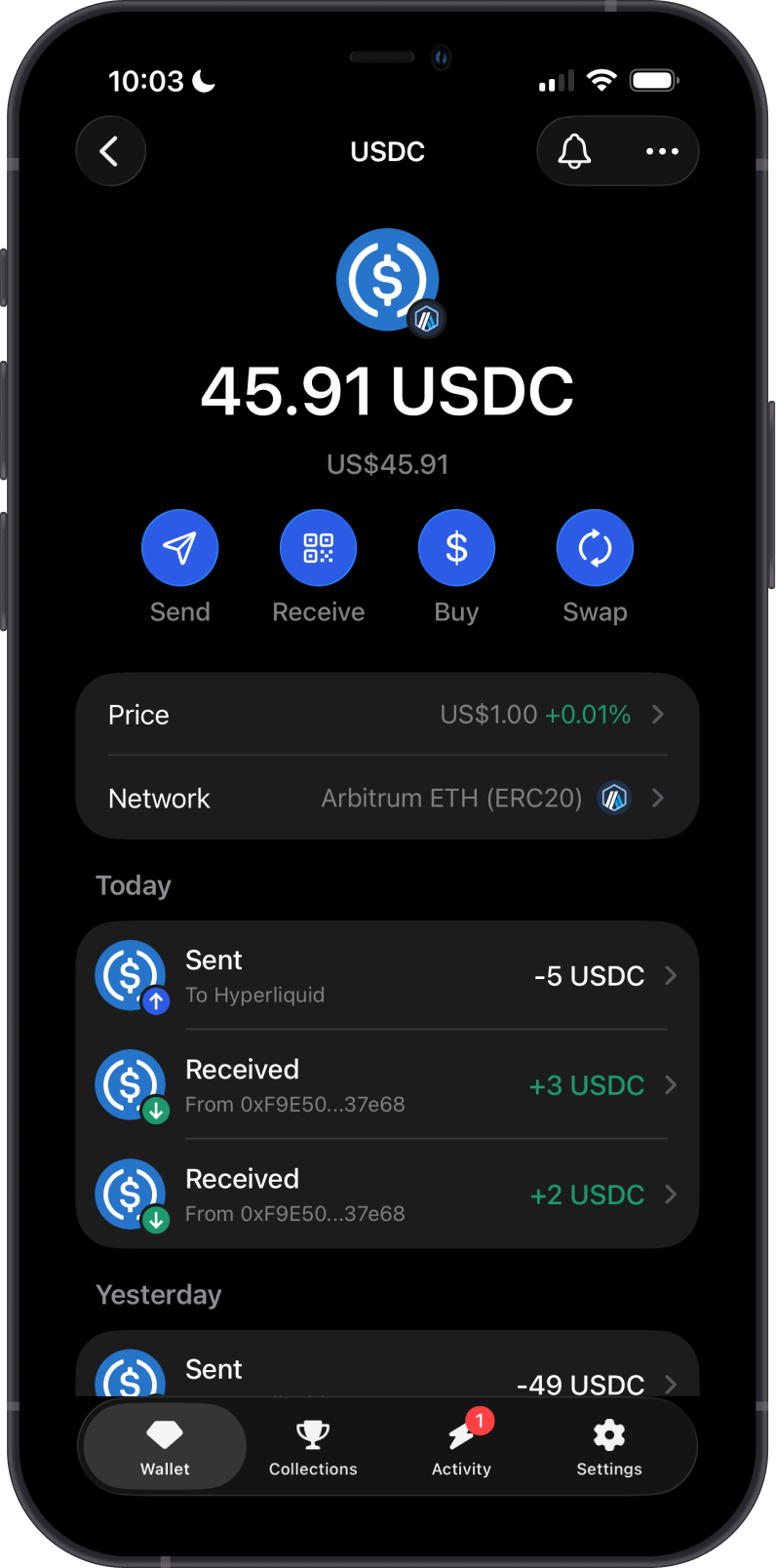
After withdrawing collateral, your Perpetuals available balance decreases and your wallet balance increases.