How to Open, Modify, and Close Perpetual Positions
After you turn on Perpetuals and fund your Perpetuals account, you can open and manage Long or Short positions directly in Gem Wallet.
Always review your margin, leverage, liquidation price, funding, and fees before confirming a trade. Perpetual positions can be liquidated if the market moves against you.
Open a Position
Step 1 - Choose a Market
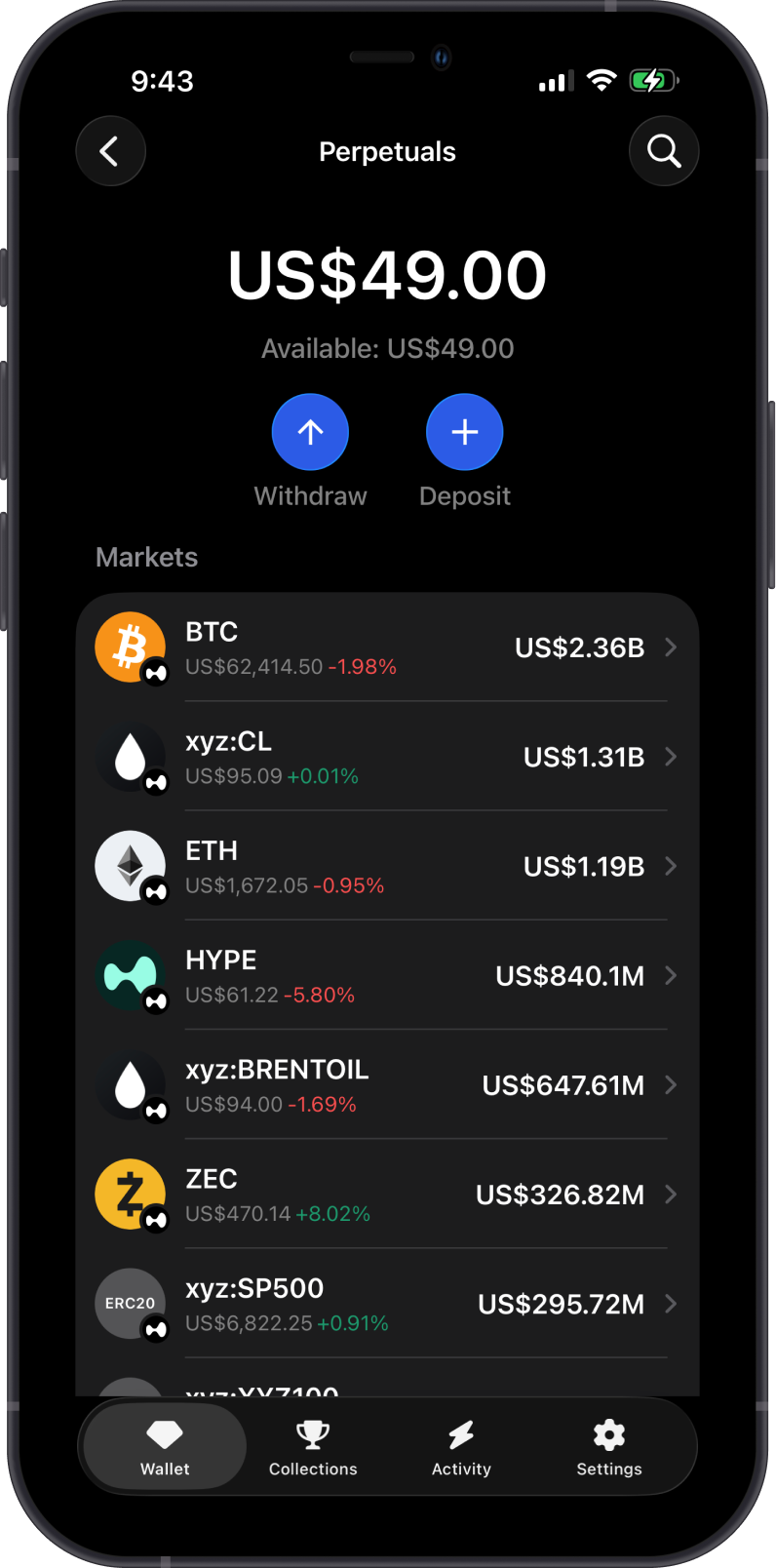
Open Trade Perpetuals and select the market you want to trade. You can browse markets, use search, or select a pinned market. The screenshots below use BTC as an example.
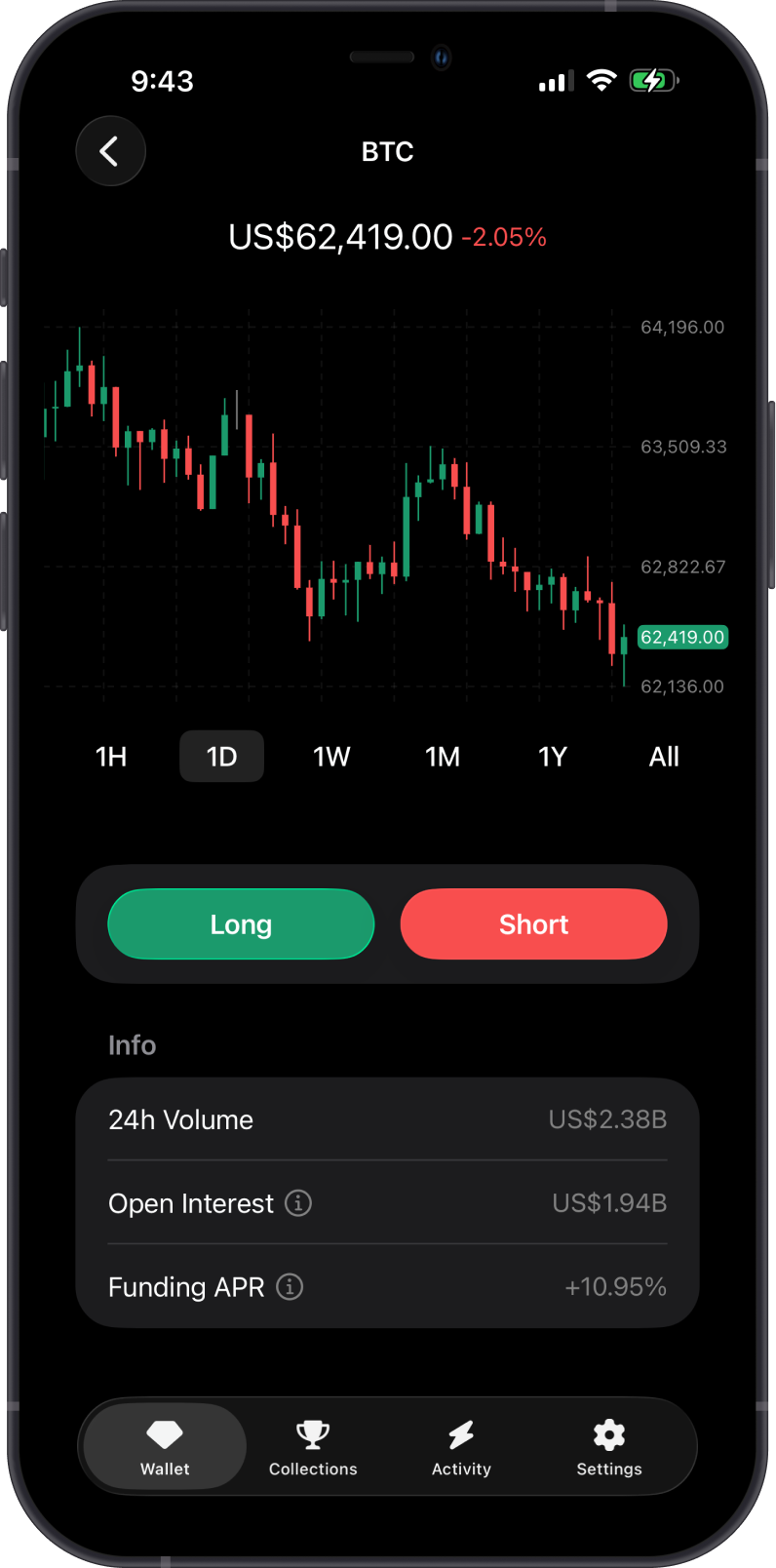
Step 2 - Review Market Data
Before opening a trade, review the chart and market details, including volume, open interest, and funding rate.
Step 3 - Choose Long or Short
Choose the position direction based on your market view:
- Long: Choose Long if you expect the market price to rise.
- Short: Choose Short if you expect the market price to fall.
The rest of the flow is similar for both directions. The screenshots below show a Long position as an example.
Step 4 - Enter Margin and Review Leverage
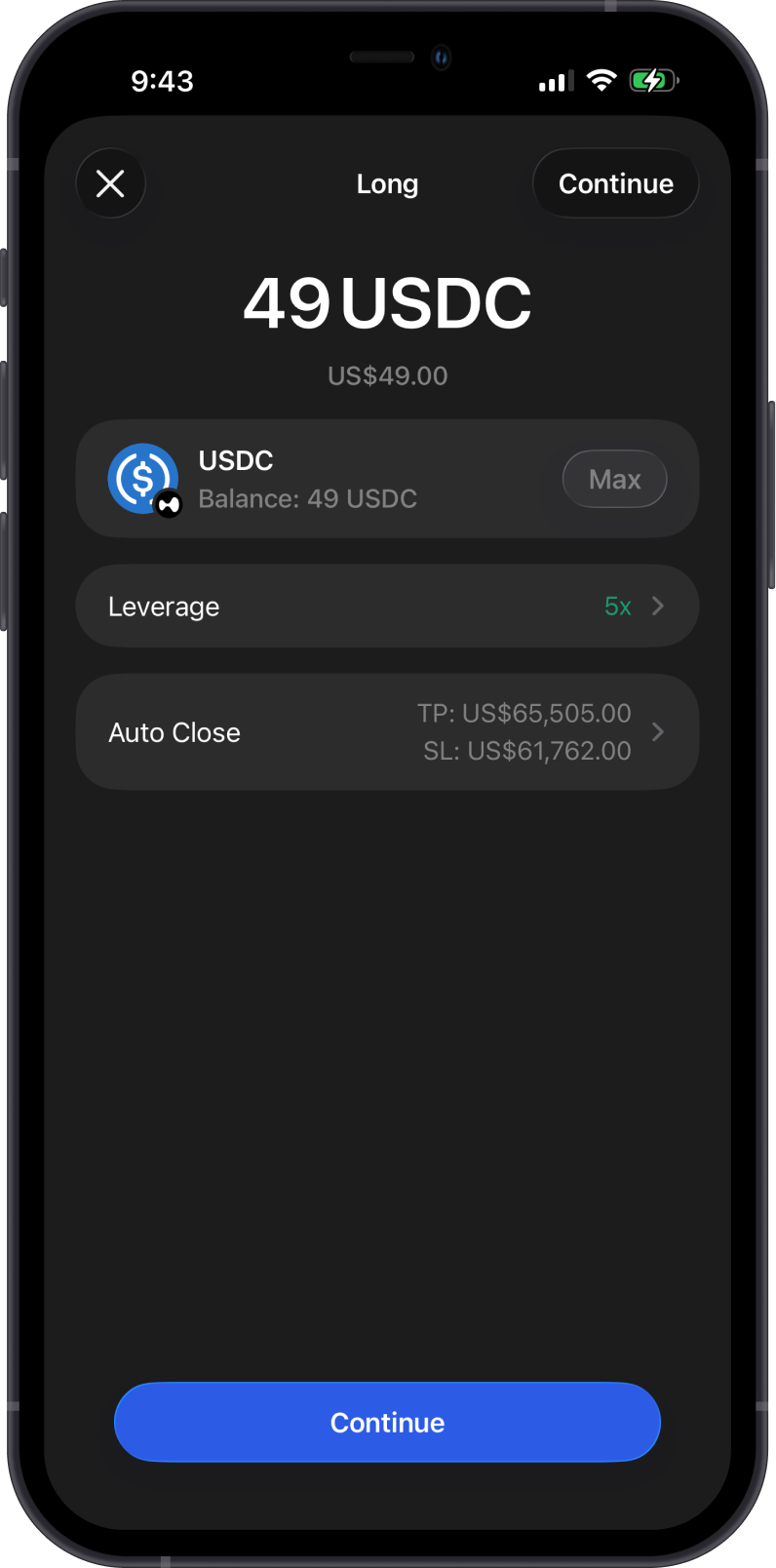
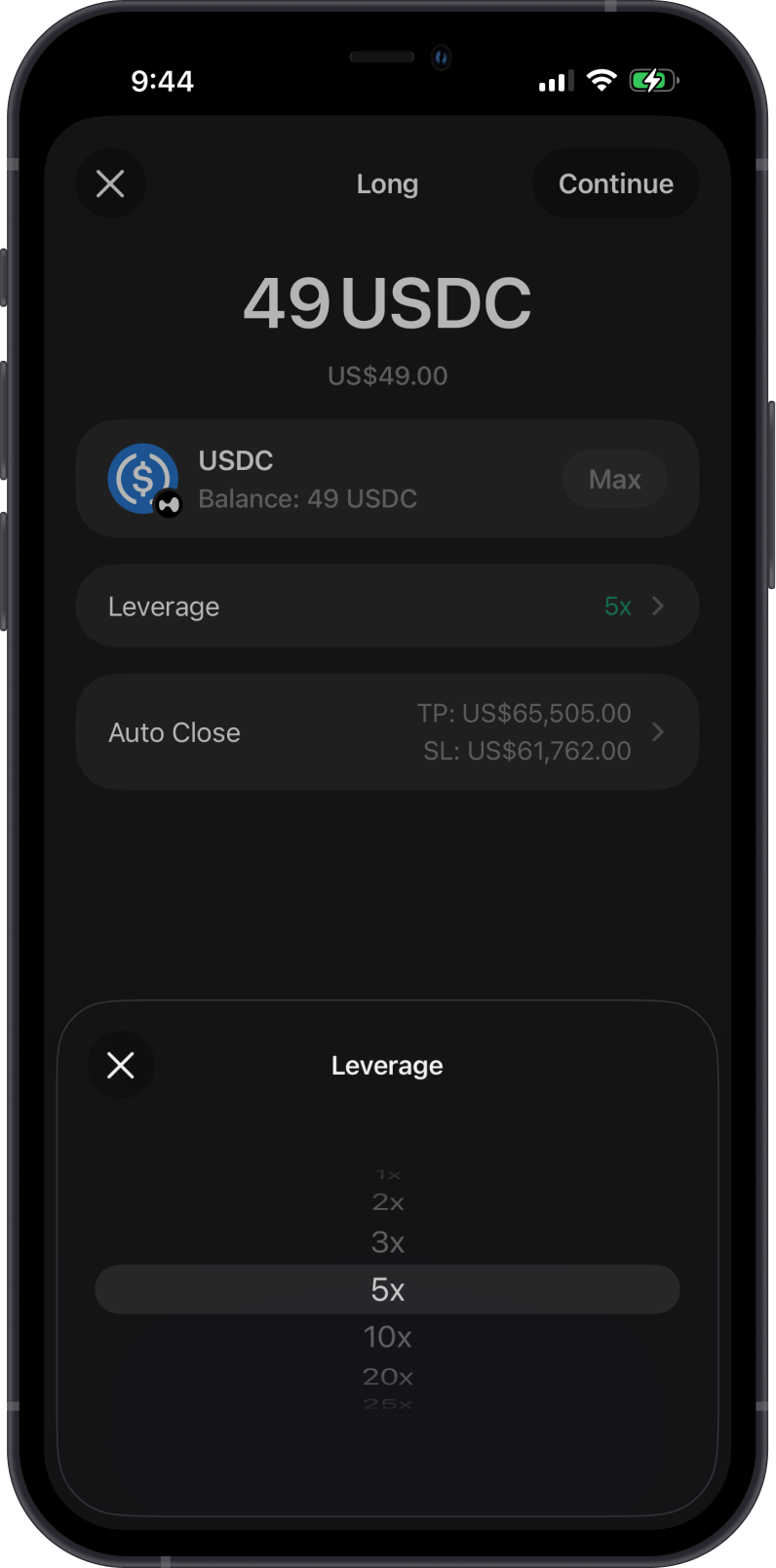
Enter the amount of USDC you want to use as margin, then review the leverage. You can tap Leverage to change it before continuing.
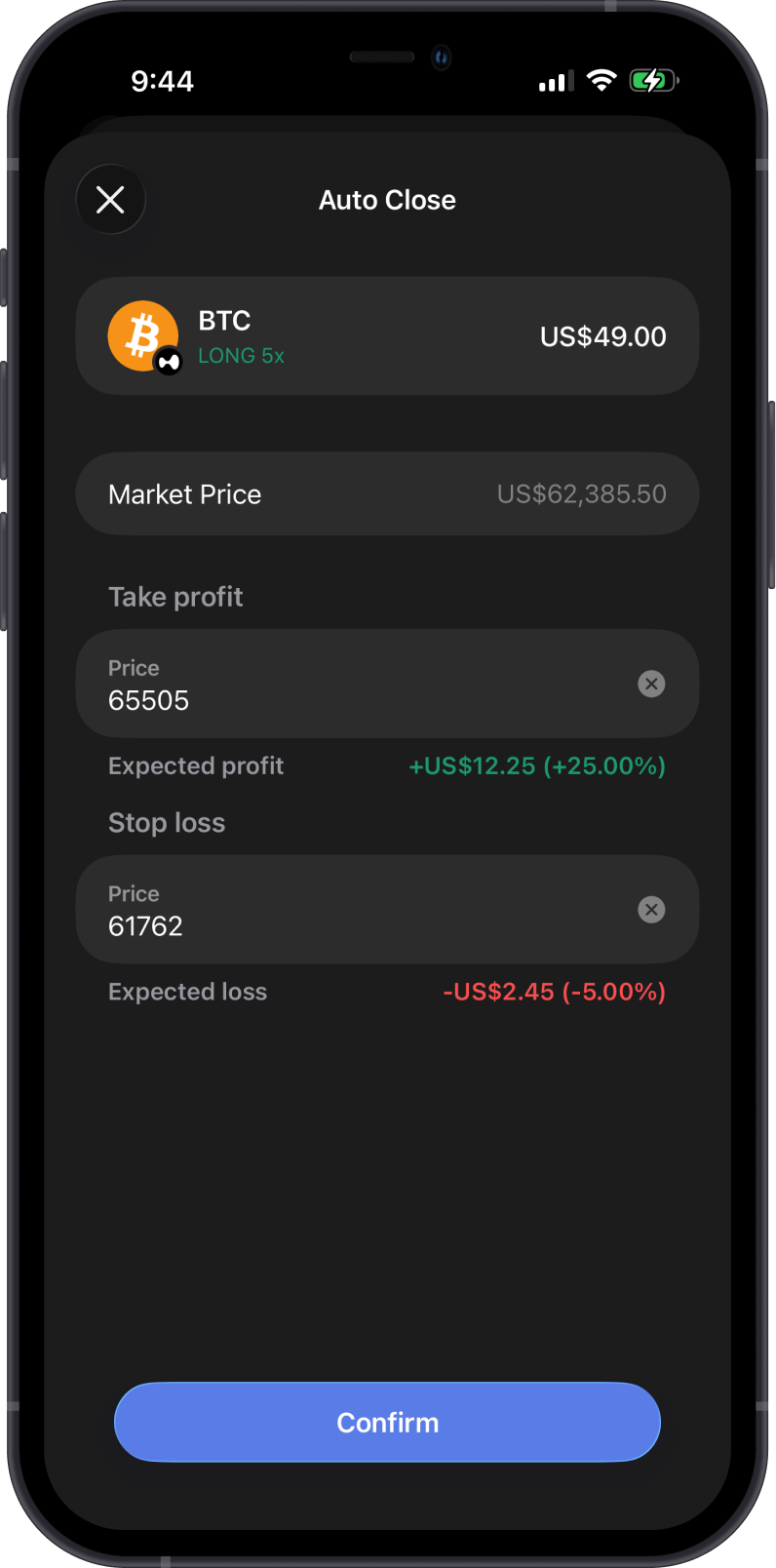
Step 5 - Set Auto Close
If you want automated exits, tap Auto Close and set Take Profit and Stop Loss values. These can help close the position when your target or risk level is reached.
Step 6 - Confirm the Position
Review all details carefully, including wallet, network, position direction, leverage, and network fee. Then tap Confirm.
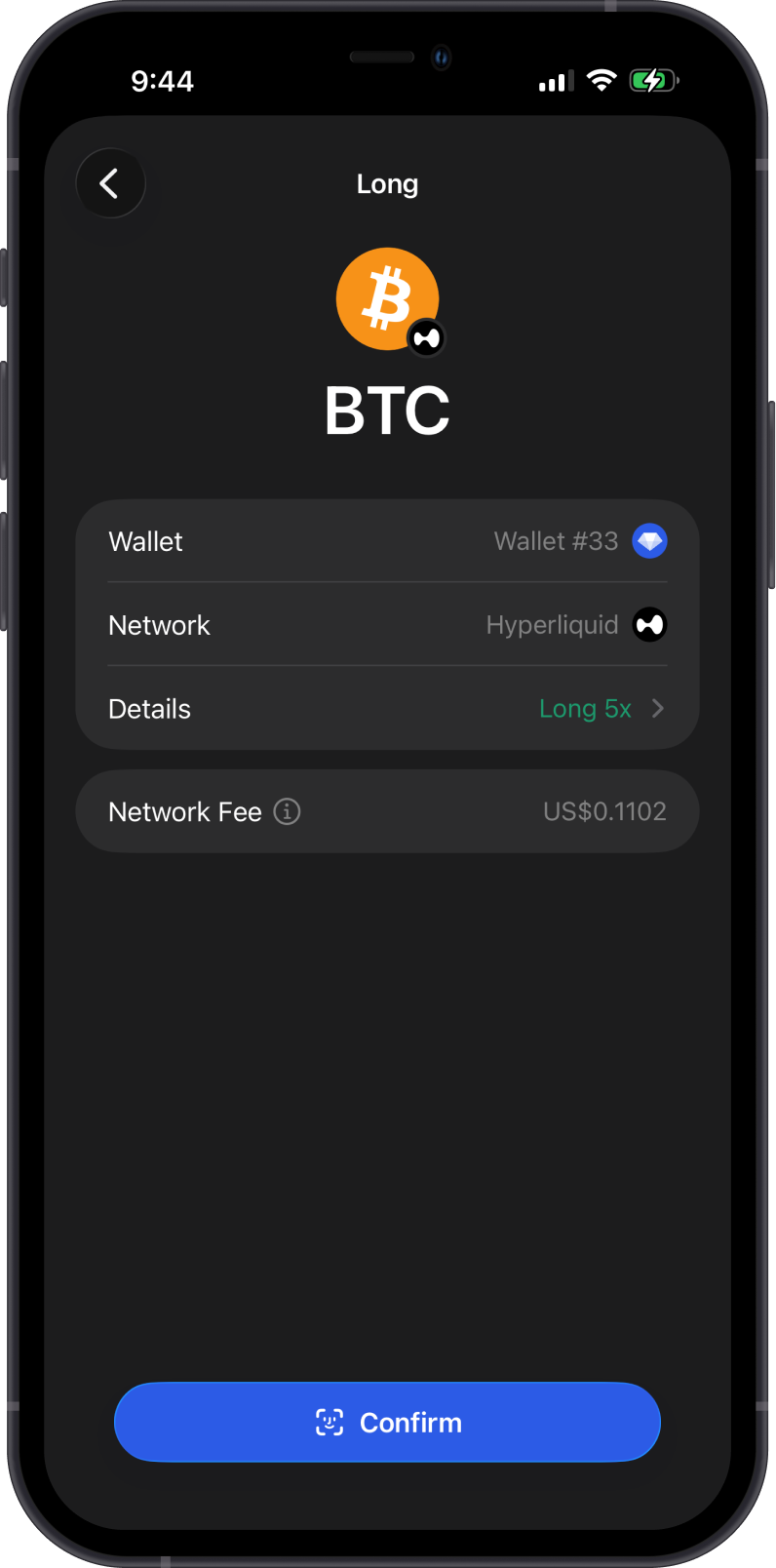
Always check the liquidation price before confirming. If the market reaches the liquidation price, the position can be closed automatically.
Step 7 - View the Open Position
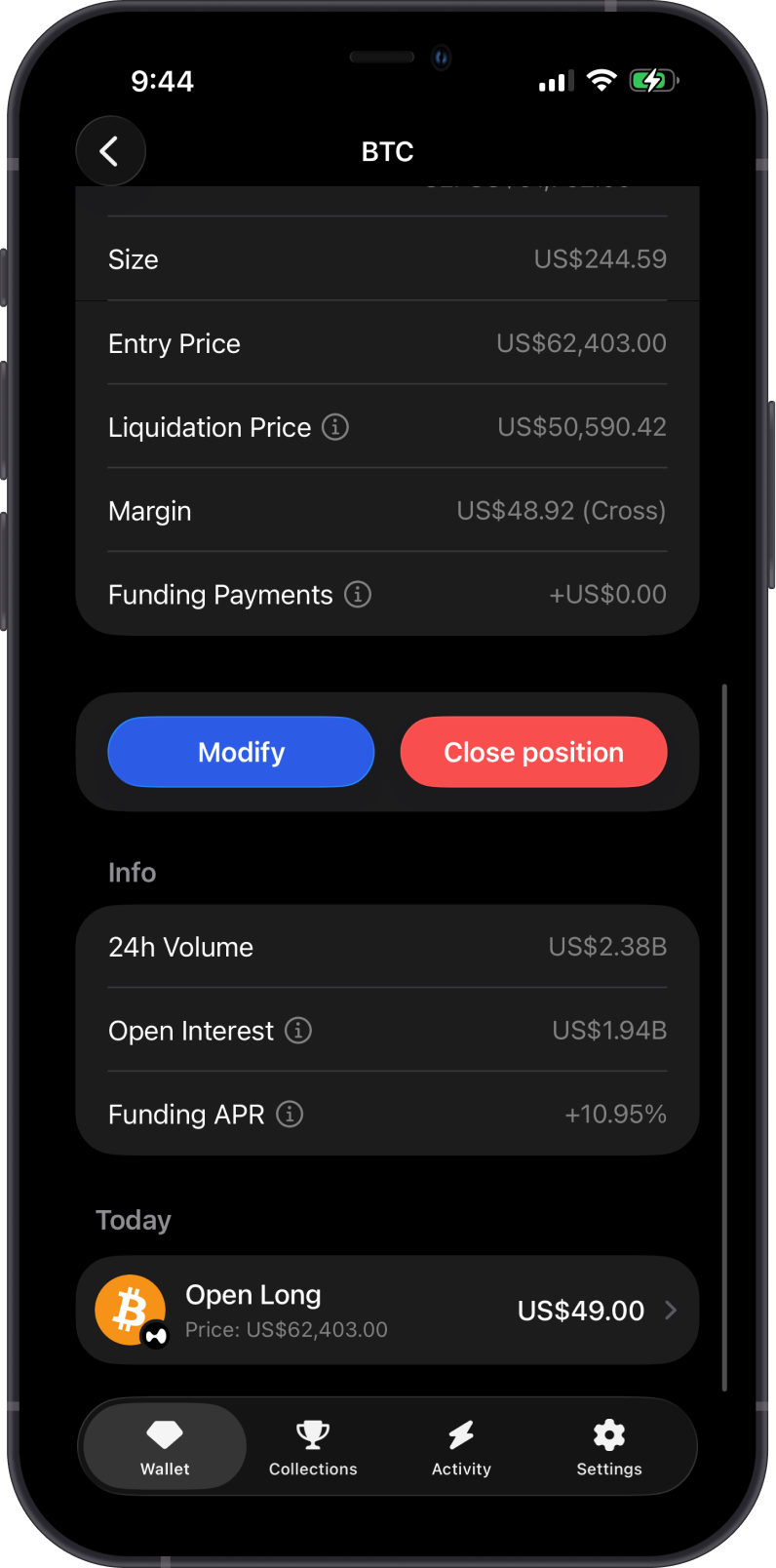
Once submitted, the position appears on the market page. You can review PnL, Auto Close, size, entry price, liquidation price, margin, and funding payments.
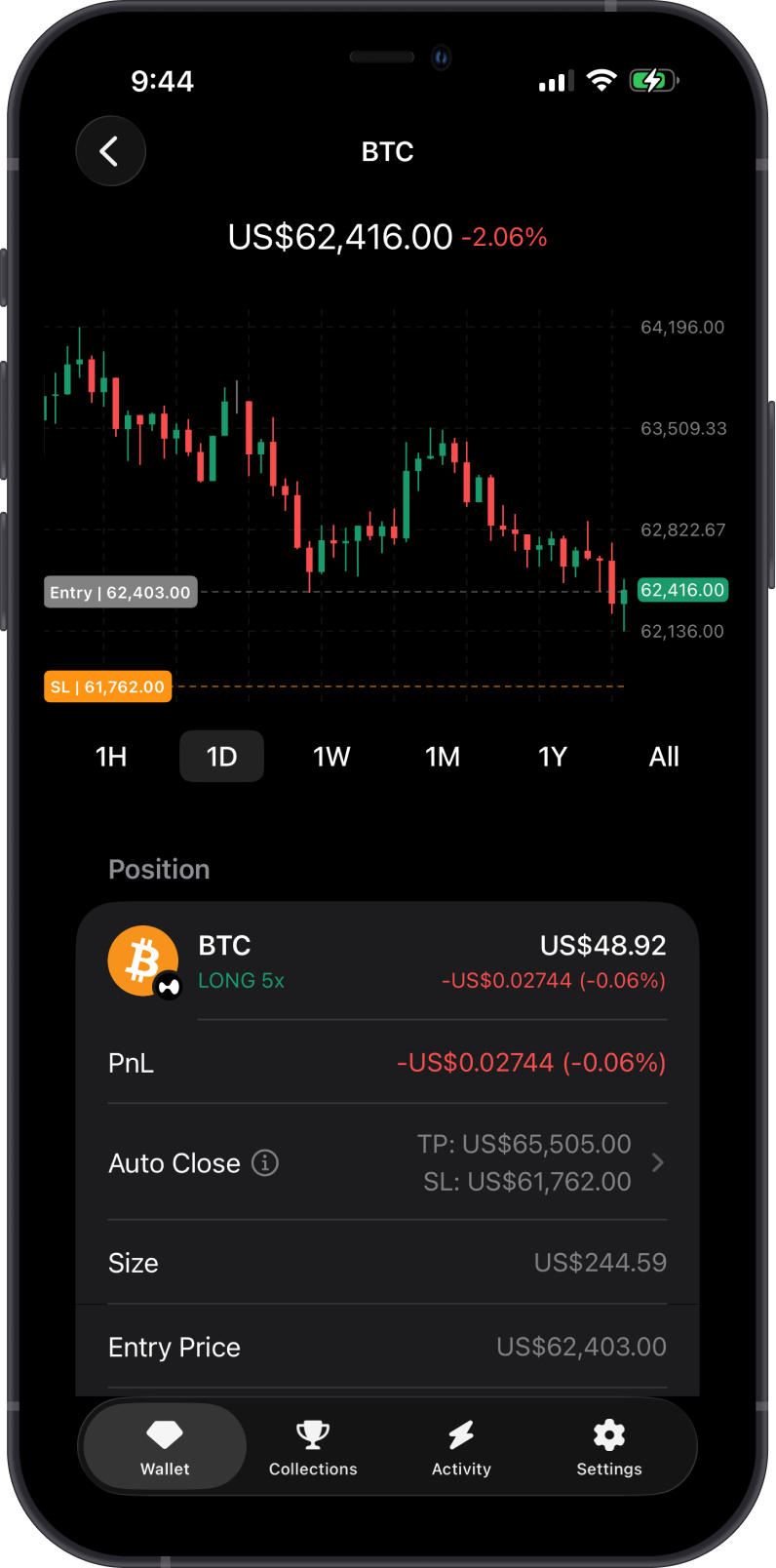
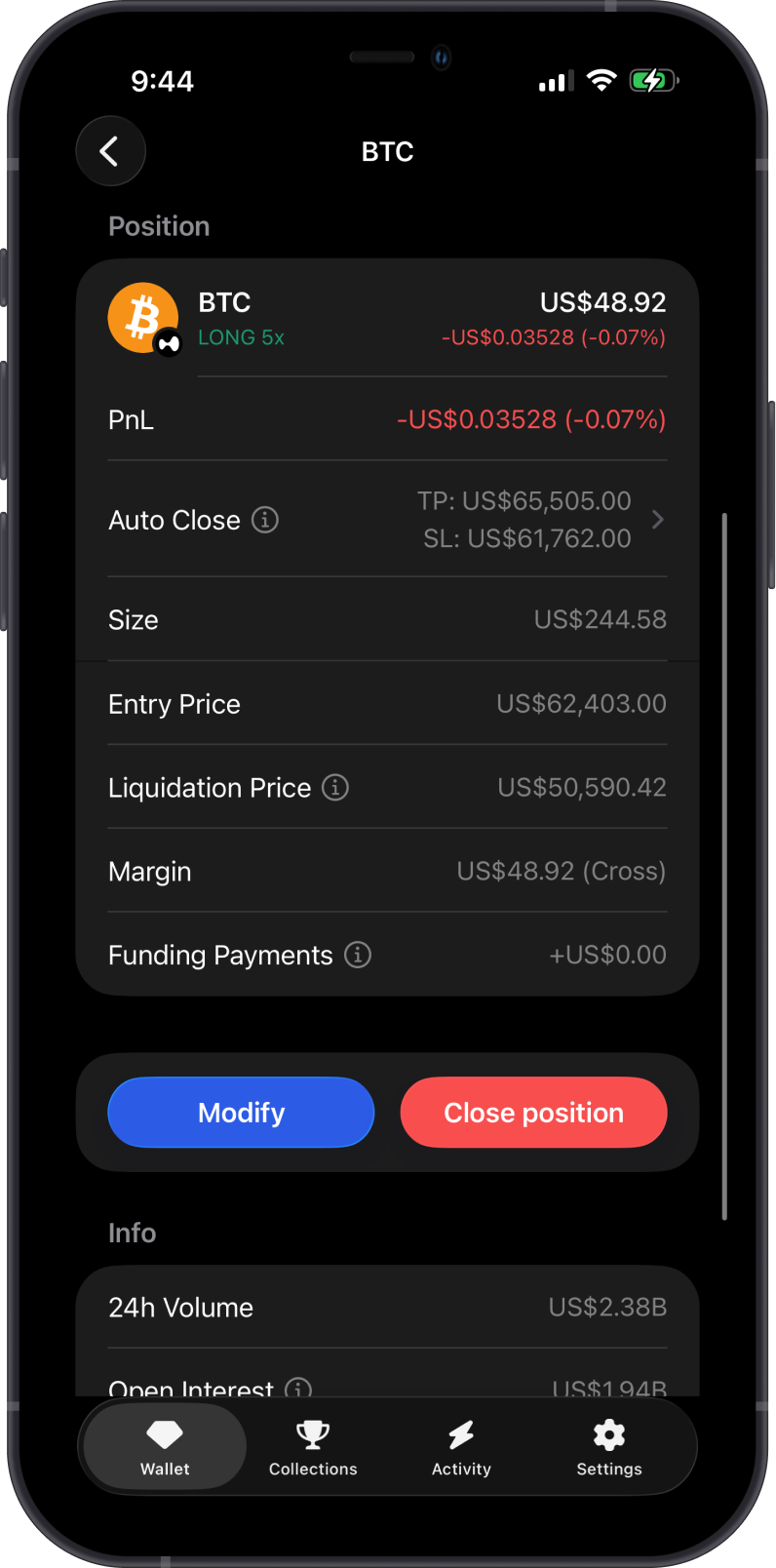
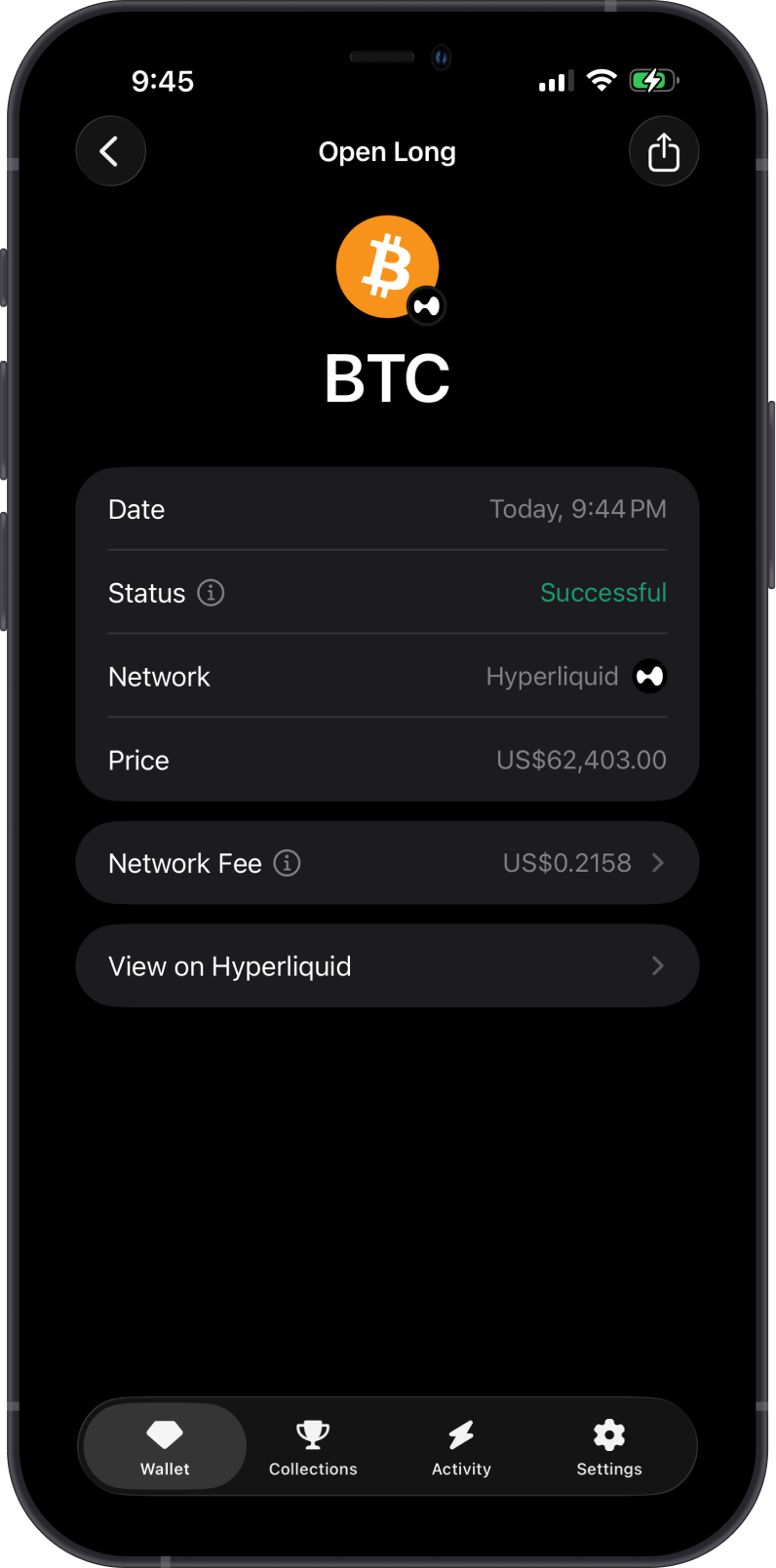
Scroll down to see the transaction history for the position. You can also open the activity item to view details and check the transaction on Hyperliquid.
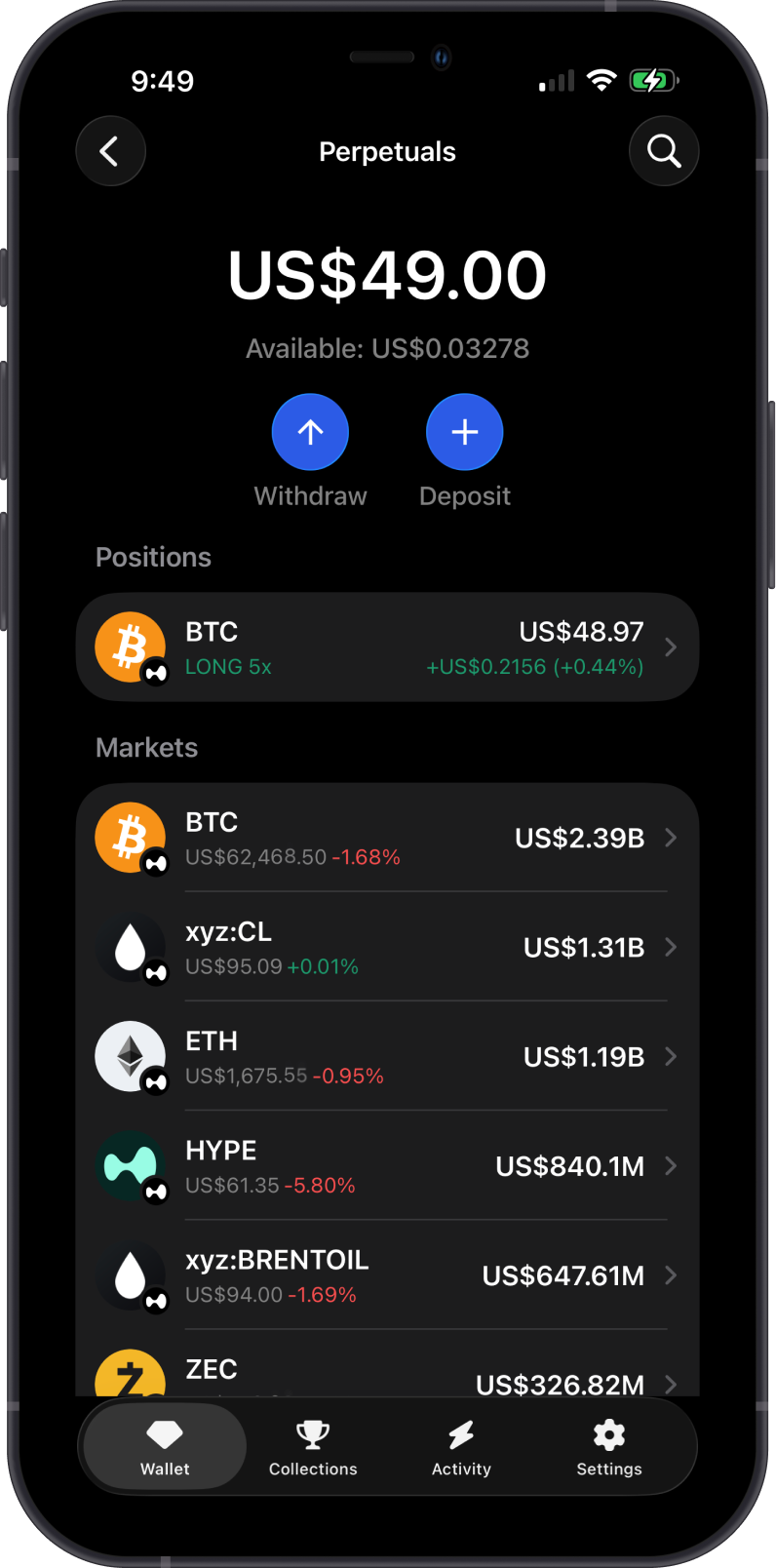
Return to the main Perpetuals screen to see the position listed under Positions.
Modify a Position
Once a position is open, Gem Wallet shows it in the Positions section.
Tap Modify to choose whether you want to increase or reduce the position.
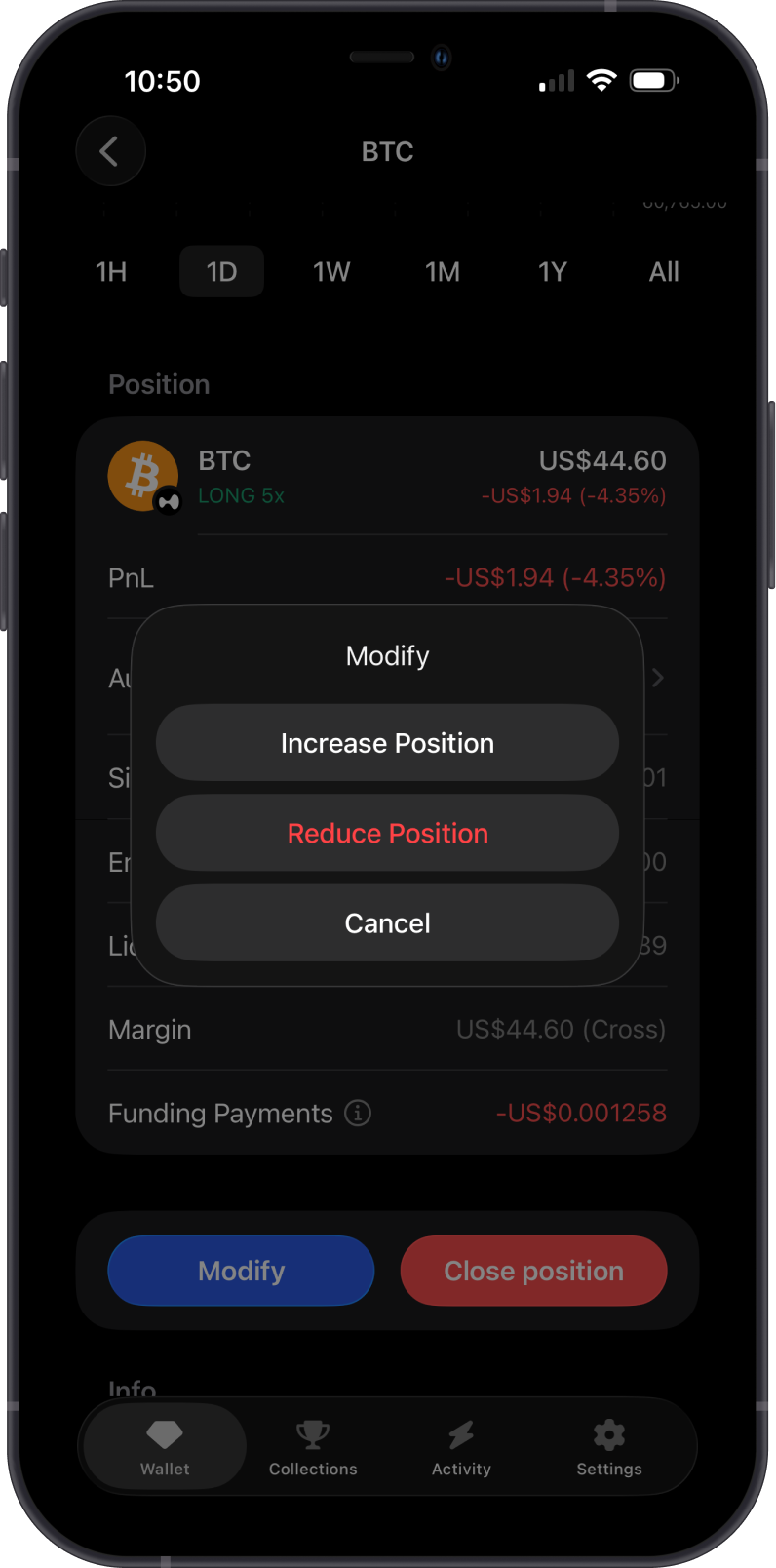
Increase Position
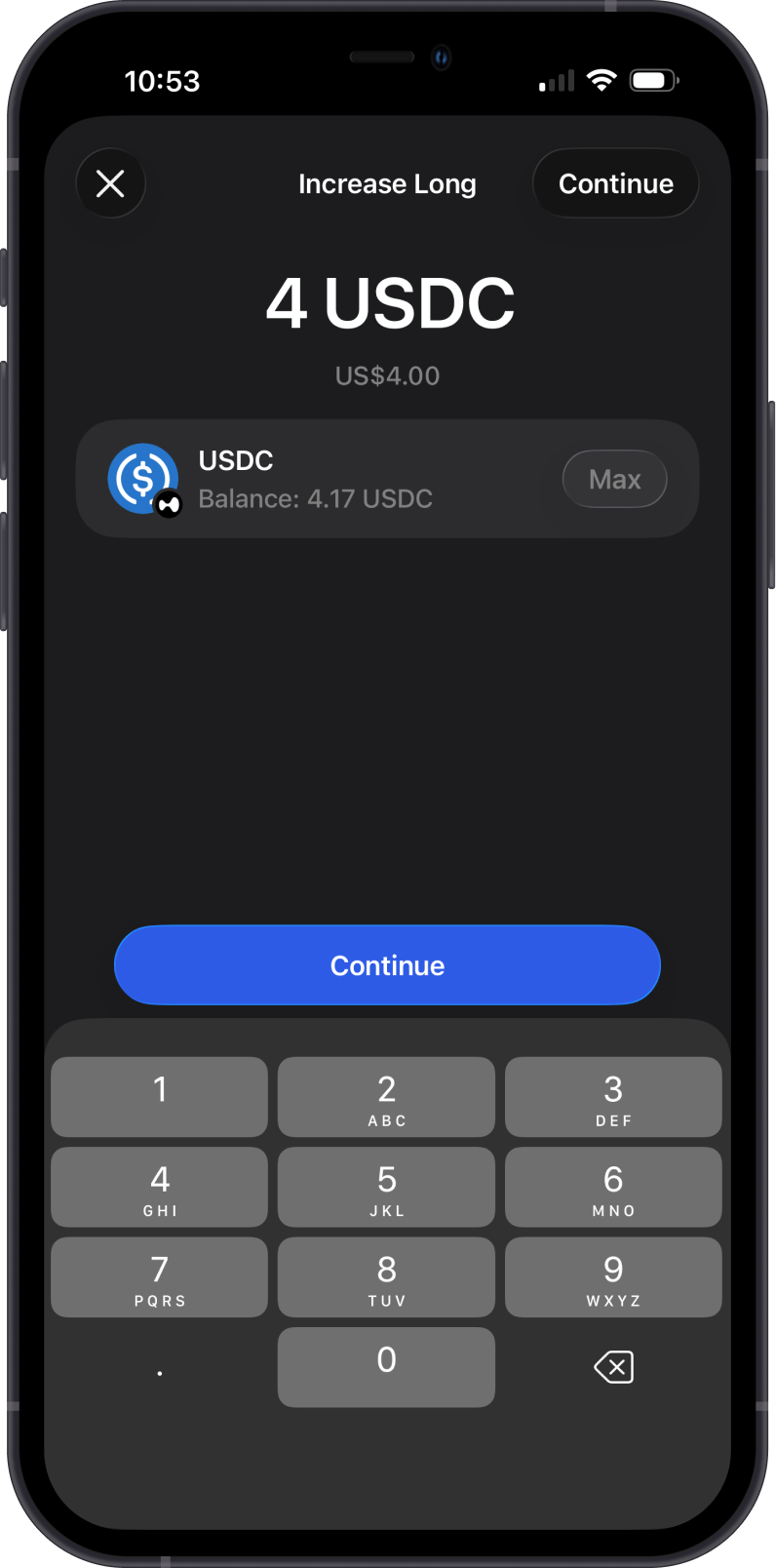
Use Modify and choose Increase if you want to add more exposure to an existing position.
Enter the additional USDC amount you want to add, then tap Continue and review the confirmation screen before submitting.
Reduce Position
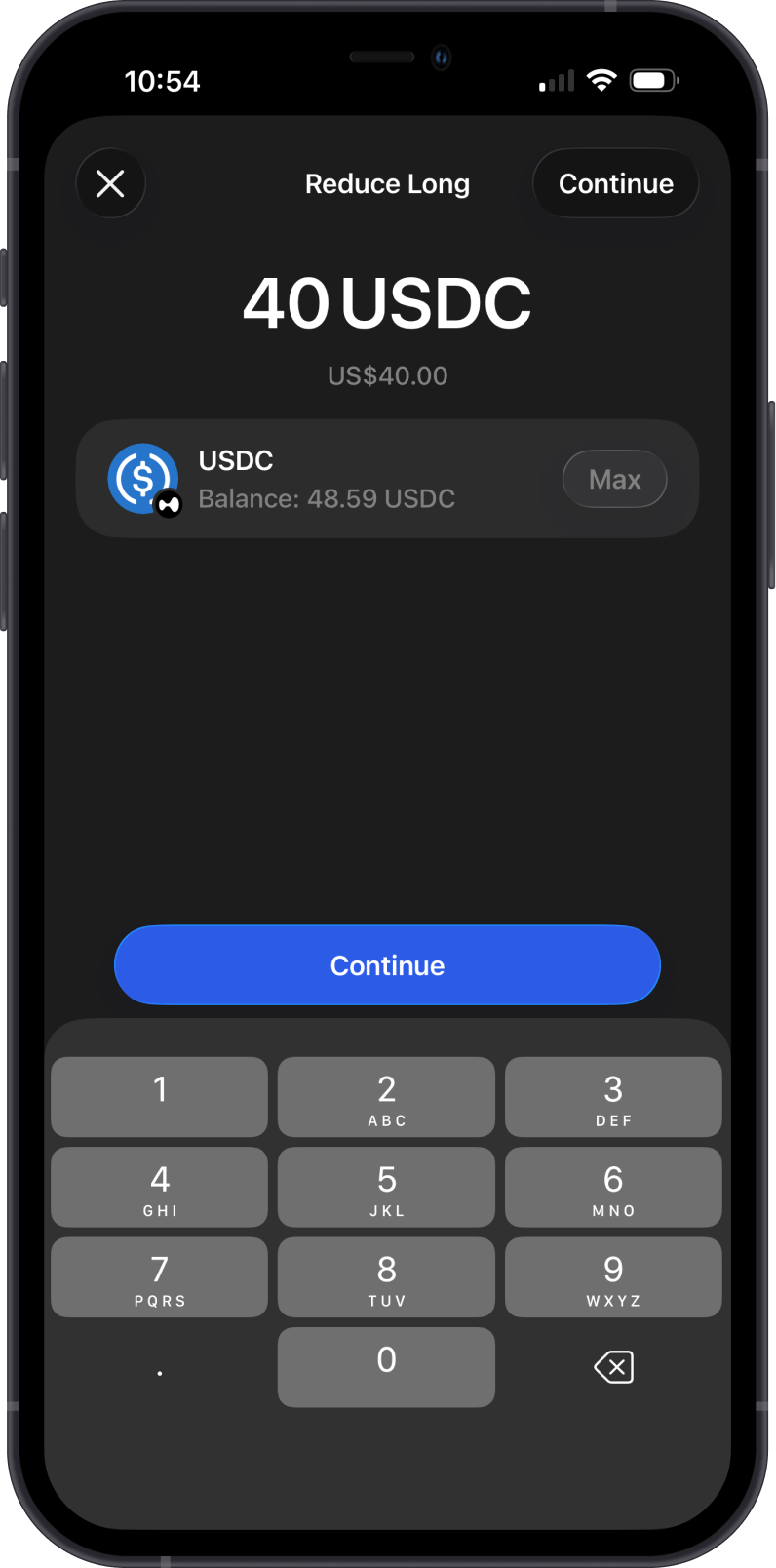
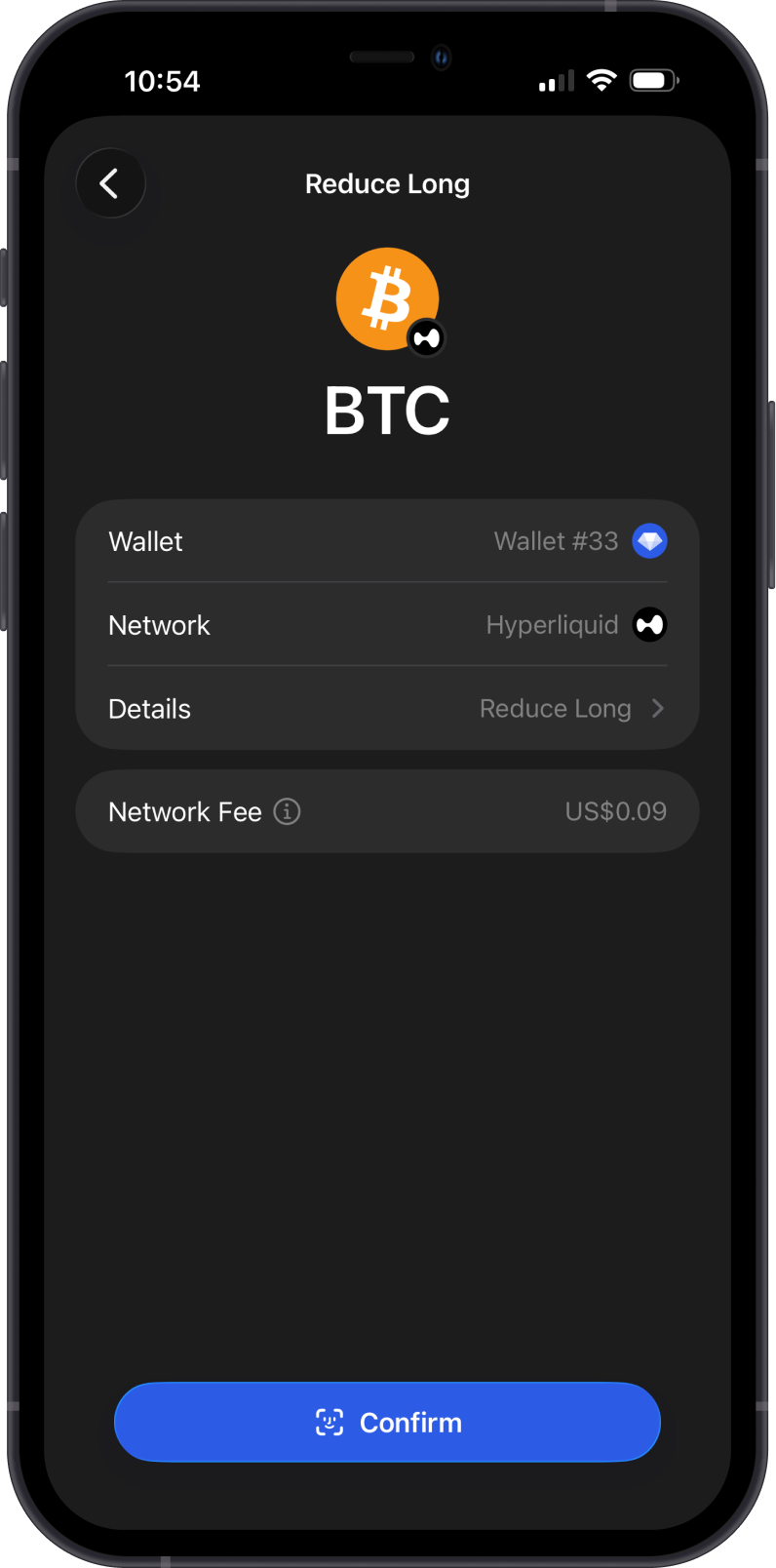
Use Modify and choose Reduce if you want to lower your exposure without closing the full position.
Enter the USDC amount you want to reduce, then tap Continue and confirm the transaction after reviewing the details and network fee.
Close a Position
Closing a position realizes your profit or loss and releases remaining margin after applicable costs.
Step 1 - Select the Position
Open Trade Perpetuals, then select the open position you want to close.
Step 2 - Review Position Details
Check the position direction, size, entry price, current profit or loss, liquidation price, margin, and funding payments.
Step 3 - Close the Position
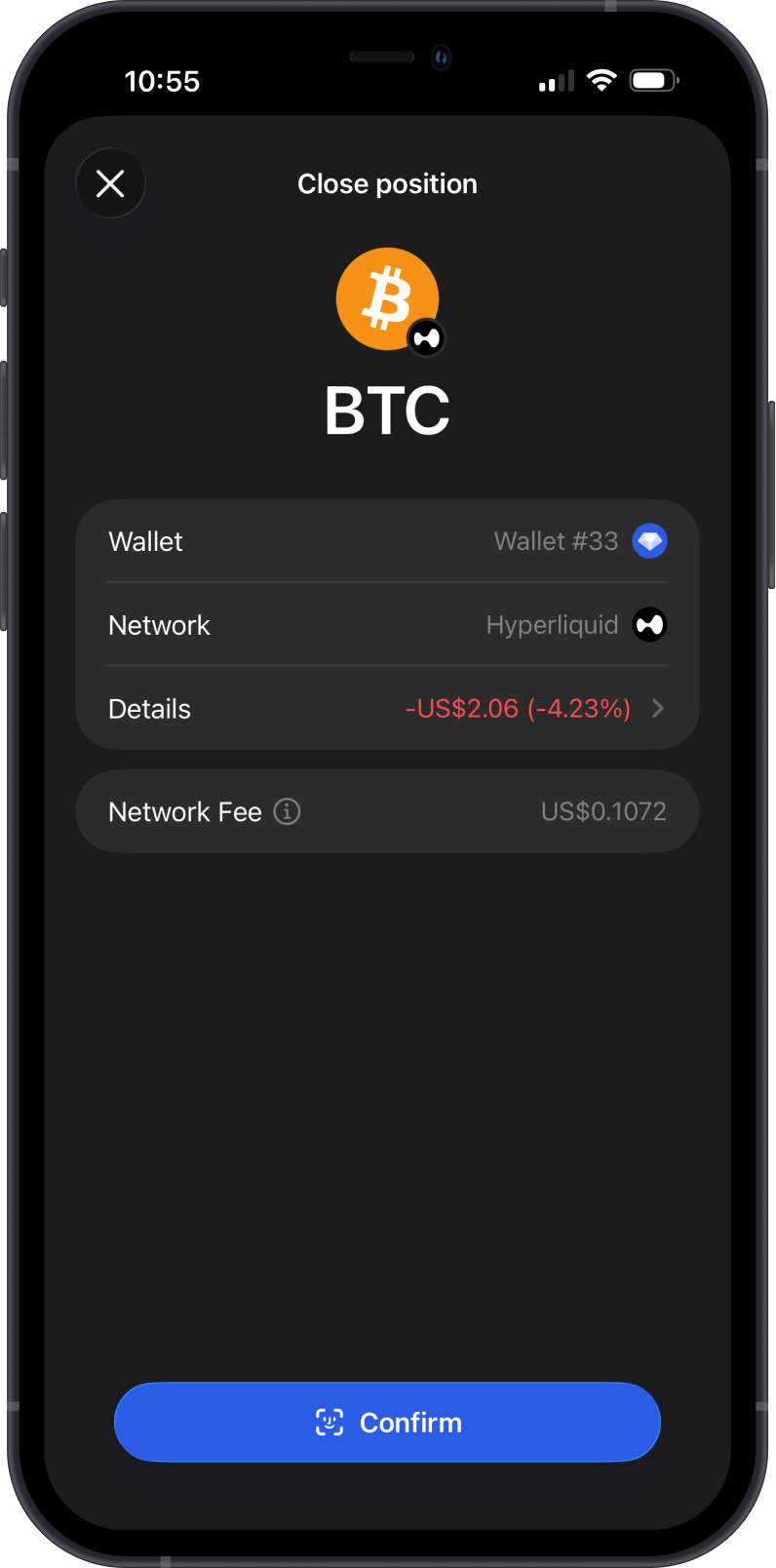
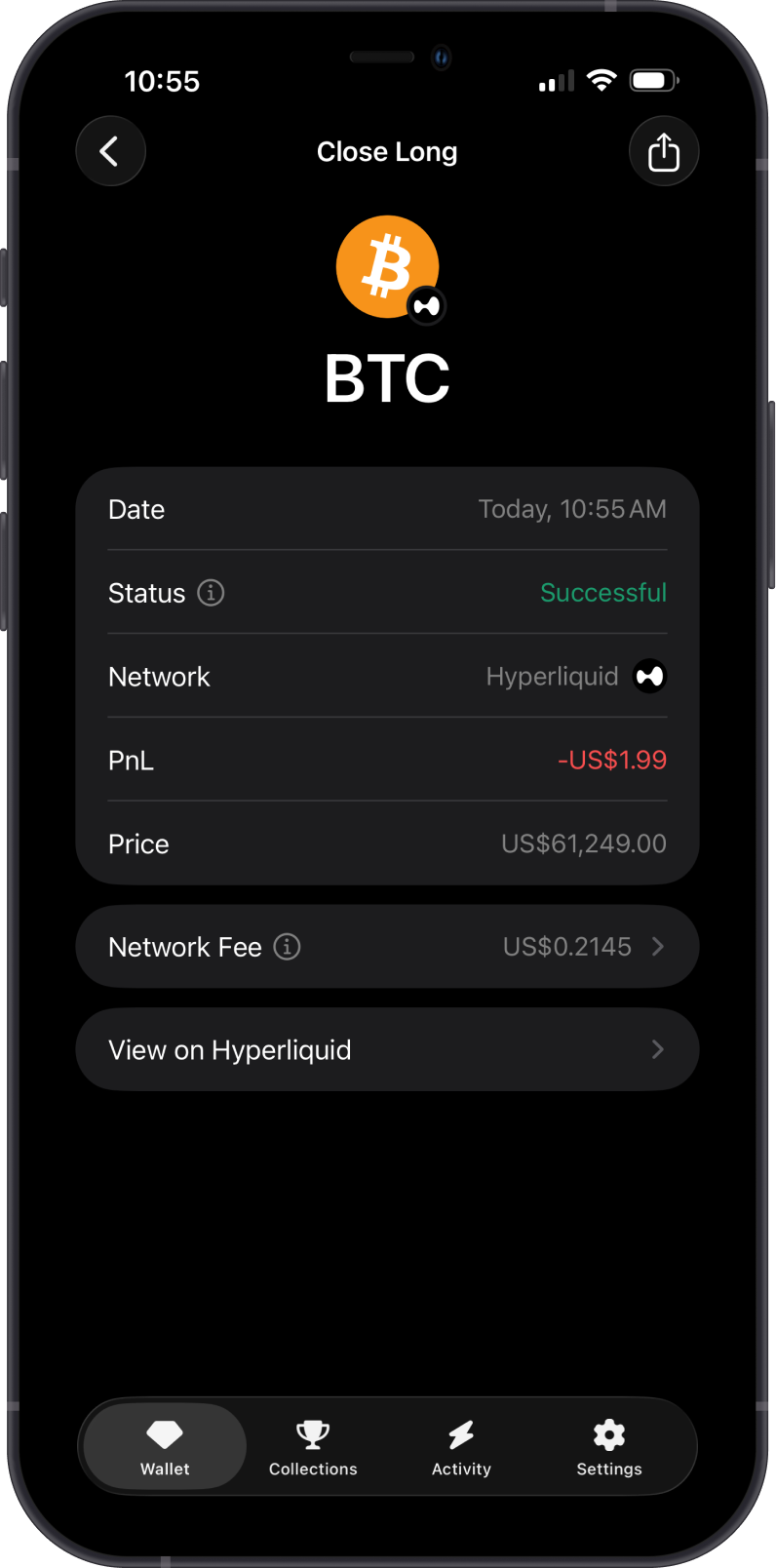
Tap Close Position. Review the close order details, including any realized profit or loss, fees, and returned margin.
Step 4 - Confirm
Confirm the transaction. After the close is completed, the position is removed from your open positions and the remaining balance becomes available.
If you only want to lower exposure, use Modify then Reduce instead of closing the full position.