How to Fund Perpetuals in Gem Wallet
Perpetual trades use collateral. Before opening a Long or Short position, deposit funds into your Perpetuals account.
You need to turn on Perpetuals before the Trade Perpetuals entry appears in Gem Wallet.
Funding Requirements
Trading Perpetuals requires USDC and ETH on the Arbitrum network.
- USDC on Arbitrum is used as collateral for Perpetuals.
- ETH on Arbitrum is used to pay network fees when depositing or withdrawing collateral.
You can fund your wallet in two ways:
- Send USDC and ETH on Arbitrum manually from another wallet or exchange.
- Use Gem Wallet to make a cross-chain swap from supported assets into USDC or ETH on Arbitrum.
Enable Arbitrum USDC and ETH
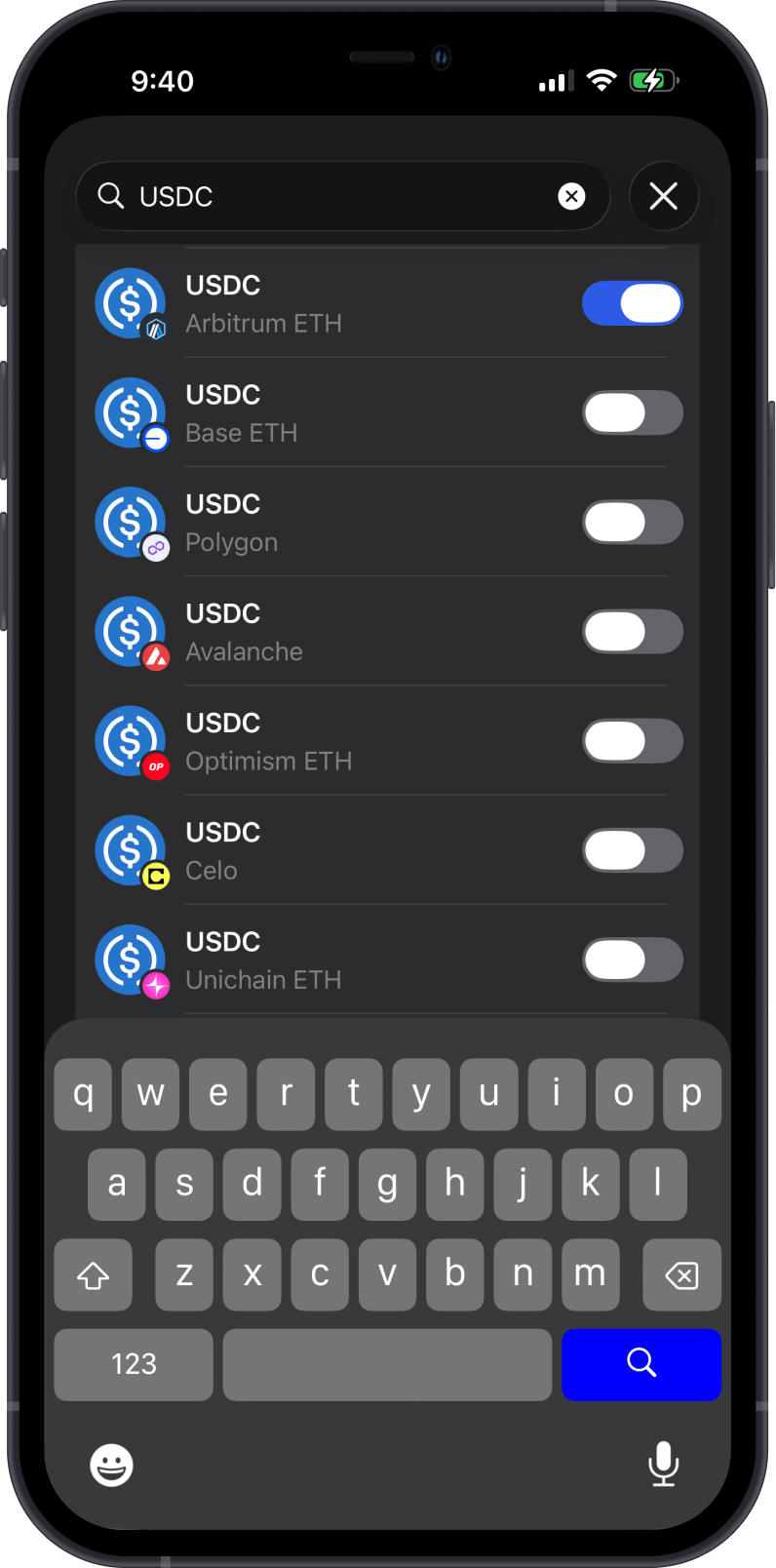
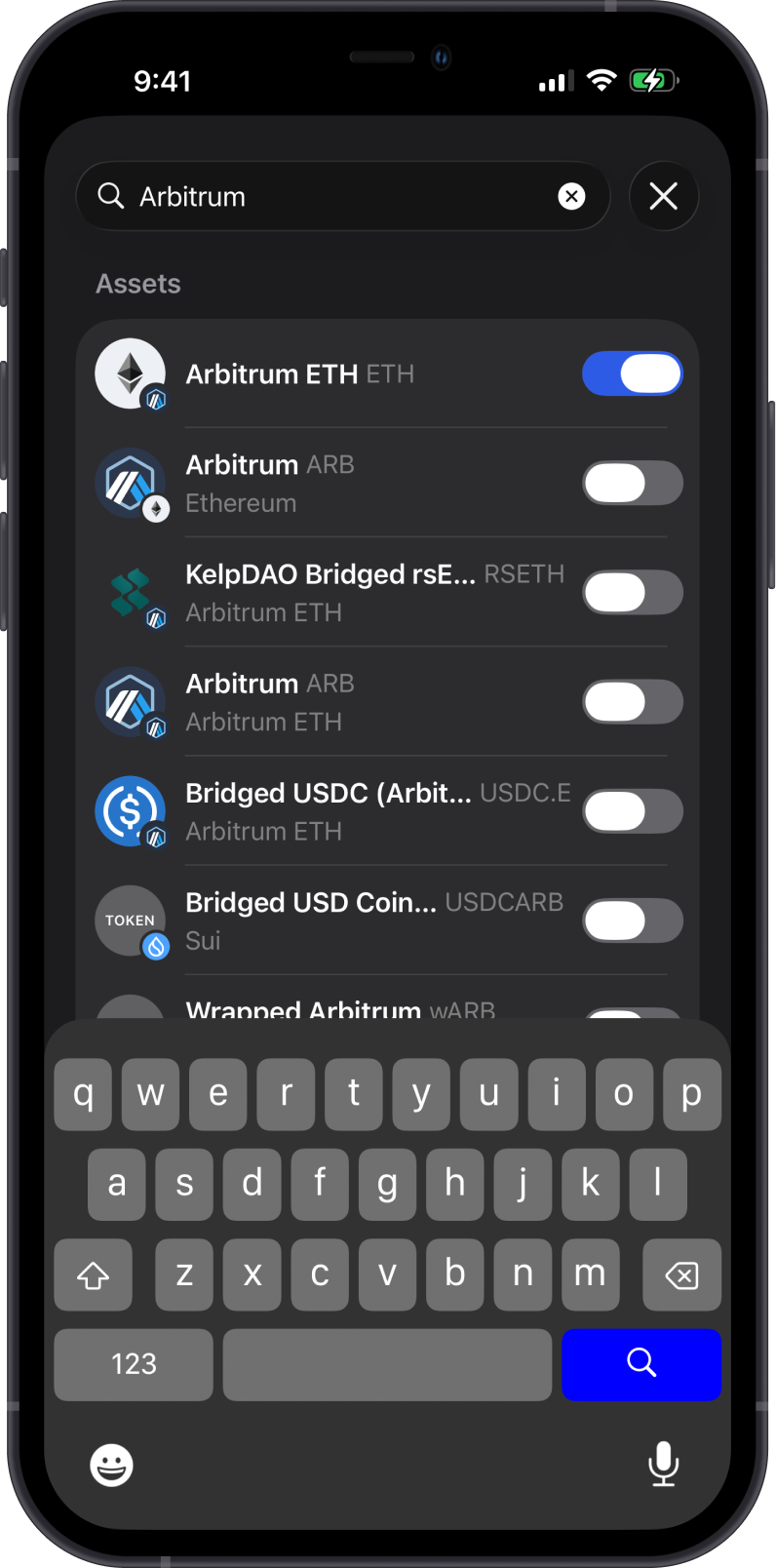
Make sure both required assets are enabled in your wallet before funding Perpetuals. Search for USDC and enable USDC on Arbitrum ETH. Then search for Arbitrum and enable Arbitrum ETH for network fees.
Fund the Deposit Asset
Use the receive screen to copy your USDC on Arbitrum address and fund the asset first.
Your USDC on Arbitrum and ETH on Arbitrum address is the same wallet address, so you can send both required assets to the same address.
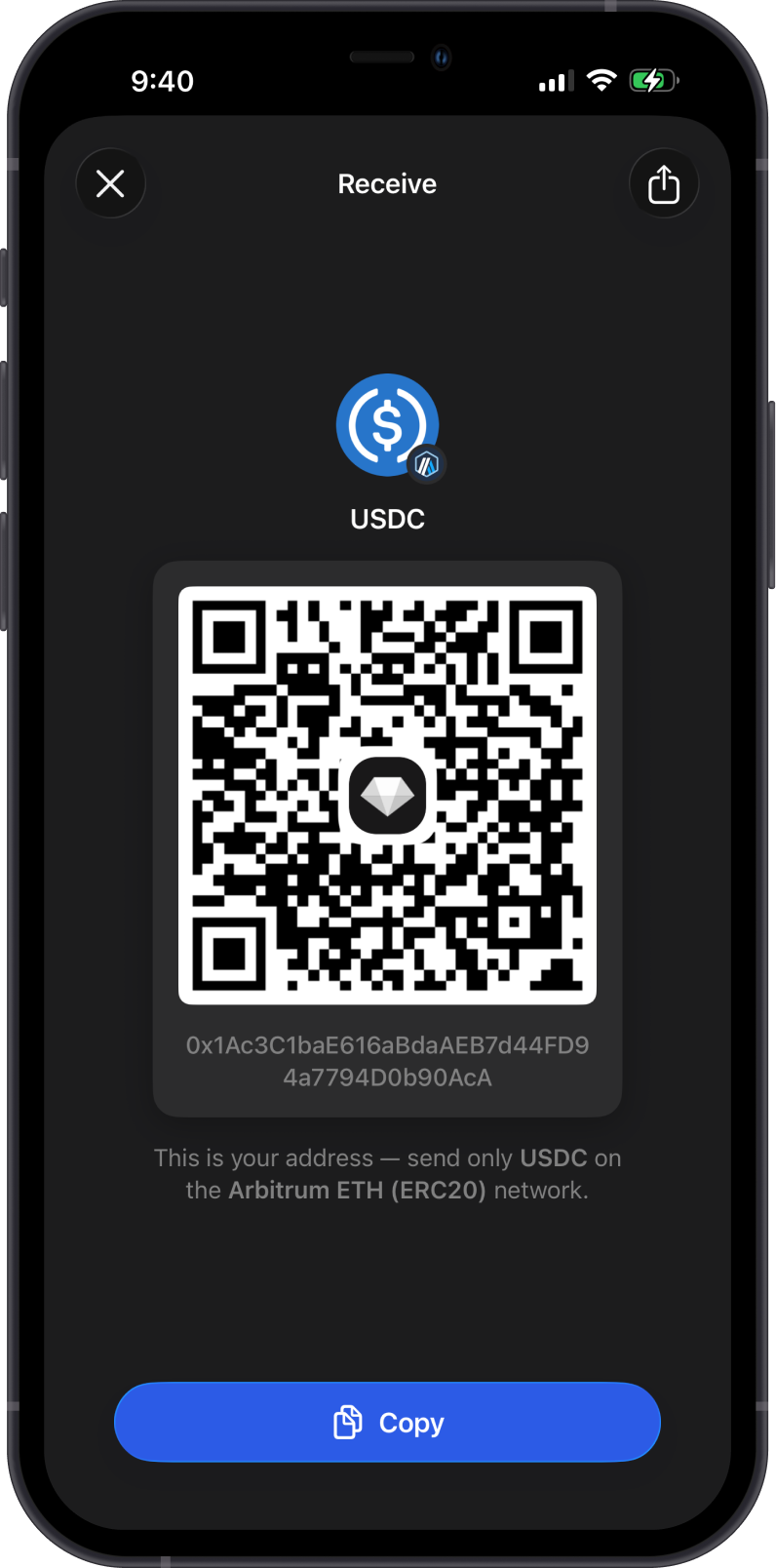
Send only the asset and network shown on the receive screen. Sending the wrong token or using the wrong network can result in lost funds. Always confirm that the sending wallet or exchange is using the Arbitrum network.
Deposit Collateral
Step 1 - Open Trade Perpetuals
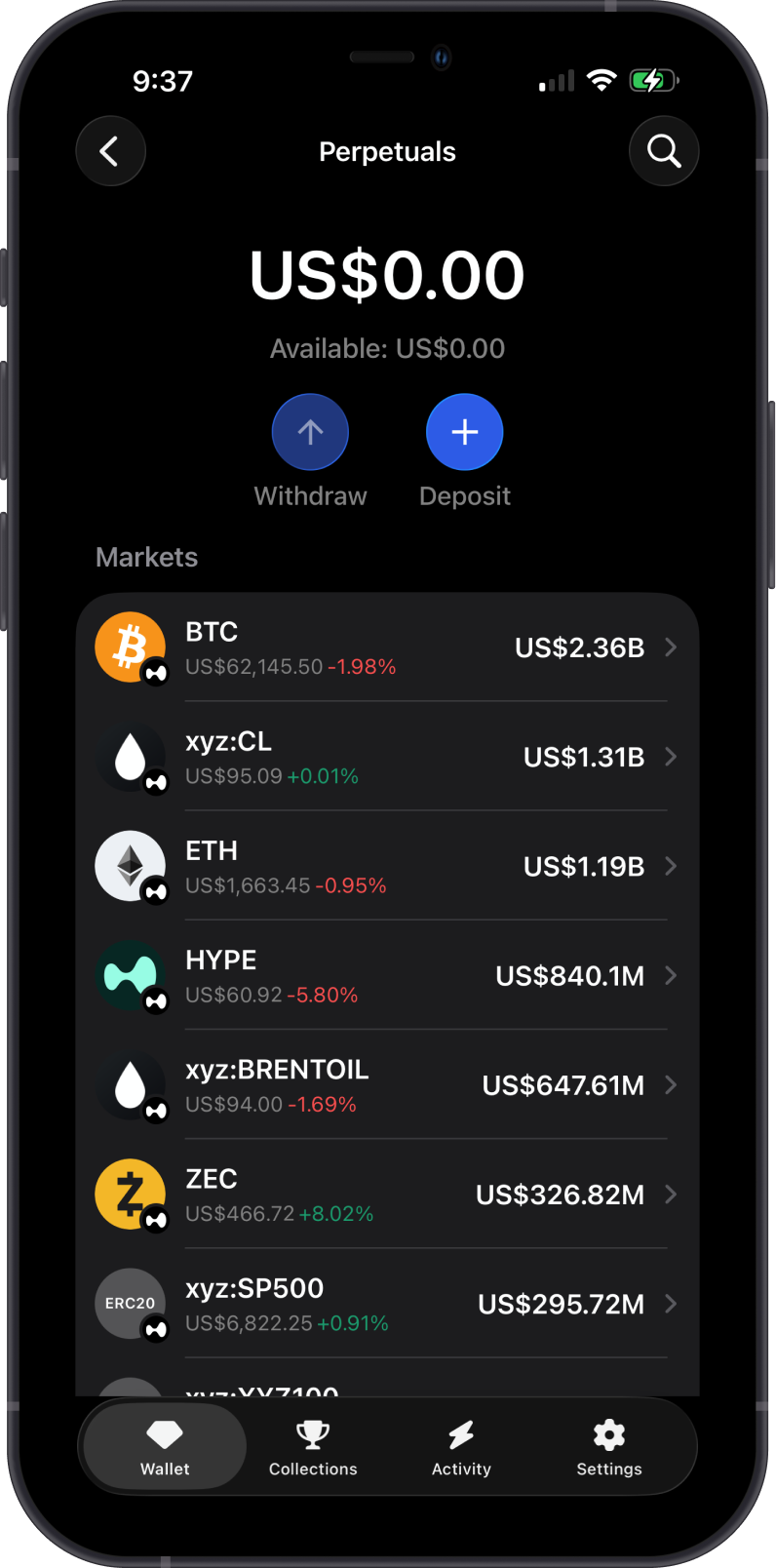
Open Gem Wallet, go to the Wallet tab, then tap Trade Perpetuals.
Step 2 - Tap Deposit
On the Perpetuals screen, tap Deposit. Choose the asset you want to deposit as collateral.
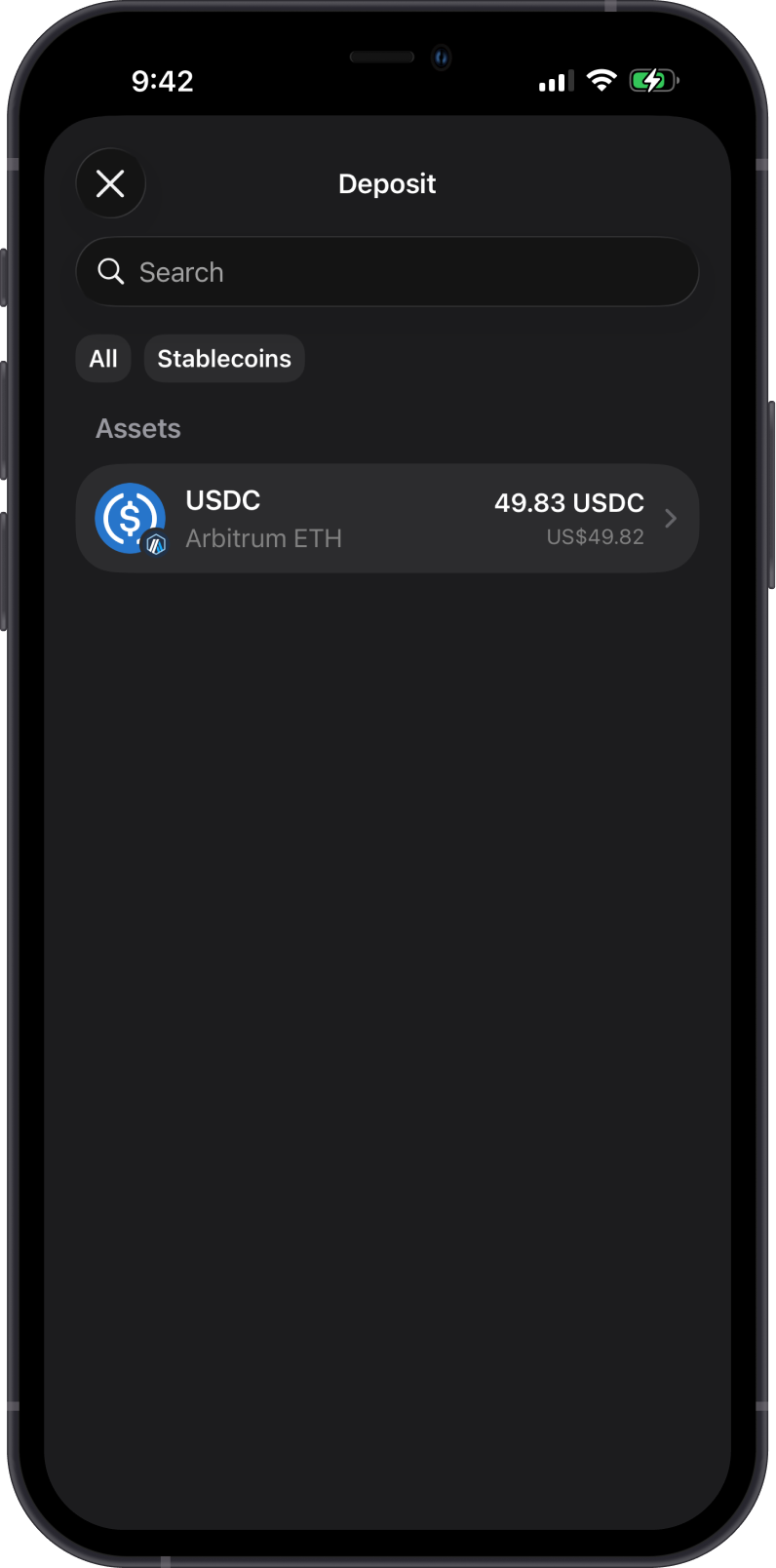
For this example, we are depositing USDC on Arbitrum ETH (ERC20).
Step 3 - Enter the Deposit Amount
Enter the amount you want to deposit, then tap Continue.
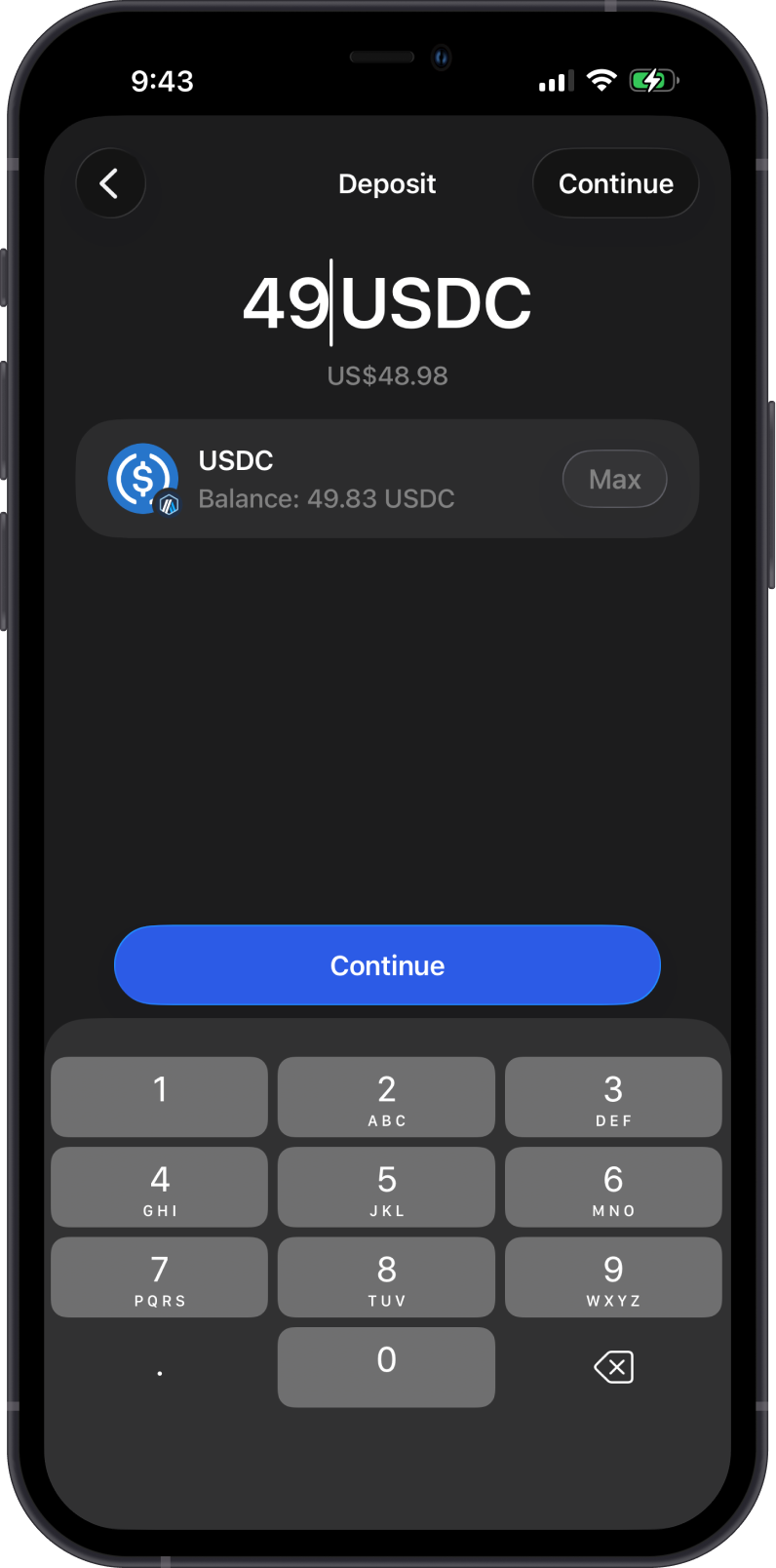
Step 4 - Review Details
Review the transaction details carefully before confirming. Make sure the amount, wallet, recipient, network, and network fee are correct.
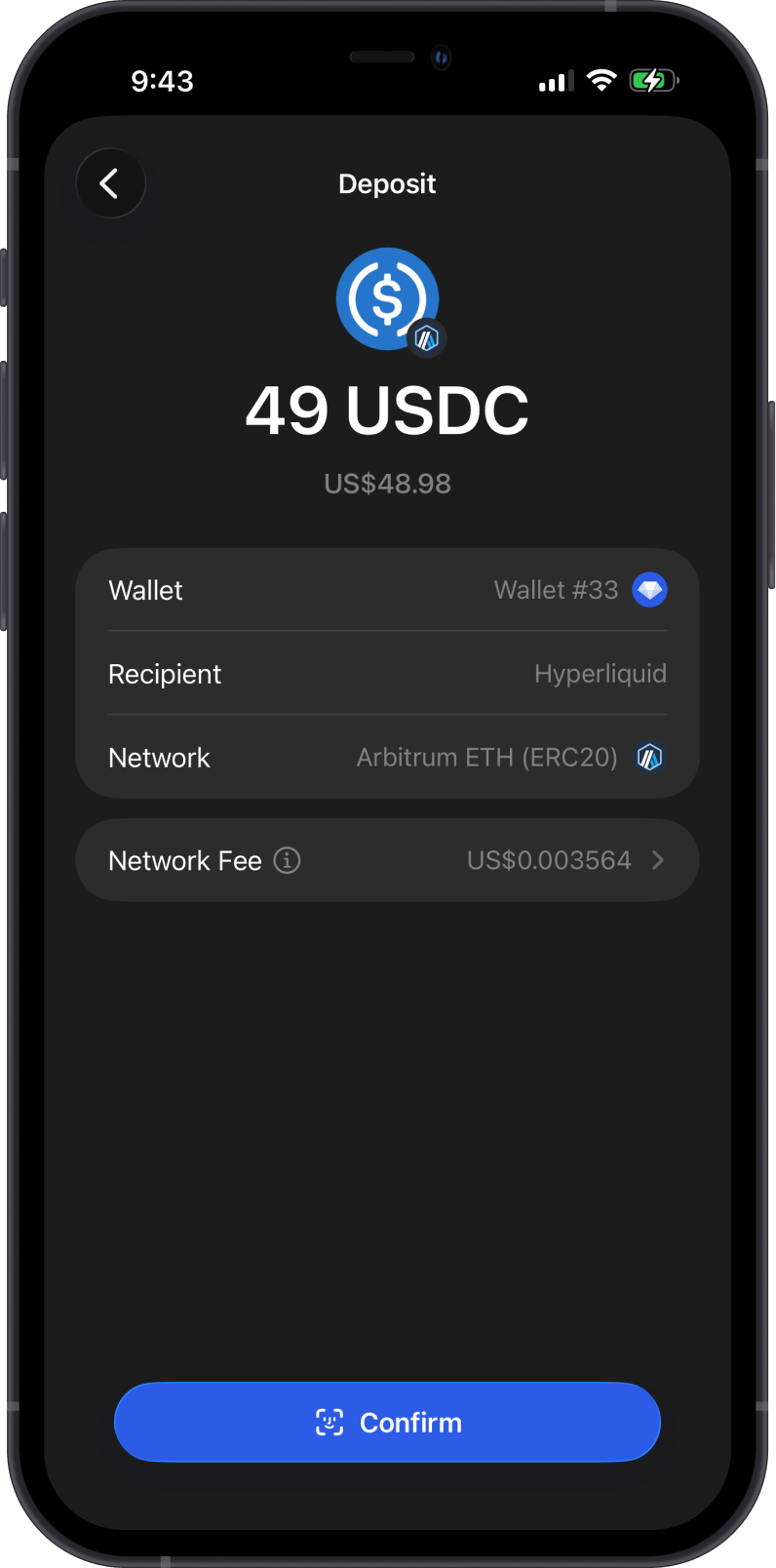
Step 5 - Confirm the Deposit
Confirm the deposit in Gem Wallet. Wait for the Perpetuals balance to update before opening a position.
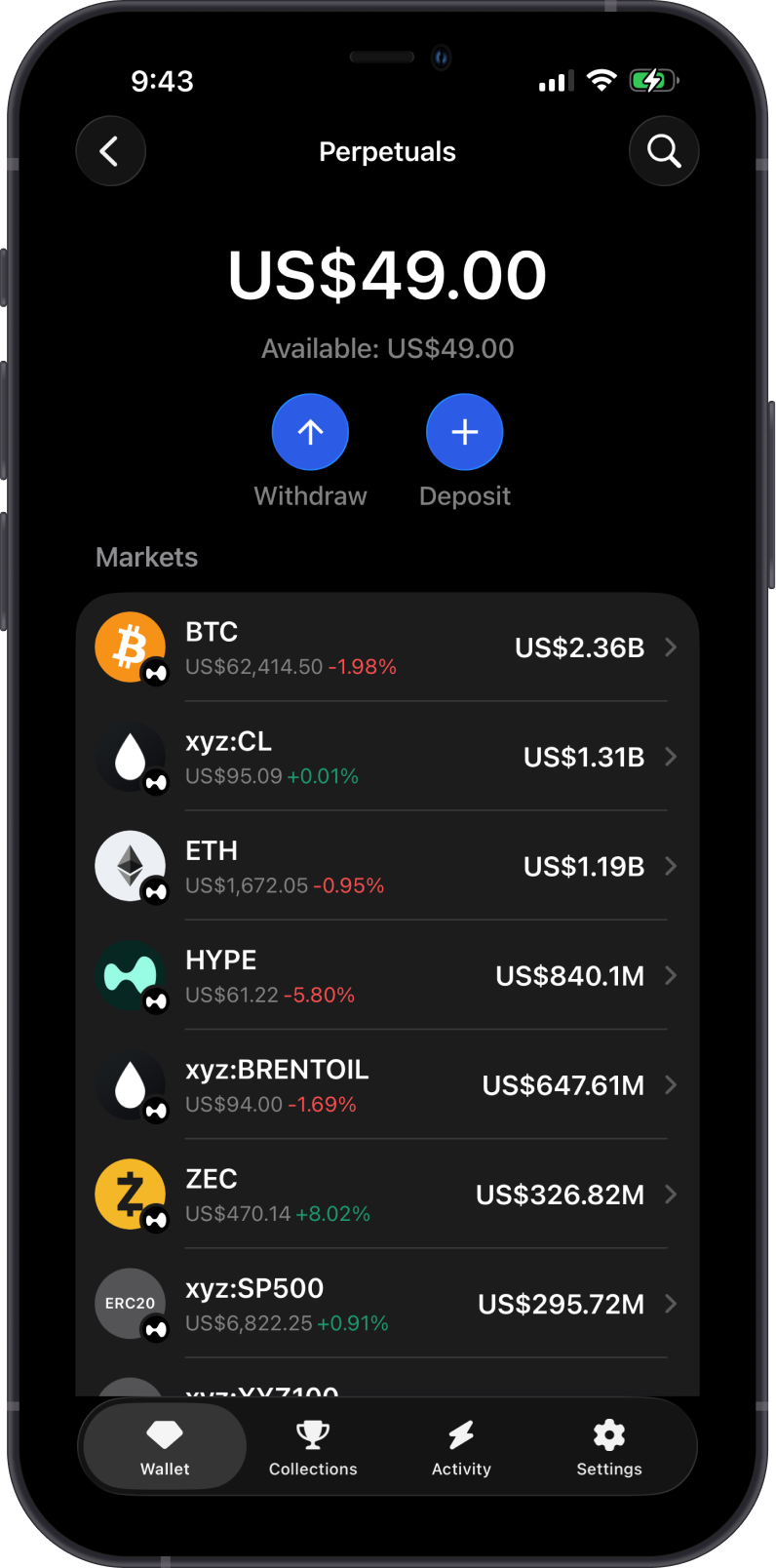
The Perpetuals header shows your total and available balance. Available balance is the collateral you can use for new positions or withdrawals.
Next Step
After funding your account, you can open, modify, or close a perpetual position. To move available collateral back to your wallet, follow the withdrawal guide.