Staking Celestia (TIA) with Gem Wallet
Staking Celestia (TIA) delegates your TIA to a validator that helps secure the network. In return, you may earn TIA staking rewards.
- Staked TIA is locked until you begin unstaking.
- Gem Wallet shows a 14-day lock time for Celestia unstaking.
- Validator requirements and APR can vary.
- Keep a small amount of TIA available for network fees.
Use the latest version of Gem Wallet for the current staking flow and available validator data.
How to Stake Celestia on Gem Wallet
Step 1 - Find and Fund Your Celestia Wallet
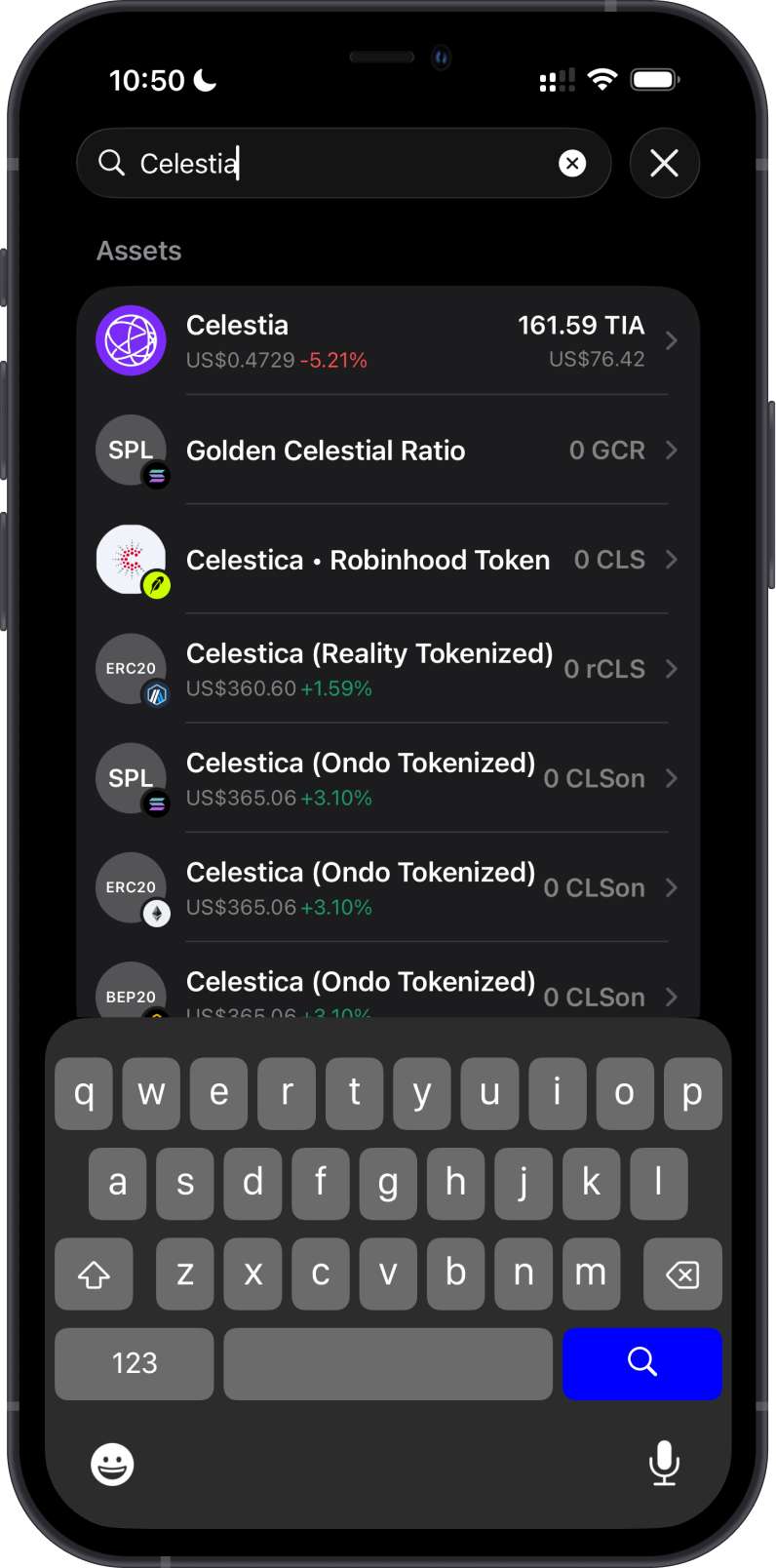
Use the search button in the upper-right corner of the main wallet screen to find Celestia. Open the Celestia wallet once it appears in the results.
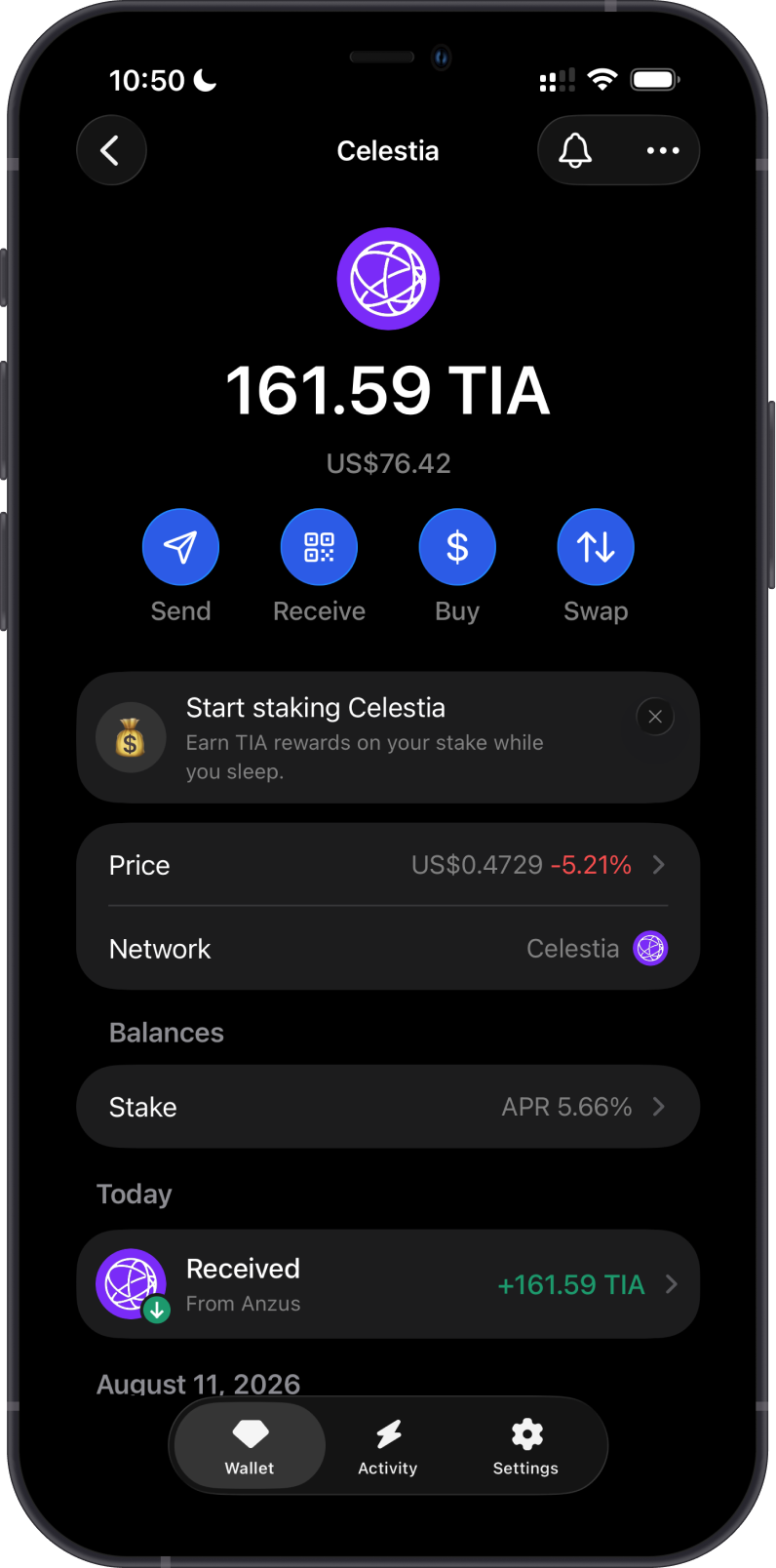
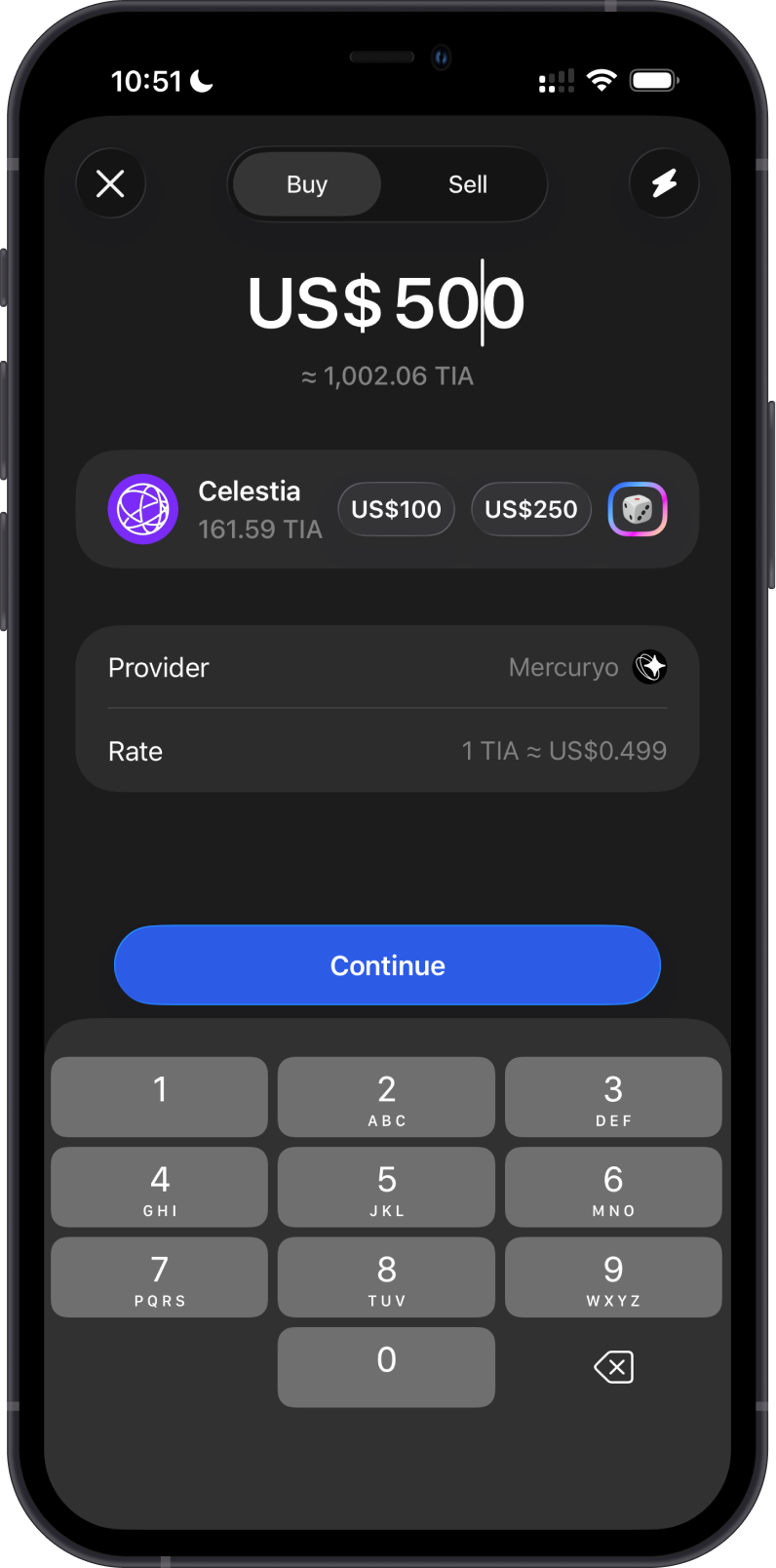
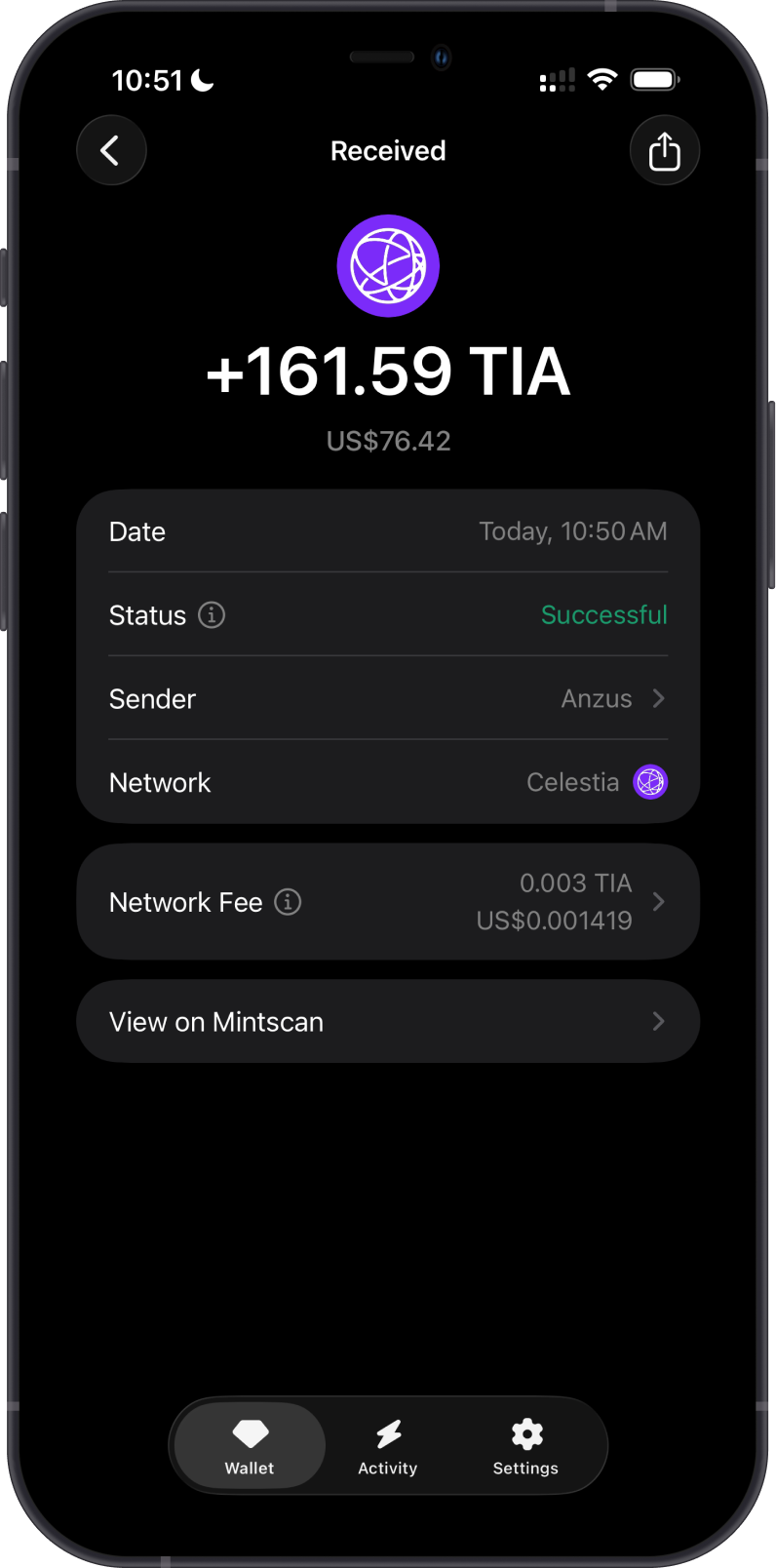
You can buy TIA through an available provider in Gem Wallet or receive TIA from another wallet or exchange. Always send TIA on the Celestia network and confirm the recipient address before sending.
Step 2 - Open the Stake Screen
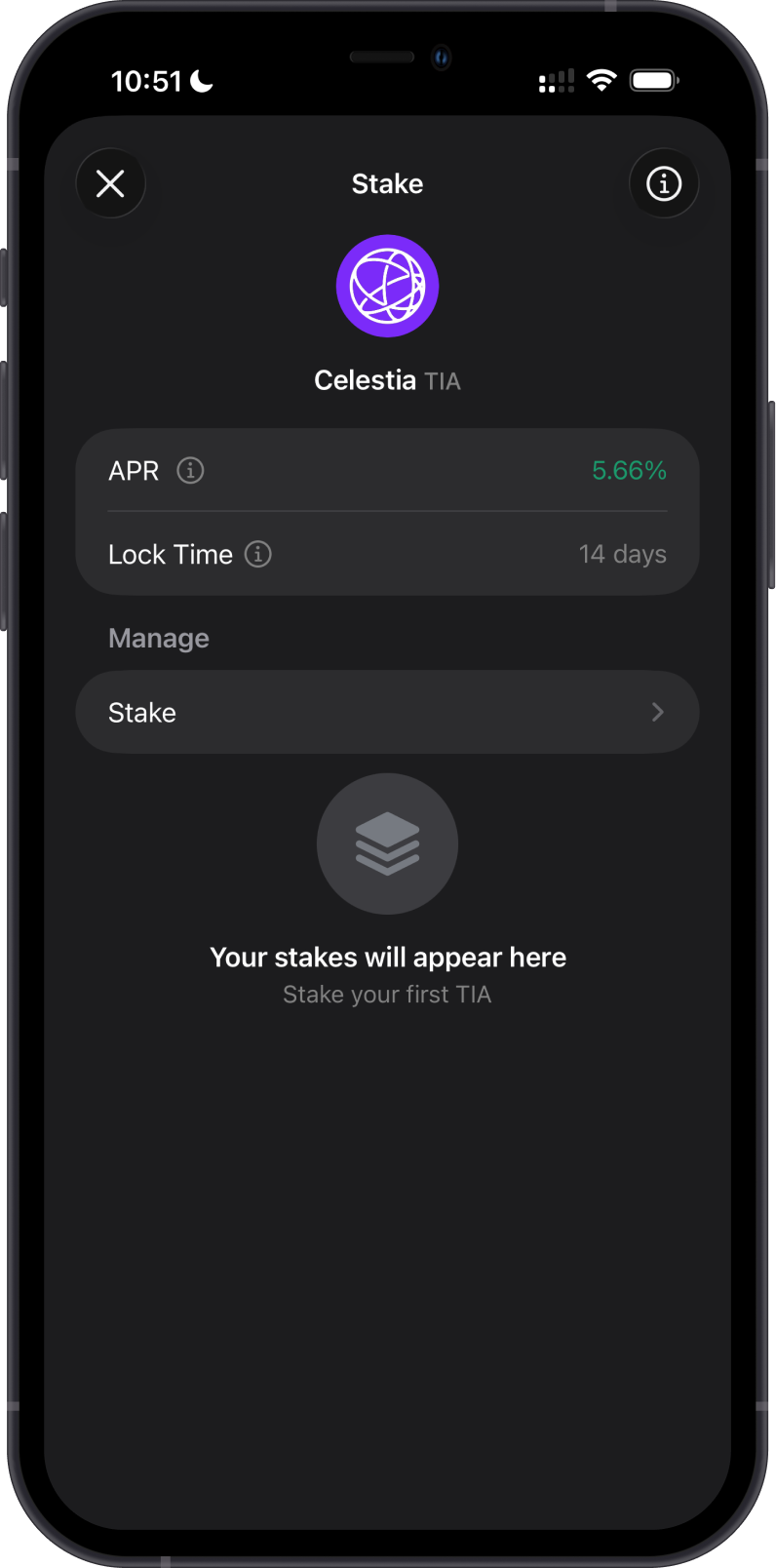
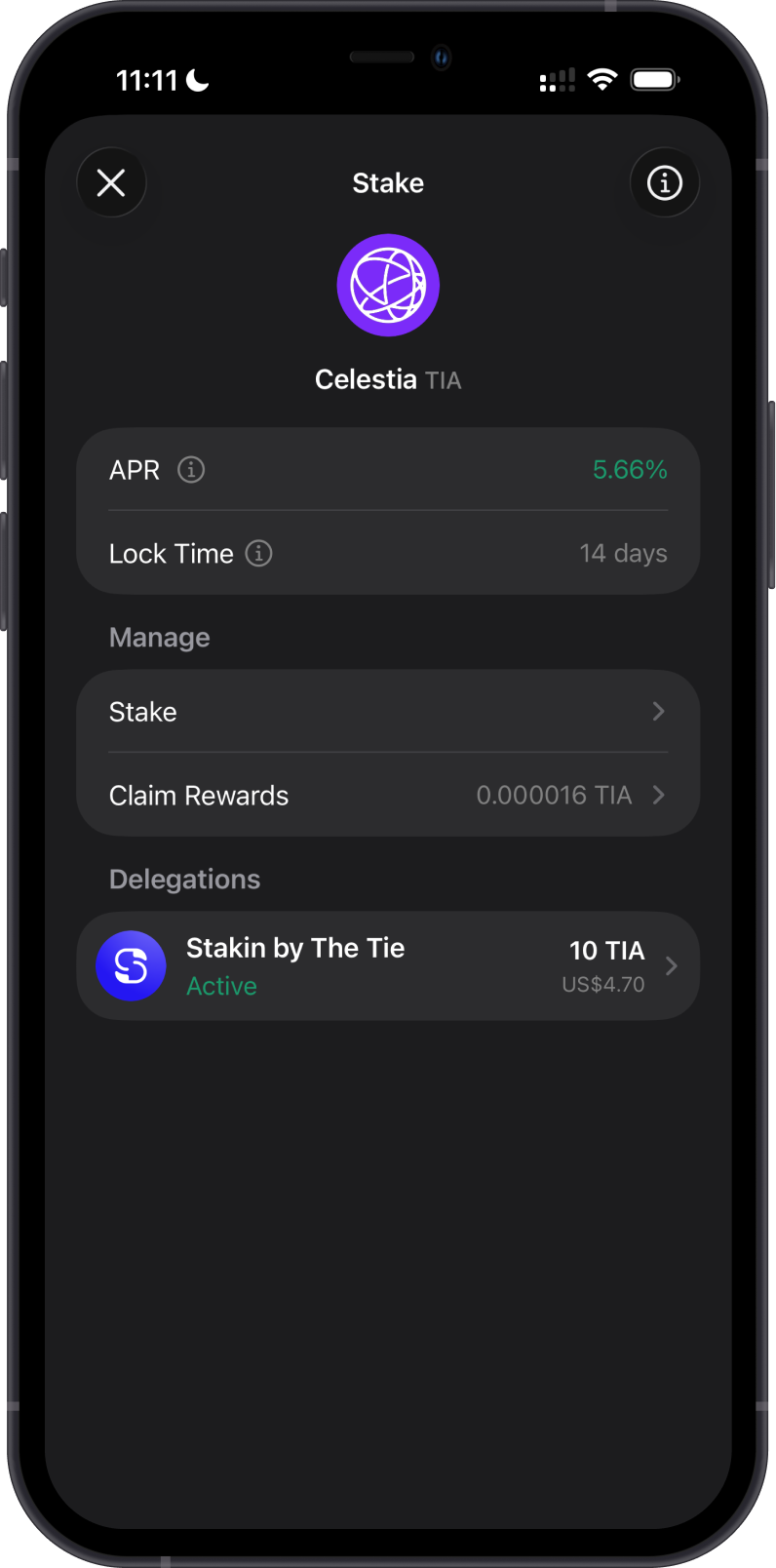
From the Celestia wallet, tap Stake. The stake screen shows the current displayed APR and the 14-day lock time. Tap Stake to continue.
Step 3 - Enter an Amount and Choose a Validator
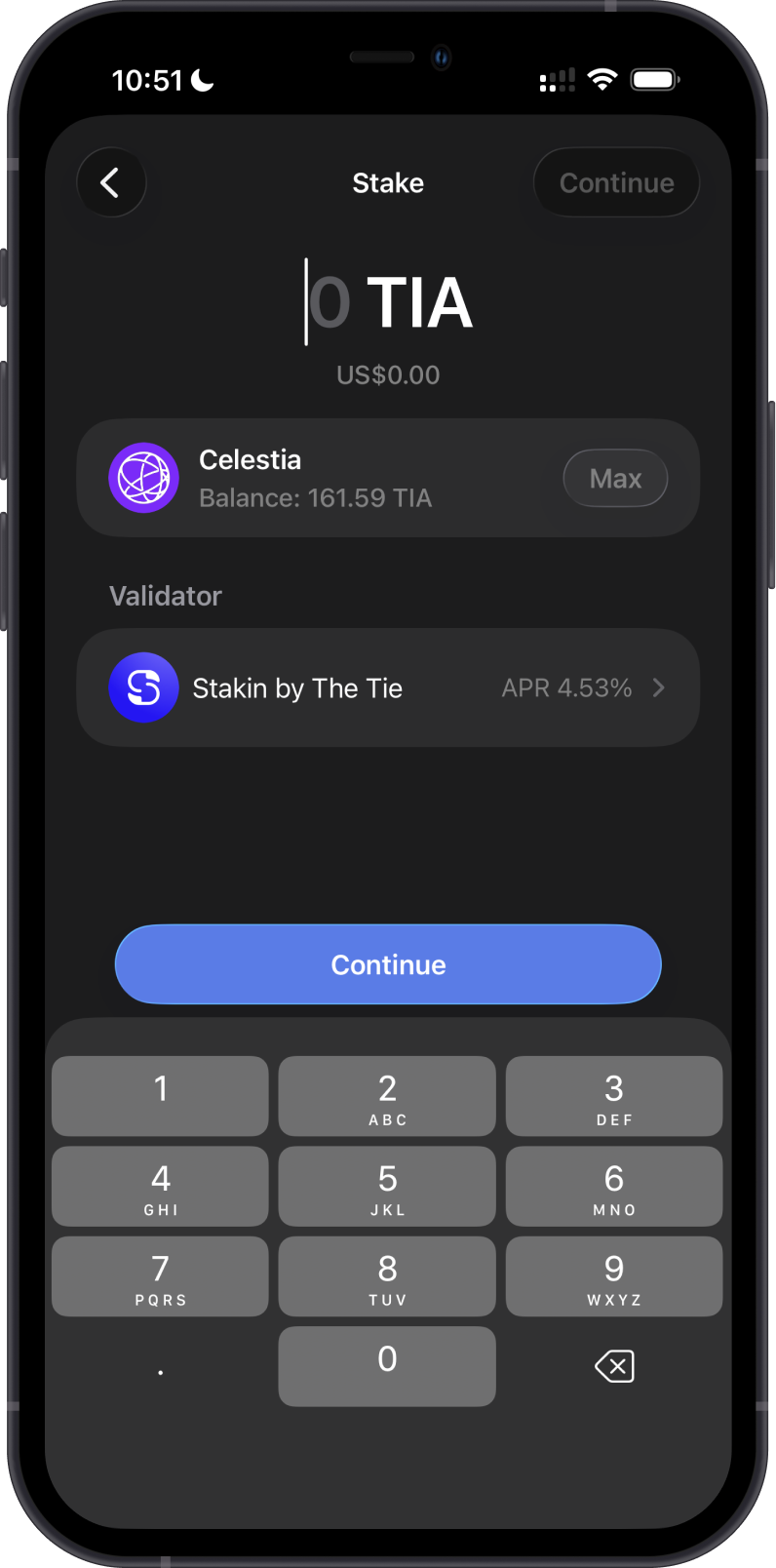
Enter the amount of TIA to delegate, then select a validator. Leave enough TIA in the wallet for the staking transaction fee and future transactions.
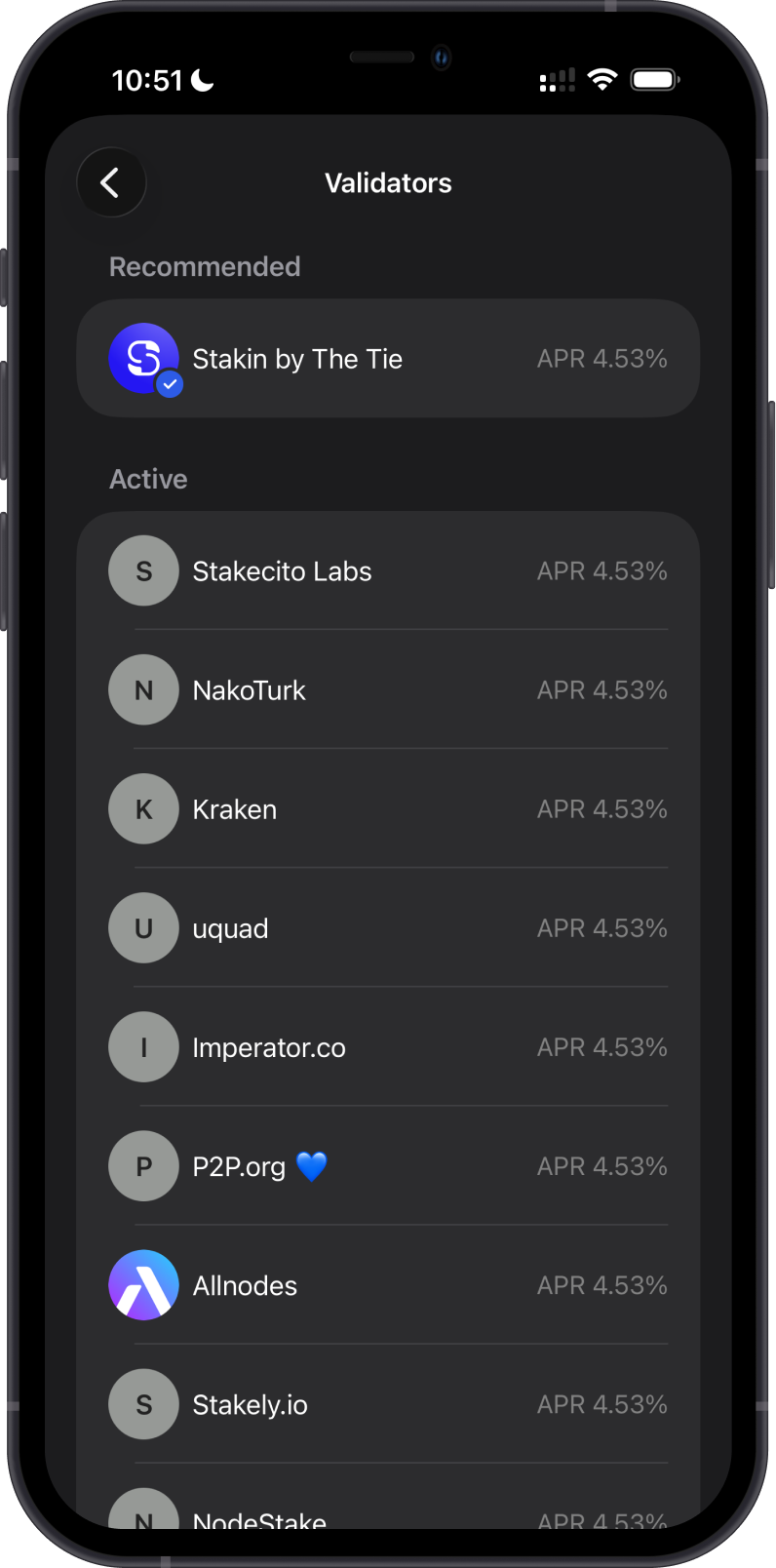
Review a validator's commission, uptime, and reputation before delegating. You can find more validator information on Mintscan.
Step 4 - Review and Confirm the Stake
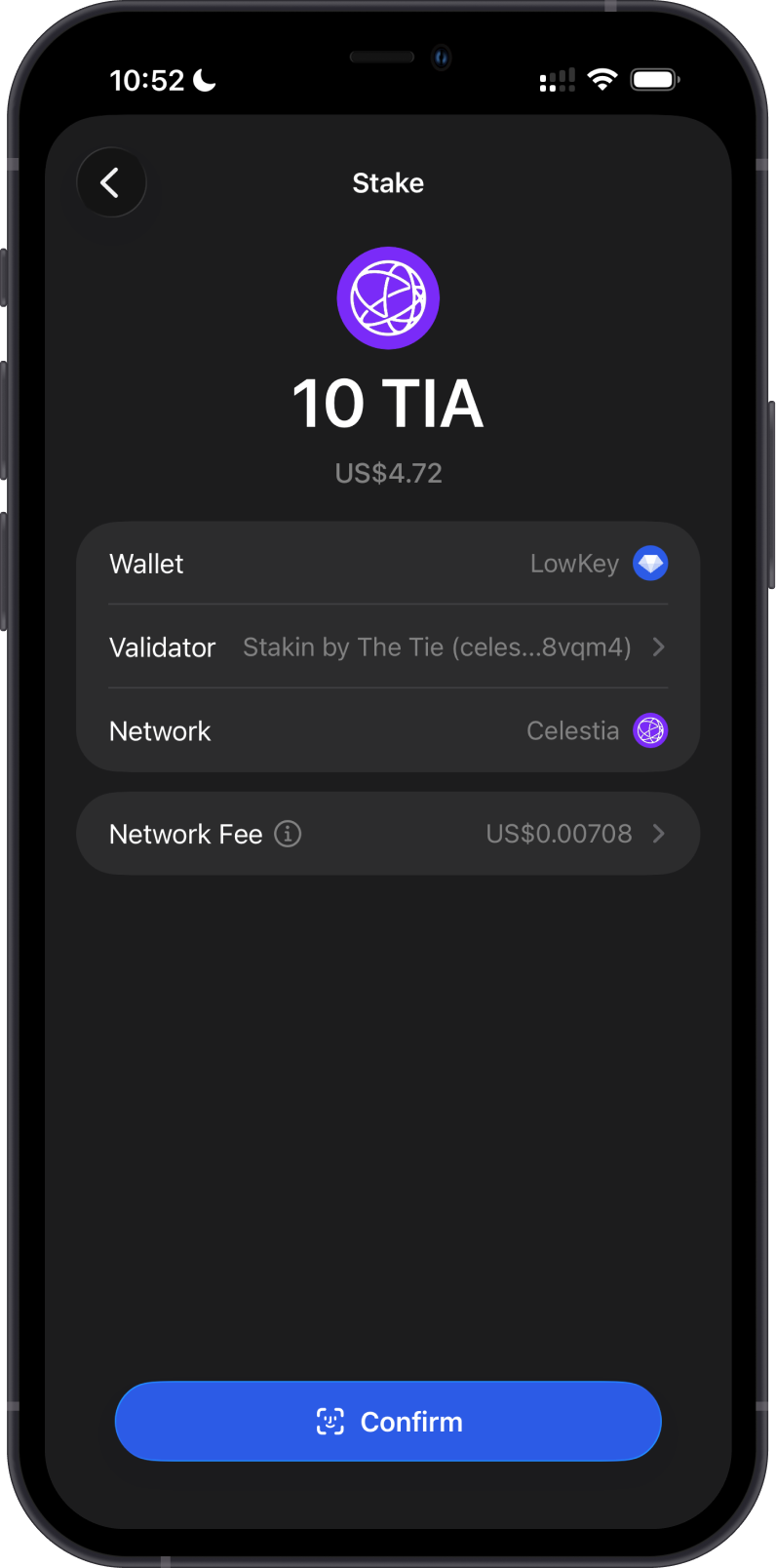
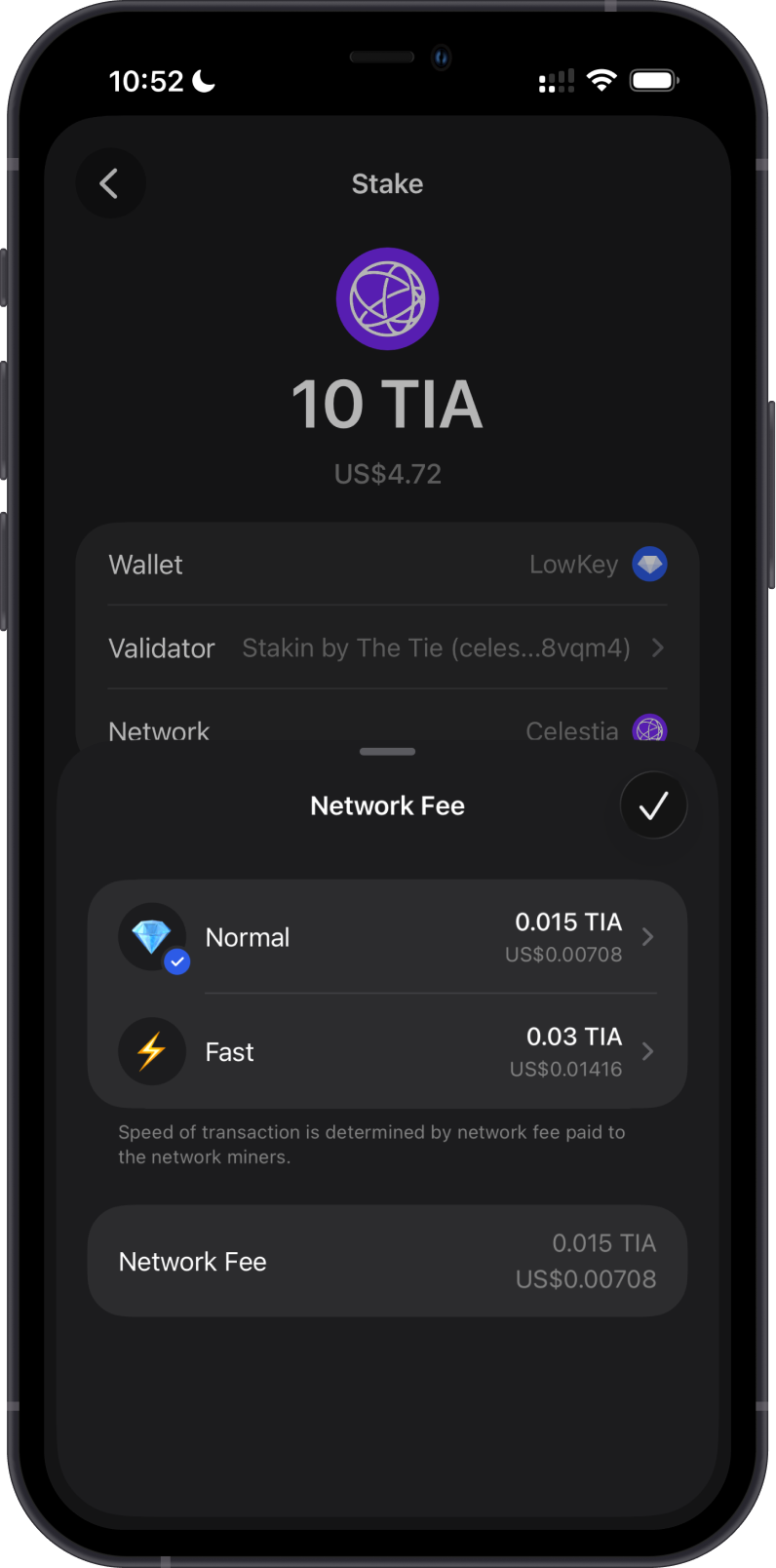
Review the delegation amount, selected validator, and network fee before confirming. Tap Network Fee to compare the available fee options, then confirm the transaction when the details are correct.
Step 5 - Confirm Your Delegation
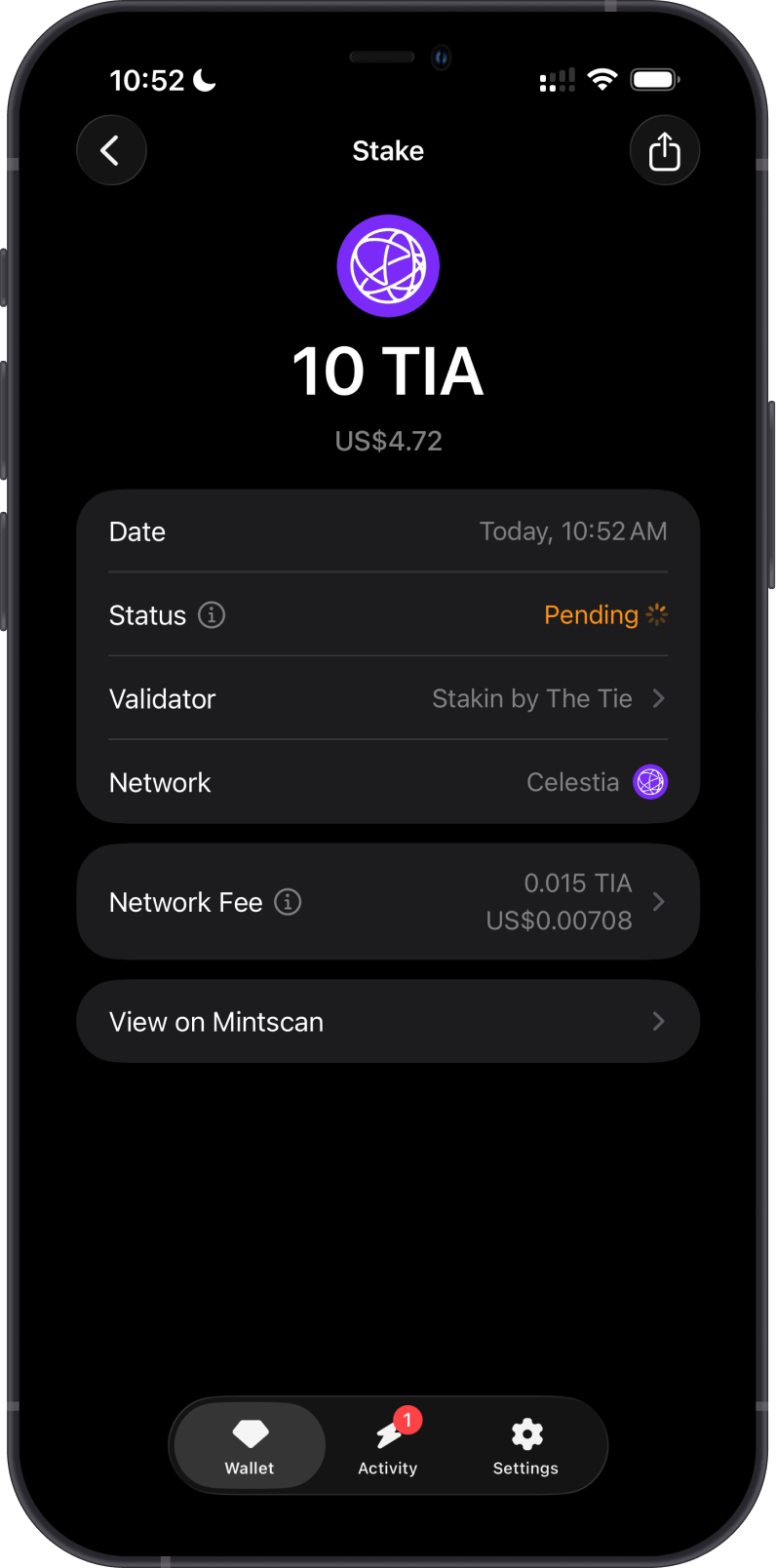
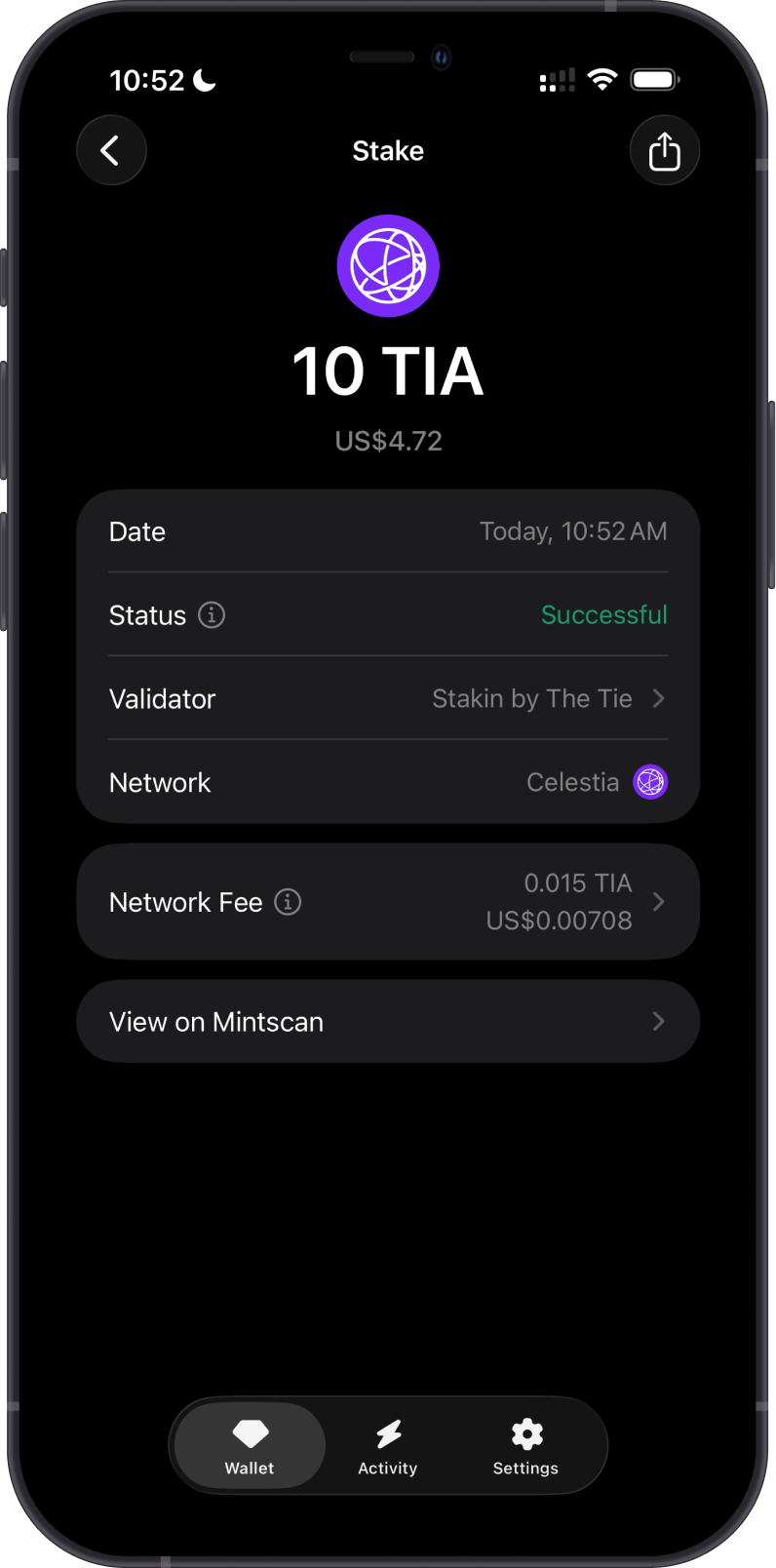
Gem Wallet shows the staking transaction while it is pending. Once it is successful, return to the stake screen to view the active delegation under Delegations.
How Celestia Staking Rewards Work
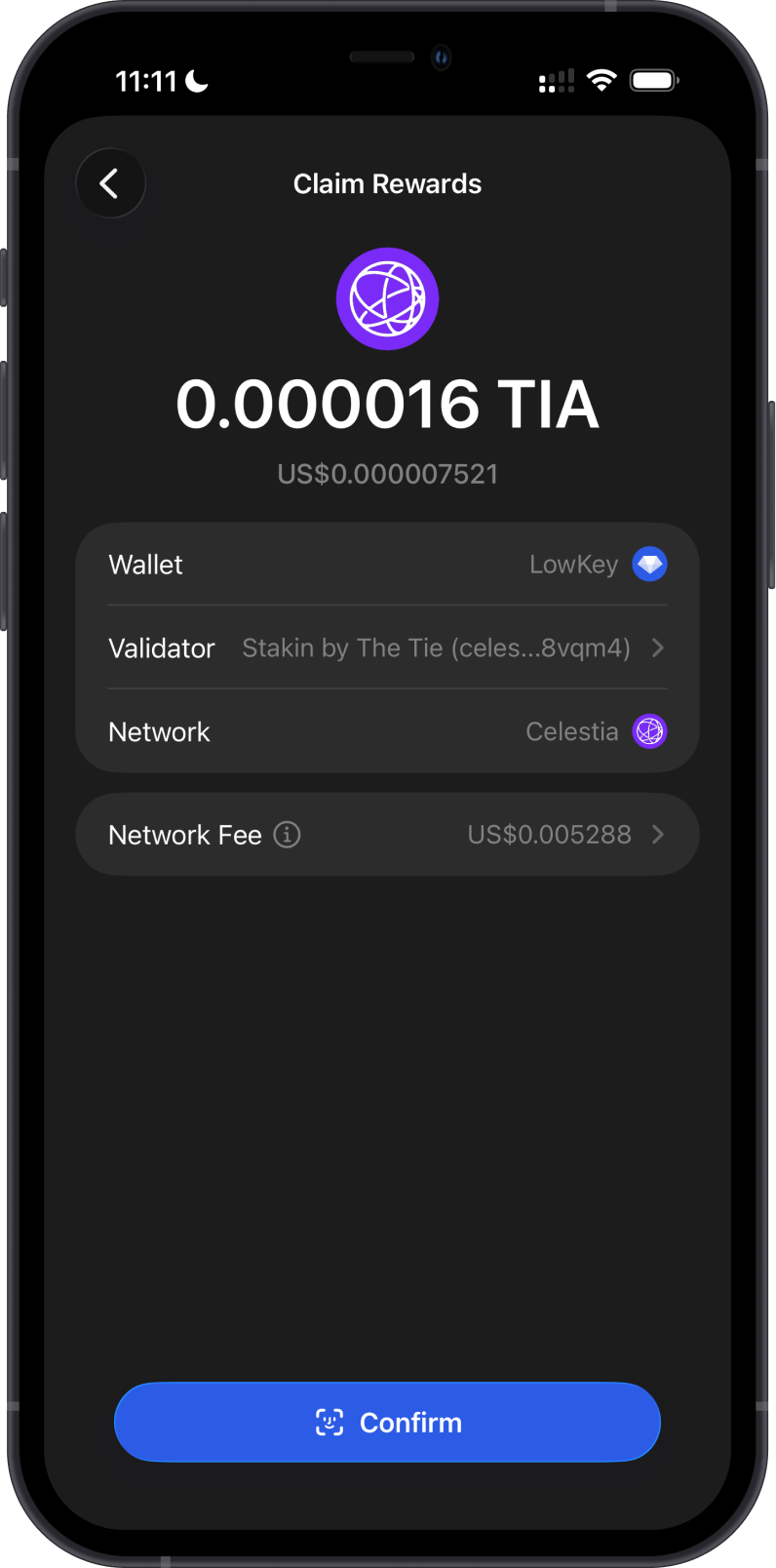
Active delegations can earn TIA rewards. The APR shown in Gem Wallet is an estimate rather than a guaranteed return, and it can change with validator performance and network conditions. When rewards are available, select Claim Rewards from the stake screen, review the amount and network fee, then confirm. Keep TIA available to cover that transaction fee.
Unstaking Your TIA
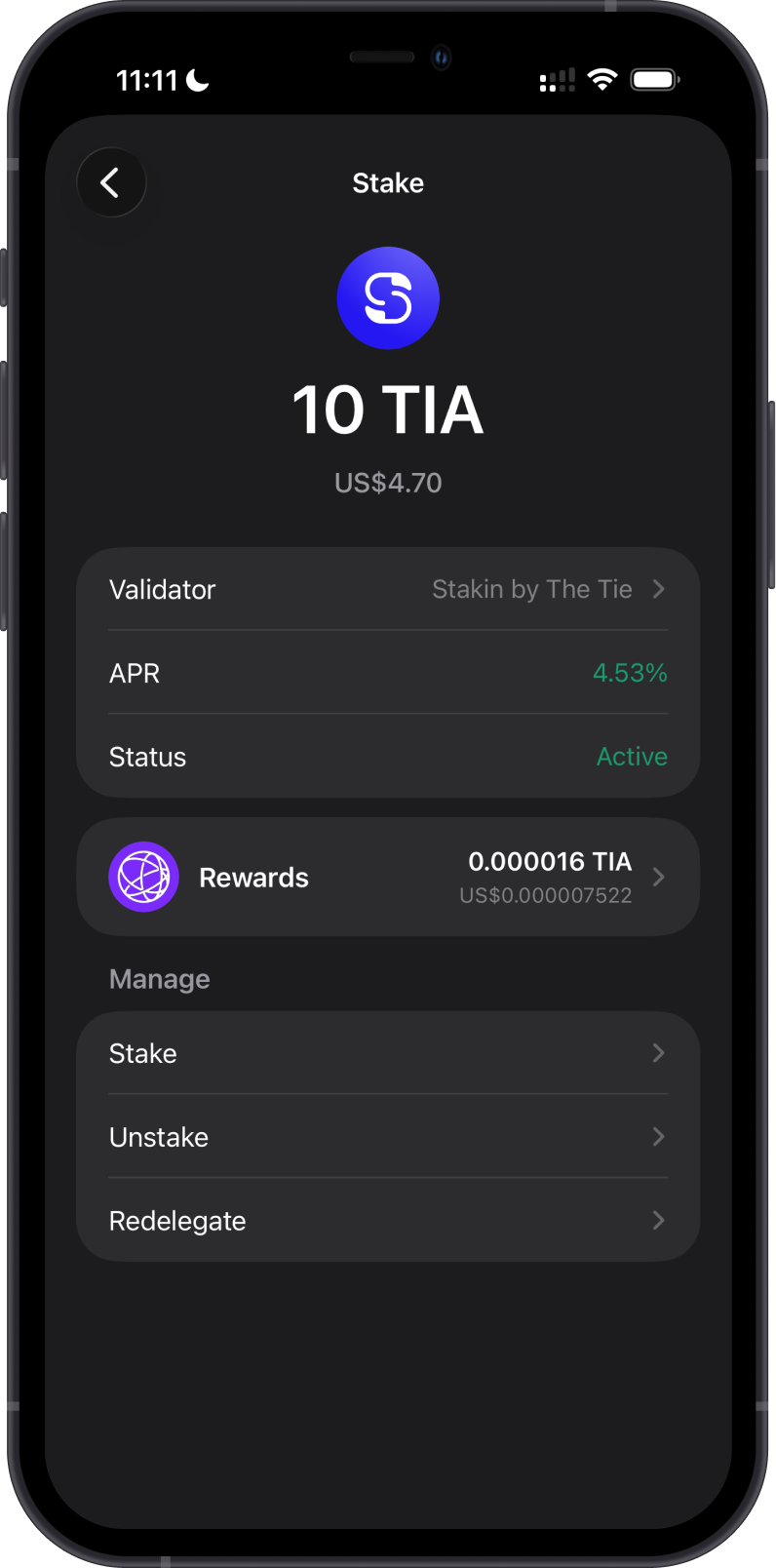
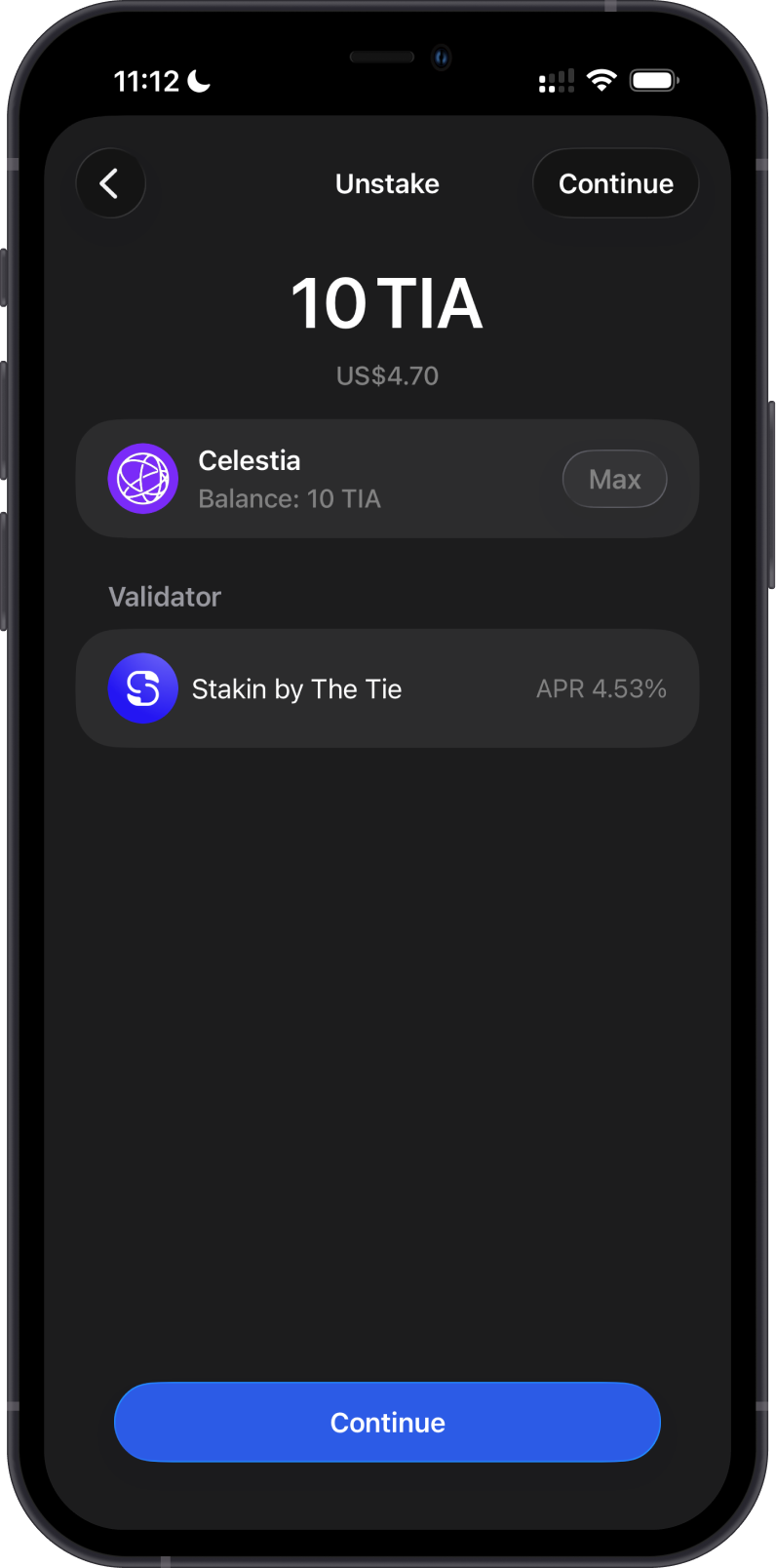
Open the active delegation, then select Unstake under Manage. Choose the amount, review the transaction, and confirm it. After the 14-day unbonding period, withdraw the unstaked TIA back to your available balance.
Why Choose Gem Wallet for Staking Celestia?
- Self-custody: You retain control of your wallet and TIA while choosing where to delegate.
- Validator choice: Review available validators and select one that suits your staking preferences.
- Clear stake details: View the displayed APR, 14-day lock time, delegation amount, and network fee before confirming.
- Simple delegation management: Review active delegations and start unstaking from the same Celestia stake screen.
Learn more about Celestia staking.