Guide for Migrating from CTRL Wallet to Gem Wallet
Why Migrate CTRL Wallet to Gem Wallet?
CTRL Wallet is being deprecated, so users may want another wallet for managing their assets. Gem Wallet is a self-custodial, open-source mobile wallet that supports multiple blockchains and lets you manage supported assets in one app.
If your CTRL account uses a recovery phrase, you can import it into Gem Wallet to access the same supported blockchain addresses originally generated from that phrase. The process takes only a few minutes and does not move your funds or create blockchain transactions.
Your recovery phrase controls your wallet. Never share it with anyone, including Gem Wallet support. Complete these steps on a trusted device in private, and do not save the phrase in screenshots, cloud storage, messages, or unencrypted files.
Step 1: Back Up Your CTRL Recovery Phrase
The first two screenshots below show the CTRL browser extension. The mobile wallet follows the same approach: open the wallet or account settings, choose the backup or recovery phrase option, authenticate, and reveal the phrase.
- Open and unlock CTRL Wallet.
- Select the account you want to import.
- Open its settings and choose the option to back up or view the recovery phrase.
- Authenticate when prompted, then reveal the phrase.
- Write down every word in the exact numbered order and store it securely offline.
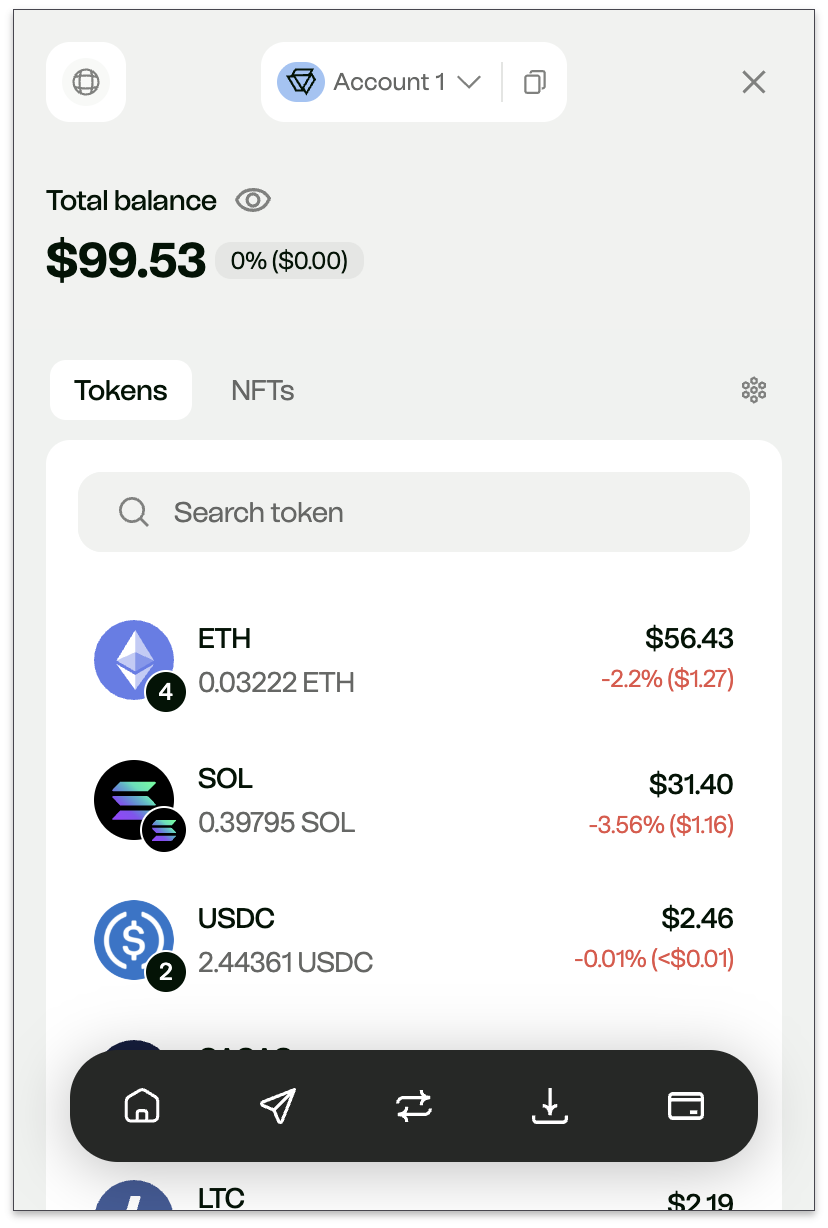
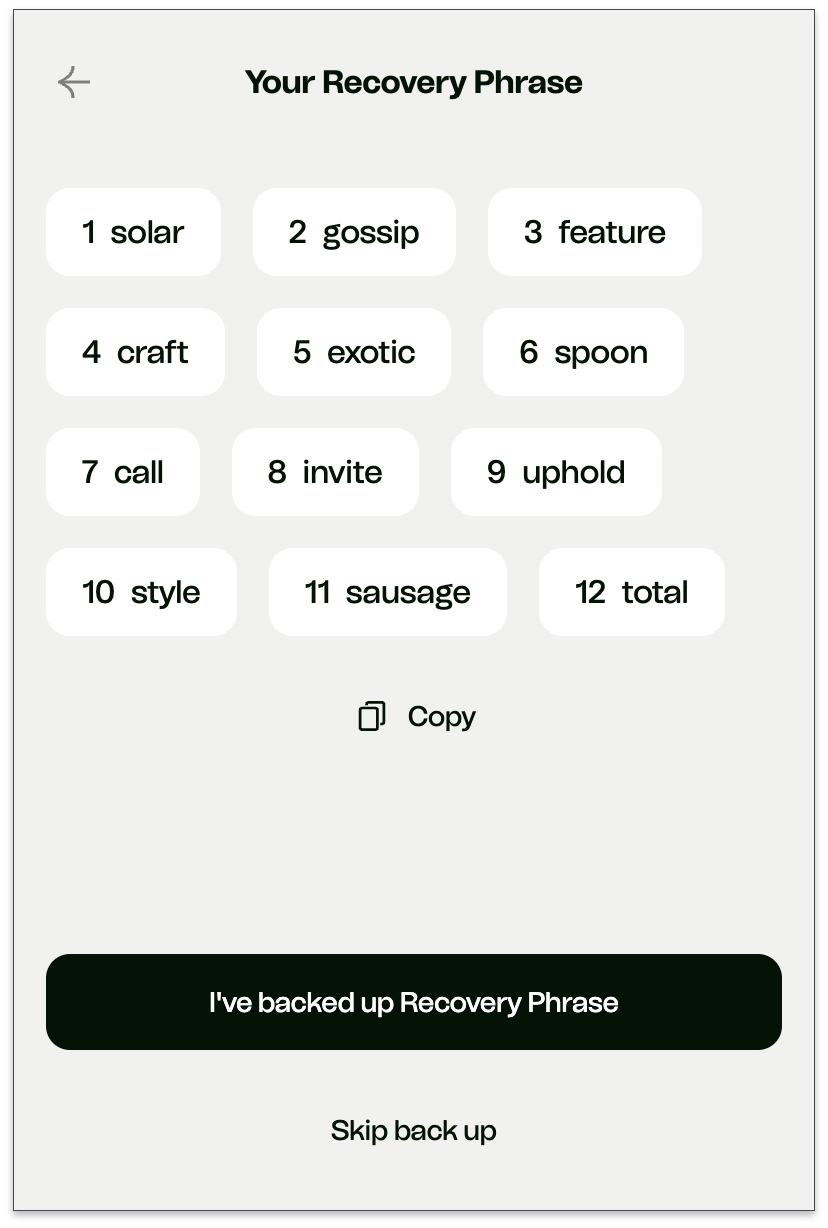
The phrase visible in these screenshots belongs to a demonstration wallet. Never publish or share your own recovery phrase.
Step 2: Install Gem Wallet
- Visit the official Gem Wallet website and download the iOS or Android app.
- Install and open the app. See Get Started with Gem Wallet if you need help.
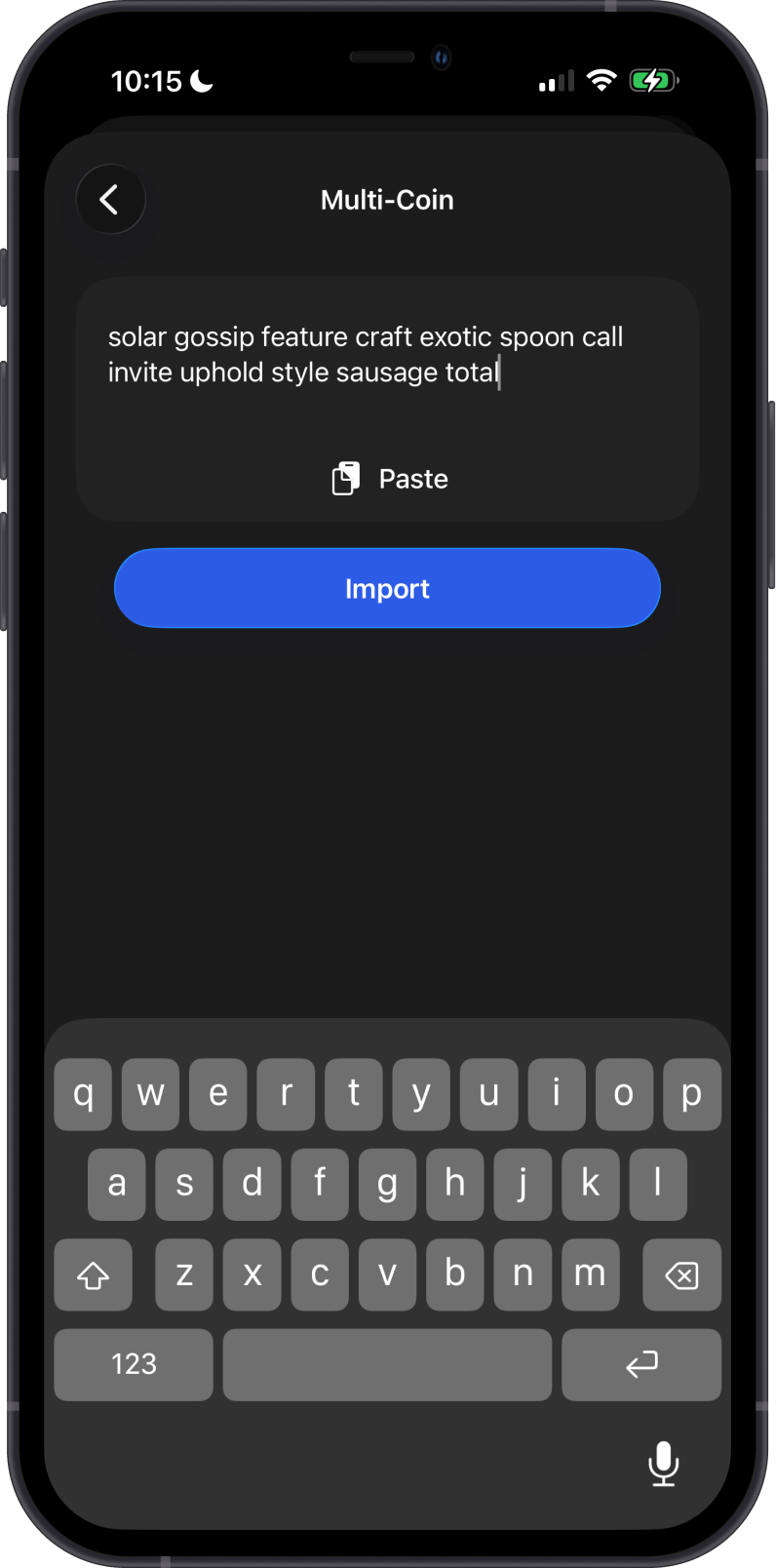
- On the welcome screen, select Import an Existing Wallet, then choose Multi-Coin.
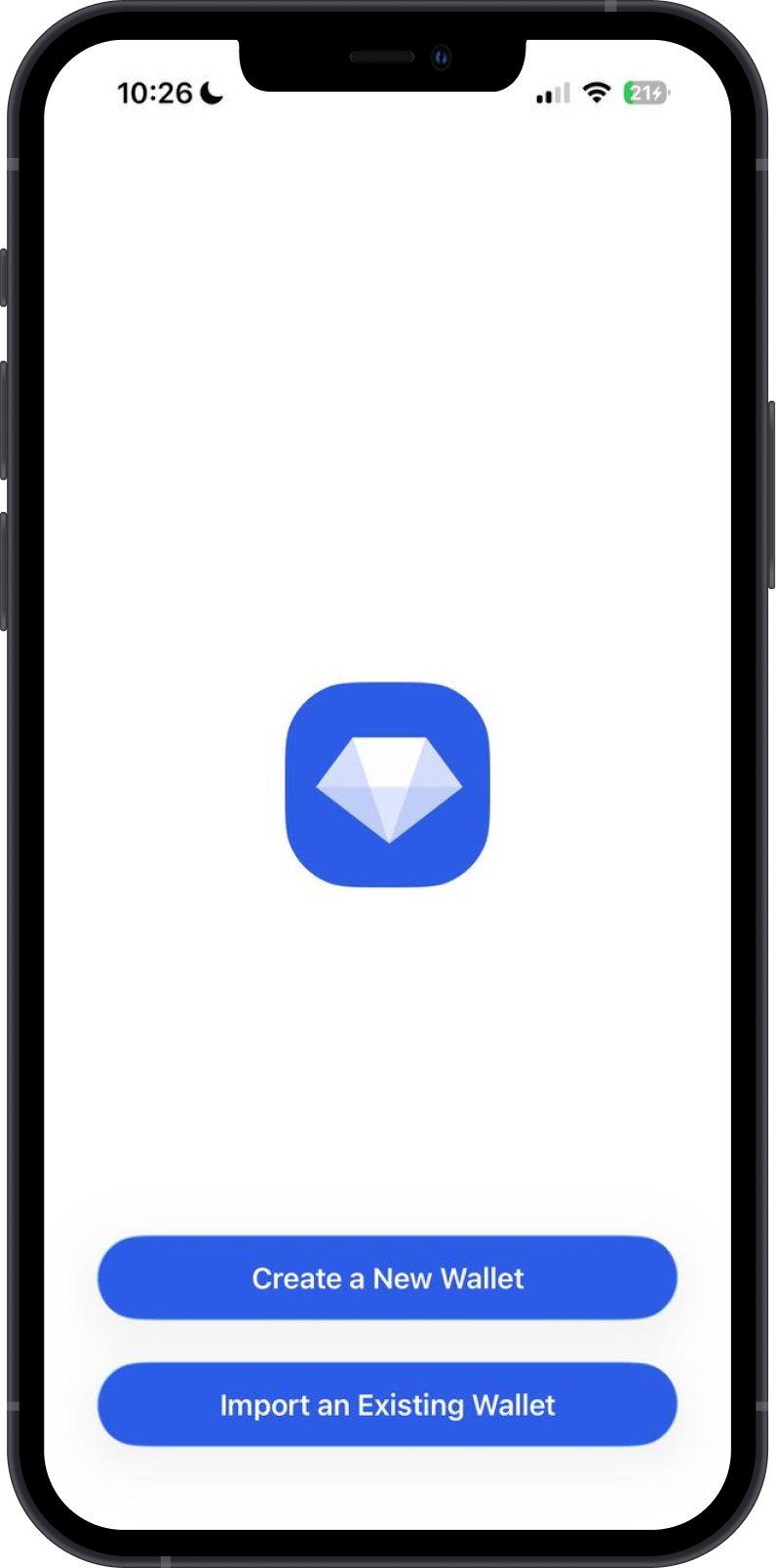
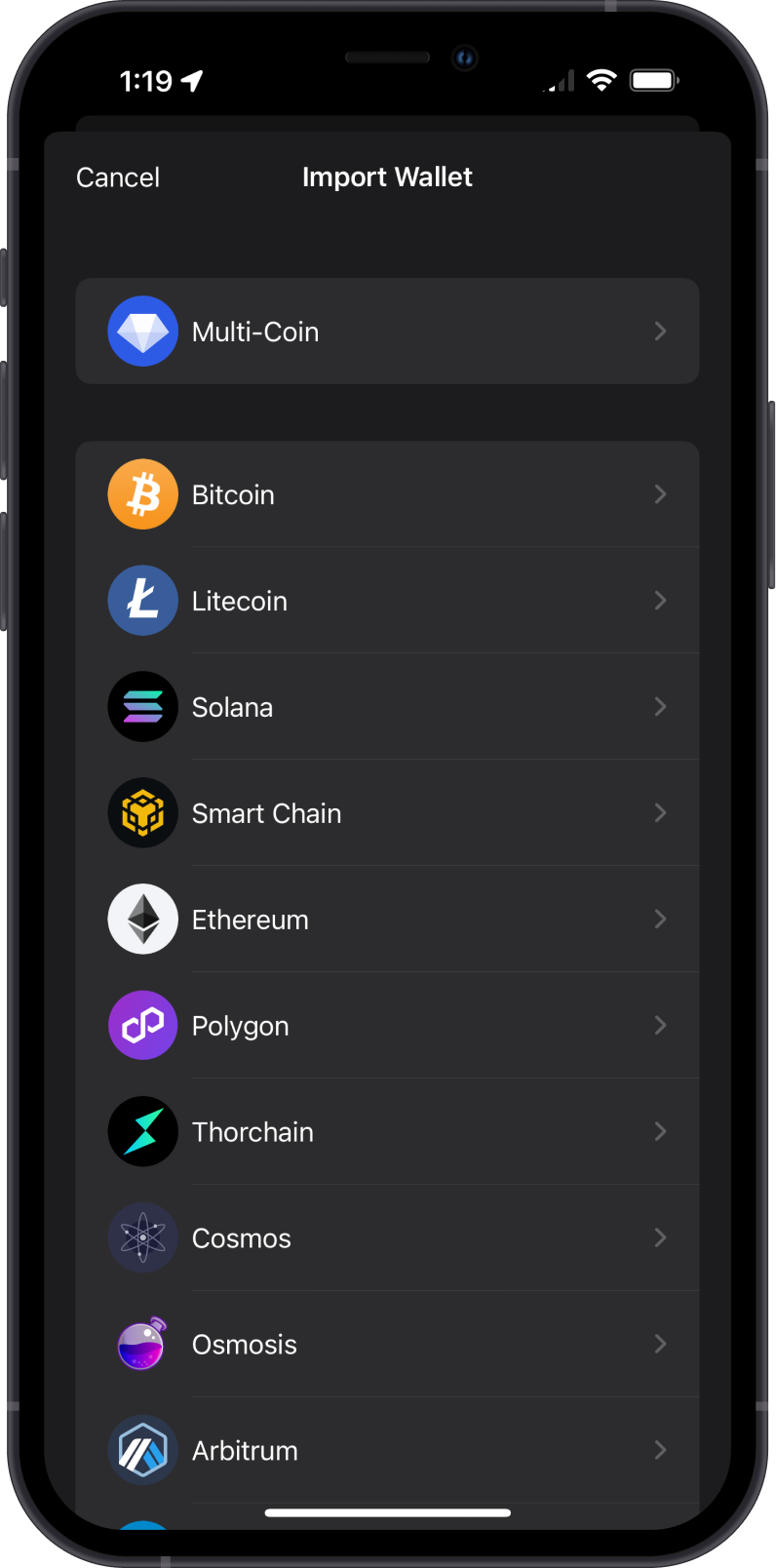
Step 3: Import the Recovery Phrase
- Enter the CTRL recovery phrase in the exact order shown in CTRL Wallet.
- Tap Import.
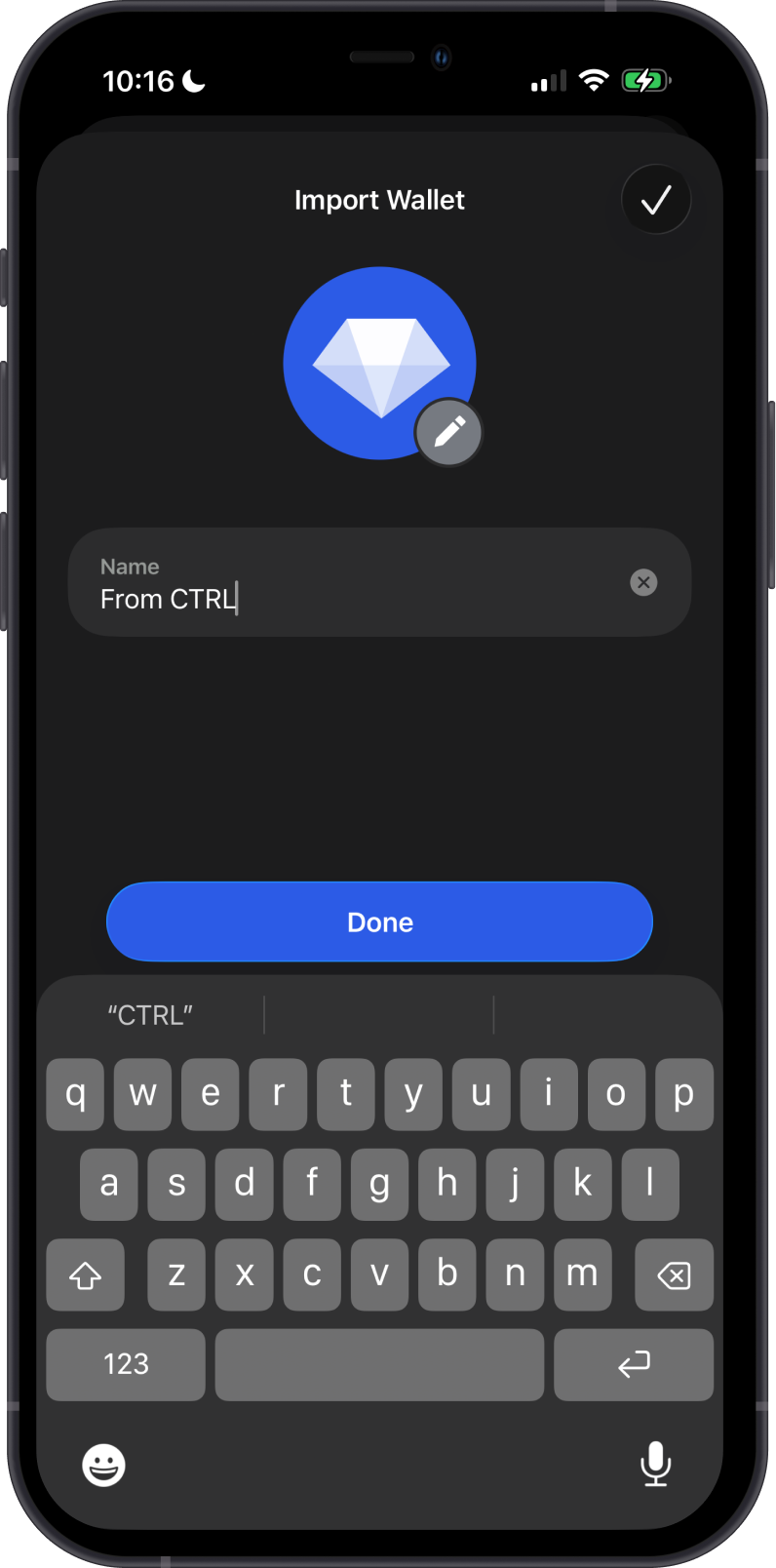
- Give the imported wallet a recognizable name, such as From CTRL, then tap Done.
Step 4: Verify Your Assets
After the import, Gem Wallet displays the supported assets associated with the recovery phrase.
- Compare the wallet's assets and balances with CTRL Wallet.
- Open important assets and compare their receiving addresses on both wallets.
- Check each account separately if you used more than one CTRL account.
- Keep CTRL Wallet installed until you have confirmed access to everything you need.
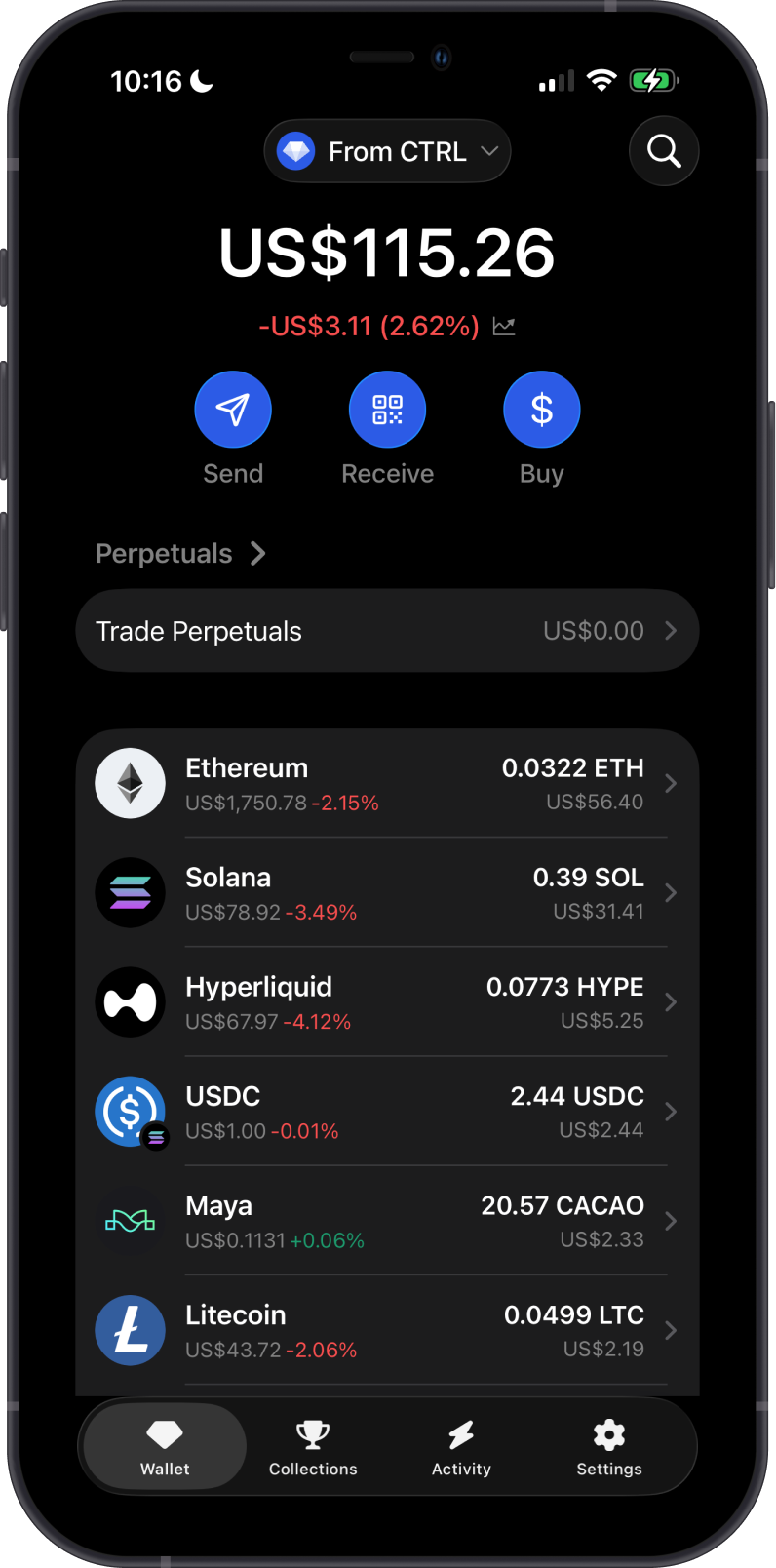
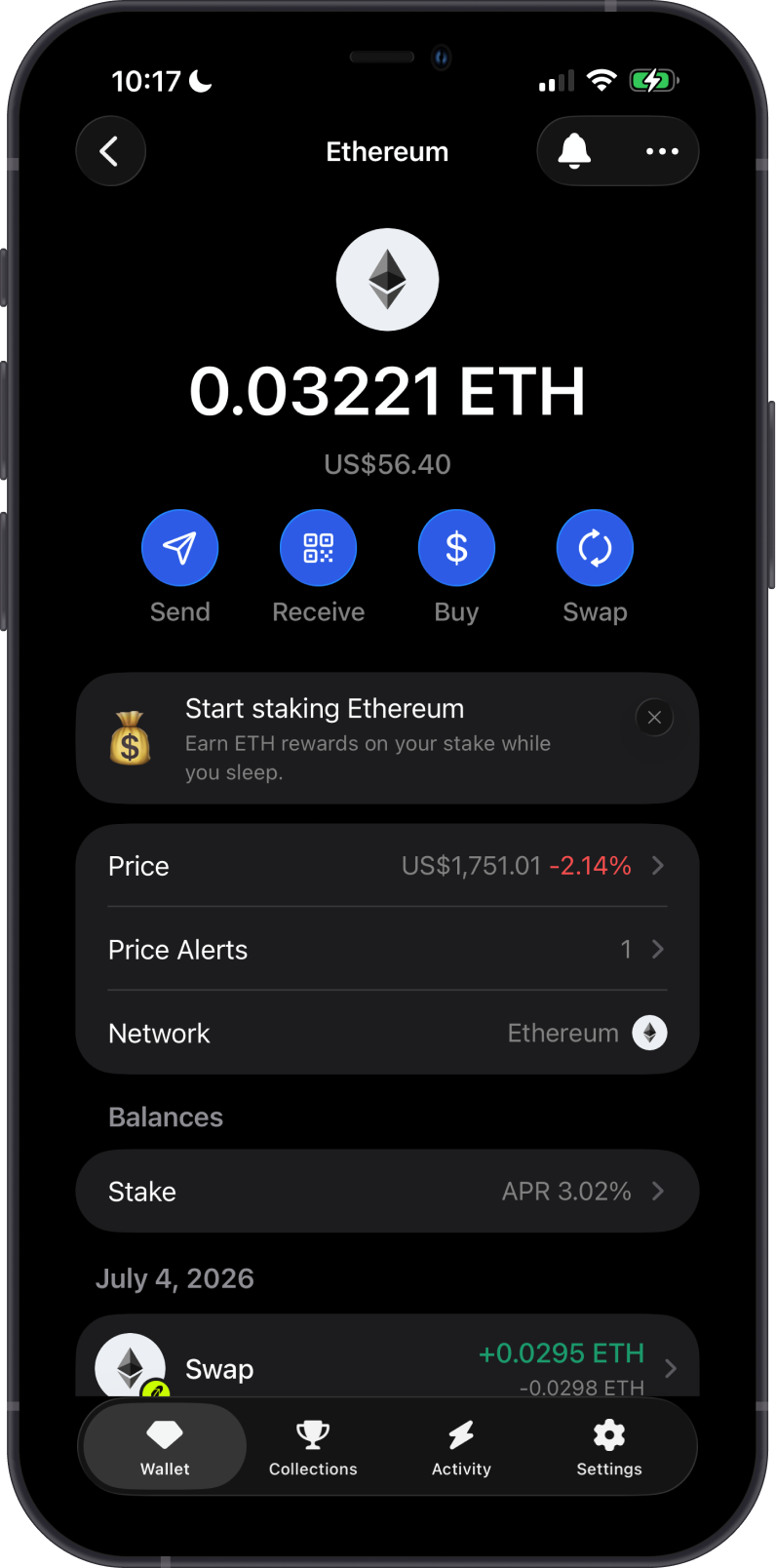
Wallets can support different networks, tokens, account indexes, and address formats. An asset that does not appear automatically is not necessarily lost. Confirm that Gem Wallet supports its network and token, and verify the address before sending funds.
Important Notes
- No funds are moved: Your assets remain on their blockchains; Gem Wallet becomes another interface for the same recovery phrase.
- Keep your backup: Store the recovery phrase securely offline even after the import is complete.
- Verify before removing CTRL: Confirm your important balances and addresses in Gem Wallet first.
- Hardware, social-login, or other account types may differ: This guide applies to a CTRL wallet backed by a recovery phrase. Accounts controlled by a hardware wallet or another recovery method cannot necessarily be imported with these steps.
- Need help? Use In-App AI Support in Settings > Support for guidance. Never send your recovery phrase to anyone who offers assistance.
Once you have verified your addresses and assets, your CTRL multi-coin wallet is ready to use in Gem Wallet.